


Summary
Browser extensions are useful in boosting efficiency but can also make users vulnerable to privacy threats and security issues. Find out how to determine the safety of an extension by examining its source, permissions, developer’s reputation, user reviews, and privacy policy. Understand what to watch out for when it comes to security.
Browser extensions make daily surfing of websites easier. They allow blocking ads, managing passwords, taking screenshots, translating web pages, and increasing productivity. You can easily install new functionality for Google Chrome, Microsoft Edge, Mozilla Firefox, and other browsers without downloading additional software to your computer.
But not all extensions are safe. There are some that gather excessive data, monitor browsing habits, inject ads, perform redirects, and try to obtain sensitive personal information. Also, there are browser extensions that start off as safe ones but become malicious after being updated or changing hands. The problem here is that malicious browser extensions do not necessarily look like something dangerous. They often have appealing interfaces, persuasive descriptions, good reviews, and tens of thousands of downloads.
The answer is simple: check its origin, developer, permissions, privacy policy, reviews, and behavior before adding it to your browser. In this guide, you will learn how to check browser extensions and remove malicious ones.
Why Is It Important to Check Browser Extensions?
Extensions for browsers usually gain access to various components of your browsing space to accomplish their intended purpose. Based on their permissions, such extensions could interact with content on websites, extract data shown on pages, access browsing history, and change the look of web pages.
However, these abilities become a cause of concern when an extension is badly crafted, hacked, or designed to be harmful in nature. For instance, a suspicious shopping extension may substitute genuine search results with affiliate links. A malicious extension with proper access to websites may be able to extract data that you enter in web forms or watch your activity on specific websites.
Other extensions can slow down your browser, produce pop-up windows, modify your default search engine, and transmit browsing data to third parties. This does not mean that all extensions are dangerous. They can be very useful and quite safe. The main thing is to know what this extension can do and which data it can collect.
1. Download Extensions From Official Stores
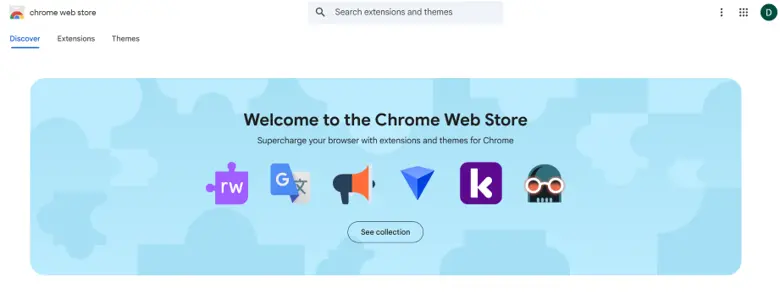
The first step to take is downloading browser extensions from a reliable source. There are other kinds of extensions that may slow down your web browser, create pop-up windows, change your default search engine, and send your browsing history to other companies. It does not necessarily mean that all extensions are bad. Extensions can be very helpful and harmless. What is important is to understand what your extension is capable of and what information it can collect.
Major browsers have official stores where developers can add extensions, as long as they follow each platform’s terms. Among them are:
Google Chrome: Chrome Web Store
Microsoft Edge: Microsoft Edge Add-ons
Mozilla Firefox: Firefox Add-ons
Safari: Apple’s App Store and extension listings for Safari
Downloading extensions from official stores is a relatively safer option, as there is a review process and ways to report dangerous extensions. Remember, if an extension exists in an official store, it does not mean that the extension is safe.
Do not download any extensions from strange websites, peer-to-peer file sharing services, spam emails,s or ads. If a website suggests installing an extension manually or enabling developer mode without a reason, be extra careful.
Prior to the installation of an extension, make sure that the information about it in the official store is clear regarding its name, developer, description, and permissions.
If a popular software tells you to download the extension from an unknown website, go to the official site of the developer to ensure the reliability of the link.
2. Establish the Developer’s Identity and Background
An honest extension should belong to a developer whose identity and background are easy to determine. Firstly, find out the name of the developer of the extension in the marketplace by looking at the extension page. Find out if the developer has a website, customer support services, documentation, and other products developed by the same developer.
Ask yourself several questions:
- Does the developer have a reliable website?
- Does the website have sufficient information about the functionality of the extension?
- Is the extension connected to the legitimate website of the developer?
- Has the developer been producing quality products previously?
- Have there been any incidents regarding security or any other suspicious activity reported?
Be careful about extensions that look like popular applications. An extension may use the name, icon, or even a slightly altered name of another popular product, making users think that it belongs to the same company.
For instance, the extension that is supposed to be an official password manager can be easily checked using the website of the password manager. Don’t take for granted the fact that the extension is legitimate just because it bears the same name as another well-known application.
3. Be Cautious About Permission Requests
Permissions are one of the crucial signs that you should consider prior to installing an extension. Once you install an extension, your browser will warn you about the types of data or functionalities the extension aims to access. Do not automatically accept the request, but read the message. The level of permissions should fit the purposes of an extension.
Thus, a screen capturing tool will require permissions to get access to the page that you want to capture. If it is a translator extension, then it will have to read the text on a webpage to translate it. A basic calculator, on the other hand, has no special need to access any data from all websites.
Some of the permissions deserve to be considered.
Website data access
An add-on for a browser that can read and manipulate data from websites can also view data from web pages or alter website actions. Depending on the level of access and implementation, it may be able to display information available on website pages or entered in forms.
Browsing history access
Access to the browsing history may indicate the websites visited and their timing. This information may indicate your personal preferences, work-related activity, and other sensitive information.
Clipboard access
Clipboard access may expose copied text, which may include passwords, account information, addresses, or work-related sensitive information.
Notifications
The notifications permission allows an extension or website to send messages. While the notifications permission is legal in itself, unsolicited notifications can be used to push users to visit dubious sites or make offers that look dubious.
Permission for access to all sites
The request for reading and modifying information on all sites needs careful consideration since it allows more access than feature-specific permission.
Certain legitimate extensions require such access to operate properly. The key here is whether the access required is proportional to the feature provided.
How to Control Access to Your Browsing Data by Extensions
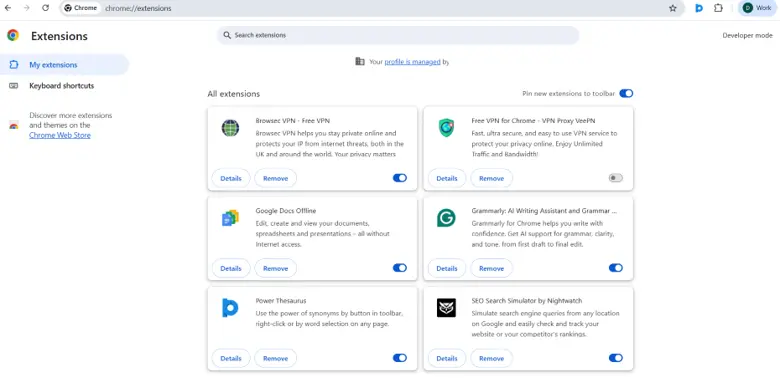
Checking the permissions of a browser extension is just the first step. It is also essential to minimize the access level that an extension has to your browsing data. Some browser extensions enable you to choose whether they should be able to read and modify data on all websites, particular websites, or only upon clicking the extension button. Thus, a translator requires permission to access the web page when you want to translate it and not all the time.
To do so in Google Chrome, go to chrome://extensions/ and select the extension. Then, find the Site Access setting and pick the most restrictive access level possible that will still allow the extension to work properly. To do so in Microsoft Edge, go to edge://extensions/, click on the details of the particular extension, and see the Site Access settings of this extension.
Limiting the access minimizes unnecessary data exposure to extensions. But remember that some browser extensions have to have broader permissions to provide the necessary functionality. If an extension does not work anymore due to limited access, see whether the restricted access prevents you from using the desired feature.
4. Check User Reviews and Ratings
Review comments might expose issues that cannot be seen from an extension description. But do not just look at the star rating; read both positive and negative reviews to see how the extension actually works. Check for complaints about:
- Pop-up ads and unexpected pop-ups
- Changes in the default search engine or homepage
- Unexpected redirects to unknown sites
- Strange browser slowing down
- Unexpected permissions request
- Broken functionality since the last update
- Suspicious requests for credentials and personal data
In addition, pay extra attention to the most recent comments, as an extension that was safe in the past might change after its developer’s update or a change in ownership. And consider the fact that one comment is often a result of some technical problems or just personal preferences of the reviewer, but several mentions of suspicious activity should be considered carefully.
5. Review the Privacy Policy
The privacy policy can help provide insight into what kind of information the extension collects and how it is processed. Before you install any extension that will have access to your browsing activity or any other personal information, you should review its privacy policy. It should describe the data collection, storage, sharing, retention, and deletion process.
- Specifically, you should check whether the extension collects:
- Your browsing history or visited URLs
- Search queries or interaction with websites
- Your personal information or account details
- Information input in any form on a website
- Device information or statistics
Find out for what purposes the information is collected and whether it is shared with any advertisers or analytics companies or other third parties. The privacy policy should be clear and applicable to the extension’s functionality. You should be especially wary of extensions that collect large amounts of browsing information while providing little information about their purposes. It is also important to note that the existence of the privacy policy does not automatically imply that the extension can be trusted.
6. Check Update History of the Extension
Software updates are an expected aspect of maintenance. They may be issued to correct errors, vulnerabilities, enhance efficiency, or add extra functions. But an update may have an effect on the behavior and data that an extension accesses.
Study the update history of the extension in question, its date and release notes, if any exist. Specifically, pay attention to changes relating to additional permissions, data collection, access to websites, or functions irrelevant to the extension’s intended use. Analyze further if the extension received complaints from its users about unexpected advertising, browser redirects, or other changes following an update.
The fact that the extension hasn’t been updated for a long time doesn’t automatically mean that it is malicious. Some small utilities don’t require constant updates. However, an extension that has been forgotten by its creator may not get essential security updates. On the contrary, constant updates cannot prove that an extension is not malicious.
7. Review Browser Security Alerts
Most modern browsers come with some security features, which can help you detect whether an add-on might be dangerous. Google Chrome’s Safety Check will tell you if there are some security risks, whereas the Extensions tab will show warnings for disabled extensions or those labeled as possibly hazardous. In case you receive an alert, do not ignore it; study it in detail and act on it.
To run Safety Check in Chrome, go to Settings, choose Privacy and security, and then Safety Check. It is advisable to regularly open the Extensions tab and check the alerts connected to add-ons.
Remember that having no security issues in your browser does not mean that all your add-ons are safe. New risks may appear, as well as unusual data-gathering activities and malicious modifications, which cannot always be discovered. That is why browser security checks are supposed to complement permission checks, add-on verification by developers, and behavior monitoring.
8. Notice Odd Behaviors in an Installed Extension
An extension that has been working well for some time may change its behavior after an update or if there have been changes in ownership of the software. Be on the lookout for unwanted ads, redirects, changes to your default search engine, unusual pop-ups, and permission requests that seem out of place for the actual purpose of the extension.
If you notice any of these odd behaviors, read the update notes, details about the developer, permissions, and user reviews of the extension. Compare the current state of the extension with what it was supposed to do when you originally downloaded it. This does not necessarily mean that something malicious is going on since updates may add glitches and new features that the program is not supposed to have, but it needs to be investigated.
If the extension does not seem safe anymore, turn it off until you resolve the issue. Uninstall it if you find out that there is no reasonable explanation for it. Do not grant the program any new permissions just because it asks for them.
9. How to Check Browser Extensions in Various Browsers
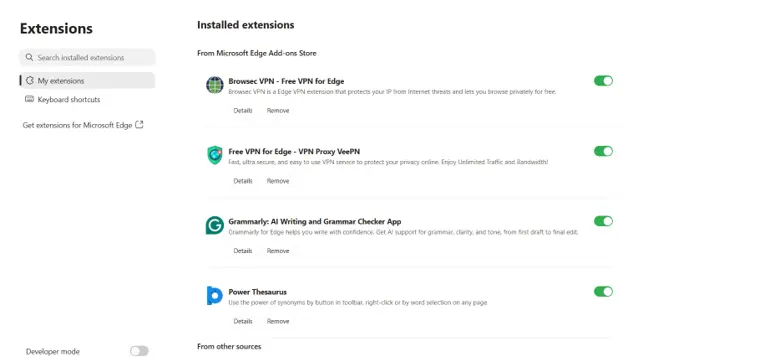
The process for checking browser extensions is a little different from one browser to another, but the process remains more or less the same.
- Google Chrome: Type chrome://extensions/ in the address bar to check out your installed extensions, open up the details of the add-on, and check permissions and site access options available.
- Microsoft Edge: Type edge://extensions/ in the address bar to check out the installed extensions and permissions.
- Mozilla Firefox: Go to about: addons in the address bar, select Extensions, and then check out the details and permission information of the add-on.
- Apple Safari (on Mac): Launch Safari, select Settings, and then Extensions. Check out the installed add-ons along with their website access permissions.
In every browser, uninstall the add-ons that you don’t need anymore. You may need to look into any other unfamiliar add-ons. The names of the menus and available options may vary depending on the version of your browser.
Security Considerations of Browser Extensions Checklist
Take some time to complete the following checklist before you download a new browser extension:
- Obtain the extension from the official marketplace of the browser or an approved developer.
- Make sure that the developer is legitimate and has an official website.
- Ensure that permissions the extension requests are relevant to its functions.
- Consider both positive and negative user reviews; pay special attention to issues with redirects, ads, or other suspicious activity.
- Examine the privacy policy of the extension and understand what kind of data is collected and if this data is shared with any third-party entities.
- Check update history of the extension and examine any unexpected changes in permissions or ownership.
- Verify that there are no security concerns associated with the extension in your browser.
- Limit the websites that can be accessed through the extension to the minimum number.
When the extension causes several concerns, don’t download it unless you can address them all. There is no single criterion that can guarantee your safety, but using all the criteria together can help you make a decision.
What should you do if an extension is unsafe?
If the extension is suspicious, you need to react in advance and not wait until you detect malware with a scanning tool.
Action 1. Block or delete the extension. Go to the extensions manager of the browser and delete the add-on if you are sure about the malicious intentions of the extension.
Action 2. Check the settings of the browser. Look at the search engine, homepage, start-up pages, and notification permissions.
Action 3. Scan the computer. Use antivirus or antimalware software to scan your system for PUPs.
Action 4. Change passwords for accounts. Change passwords for accounts that could be accessed by the extension on the computer.
Action 5. Monitor the account. In case of any suspicion of compromised personal data, monitor the account for any unexpected logins or other suspicious activities.
Action 6. Report the suspicious add-on. If you are sure that the extension is malicious, report it in the corresponding browser marketplace.
Deleting the extension will stop its regular function as an extension; however, it does not mean that the data that had already been compromised can be recovered.
Frequently Asked Questions
Conclusion:
While browser extensions can enhance your experience of surfing the web, they also create another software layer that should be considered. Neither a good description nor a high rating would be sufficient to prove that an extension is safe to use.
It is essential to download extensions from reputable marketplaces and check their developer and permissions. Read recent reviews from users, analyze the privacy policy, and look for updates and abnormal behavior. Use security tools as additional protection.
The most important thing is to install only necessary extensions and grant them access to your data when it is justified. A few precautions before installing an extension can save you from any possible threats to your browsing activities and accounts.




Leave a Reply