


To keep Apple devices protected against security vulnerabilities, fix bugs, and give new features to users, Apple releases frequent iOS updates. This is why, when a feature stops working after installing an update, things escalate. The same is true with the latest iOS 26 update, after which the iPhone refuses to unlock without a passcode. Or when you use Face ID, it says “unavailable.” Sometimes it does work only if you hold the phone right up to your nose.
This is a real bug and a lot of users are facing it. Even on Reddit there’s a thread where hundreds of people are talking about it only. Luckily, this can be fixed by undoing the changes made quietly in the settings with the iOS 26 update.
https://www.reddit.com/r/iphone15/comments/1tkysde/face_id_instantly_bricked_after_ios_2642_update/
https://www.reddit.com/r/iphone/comments/1tjpiez/is_anyone_elses_face_id_completely_not/
https://www.reddit.com/r/applehelp/comments/1t6jxe0/face_id_stopped_working_after_update/
Why Face ID stops working in iOS 26
Face ID works on TrueDepth camera reading. This means that your face is read from a specific distance and angle. However, the latest update sometimes ruins this working, or new features interfere with how the sensor reads your face. The two features that make it work are:
Scene Detection that adjusts how the camera sees your surroundings.
Attention Aware Features, which check that your eyes are actually open and looking at the phone before the phone is unlocked.
They are new to iOS 26, but the latest update has made them more aggressive, and they are being more cautious. This is why even when the Face ID is valid, it is rejected.
Quick Troubleshooting
Before you make any changes to settings, it is best that you do some preliminary checks:
- Clean the top of your screen, as oil or smudges can block the sensor from reading the face.
- Remove the phone case, and screen protector and see if Face ID is working.
- Check the lights, as Face ID needs enough of them to work; absence of it can make Face ID nonfunctional.
- Hold the phone about 10 to 20 inches away from your face and then up close.
- Remove sunglasses, a mask, or a hat pulled low, then test Face ID.
If none of these quick fixes work, move to the steps given below:
Ways to Fix Face ID not working after iOS 26 update
Fix 1 – Disable Attention Aware Features
This is the fix that solves it for most people, and it’s buried where you wouldn’t think to look.
- Open your phone’s Settings.

- Tap Accessibility.
- Tap Face ID & Attention.
- Turn off Attention Aware Features.
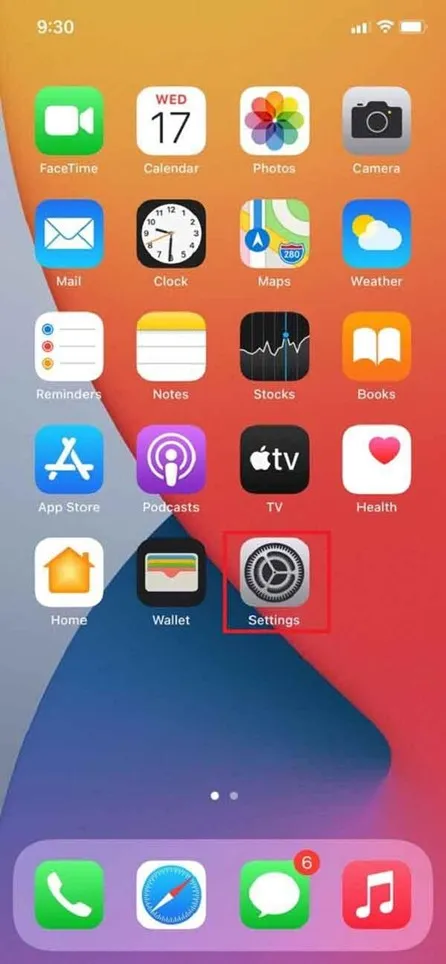
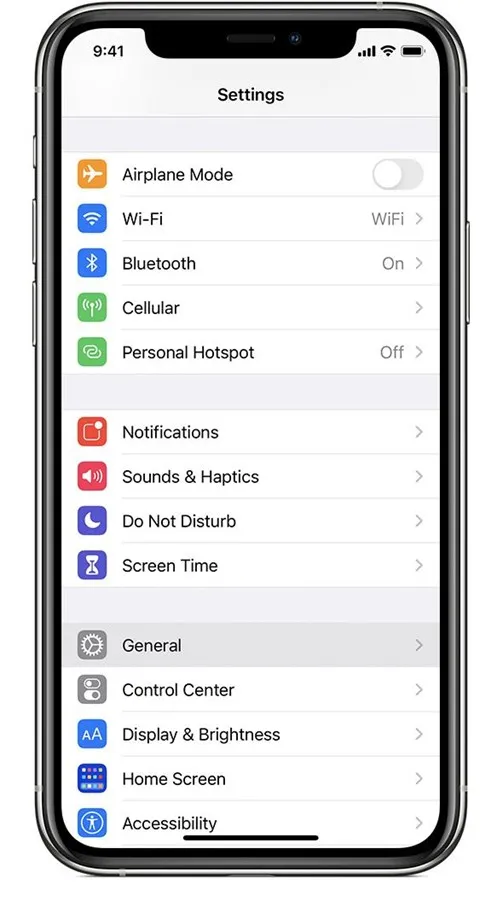
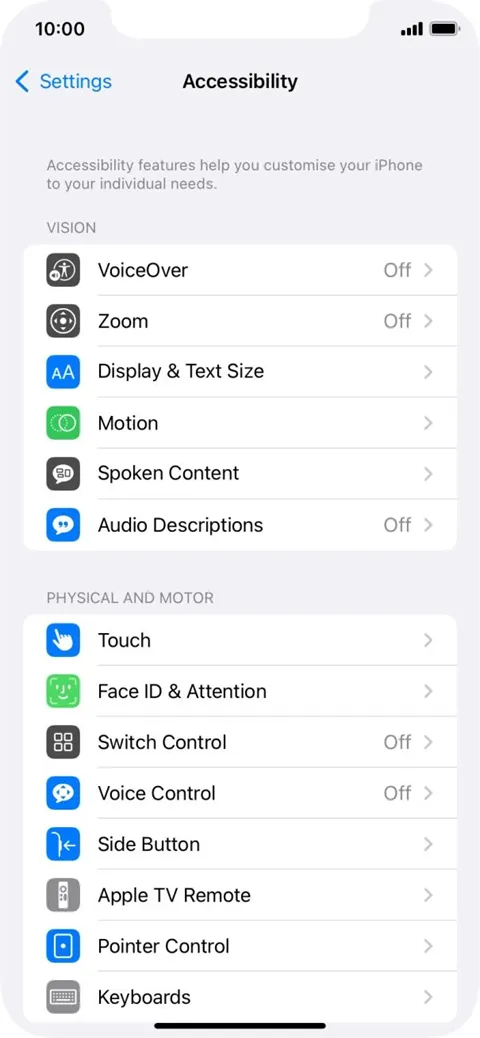
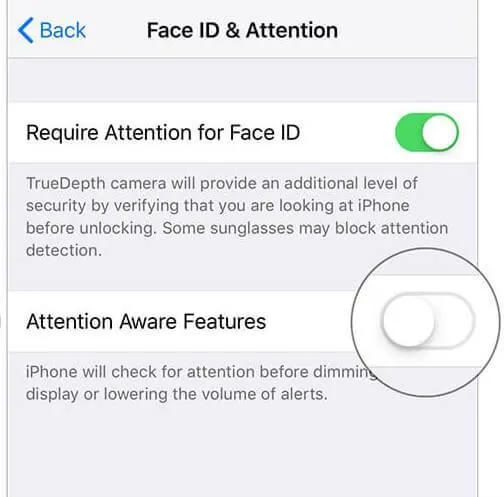
When this feature is disabled, the extra security measure is also turned off, making Face ID work again.
Fix 2 – Reset Face ID and set it up again
If the toggle above didn’t do it, wipe the old Face ID and re-register.
- Go to Settings > Face ID & Passcode, and enter your passcode.
- Tap Reset Face ID.
- Tap Set Up Face ID and follow the on-screen circular head movement.
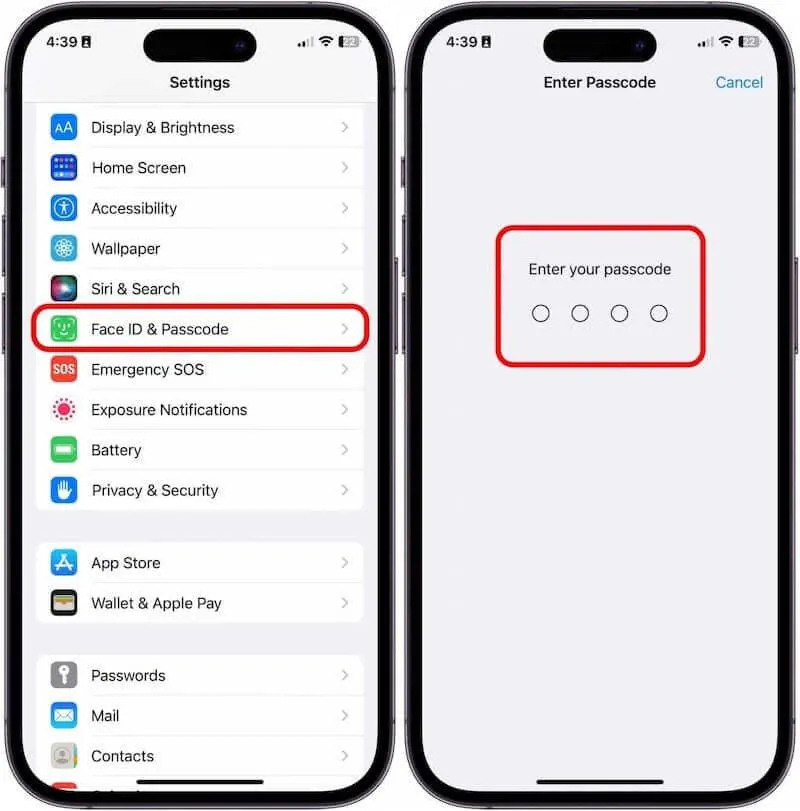
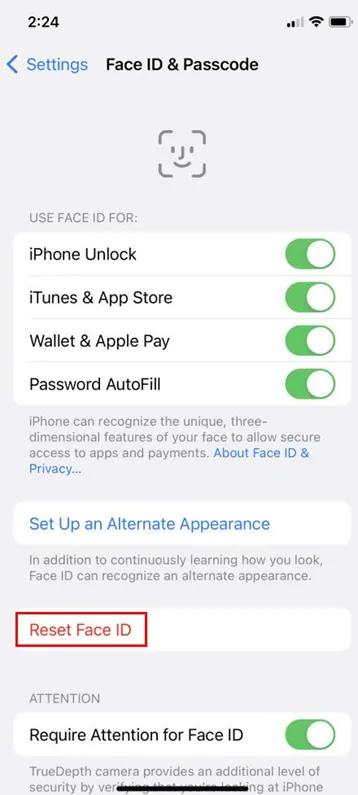
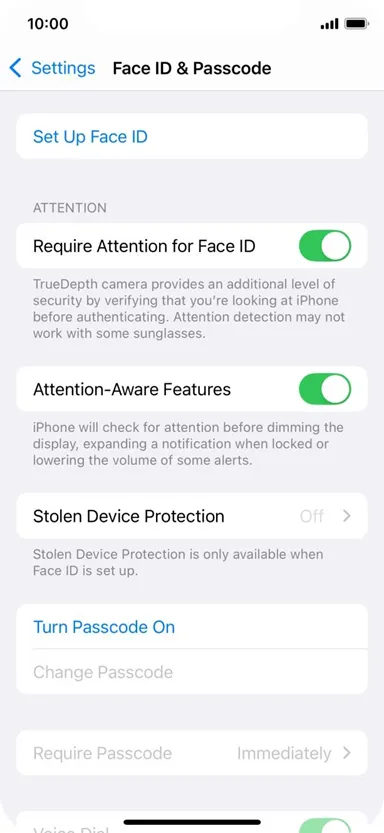
If Reset Face ID is greyed out and you cannot tap it, Stolen Device Protection is enabled. Scroll down, turn off Stolen Device Protection. Tap Reset Face ID and re-enable Stolen Device Protection.

In addition to this, add a second face profile too. This will avoid facing issues in future:
- Settings > Face ID & Passcode > Set Up an Alternative Appearance.
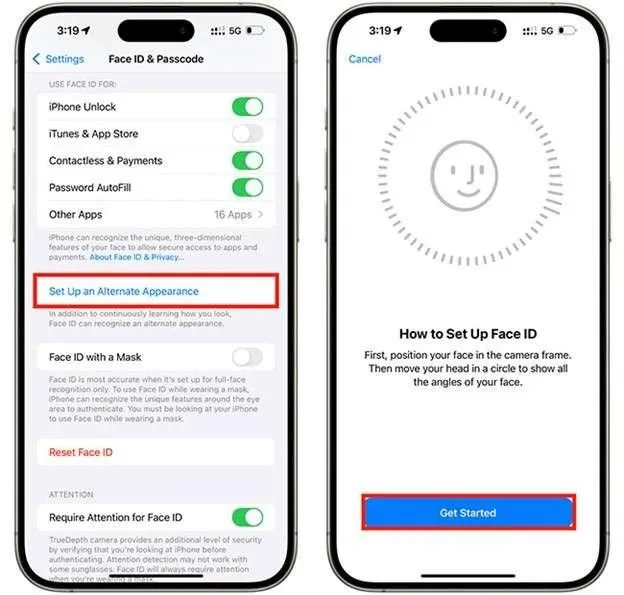
This helps when you are wearing glasses, have makeup, or have uncontrolled lighting.
Fix 3 – Force restart your iPhone
When a background process is stuck, Face ID can jam without any error message. In such a case, do a force restart. This won’t delete any data.
- Press and quickly release the Volume Up and Down buttons
- Press and hold the Side button until the Apple logo appears, then let go.
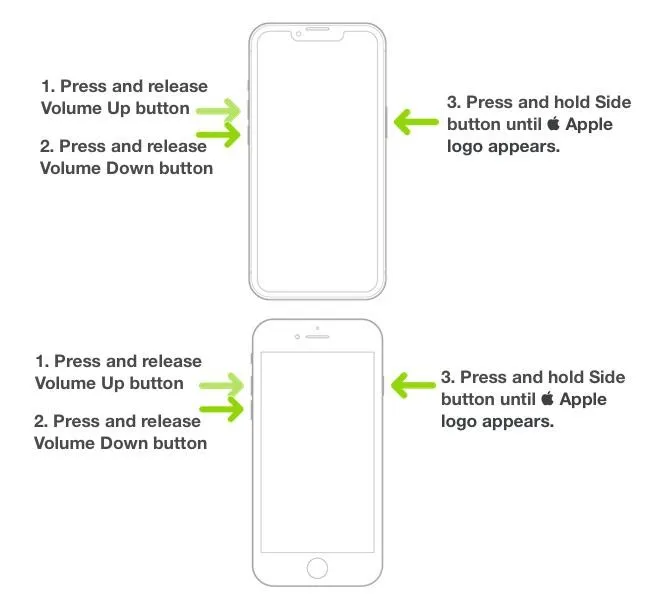
Try Face ID again once it boots back up.
Fix 4- Check for update
Since the release of iOS 26, a lot of users have been complaining about Face ID not working. To fix it Apple has been releasing incremental patches. To ensure you are running the phone with the latest update, follow these steps:
Go to Settings > General > Software Update.
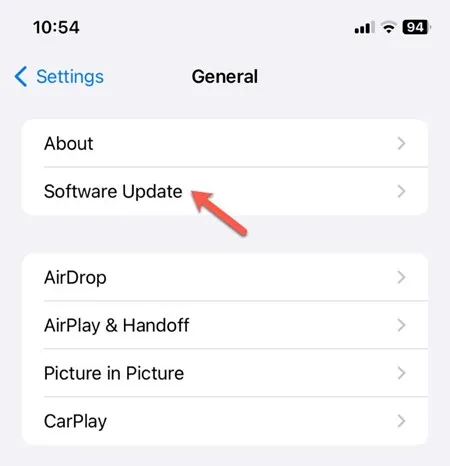
If there is an update, install it.
Now check if Face ID should be working. In case there is no update, keep checking for the latest update every few days.
Fix 5 – Disable Screen Time restrictions
- Go to Settings > Screen Time.
- Tap Content & Privacy Restrictions.
- Scroll and under Allow Change to check if Passcode & Face ID is set to Allow.
- If not, enable Content & Privacy Restrictions. Go to Passcode & Face ID and set it to Allow.
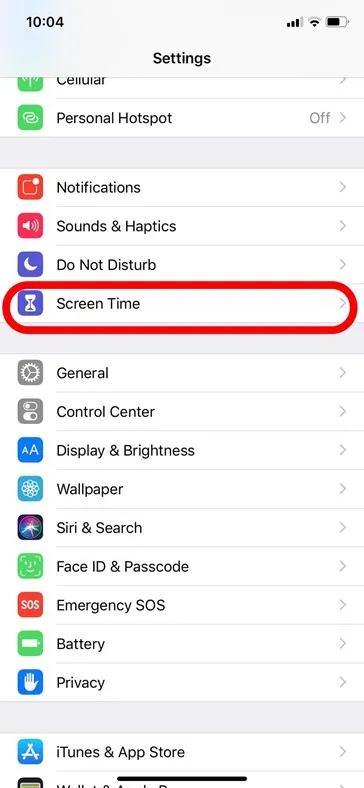
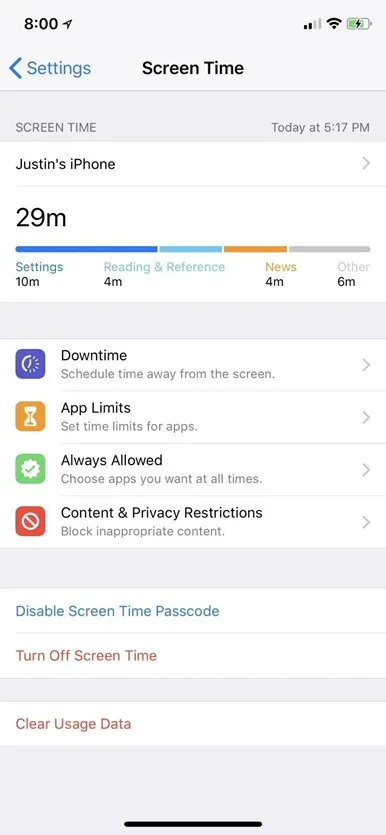
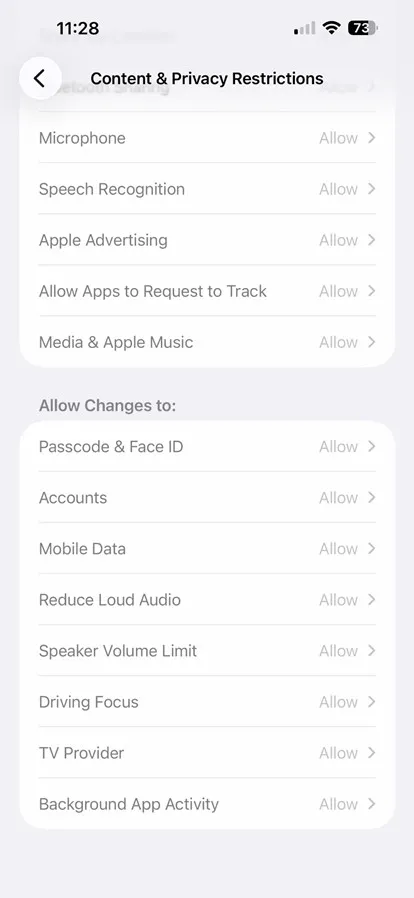
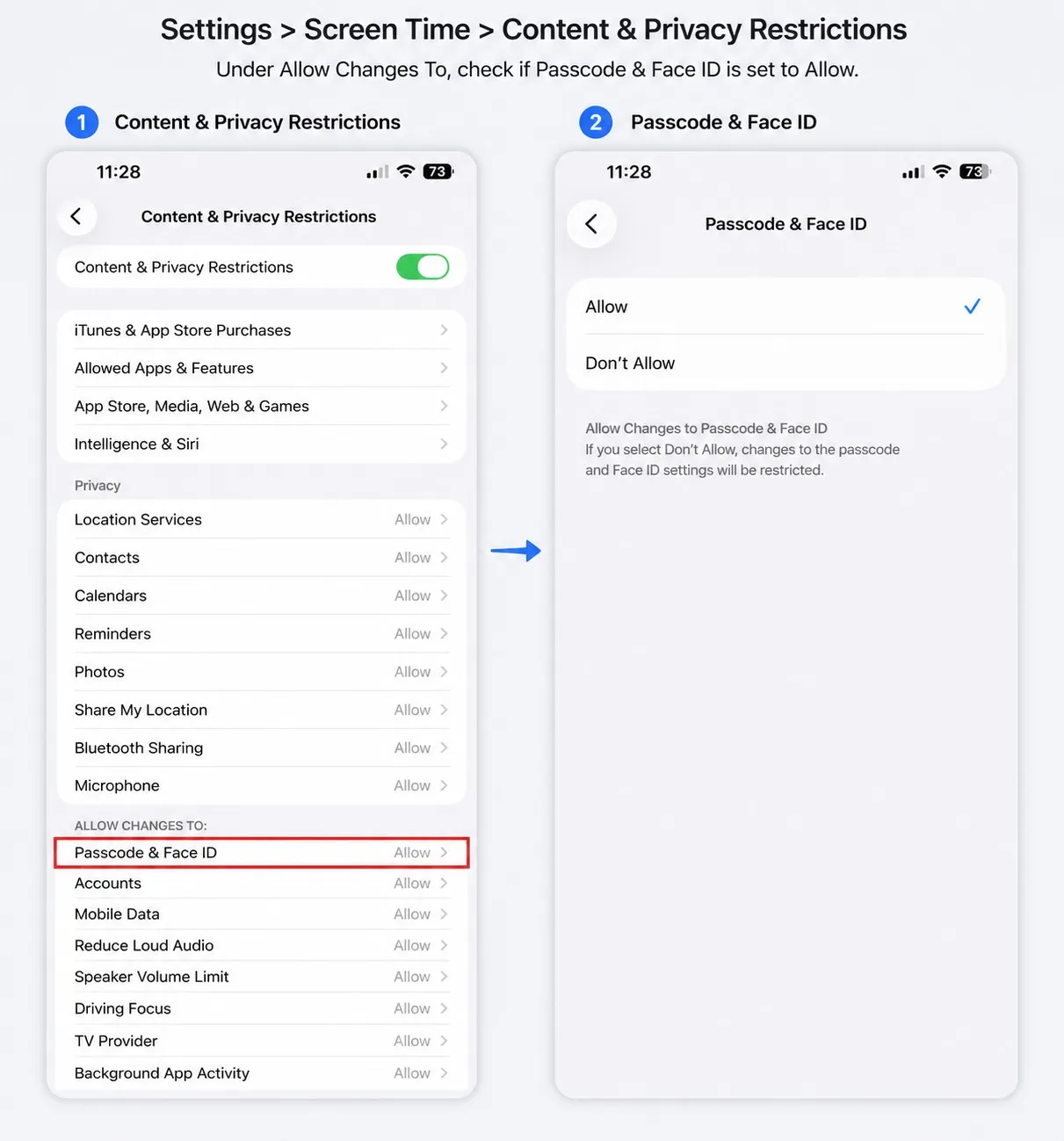
When the Passcode & Face ID is set to Don’t Allow, Face ID can be blocked from re-enrolling or updating properly. Therefore when Face ID stops working this setting is worth checking.
Fix 6 – Reset all settings
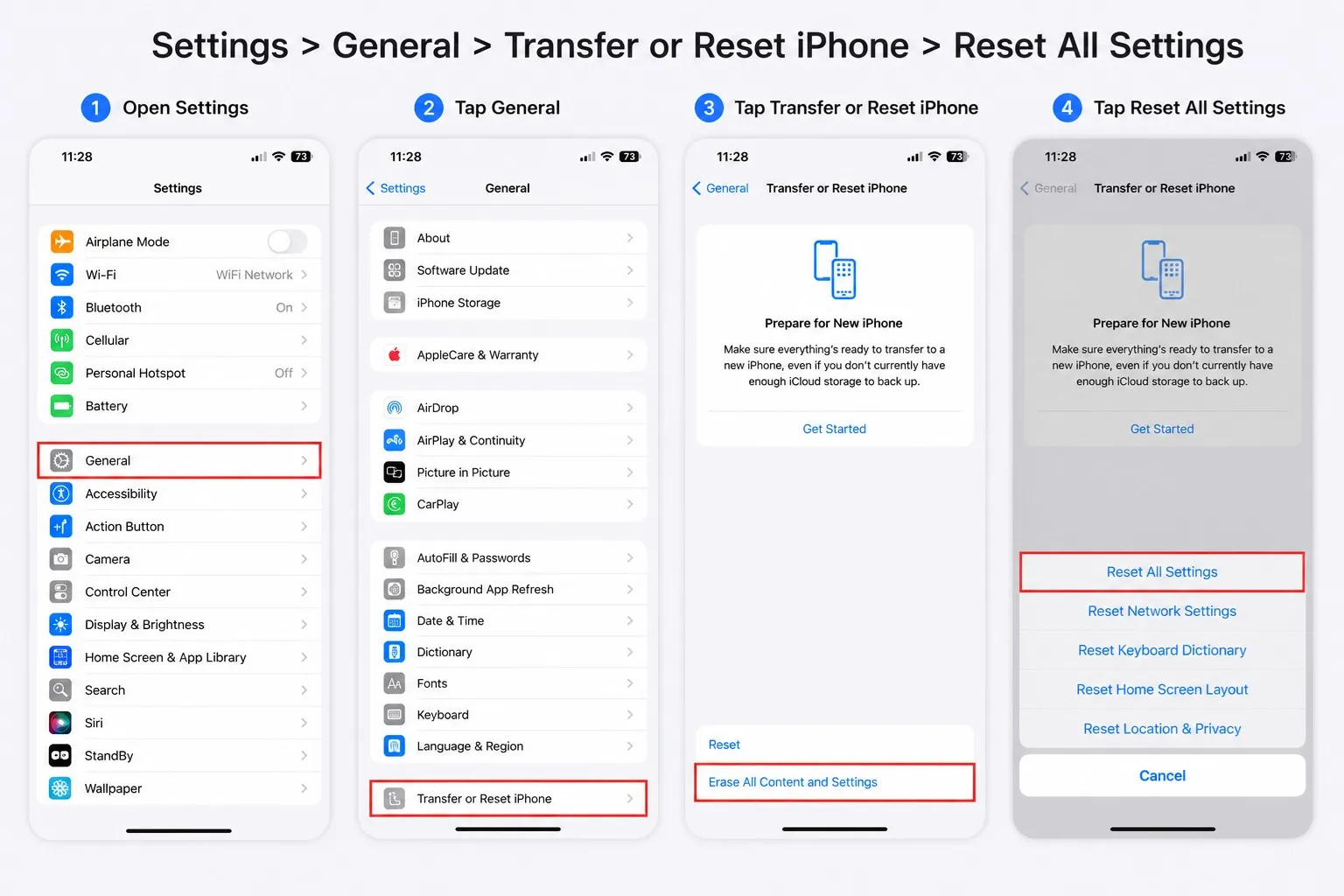
Use this fix only when nothing is working, and you are okay resetting settings like keyboard preferences, removing wi-fi network password.
Settings > General > Transfer or Reset iPhone > Reset All Settings.
Note – Resetting settings does not delete any photos, messages, or apps.
Once the reset is done, re-enter your Wi-Fi password, and re-set-up Face ID.
If Face ID is not working for (banking, password manager, or a specific app)
In such cases, all you need to do is check for app updates. If it is up to date, then you might have to reinstall as it seems the app’s own Face ID integration is faulty, not iOS 26. Doing so re-registers the app with the system’s Face ID permissions.
If Face ID is not working for Apple Wallet
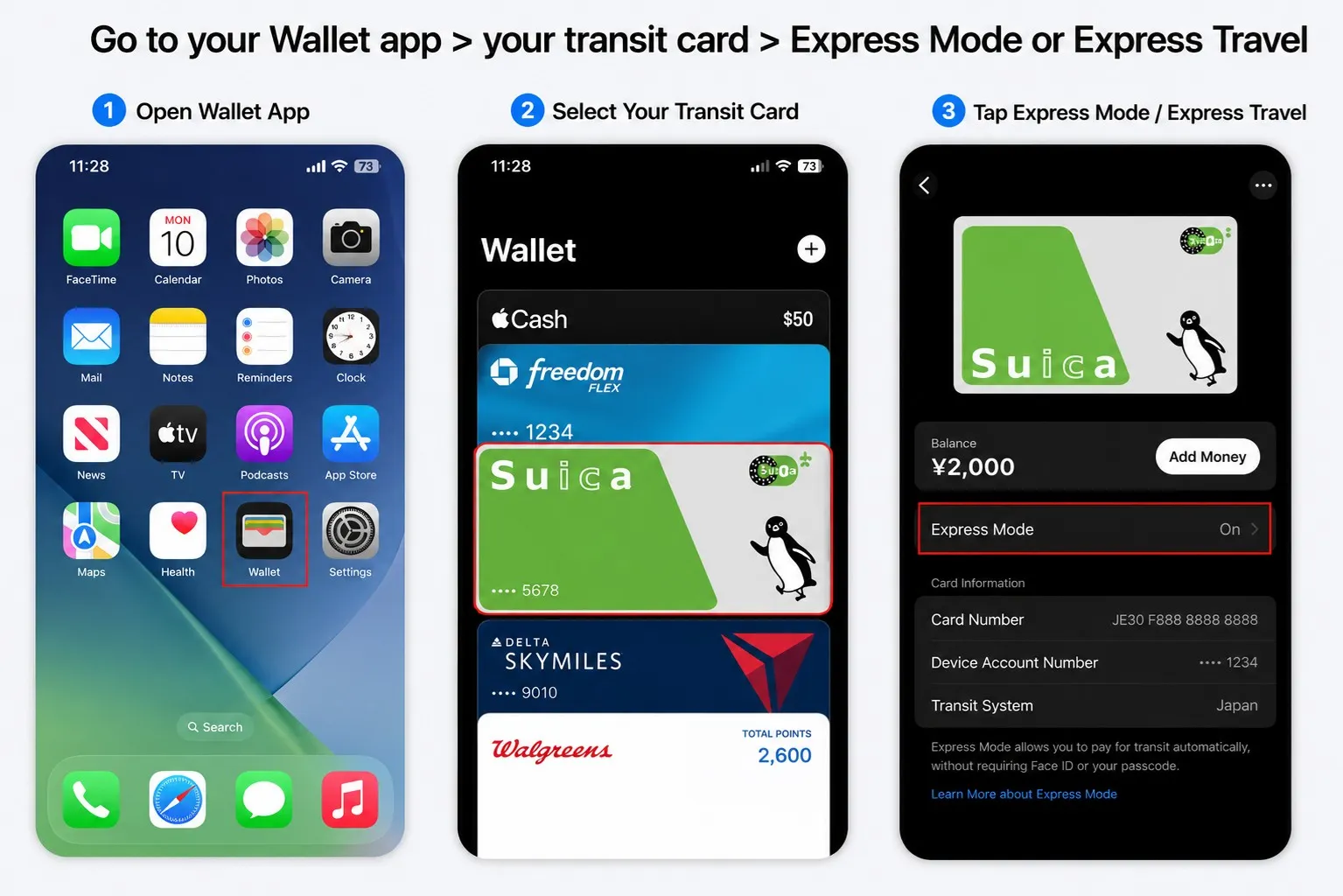
Set up Express Mode to skip the Face ID check.
Go to your Wallet app > your transit card > Express Mode or Express Travel, depending on your region.


Leave a Reply