


Summary
A new Documents backup service from Android is making its way, and it backs up all the supported local files to Google Drive automatically. It can be applied to downloaded PDFs, invoices, files obtained through Quick Share, and other local documents on your phone.
For many years now, Android phone users have had access to the feature of backing up important data on their phones such as applications, contacts, calling records, SMS messages, and settings. However, there was one key thing that was missing from the equation:n; documents. Things are about to change.
Now, Google is introducing a new Android Documents Backup feature that allows automatic backup of locally stored documents to the cloud storage service called Google Drive. This feature serves the purpose of saving documents that could be lost in case of loss, damage, reset, or replacement of the phone.
This feature will be useful for those Android phone users who store PDFs, invoices, downloads, receipts, work-related documents, and other important documents on their phone. In this guide, you will learn what Android Documents backup is, how it works, which files it can protect, and how to activate it.
What Is Android Documents Backup?

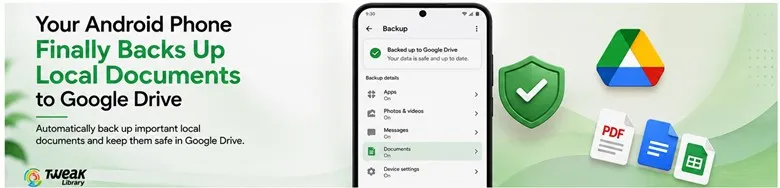
Android’s native Backup has always been geared towards restoring all applications and settings installed on the phone. For local files, the situation was different. If you downloaded a PDF file or received an important document via Quick Share and didn’t store it anywhere else but on your phone, there was no other way to access it except by manually uploading the files to Google Drive.
With the introduction of the Document backups feature, this is no longer the case.
Now, Android will be able to back up some local documents to Google Drive. The backed-up files will be stored in a special Android backups directory in Drive, with your device name added as a subdirectory. This new feature may back up files such as documents from the Downloads directory and files obtained via Quick Share.
Why This Android Backup Feature Matters

Think about downloading an important tax document, saving an invoice, receiving a work PDF, or storing a boarding pass on your mobile device. You may assume that since your mobile device takes backups, your files are also backed up. However, such an assumption may turn out to be erroneous.
The old-fashioned Android backup system didn’t necessarily mean that every file located in the internal storage of your phone would be backed up to the cloud. The Documents feature ensures that all compatible local files have a specific way to be backed up to Google Drive. It may be useful in the following situations:
- When you lose or break your mobile device.
- When you need a new Android device.
- When you accidentally delete a certain local document.
- When you reset your phone.
- When you constantly download PDFs or office documents.
- When you get files via Quick Share but forget to back them up.
- When you need an extra cloud backup for Android protection.
There is an existing Google Android backup system that can be configured through Settings > Google > Backup. However, the names of menus and their location vary according to the Android version and device manufacturer.
How Android Documents Backup Works
This function operates within the Android backup system instead of relying on users having to download any additional backup software. With compatible devices, the Android Google Backup settings may include a Documents category among others. On the Pixel line, the feature has been confirmed to be available in the following menu path:
Settings > Accounts and backup > Google Backup > Documents
Depending on your manufacturer and Android version, the above path may be a little different. When activated, Android will be able to automatically back up supported documents in line with its usual backup schedule. Users can also manually initiate the backup process for their device, ensuring that the latest documents get backed up to the cloud. In other words, you no longer have to go through the hassle of backing up every PDF or important document you have.
How to Enable Documents Backup on Android
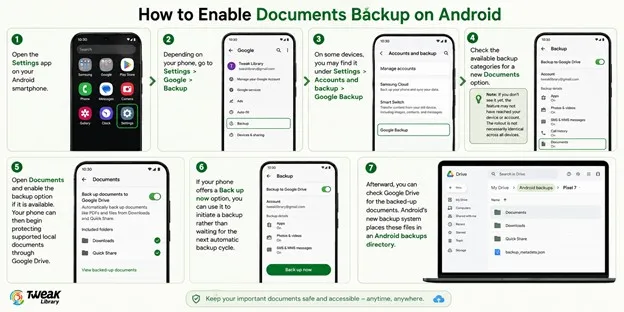
If the feature has reached your phone, you can look for it through Android’s backup settings.
- Open the Settings app on your Android smartphone.
- Depending on your phone, go to Settings > Google > Backup
- On some devices, you may find it under Settings > Accounts and backup > Google Backup
- Check the available backup categories for a new Documents option.
Note: If you don’t see it yet, the feature may not have reached your device or account. The rollout is not necessarily identical across all Android phones.
- Open Documents and enable the backup option if it is available. Your phone can then begin protecting supported local documents through Google Drive.
- If your phone offers a Back up now option, you can use it to initiate a backup rather than waiting for the next automatic backup cycle.
- Afterward, you can check Google Drive for the backed-up documents. Android’s new backup system places these files in an Android backups directory.
What Files Can Android Back Up?
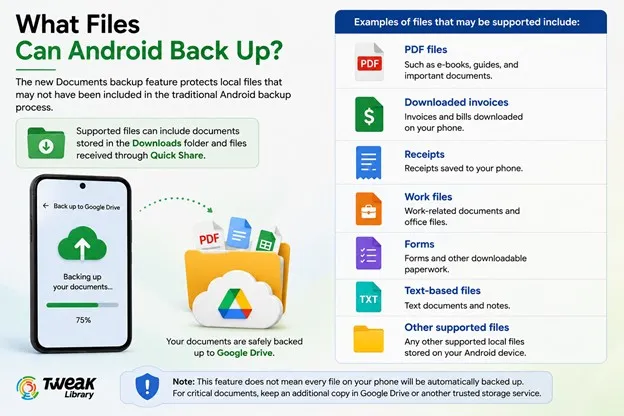
This function targets the local files that may have been easy to ignore in the normal Android backup process. Files cited in reports as an example include those found in the Downloads folder and those received via the Quick Share process. Some of these files include:
- PDF files
- Downloaded invoice files
- Receipts
- Work files
- Forms
- Text-based files
Any other supported local files
Note that Documents backup does not necessarily mean that all files on your device will be backed up to your Drive automatically. The actual files and folders that are included might vary depending on the implementation of the function by Google, your Android version, device manufacturer, and roll-out status of the function.
Android Backup vs. Documents Backup: What’s the Difference?
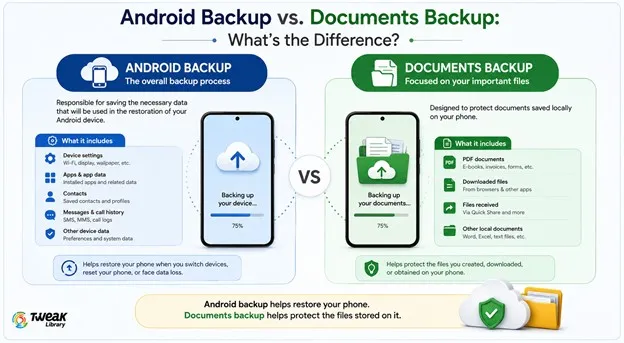
The terms are sometimes used interchangeably, but there is a difference. Android backup usually means the overall backup process, which is responsible for saving the necessary data that will be used in the restoration of the Android device. The Documents backup means the documents saved locally on your phone.
The Android backup you currently have will restore your phone’s settings and applications’ data, while the Documents backup is meant to ensure the protection of the data you created/downloaded/obtained.
Where Are the Backed-Up Documents Stored?
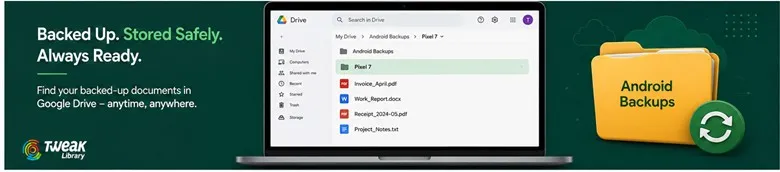
Backed-up files are stored in Google Drive in a separate Android backups folder. You can discover a folder that is linked to your device in it. The difference is that it is not possible to copy a file and put it directly to My Drive.
The backup system takes care of these files being a part of the process of backing up an Android device; thus, you can have a special place where documents backed up using this functionality can be found.
Does Android Documents Backup Use Google Drive Storage?
Google has introduced new changes with respect to the backups of the Android device that are stored in the Google Account. Now, the backups from the Android devices are counted along with the other applications such as Gmail, Google Drive, and Google Photos. Google has also introduced advanced options to control what backups are taken.
It is important to note here that with the automatic backups on an Android device, there is a storage problem that may arise. If you have almost full storage in your Google account, then adding additional backed-up documents will lead to the available space filling up very fast.
What If You Don’t See the Documents Option?
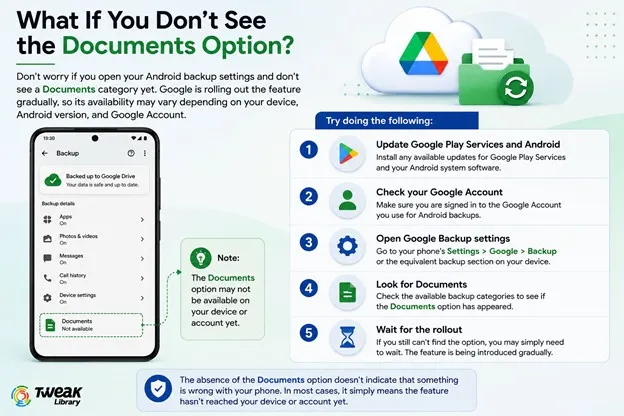
There is absolutely no need to worry if your backup settings show you that there is no Documents category. This function is being rolled out slowly, and its availability will differ from one device and account to another.
Try doing the following:
- Update Google Play Services and Android System software.
- Ensure that you have logged into your Google Account.
- Go to the Google Backup settings.
- Check if the Documents category is there now.
- Wait if the function still isn’t there.
It might simply be not available for your particular phone.
Should You Still Manually Back Up Important Files?
Yes. Automatic backups are a great convenience, but relying solely on them is not enough when it comes to files you simply cannot afford to lose. If you have some vital files, such as a passport, bank records, contracts, work documents, certificates, legal documents, and other vital paperwork, consider creating a backup copy of them in Google Drive or somewhere else.
A good backup policy should always follow the age-old principle of no single point of failure. If your only copy of a vital file is stored in your smartphone, all you need is one broken screen to ruin everything.
Final Thought – A Major Upgrade for Android Data Backup
One of the bigger holes in Google’s backup system is filled by Android’s latest backup option. This is because while it was possible to configure Android backup to perfection, it did not do anything for the documents stored on the device itself. The automatic backup to Google Drive solves all of that, making the backup process easier and one less thing that needs to be taken care of.
This is particularly helpful to those who download a lot of PDFs, invoices, receipts, forms, and other kinds of work-related files. The Android backup system will eventually become less of a phone restoration solution and more of a file protection service.



Leave a Reply