


Summary
Devices on a network are uniquely identified by their MAC addresses. This address is usually used to register phones, laptops, and routers on a local network. You rarely need to think about it until a specific requirement arises. But once it does, finding the MAC address takes less than a minute. Getting the MAC address on your iPhone requires just a few taps, as long as you know where to look. This article guides you through these easy steps so you never get stuck.
Every iPhone has a unique 12-digit hexadecimal number permanently assigned by the device’s microchip manufacturer. Since this number is fixed, it uniquely identifies each phone on a local network. You may require this MAC address to register your phone on a Wi-Fi network, diagnose a connection problem, or for other purposes.
This article explains what a MAC address is, gives the exact steps for how to find the MAC address on an iPhone, and covers a privacy setting that can make the number differ depending on which network you check it from.
What Is a MAC Address?
A MAC address, short for Media Access Control address, is a 12-digit hexadecimal code written as six pairs of characters separated by colons, for example 3C:15:C2:A0:9F:4B. Every network device receives one from its manufacturer. A router uses this code to identify which device on the network it is communicating with.
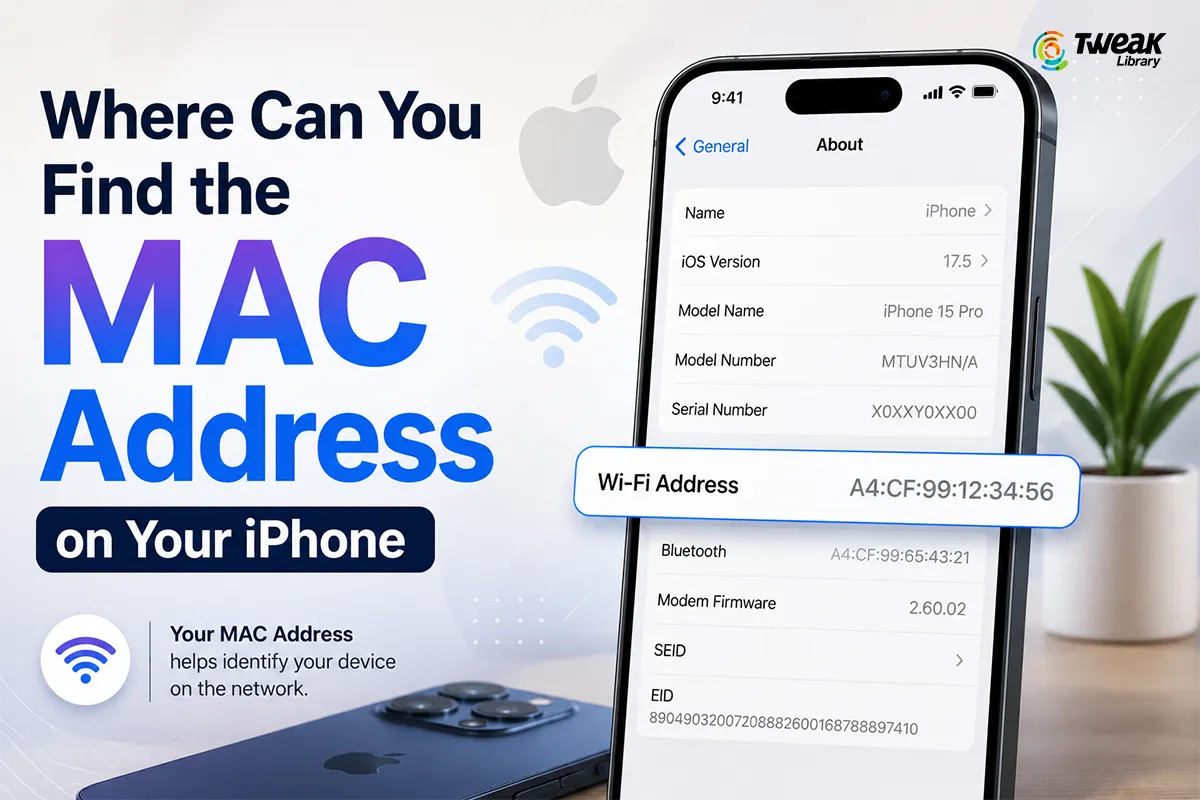
Apple does not use the term “MAC address” in its interface. Instead it is labeled as “Wi-Fi Address”. Both terms refer to the same 12-digit number. iPhone also has a separate MAC address for Bluetooth, listed apart from the Wi-Fi Address.
Get MAC Address from General Settings
This is the first way to check how to find iPhone MAC address. This method displays the device’s permanent hardware address and works without an active Wi-Fi connection.
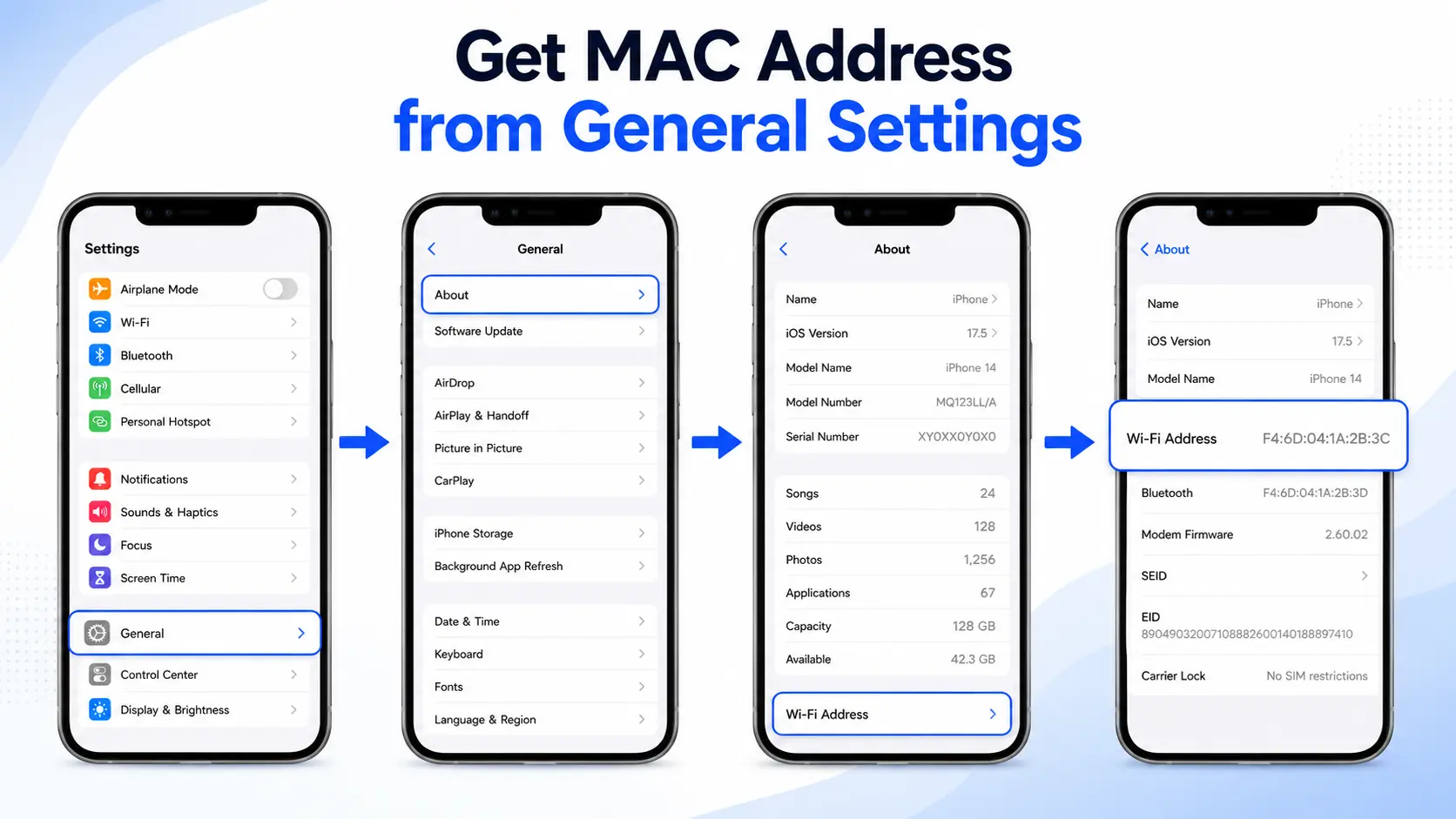
- Open the Settings app.
- Tap General.
- Tap About.
- Scroll down to Wi-Fi Address. This value is the MAC address.
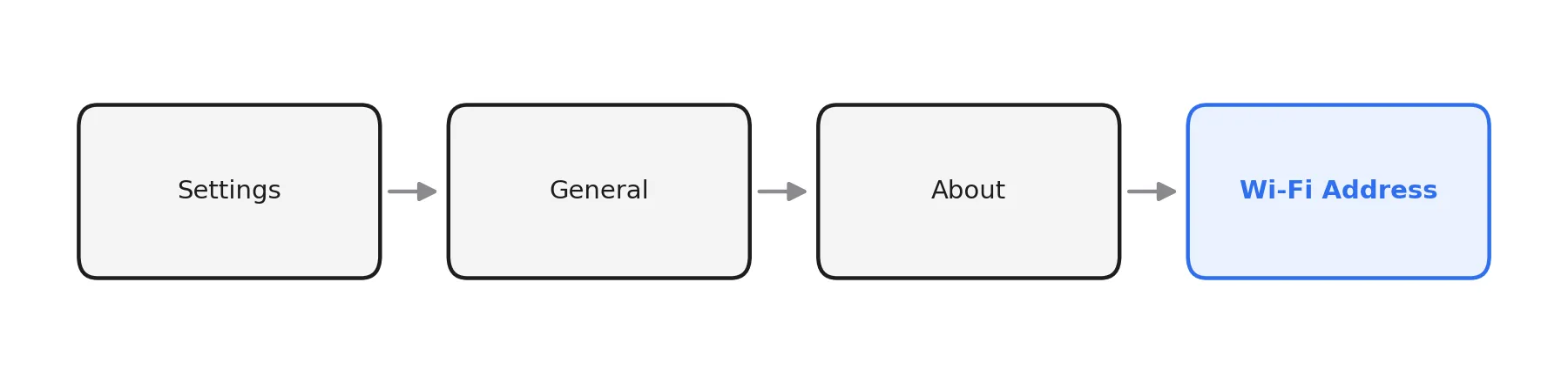
A Bluetooth field appears directly below it, listing the address used for Bluetooth connections.
Get MAC Address from Wi-Fi Settings
This is the second method for finding an iPhone MAC address. It shows the address currently in use on a specific network.
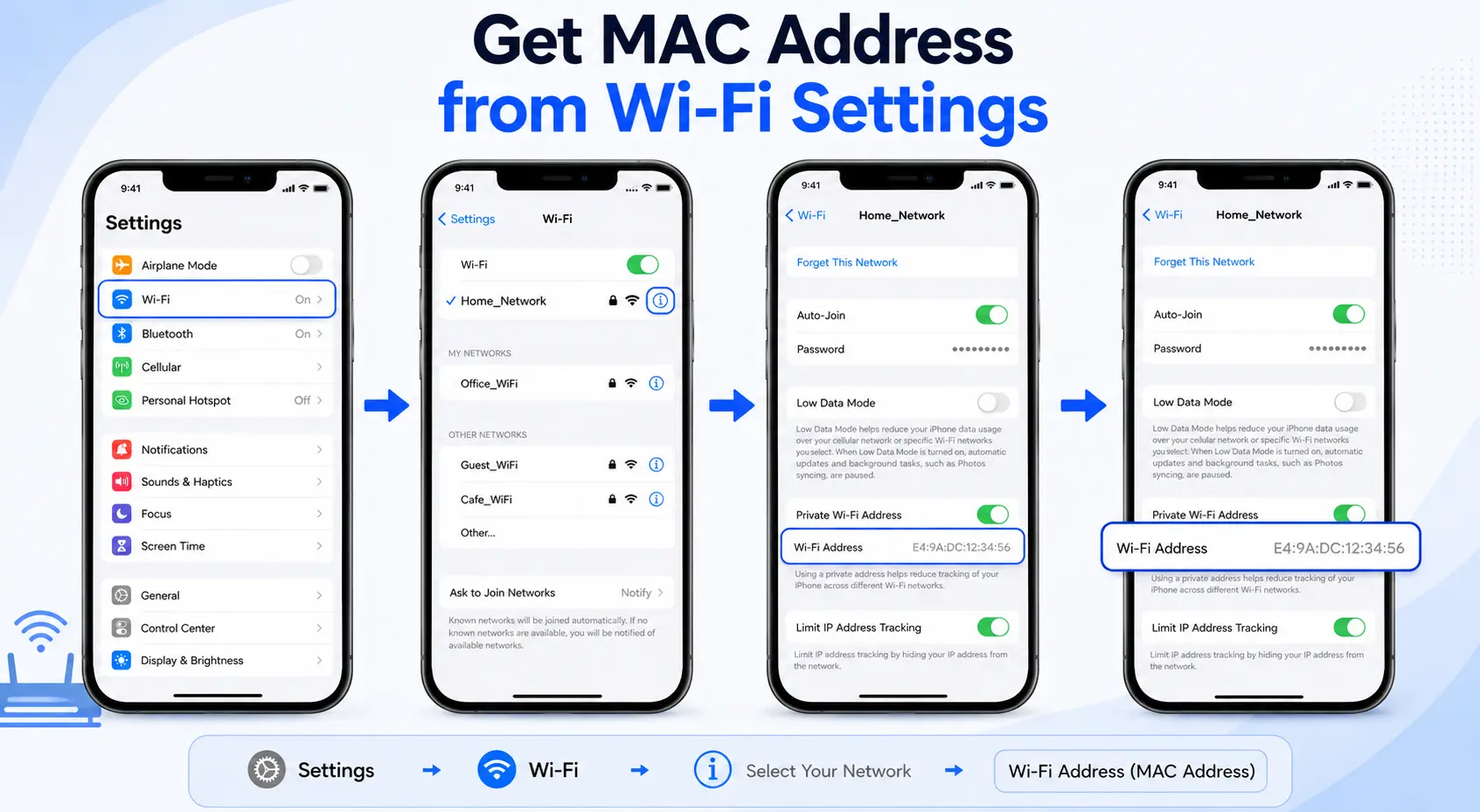
- Open the Settings app.
- Tap Wi-Fi.
- Find the connected network and tap the blue (i) icon next to it.
- Locate Wi-Fi Address in this section. This value is the MAC address.
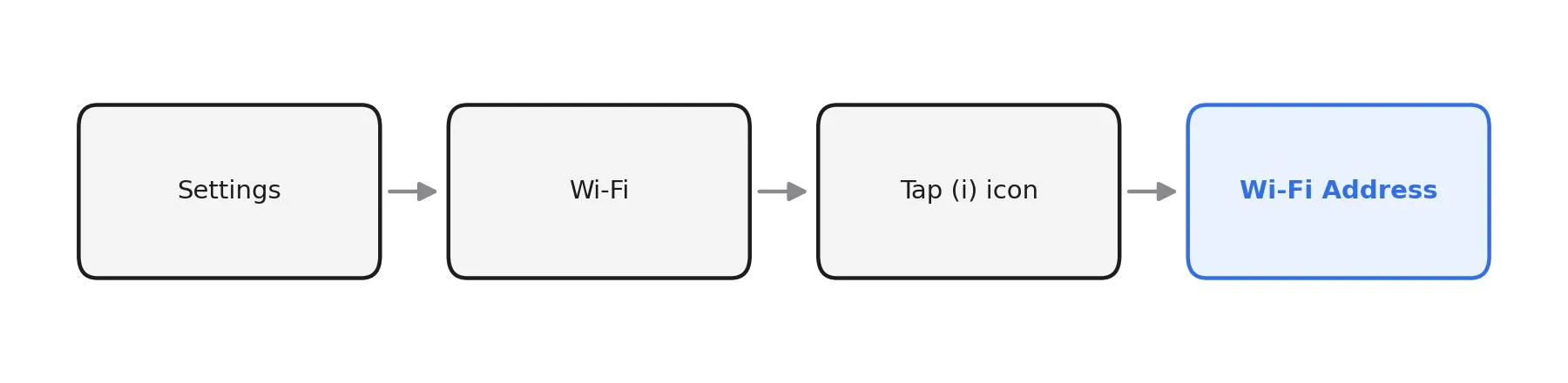
Both methods read from the same underlying hardware identifier and both results are valid.
Common Uses for a MAC Address
- Router MAC filtering – Routers with an allow list require each approved device’s MAC address.
- School or office networks – Many institutions require MAC address registration with the IT department before granting network access.
- Duplicate IP conflicts – Customer Support Executives may require the MAC address to identify which device is causing an IP conflict.
- Parental control app – Certain router based parental control tools often identify devices by MAC address rather than device name.
Why the Address Can Differ Between Networks
According to Apple, starting with iOS 14, Private Wi-Fi Address is enabled by default. Instead of transmitting the device’s real hardware MAC address to every network, iOS generates a separate, randomized address for each network. This prevents advertisers and network operators from tracking a device across multiple locations using its MAC address.
As a result, the address listed under a specific Wi-Fi network’s info screen may not match the one under General > About. The About screen always shows the device’s real hardware address. The Wi-Fi settings screen shows the address currently assigned for that particular network, which may be the randomized value.
Conclusion
Apple introduced the Private Wi-Fi Address feature to prevent devices from being tracked across different networks. By assigning a unique MAC address to each Wi-Fi network you join, Apple blocks third parties from using your device’s permanent MAC address. However, Apple also provides easy steps to find your iPhone’s MAC address. Once you know where to look in your iPhone settings, you can easily locate it whenever needed.



Leave a Reply