


Summary
All smartphone manufacturers provide software updates to their users. However, sometimes, these updates have caused issues on the devices, such as slowness, hang, or freeze problems. We have explained a few tried and tested methods to optimize the performance of your phone.
It is a strange happening that smartphones sometimes become slower to use after updating the devices. In general, the software updates provided by the manufacturers are designed to improve the mobile device’s performance, fix bugs, and strengthen security. However, sometimes, when the phone restarts after installing the updates, it appears rather slow to use. This is highlighted by the fact that apps take longer to open, stuttering of animations, the battery drains quickly, and the phone feels less responsive.
This guide will help readers understand why phones slow down after updates, how to fix this issue, and steps to prevent it. The issue of a phone slowing down after an update is not permanent and can be fixed with a few easy and quick steps.
Why Does a Phone Slow Down After an Update?
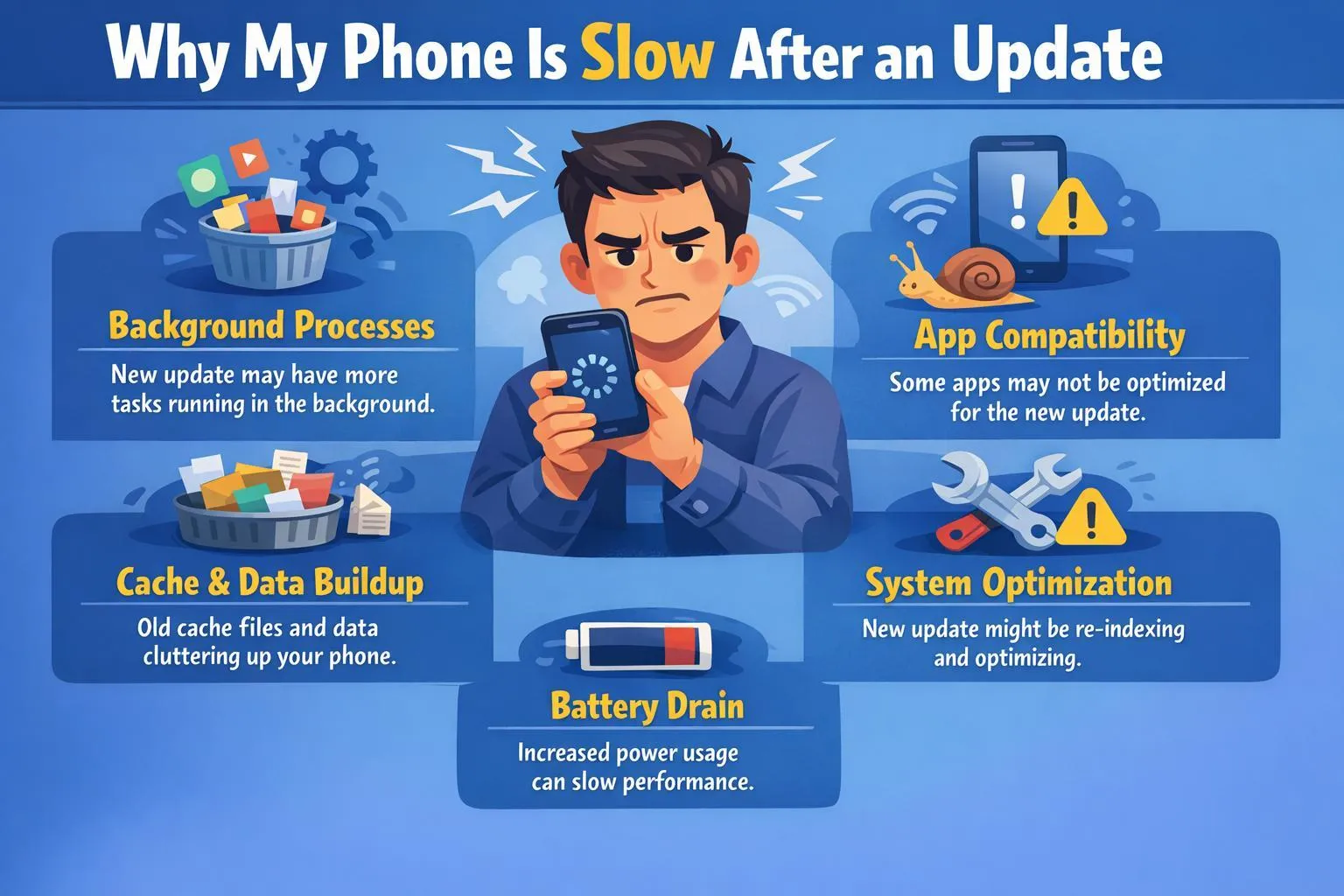
We have listed a few common reasons why a phone slows down after updating it. This mainly happens due to the multiple background tasks that are automatically initiated after an update. Here is a list of some of these tasks.
- Files are re-indexed.
- Installed apps are optimized.
- System databases are updated.
- Caches are rebuilt.
- The cloud data is synced.
- Security patches are installed and updated in the background.
- Thermal throttling that reduces the phone’s speed when it heats up.
All the above tasks use the processor and storage of your phone, and this may make your mobile device appear slow. We suggest that you wait for a couple of hours to allow the background tasks to complete before carrying out any troubleshooting steps mentioned in the guide.
Common Signs Your Phone Is Slowing Down
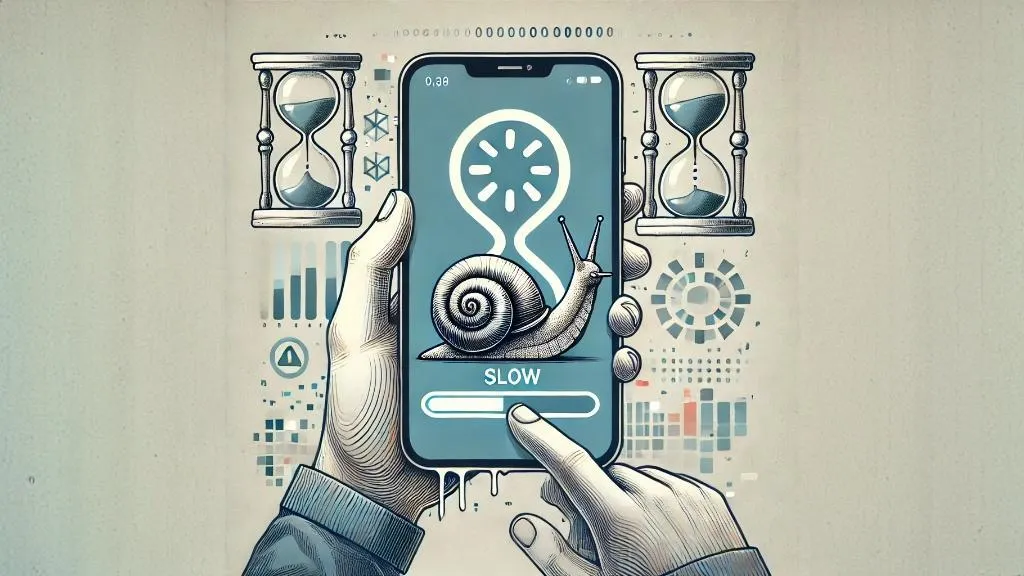
Here are a few commonly occurring symptoms that you may observe when your phone slows down after an update.
- The applications take a lot of time to open.
- You may observe keyboard delays while typing.
- The phone may hang or freeze suddenly when you are in the middle of something.
- The camera app launches slowly, and clicking pictures takes forever.
- There is a delay in the touch response of the mobile phone.
- The battery drains faster than before.
- You observe that the phone heats up regularly.
- There is a lag while playing games and frames per second are dropping.
- The internet is slow only on this device while it works fine on other phones.
- Apps crash out of the blue.
| Note: Do not fall for third-party Booster or Phone optimization apps, as these apps only delete the cache and might collect your personal data from the phone. |
Expert-Recommended Methods To Fix A Phone That Slows Down After An Update.
Method 1. Restart your phone.
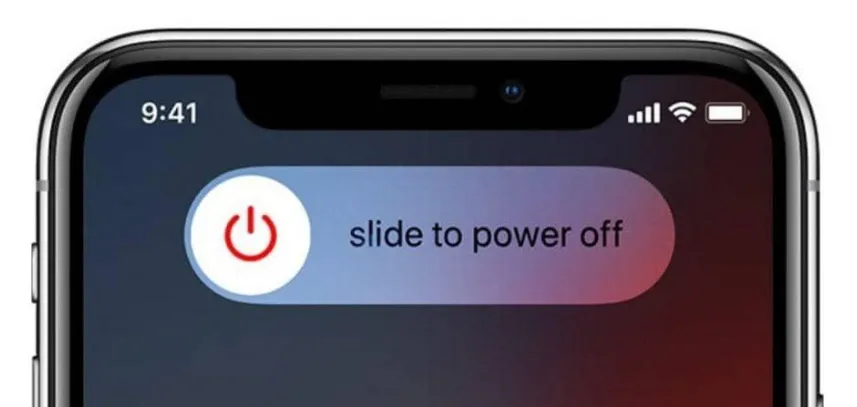
The first step you need to fix a phone slow after an update is to restart the device. This effective method helps clear the temporary memory and stops the background processes, thus refreshing the operating system.
For Android phones, you need to hold the Power button and choose Restart by tapping it.
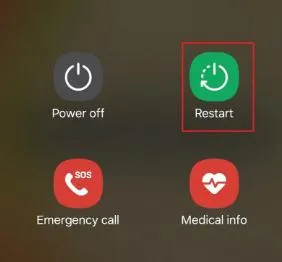
For iPhone, just turn the device off and wait for 30 secs before turning it back on.
Method 2. Wait for the optimization process to complete.
After an update, many optimization processes initiate in the background. It is recommended to wait for some time to allow the process to complete. The background tasks include app optimization, scanning photos, indexing files, syncing messages, and updating backups.
These tasks may require a couple of hours to complete. Experts recommend keeping the phone idle overnight, plugged into a charger and connected to Wi-Fi. The phone will be optimized and the performance will definitely improve the next day.
Method 3. Check for Another Software Update.
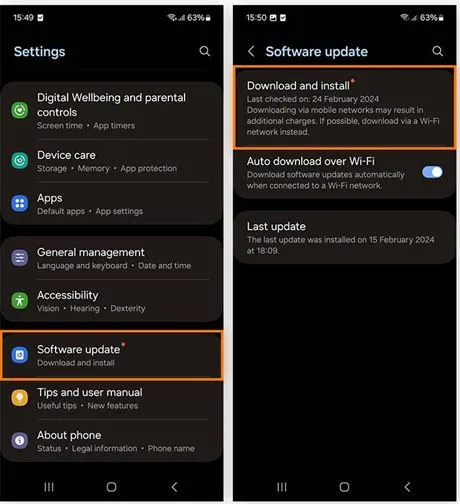
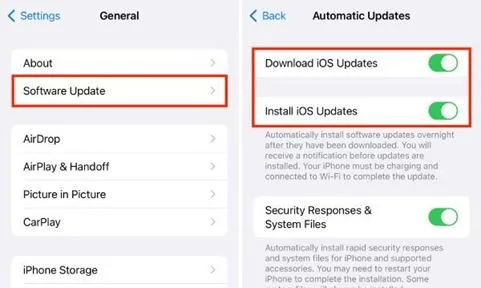
Although rare, but not impossible; manufacturers release follow-up updates after a major software update to fix any bugs, improve performance, and optimize the battery. Here is what you need to do.
For Android phones, tap on Settings → Software Update.
For iPhone, tap on Settings → General → Software Update.
Method 4. Free Up Storage Space
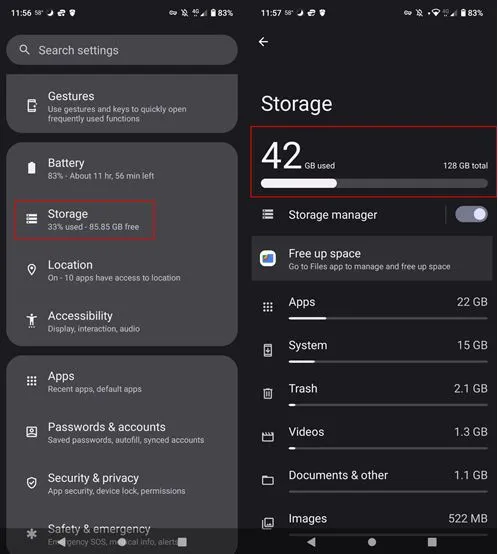
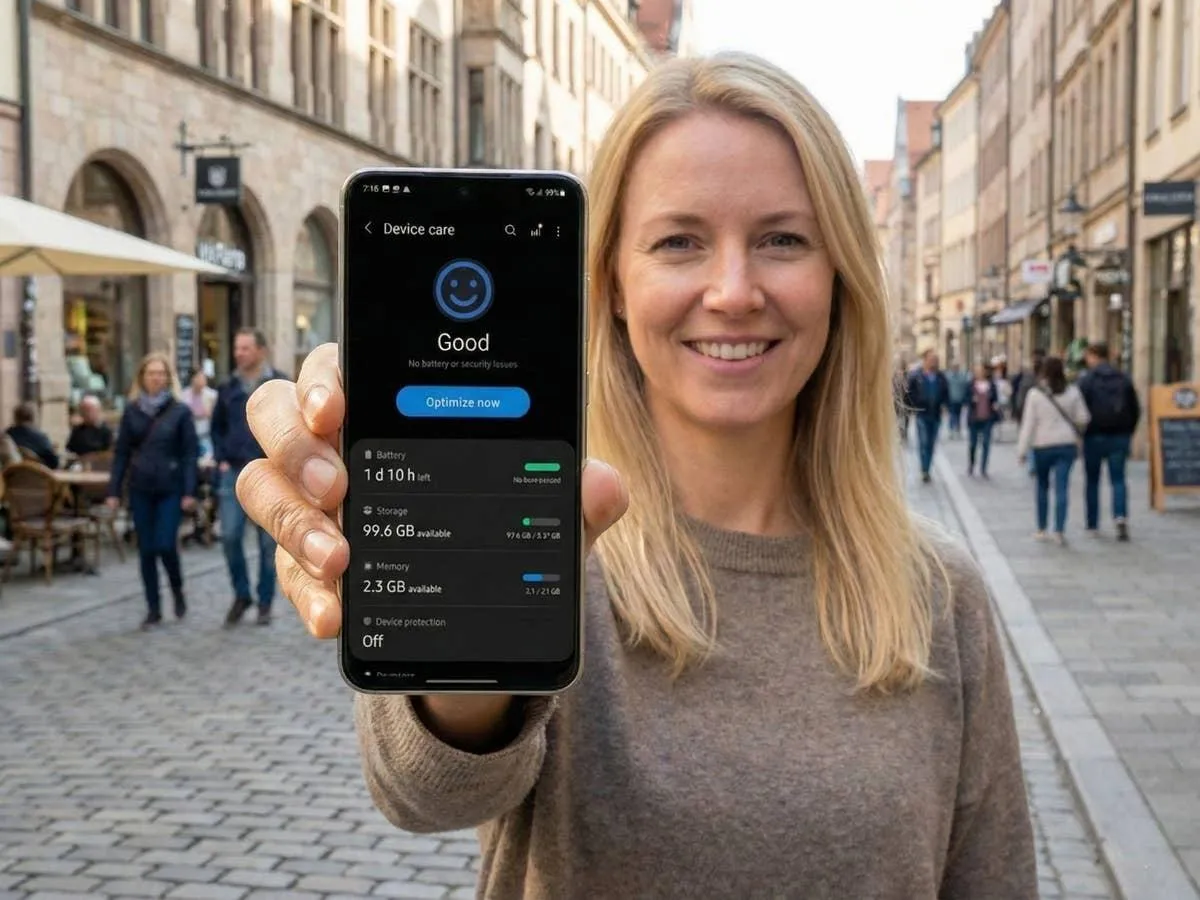
A full storage drive can slow down any electronic device, and mobile phones are no exception. Free space is very important to create new temporary files, update applications, cache system data, and optimize storage. It is recommended to maintain at least 25% of free storage space.
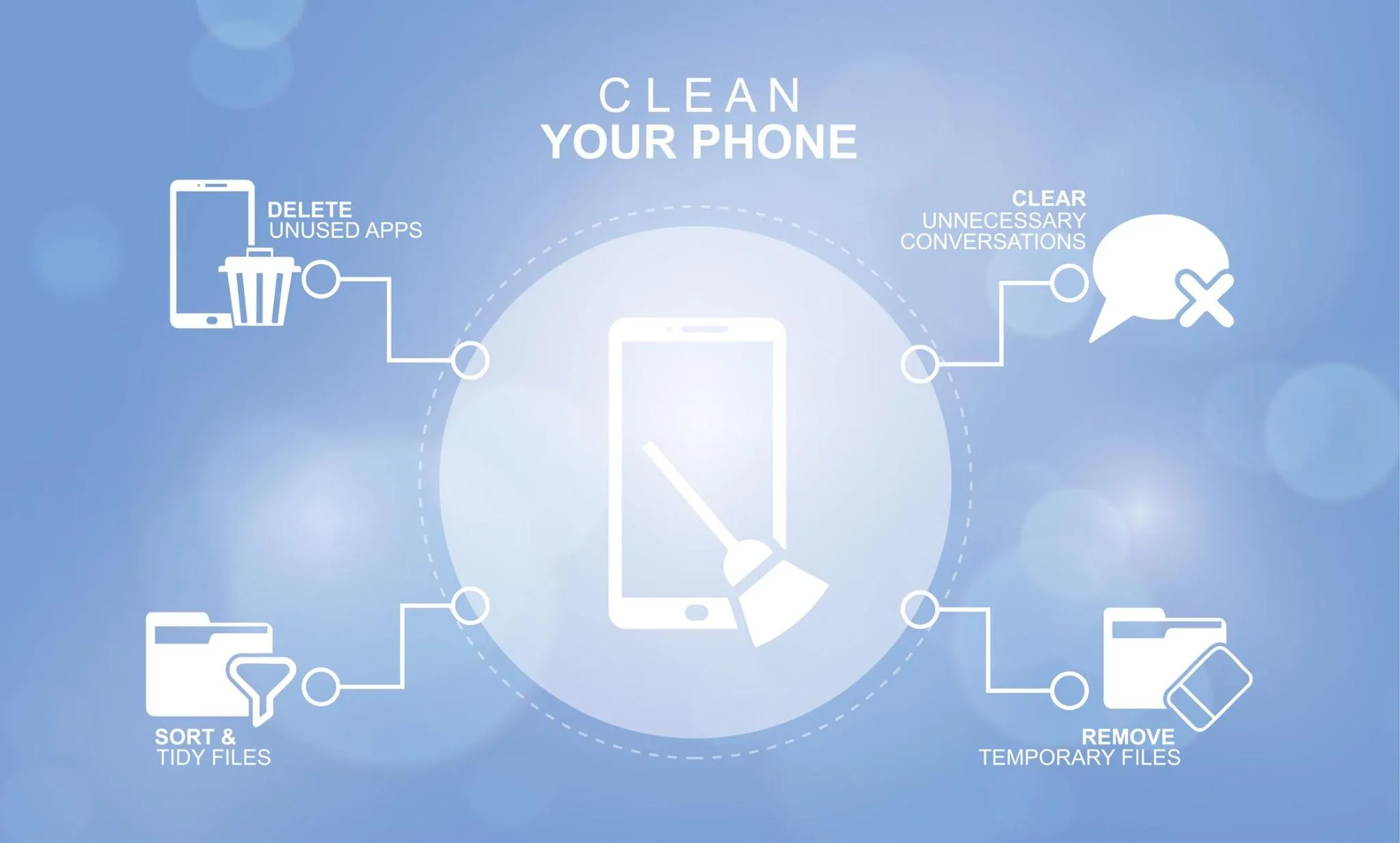
To free up storage space, you can delete old videos, duplicate photos, large downloads, unused apps, offline media, and cached files. Performance improves if adequate storage space is left unused.
Method 5. Clear App Cache (Android Only)
The cached data is maintained to help apps load faster, but sometimes, after an update the cache files may cause certain issues and slow down the phone.
The only option is to clear the temporary files. This process is possible only on Android devices, and the temporary files will be recreated when the user runs an app.
Tap on Settings → Apps → Choose App → Storage → Clear Cache.
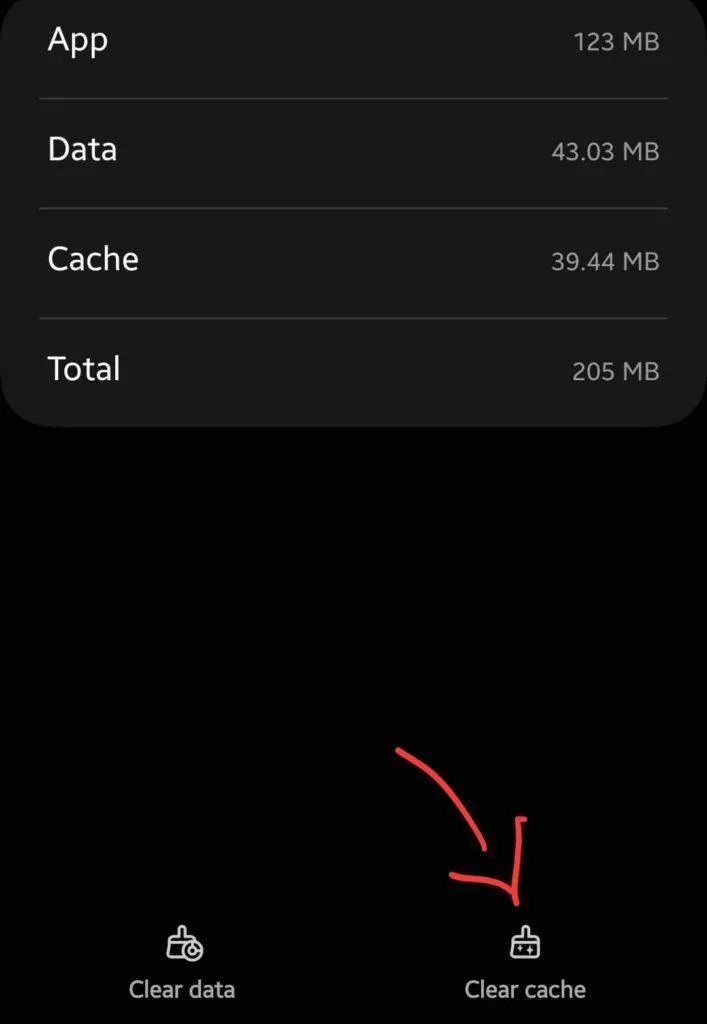
This step must be performed on apps like Chrome, Instagram, Facebook, TikTok, and YouTube.
Note: Do not tap on the Clear Data option, as it removes app settings and login information in addition to cache.
Method 6. Update All Your Apps
If a few specific apps are appearing to be slow, then you need to update those apps. What happens is that after the mobile OS is updated, the app developers must also update the app to correspond with the updated OS. The older apps might not be fully compatible with the new operating system. Here are the steps to update apps on your device.
Open Google Play Store or Apple App Store as per your device.
Tap on Update All Apps and wait for the process to complete.
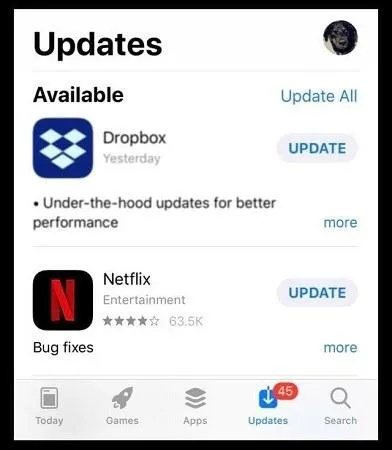
Note: Updated apps consume fewer resources and run smoother.
Method 7. Remove Unused Apps
One important step to optimize your phone and make it fast again is to remove apps that you do not use or do not need. Most of these apps are bundled with other apps and get installed in the background. Once installed, they too consume storage space and resources like other apps.
Unused Apps are known to use RAM, drain battery, run background services, send notifications, and consume storage. Once you remove them, you will reduce the system load on your mobile phone.
Method 8. Disable Unnecessary Background Activity
As you already know that the background activity consumes resources, making your phone slow. Some of these apps constantly refresh in the background and include activities like location tracking, auto-sync, notifications, automatic uploads, and widget updates.
Once you reduce the activity in the background, you will find a considerable improvement in the speed of your mobile device.
If you are using Android, then tap on Settings → Battery → Background Restrictions.
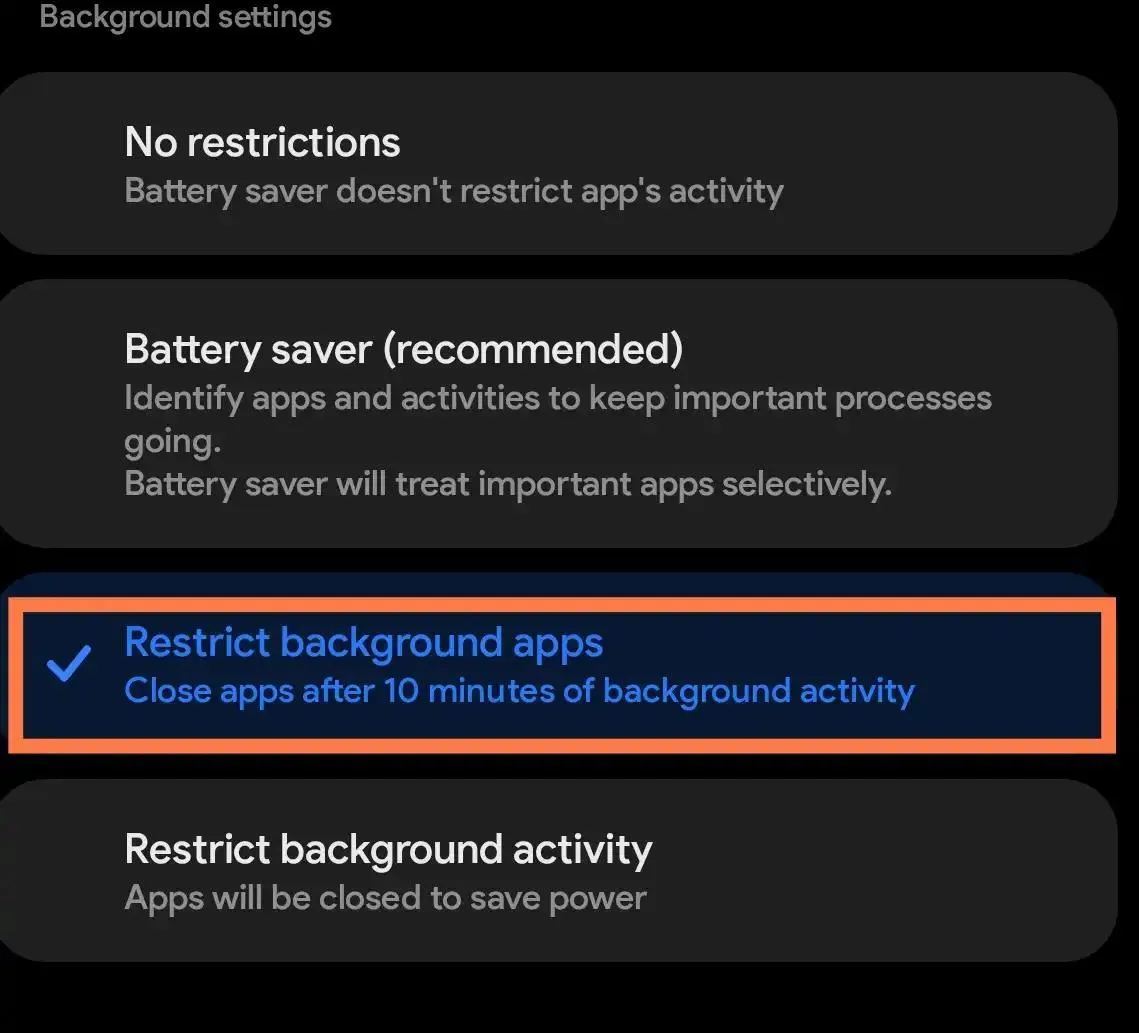
For iPhone users, tap on Settings → General → Background App Refresh – Disable background refresh for apps you rarely use.
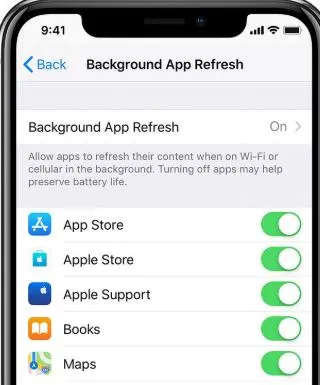
Method 9. Reduce Animations
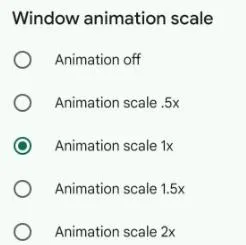
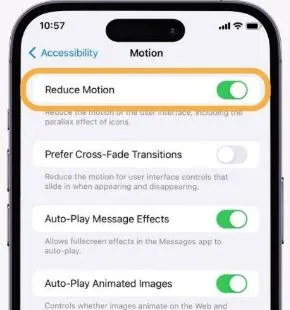
Animations make the phone look cooler and smarter, but did you know that these animations require processing power? Reducing these animations will improve responsiveness.
For Android phones → Enable Developer Options → Window Animation Scale → Transition Animation Scale → Animator Duration Scale → Set each to 0.5x or turn them off.
For iPhones → tap on Settings → Accessibility → Motion → Reduce Motion.
Method 10. Check Battery Health (For iPhone Users)
If your device has a worn-out battery, then the performance can be affected. Most phones are designed to automatically reduce processor speed to prevent unexpected shutdowns. Here is what you need to do.
iPhone → Settings → Battery → Battery Health
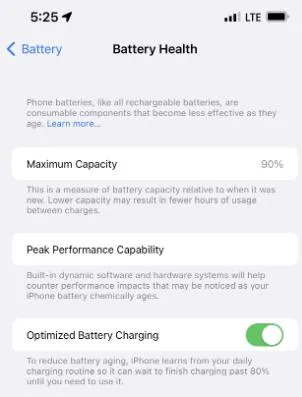
If battery capacity is below 50%, then you must get the battery replaced to improve performance.
Method 11. Reset App Preferences (Android)
Some updates, bugs, malware, etc might trigger incorrect permissions or disable services that interfere with the performance of the device. Experts suggest resetting the app preferences and restoring the Default permissions, Notification settings, and Background permissions. There is no harm done to personal data.
Android → Settings → System → Reset → Reset App Preferences
Method 12. Perform a Factory Reset (Last Resort)
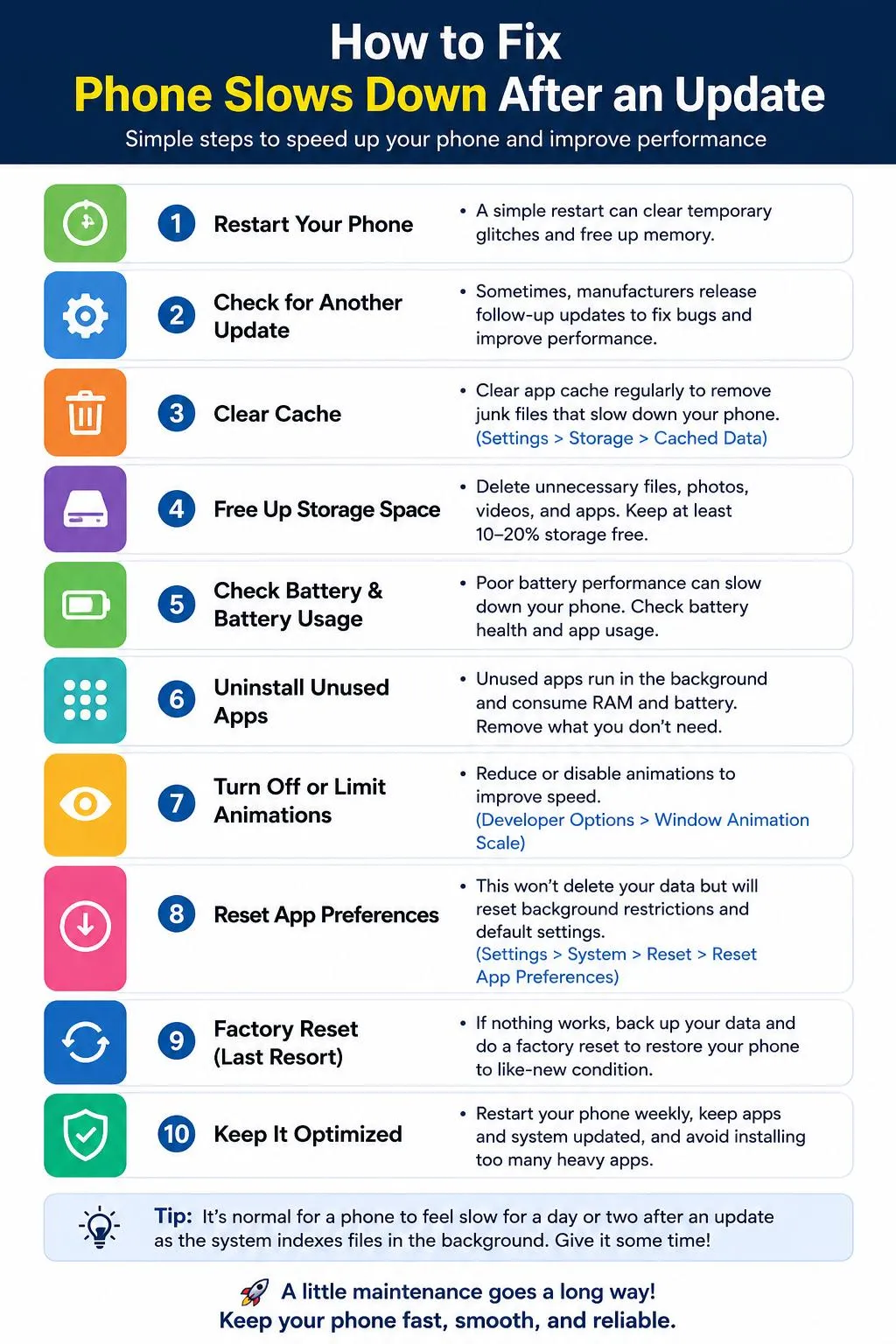
The final method to fix a phone running slow after an update is to perform a factory reset. This will eliminate any software conflicts that could be introduced after the update. Experts recommend that you take a backup of your Photos, Contacts, Documents, WhatsApp chats, Passwords, and then perform a factory reset.
Note: Install essential apps first to check if the phone speed has improved. Only then start installing other apps one by one.
Extra Tips to Speed Up Your Phone
Here are a few general tips that will help you to speed up your phone.
Restart Every Week – This will help to clear temporary memory and improve stability.
Update the Installed Apps – All app developers keep optimizing their apps and provide these features through updates. It is recommended to update apps, especially when the phone receives OS updates.
Avoid Live Wallpapers – Static wallpapers do not use many resources, while wallpapers with animations consume CPU and battery continuously.
Limit Widgets – Home screen widgets need to constantly refresh information, and this consumes memory and resources, making the phone slower. It is recommended to minimize the use of widgets.
Turn Off Automatic Downloads – This feature in media apps downloads all unwanted media and can fill storage quickly.
Remove Duplicate Files – Most phone OS provide a duplicate files detector module built into the OS. Use this feature to detect and remove duplicate files and photos to free your phone of unwanted storage.
Use Lite Versions of Apps – If your phone is older, you must use lightweight alternatives such as Facebook Lite, Messenger Lite, Google Go, etc, as these use fewer system resources.
Does a Slow Phone Mean the Update Is Faulty? Should You Replace the Phone?
No, a slow phone after an update does not necessarily mean the update is faulty; it could also mean that there is an issue with the phone. These problems could include issues like low storage, an aging battery, many background apps running simultaneously, outdated apps, corrupted cache files, and hardware limitations.
If you have tried all the solutions mentioned in this guide and you have not got the expected result, then you could give it a thought to replace your phone. Here are other factors that can influence your decision of changing the mobile phone.
- If the phone is more than 5 years old, then you can definitely consider a replacement.
- If the storage is low and it constantly runs out of storage.
- The battery health is lower than 50%.
- The OS no longer receives software updates.
- The phone crashes frequently.
| Case Study – Phone Maintenance Can Optimize And Boost Performance.
There was a case of Sarah, a freelance photographer, having an Android smartphone from three years ago, experiencing lagging, slow launching of applications and also increased battery usage after an update on the operating system. Rather than purchasing a new one, they managed to free up close to 18 GB of space, ensured that all the applications were up to date, deleted the cache of most-used applications, and left their phone to restart overnight with the Wi-Fi turned on. In less than 48 hours, the phone started running faster and more efficiently. |
Best Practices to Prevent Slowdowns After Future Updates
Consider these points before any upgrade installation.
- Always ensure that you have at least 25% free space in storage.
- Upgrade all applications before the installation of the latest version of the operating system.
- Take a backup of all the important files.
- Ensure that your phone is more than 50% charged.
- Connect to Wi-Fi.
- Restart the device post-upgrade.
- Do not disconnect the phone throughout the night.
Frequently Asked Questions
Conclusion
Though a slow phone after an update may sound like the sign of problems, it does not always indicate something is going wrong with your smartphone. Often, the problem occurs because of the need of the operating system to optimize everything installed on the phone.
When it persists, however, you can solve it by rebooting your phone, increasing storage space, clearing cache, updating apps, limiting background operations, and checking the health of the battery.
When taking care of your phone, following several tips, you will be able to get back the high-speed performance from your smartphone despite an update of its operating system. Instead of buying a new phone, try all the methods described above first. It may help you avoid unnecessary purchases.



Leave a Reply