


Summary
Copilot is Microsoft’s AI assistant built into Windows 11. At Ignite 2026, Microsoft announced a new Copilot feature that runs a read-only scan of your PC, finds the likely cause of a PC problem and explains it in plain language. It is coming soon to Copilot+ PCs, but Microsoft has not yet given a release date or promised automatic fixes.
The new Windows Copilot troubleshoot PC feature lets Copilot run a read-only scan of your Windows 11 PC, find the likely cause of an error or performance problem and explain it in plain language. Microsoft announced it at Ignite 2026 for Copilot+ PCs and says it is “coming soon.” It has no release date yet.
Microsoft showed Copilot diagnosing a real PC problem on 17 November 2026, and the headlines moved fast. Some said Copilot can now fix your PC. That is not what Microsoft announced. This guide explains what the feature does, what it cannot do yet, who will get it and how to troubleshoot your PC with tools you already have.
What Is the New Windows Copilot Troubleshoot PC Feature?
At Ignite 2026, Microsoft said Copilot is getting three local capabilities on Copilot+ PCs: local context, local actions and local models. Diagnostics is one of the actions. In Microsoft’s words, Copilot “can run a read-only scan of the system to help find the root cause of errors or performance issues,” then explain the findings in plain terms.
The idea is to replace a long search through Settings, forums and support pages with one question. You describe the problem. Copilot checks the PC, with your permission, and tells you what it found. This fits into Microsoft’s hybrid intelligence approach using on-device AI when possible; and cloud-based AI for tasks that require more than just local processing.
Why Microsoft Is Adding Diagnostics to Copilot
Most PC problems are small and repetitive: no sound, a slow startup, a printer that will not connect. Microsoft wants Copilot to handle those first. Windows Latest quotes Pavan Davuluri, who leads Windows and Devices, saying these capabilities “can help resolve many of the most common reasons people call IT support. TechRadar notes that Microsoft framed the announcement around business users. Microsoft has not said how the rollout differs for home users.
How Copilot Diagnoses a PC Problem
Microsoft’s demo used a common problem. A user’s Bluetooth headphones were paired but silent. Here is what happened:
1. The user typed: “The audio isn’t coming out of my Bluetooth headphones. Can you diagnose the issue for me?”
2. Copilot asked for permission to access files and read system information.
3. After the user agreed, Copilot scanned the system without changing anything.
4. It found that the headphones were connected but Windows was likely sending audio to a different output device.
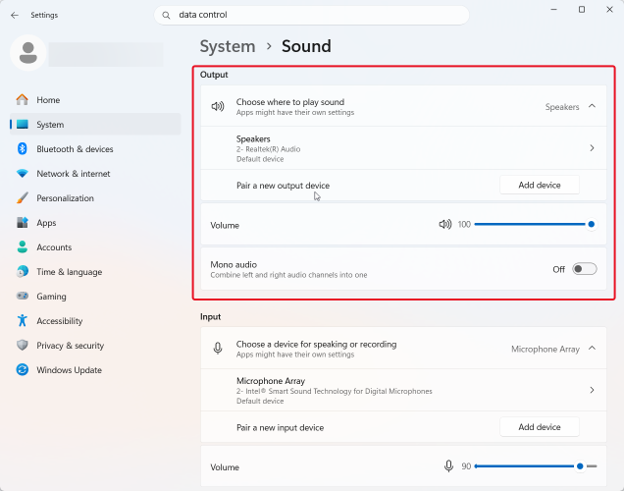
5. It suggested checking Settings > System > Sound > Output to choose the right output device
In the demo, the feature opened from the redesigned Windows Search. Windows Central reports that this Search experience is in testing with Windows Insiders. Microsoft has not said that diagnostics depend on it. Windows Latest reports that a similar Bluetooth check took about 30 seconds in its testing.
What Copilot Can and Cannot Do Yet
What Microsoft has confirmed
- It runs a read-only scan, so it looks at your settings and system state and does not change them.
- It asks for permission before it reads files or system information.
- It explains the likely root cause in plain language.
What Microsoft has not said
- That Copilot will apply the fix for you. The demo ended with an explanation, and you make the change yourself.
- Which problems it covers. Bluetooth audio is the only example shown.
- Whether Home and Pro editions both get it.
- Whether any diagnostic data leaves the PC. Microsoft describes the scan as local and says Copilot reaches the cloud when a task calls for it
Who Gets It and When
Microsoft says the local capabilities are “coming soon to Copilot+ PCs.” It has not given a date. A Windows blog post from 7 October said Copilot features powered by hybrid intelligence are expected to begin rolling out on Copilot+ PCs “in the coming months,” that Windows Update is required, and that availability may vary by device, market and silicon platform.
So for now:
- If you do not have a Copilot+ PC, Microsoft has announced no support for your device.
- If you do, keep Windows up to date, because the features roll out over time through Windows Update.
- Administrators may control whether the feature appears or not on a work or school PC.
Privacy and Control
Microsoft says Copilot uses local information “with permission.” In the demo, Copilot asked before it read files or system data. Windows Latest reports that you can review these permissions under Settings > Data controls > Copilot access to your PC. Check that path on your build once the feature reaches you.
Local does not automatically mean offline. Microsoft says Copilot reaches the cloud when a task calls for it, and it has not explained exactly what diagnostic data stays on the PC.
Is This the Same as PC Insights?
Not quite. PC Insights is an experimental Copilot feature that answers questions about your PC, such as which graphics card you have, how healthy the battery is, which BIOS version you run or whether you have space for a 100 GB game. Pureinfotech reports it is rolling out gradually, is read-only and only reads information when you ask.
The new Copilot PC diagnostics feature goes a step further, because it looks for the cause of an error. Microsoft has not said how the two relate, so do not assume that having PC Insights means you have diagnostics.
What You Can Ask Copilot Now and What Is Coming
Diagnostics itself is not out yet, but Copilot app can already answer some questions about your PC if PC Insights has reached your device. Windows Latest lists prompts such as “What graphics card do I have?”, “Do I have enough space for a 100GB game?”, “Is my printer online?” and “How big is my Downloads folder?”
Microsoft has only shown a prompt like ‘The audio isn’t coming out of my Bluetooth headphones. Can you diagnose the issue for me?’ Be prepared to receive prompts that describe symptoms (not menu item names). Include in your response as much detail about what you are seeing, the specific wording of the error message and what was different when the problem began.
How to Troubleshoot Your PC Today
You do not need to wait. These steps cover the same ground now:
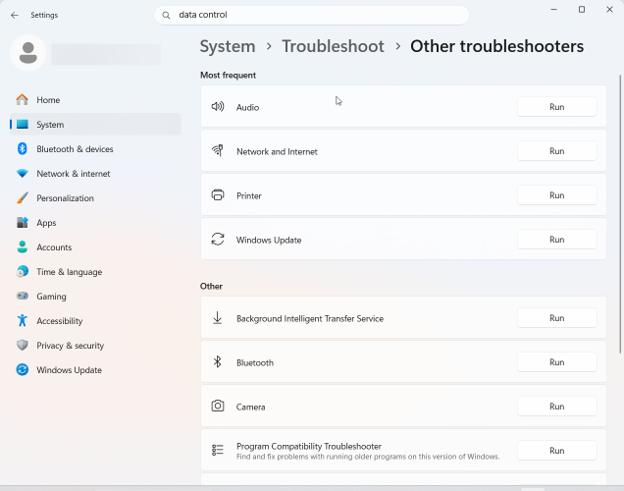
- Run a built-in troubleshooter. Go to Settings > System > Troubleshoot > Other troubleshooters, choose the topic that matches your problem, such as Bluetooth, Audio or Windows Update, and select Run. The steps open in the Get Help app. Microsoft is retiring the older MSDT troubleshooters.
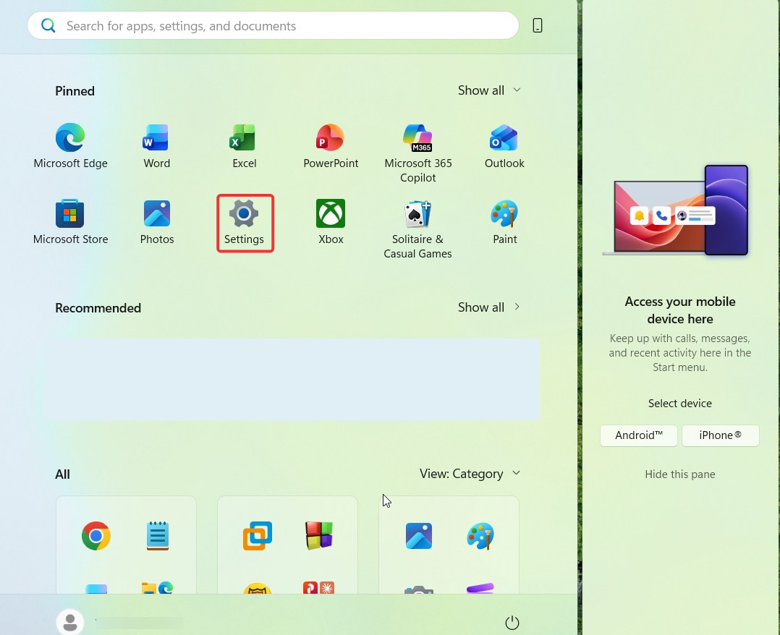
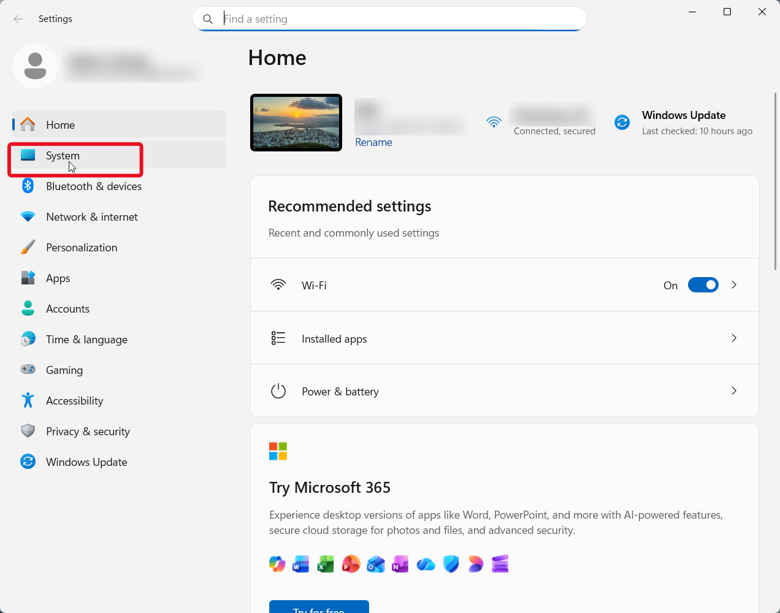
- Check the obvious setting first. For silent Bluetooth headphones, open Settings > System > Sound and confirm the output device is the one you expect. That is the exact fix Copilot found in the demo.
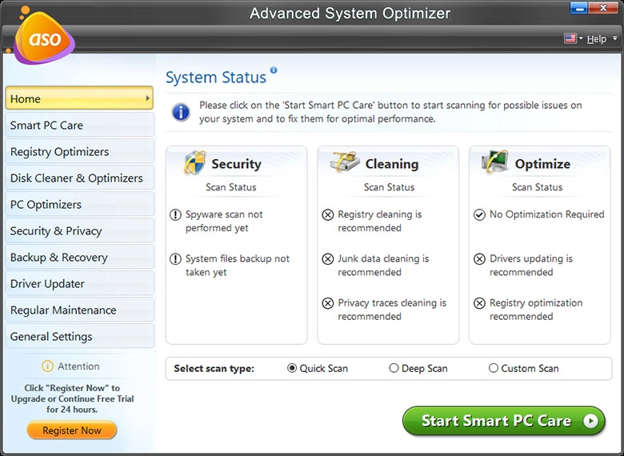
- See what is using your resources. Press Ctrl + Shift + Esc to open Task Manager and sort by CPU, Memory and Disk to spot a slowdown. For slowdowns that come from startup apps and junk files, Advanced System Optimizer, a Systweak PC optimization suite, includes a Startup Manager to manage applications that run at boot time and a System Cleaner to remove unwanted, temporary and junk files.

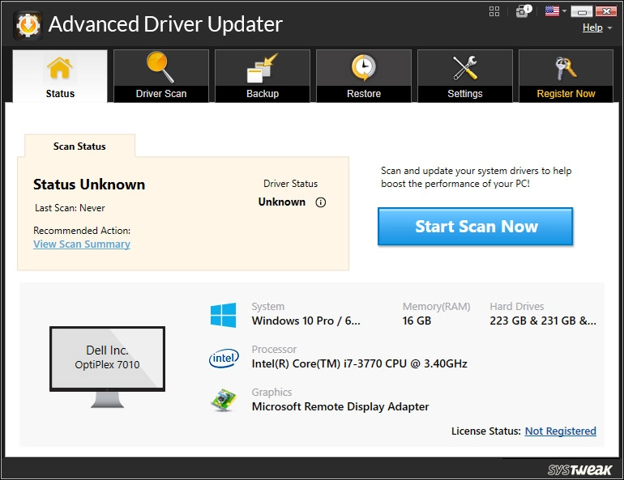
- Update Windows and drivers. Open Settings > Windows Update and install pending updates. Outdated or faulty drivers cause many hardware errors. A Systweak driver tool Advanced Driver Updater runs an automatic scan to list outdated drivers, backs up your drivers and lets you restore the last working driver if an update causes trouble.
- Ask Copilot with details. Today’s Copilot chat usually cannot see your settings or logs, so give it what it needs: your Windows version, the exact error message, when the problem started and what changed just before it.
Frequently Asked Questions
The Bottomline
The Windows Copilot troubleshoot PC feature is a real announcement, but not a release. Microsoft showed Copilot scanning a PC read-only, finding a cause and explaining it, on Copilot+ PCs, with no date and no promise of automatic fixes. Until it arrives, built-in troubleshooters, Task Manager and up-to-date drivers solve most of the same problems.


Leave a Reply