


Summary
This article walks through 20 concrete things Microsoft Copilot can do in 2026, spanning Microsoft 365 apps, Windows integration, and Edge, from drafting emails and analyzing Excel data to changing system settings by voice and getting live help through Copilot Vision.
Most people use Copilot AI for a handful of the same basic tasks, drafting an email, answering a quick question, and stop there. Copilot’s actual reach spans Microsoft 365, Windows itself, and the Edge browser, with genuinely distinct capabilities in each. Rather than another list of generic Copilot tips, this is a practical rundown on how to use Microsoft Copilot across 20 specific, useful things it can actually do for you.
20 Useful Things You Can Do With Microsoft Copilot
In Microsoft 365 apps:
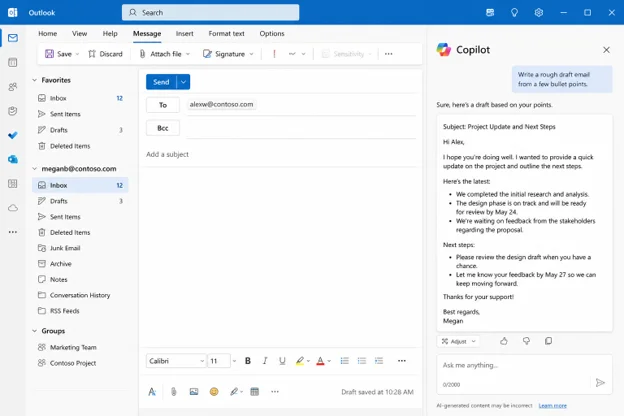
1. Write a rough draft email from a few bullet points. Copilot will take those ideas and write out a complete email that is properly formatted.
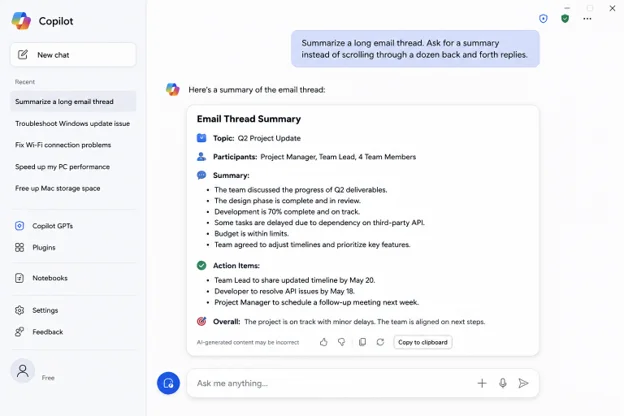
2. Summarize a long email thread. Ask for a summary instead of scrolling through a dozen back and forth replies.
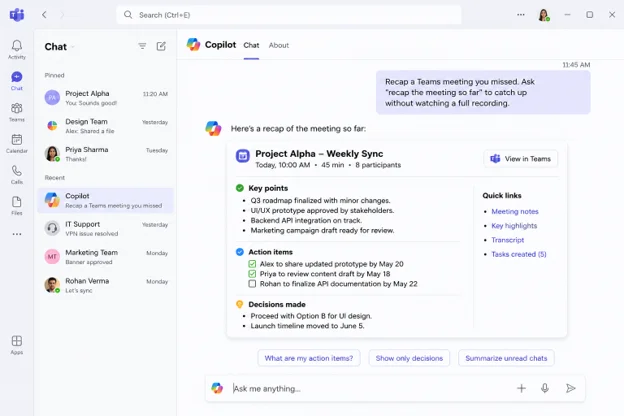
3. Recap a Teams meeting you missed. Ask “recap the meeting so far” to catch up without watching a full recording.
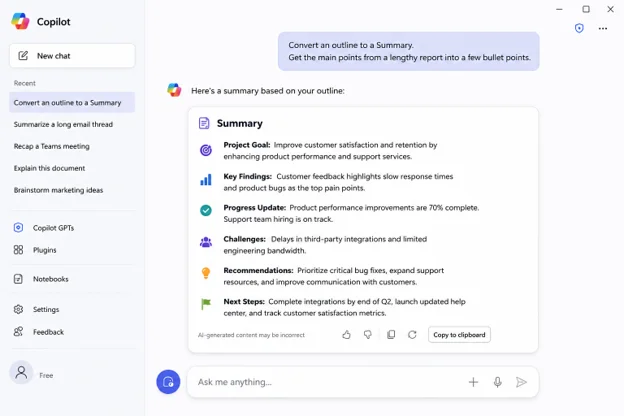
4. Convert an outline to a Summary. Get the main points from a lengthy report into a few bullet points.
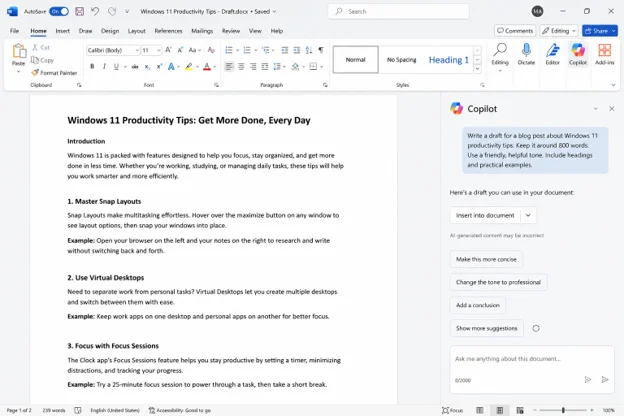
5. Write/Draft/Revise content in Word. Ask for a first draft, a tone Change, tighten up the current text.
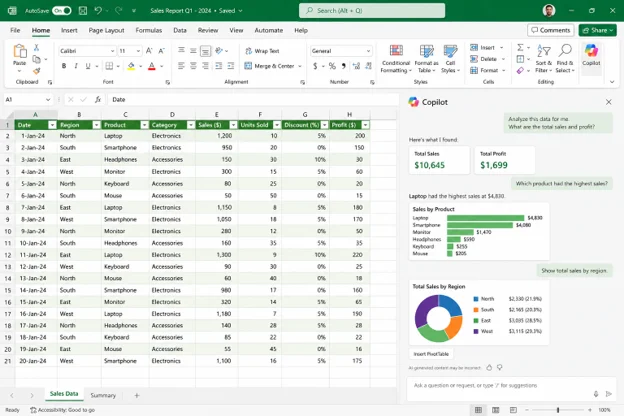
6. Analyze data in Excel without formulas. Ask questions about your spreadsheet in plain language and get insights back.
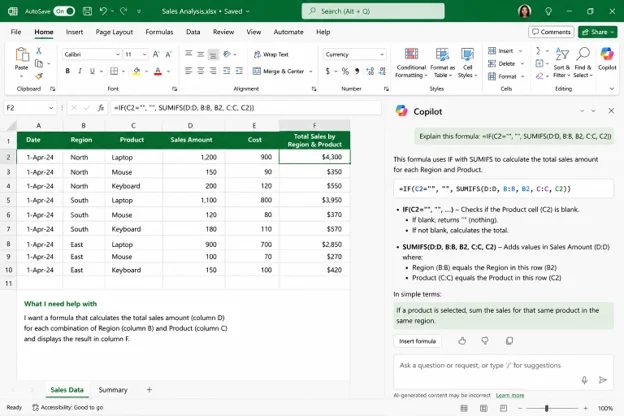
7. Explain or write a complex Excel formula. Paste a formula and ask what it does, or describe what you need and let Copilot write it.
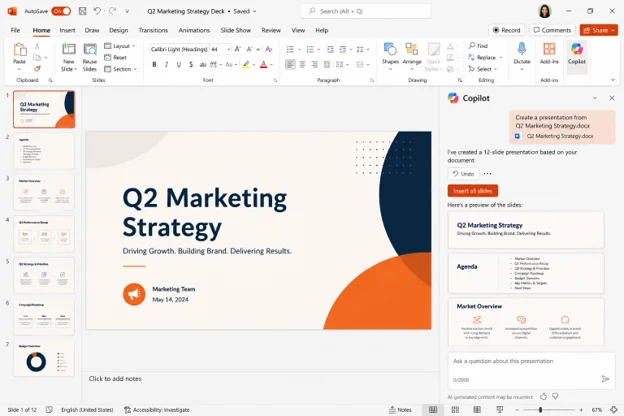
8. Build a PowerPoint deck from a document. Feed it a Word file or outline and get a starting presentation, not a blank slide.
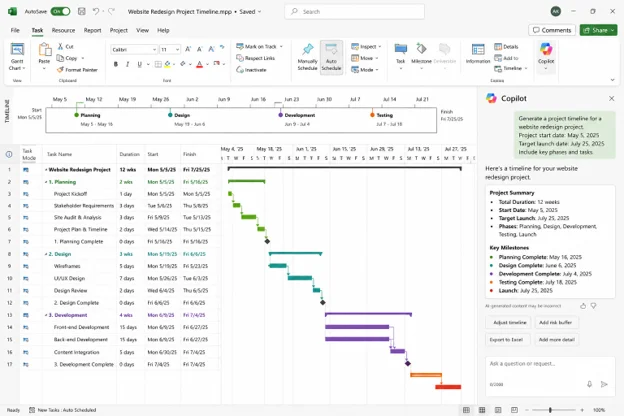
9. Generate a project timeline. Tell Copilot about your project and deadlines and you will receive a structured timeline of tasks that are required to be completed prior to each deadline.
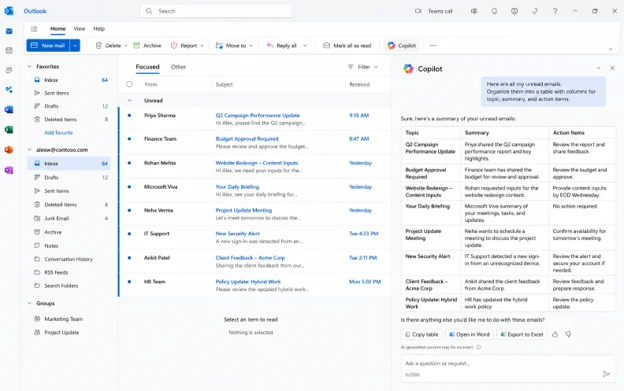
10. Manage Your Inbox. Provide Copilot with a list of all unread emails, and have them returned to you as a table with topic, summary, action items.
In Windows:
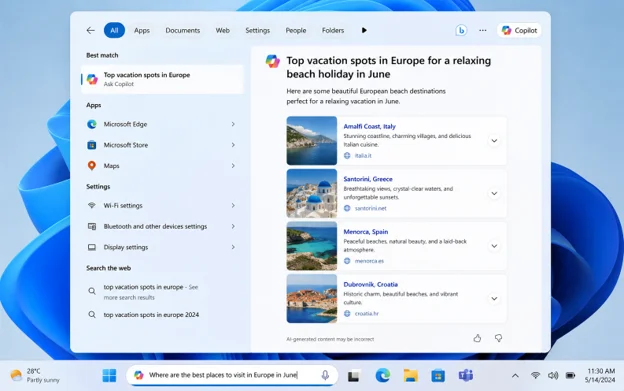
11. Search with Ask Copilot. Use natural, conversational phrasing in the taskbar instead of exact keyword search.
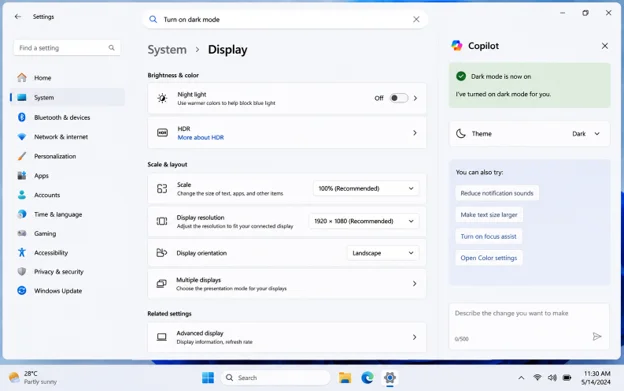
12. Change a system setting by describing it. The Settings Agent lets you type what you want changed instead of hunting through menus. Type your request into the search field located at the top, such as “Turn On Dark Mode,” “Reduce Notification Sounds”, etc., and Copilot will make that happen immediately as opposed to simply showing you where to go.
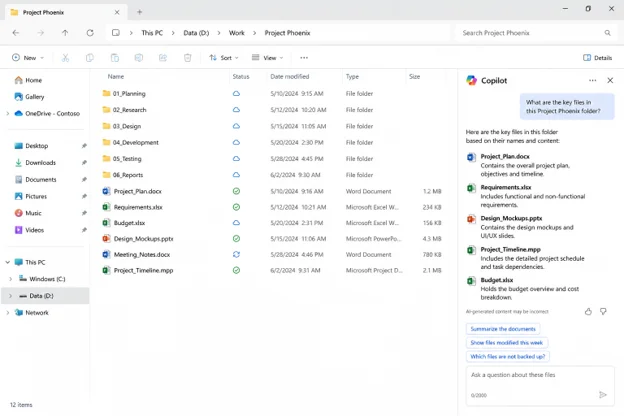
13. Get help without leaving File Explorer. Copilot integration in File Explorer answers questions while you’re browsing files.
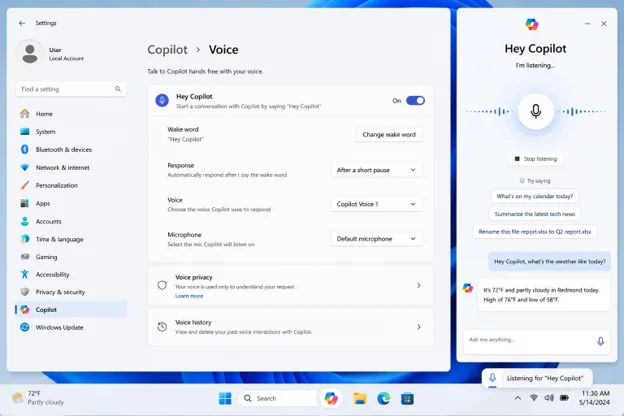
14. Talk to Copilot hands free. Enable the “Hey Copilot” wake word for voice conversations without touching your keyboard.
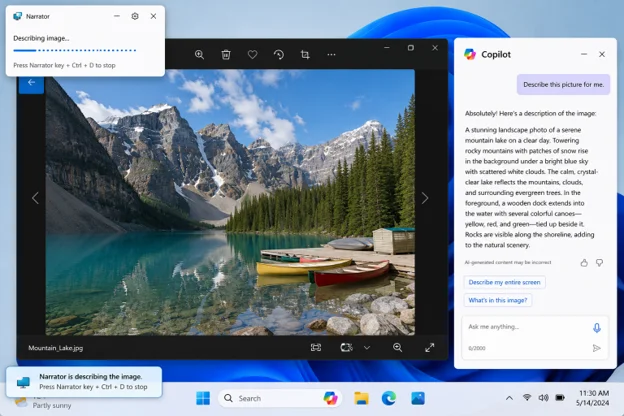
15. Get an image described aloud. Paired with Narrator, Copilot can describe a photo or your entire screen for accessibility.
In Edge and beyond:
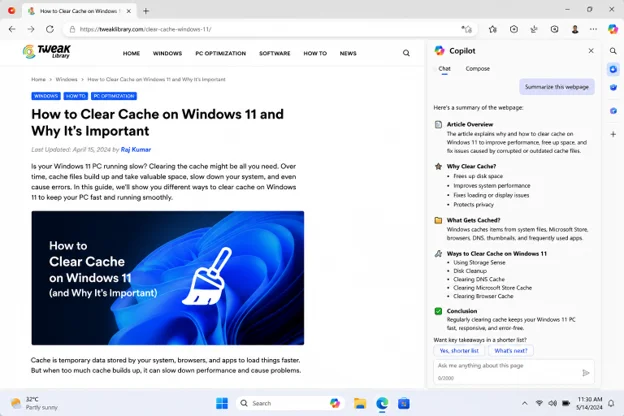
16. Summarize a webpage or article. Ask Copilot in Edge to summarize a long page before you decide whether to read the whole thing.
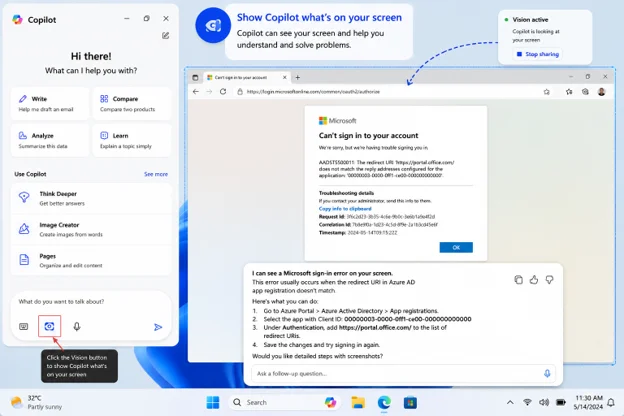
17. Show Copilot what’s on your screen. Copilot Vision lets you share your screen or point your phone camera at something and talk it through live. Once inside the Copilot app, use the Camera or Vision button to begin speaking about what you would like assistance with while simultaneously allowing Copilot to see exactly what you are seeing. This can be anything from an error message that has confused you, a form you have been trying to complete or a product you wish to purchase.
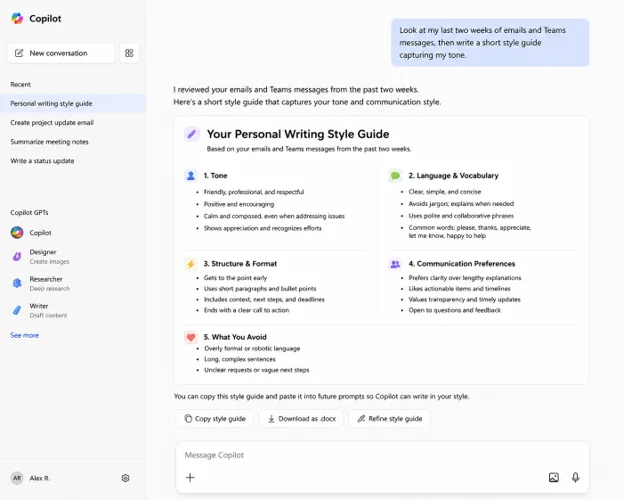
18. Build a personal writing style guide. Ask Copilot to review your recent emails and messages, then create a style document to guide future drafts. A prompt like “look at my last two weeks of emails and Teams messages, then write a short style guide capturing my tone” gives you a reusable reference you can paste into future prompts so drafts sound more like you from the start.
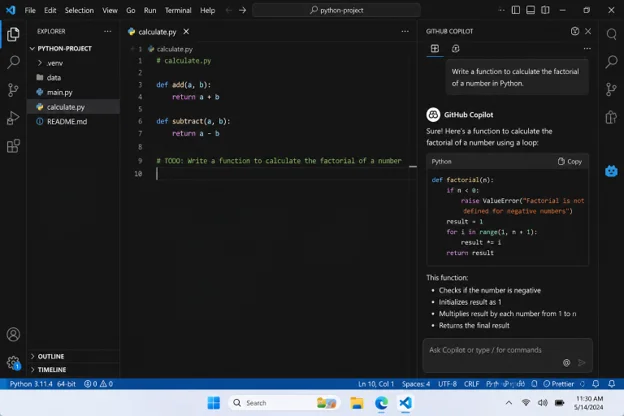
19. Get coding help through GitHub Copilot. This tool was designed to assist with the writing and reviewing code directly within your editor.
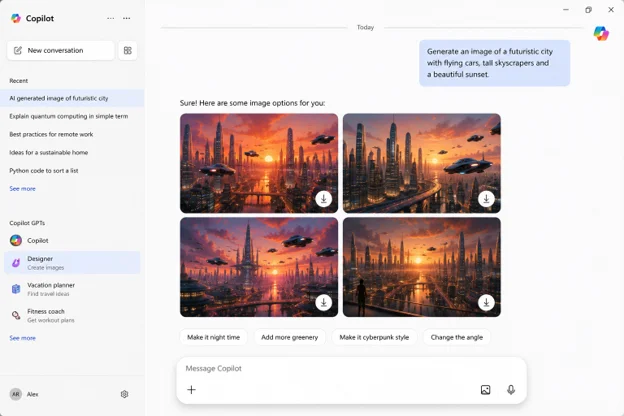
20. Generate images from a text description. Provide an explanation of a visual, get AI generated image options back, and use them for presentation or conceptual ideas.
Frequently Asked Questions
The bottom line
This Copilot guide only scratches the surface, but Copilot’s real range covers far more than quick chat questions, from summarizing meetings in Teams and analyzing spreadsheets in Excel to changing Windows settings with a typed request and getting live help through Copilot Vision. Selecting one or two items from this list that you actually do within your workday rather than trying to get started by utilizing them all at once, will be the best starting point.





Leave a Reply