


Summary
Disabling unnecessary background activity may help Windows 11 use fewer resources and power, but it does not make every PC faster. The effect depends on the apps involved and how much work they do when you are not using them. Windows background permissions mainly apply to supported apps; many traditional desktop programs need to be managed through their own settings. This guide explains how to disable background apps, choose which ones to keep active, and check other causes of slow performance.
Does your Windows 11 PC feel slow even when you are not running demanding programs? Background apps could be one reason. Some apps continue to sync files, check for updates, or deliver notifications when you are not using them.
These tasks can consume system resources and power. However, not every background app slows down your computer. Windows also manages background activity to limit its impact on other tasks.
So, does disabling background apps really make Windows 11 faster? The answer depends on which apps are running and how much work they perform. Let’s look at what changes when you disable them and how to decide whether it is worth doing.
What Are Background Apps?
A background app may keep working after you close its window. It can sync email, refresh information, or send alerts. These tasks can use RAM, CPU time, and battery power, but the impact varies by app and its activity.
Windows splits this work into three groups. Background apps are Microsoft Store apps that may run while closed. Startup apps launch when you sign in. Background processes are services that Windows and your drivers need. The Background apps setting controls the first group and nothing else. Windows notes that desktop apps do not show up in Installed apps. You change those in each app’s own settings.
The Background apps setting controls Microsoft Store apps only.
How Do Background Apps Affect Windows 11 Performance?
Background apps can affect your PC in different ways. Once you understand that difference you should be able to manage running apps effectively:
1. RAM Usage
RAM holds data and instructions for active programs. During multi-tasking or when running heavy programs, RAM utilization may reach full capacity. When this happens, Windows may swap data between RAM and system storage, causing lag when you switch tasks.
Because an app can use memory even when it is idle, disabling unnecessary background activity may help in some cases, but it does not ensure that an app will release all its memory.
2. CPU Usage
The CPU handles instructions from Windows and applications. While active processes consume CPU, background apps that lie idle but still use CPU resource increase overall system load. For example, an app that processes data in the background may consume more CPU than an app that generates notification. Therefore, stopping unnecessary tasks can reduce CPU usage, especially when your processor is already busy.
3. Battery Life
Background activity can use power even when you are not actively using an app. Tasks like email syncing or notification updates may contribute to constant battery drain. To check this, Windows provides background activity controls that let you limit supported apps and reduce their power use. The effect depends on the app and how often it performs background tasks.
Does Disabling Background Apps Really Make Windows 11 Faster?
Disabling background apps may help when a supported app performs frequent tasks or uses resources you need for other work. There is no reliable RAM threshold that predicts the result: the effect depends on the apps involved, their activity, and the workload. On a PC that already has enough available resources, you may notice little or no change.
Suppose a laptop with 4 or 8 GB of RAM may experience lagging or slowness in system response, these performance bottlenecks typically go unnoticed on a 32 GB RAM machine. However, noticeable improvements can still be seen in the following areas:
- System responsiveness: Restricting unnecessary background activity may help if it contributes to system load, but it will not guarantee a faster response.
- RAM usage: Some apps may use less memory when background activity is restricted, but the setting does not guarantee that all memory used by an app will be released.
- CPU usage: The change may reduce CPU activity if the app was doing work in the background.
- Battery life: Limiting unnecessary background work may reduce power use, depending on the app and how often it runs.
However, disabling background permissions will not fix every performance problem. If your PC has enough free memory and its background apps use little CPU, you may notice no clear improvement. Windows also manages background activity to limit its effect on foreground tasks.
On a laptop, you can review battery use before changing app permissions. Open Settings > System > Power & battery > Battery usage to see which apps have used power. Where the option is available, select an app’s menu and choose Manage background activity. Restrict apps you do not need running while inactive, but keep background access for apps that must sync or send timely alerts.
Test the result yourself:
- Press Ctrl, Shift, and Esc together to open Task Manager.
- Note the Memory and CPU values at idle.
- Change your background app permissions.
- Restart, wait a minute, then compare the numbers.
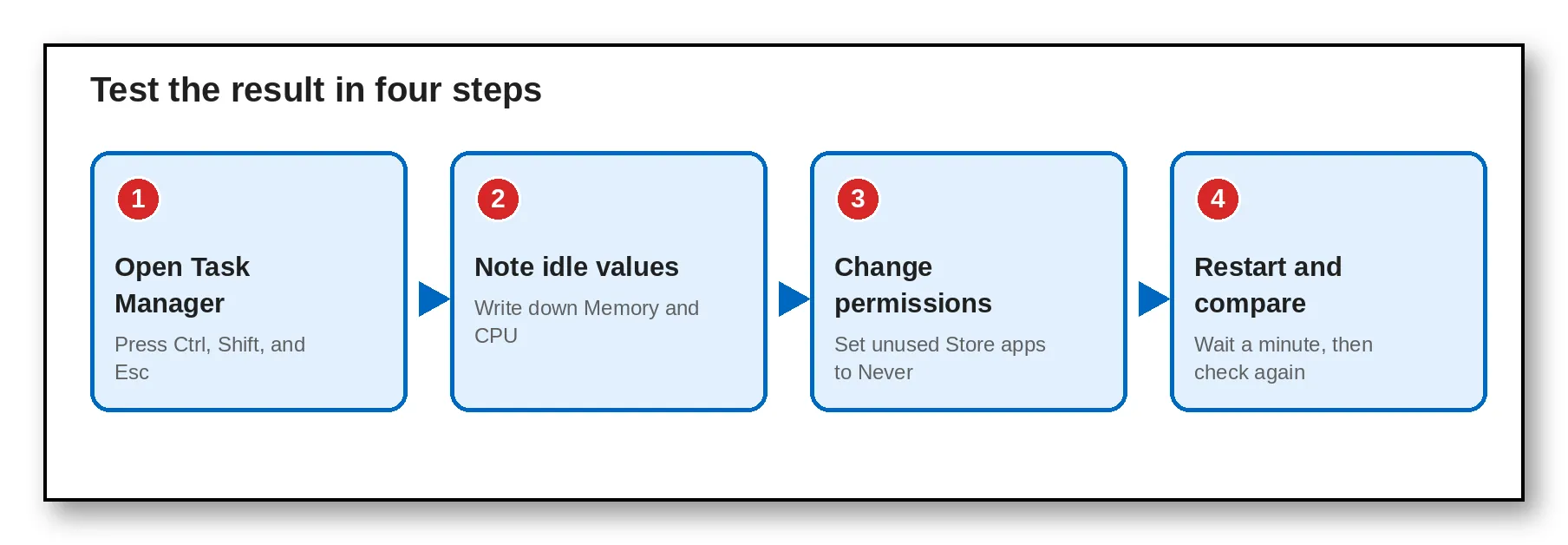 A four-step test shows the effect on your own PC.
How to Disable Background Apps in Windows 11
Windows 11 lets you control background permissions for supported apps through Settings. To do so, follow these steps:
- Press Windows + I to open Settings.
- Select Apps and then Installed apps.
- Find the app you want to manage.
- Select the three-dot menu next to the app.
- Choose Advanced options, if available.
- Find Background app permissions.
- Under Let this app run in the background, select Never.
This prevents the supported app from running in the background when you are not actively using it. Not every app offers this setting. Traditional desktop programs use their own background processes or services, so this option does not control every program on your PC.
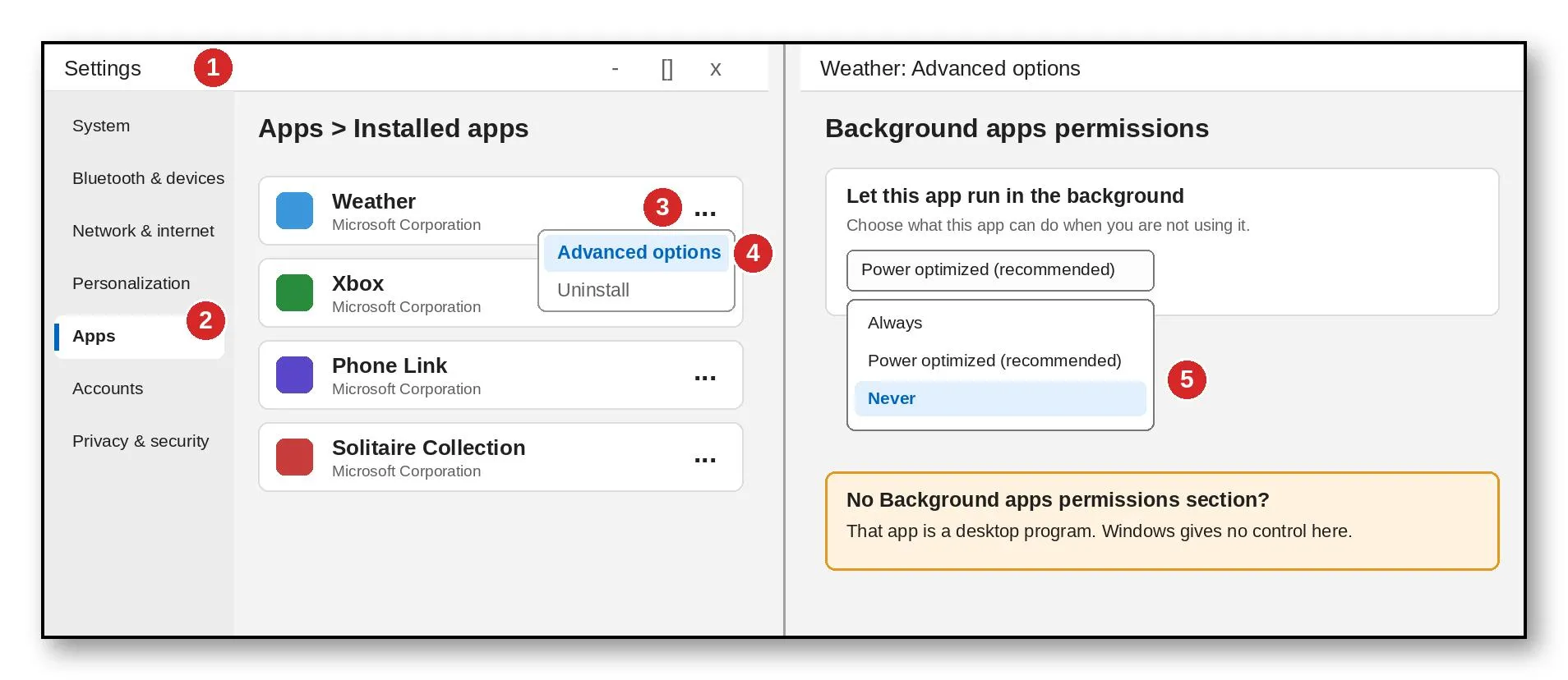 Windows 11: Settings, Apps, Installed apps, Advanced options, then Never
On Windows 11 Pro, Enterprise, and Education, you can set one rule for every Store app. Open the Local Group Policy Editor. Go to Computer Configuration, then Administrative Templates, then Windows Components, then App Privacy. Set “Let Windows apps run in the background” to Force Deny.
Manage Background Activity Through Battery Settings
You can also manage supported apps through Windows 11’s battery settings.
- Open Settings.
- Select System and then Power & battery.
- Open Battery usage.
- Find an app that supports background activity controls.
- Select its three-dot menu and choose Manage background activity.
- Change its background permission as needed.
The available options include Always, Power optimized, and Never.
Power optimized lets Windows manage background activity to balance power use with app functions. Never prevents the supported app from running in the background when it is not active.
How to Stop Background Apps in Windows 10
Windows 10 has a master switch. Windows 11 removed it.
- Open Settings and select Privacy.
- Choose Background apps in the left pane.
- Turn off “Let apps run in the background” to stop all of them. Or switch off single apps in the list below it.
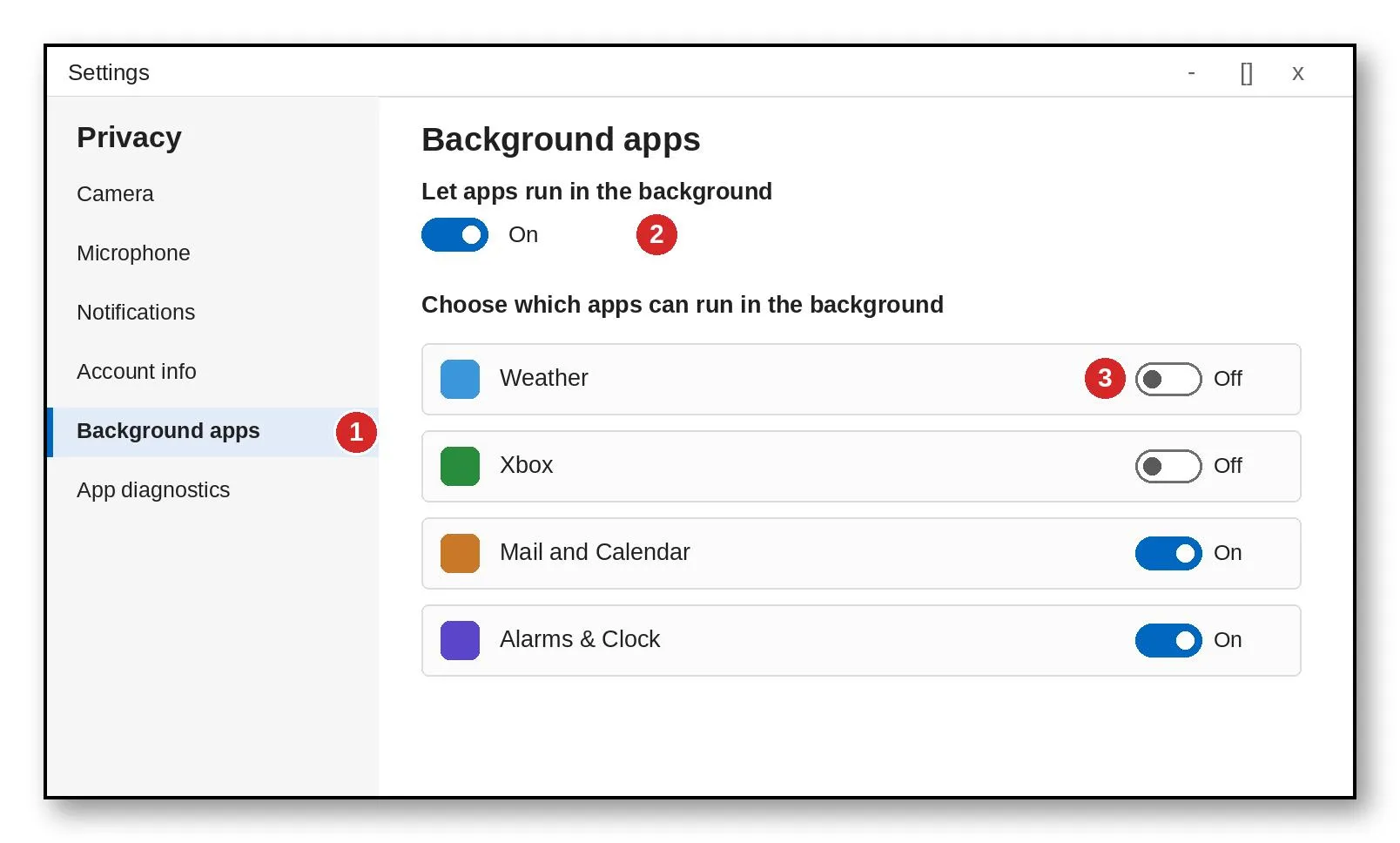 Windows 10: the master switch and the per-app list. Illustration, not a screenshot.
How to Disable Background Activity for Traditional Desktop Apps
When you close a desktop program, it may minimize itself to System Tray and quietly run in the background. Programs such as Google Chrome, Microsoft Outlook, and cloud storage clients, may also continue running after you close their windows. Windows does not provide a single option to close all these background apps. Instead, you have to manage their background activity through their own settings. You should also manage startup items that instantly move to the background after launch.
Follow the below steps to manage these apps:
- Open the app’s settings: Launch the desktop app and look for its Settings or Preferences menu.
- Turn off unnecessary activity: Look for settings related to background activity and startup behavior
- Find background options: Disable options that allow the app to keep running after you close it, if available.
- Close active processes: If an app is still running and you do not need it, open Task Manager, select the app under Processes, and choose EndTask. Ending a task stops the current process but does not prevent it from starting again later.
These options vary in every app. Disabling a startup entry prevents automatic launch at sign-in, but it does not stop an app from moving in the background when you open it manually. Thus, it is necessary to handle both startup entry and background activity of an app to regain resources.
Focus on desktop apps you recognize and that are not essential to stay in the background. Avoid disabling unfamiliar Windows services or security software.
Background Apps vs. Startup Apps: What’s the Difference?
Background apps and Startup apps differ in their functionality. When you minimize an app or lock your screen, the app that moves behind the scenes can be termed as a background app. A background app’s purpose is to continuously run and perform its designated task even when you are not actively using it.
Startup apps determine which applications launch automatically when you sign in to Windows. A startup can also execute in the background on its launch. For example, an app may launch when you sign in and continue running in the background. Disabling its background permission does not necessarily prevent it from launching at sign-in.
To manage startup apps:
- Open Settings.
- Select Apps > Startup.
- Review the list of applications.
- Turn off apps that you do not need to launch automatically.
You can also open Task Manager with Ctrl + Shift + Esc and select Startup apps.
Disabling unnecessary startup apps can reduce startup delays and background activity. If your PC takes a long time to become usable after sign-in, this setting may help more than changing background permissions alone.
How to Check Whether Disabling Background Apps Helped
Instead of assuming that a change improved performance, measure its effect by following these steps:
- Restart your PC and let Windows finish loading.
- Press Ctrl + Shift + Esc to open the Task Manager.
- Select the Processes tab.
- Review CPU, memory, and disk usage.
- Note which apps consume the most resources.
- Disable background activity for an unnecessary app.
- Repeat the check under similar conditions.
Compare the readings before and after the change. If memory or CPU usage falls, the change should have reduced resource use. If the readings remain similar, the app may not have been using much of the resources in the background.
Keep in mind that lower resource use does not always mean a noticeable increase in speed. The effect depends on your workload and available system resources.
Which Background Apps Should You Disable?
Start with apps you rarely use and do not need to update or send notifications while inactive. For example, you may choose to limit background activity for an app that you open only when needed. Review its purpose before changing the setting.
As a rule, limit background activity for apps you rarely use and do not rely on for alerts or syncing. Therefore, its suggested keep it enabled for:
- Email and calendar apps: You may miss timely updates or notifications.
- Messaging apps: New message alerts may stop until you open the app.
- Cloud storage apps: File syncing may be delayed or affected.
- Apps that perform scheduled tasks: Some functions may not work as expected when background activity is restricted.
You do not need to disable every background app to improve Windows performance. Focus on apps that provide little value when they are inactive.
Other Settings to Check for Windows Performance
Startup apps cost more than background apps on most PCs. They load each time you sign in. If your PC is slow immediately after sign-in, review Settings > Apps > Startup and turn off apps you do not need to launch automatically. This can reduce startup delays, but it is different from restricting background permissions. To identify active resource use, open Task Manager (Ctrl + Shift + Esc) and check the CPU, Memory, and Disk columns.
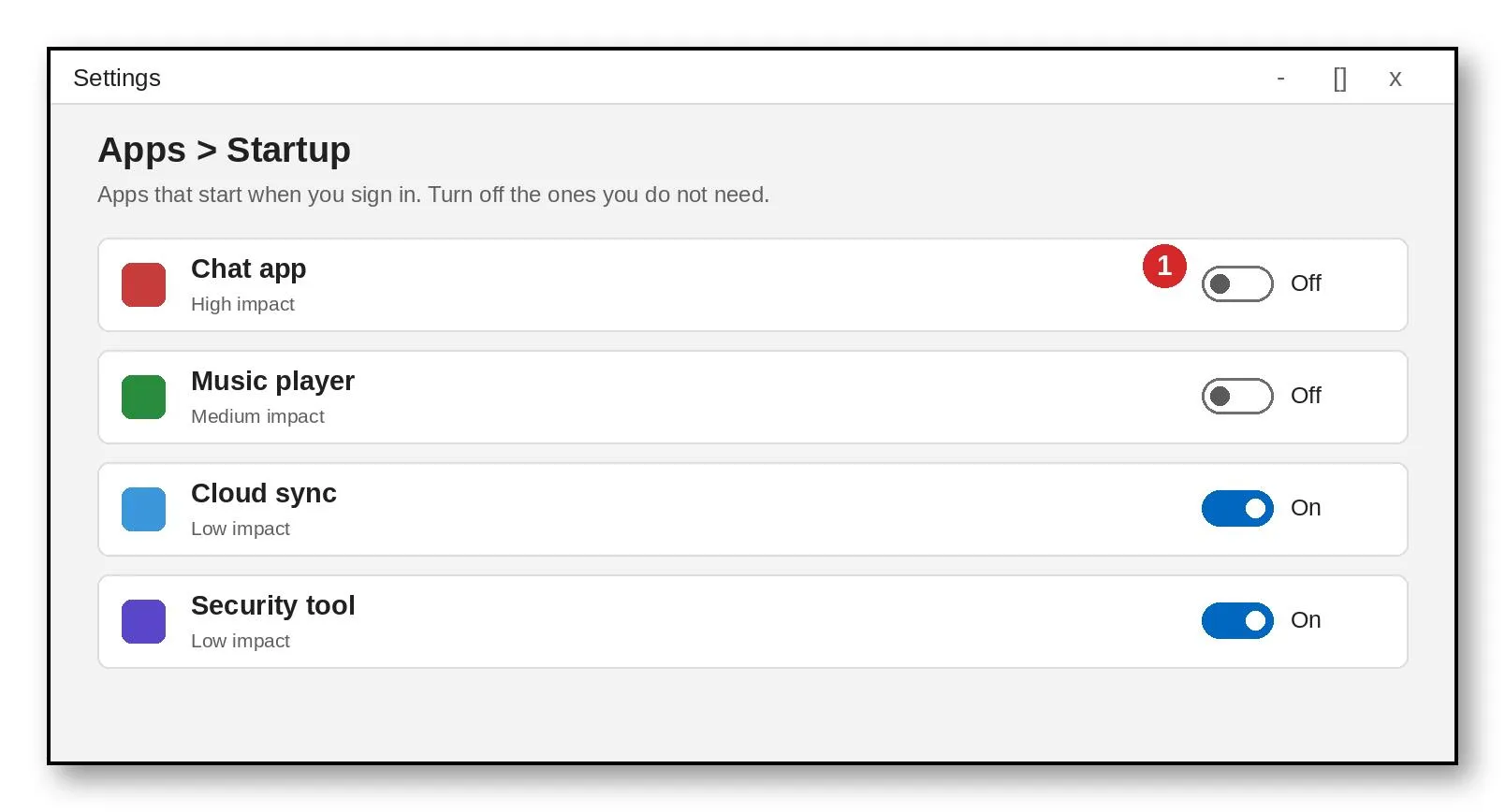 Switch off startup programs you do not need. Illustration, not a screenshot
For battery concerns, review Settings > System > Power & battery > Battery usage. The list shows which apps drain the most power.
When Disabling Background Apps Will Not Help
If your PC remains slow after you disable unnecessary background activity, use Task Manager to check which processes are using unusually high CPU, memory, or disk resources. If the problem occurs immediately after sign-in, review startup apps. You can also check available storage, install Windows updates, and scan for malware.
A PC may struggle with demanding programs if it has limited memory or older hardware, regardless of background app permissions.
Therefore, treat background permissions as one possible adjustment, not a universal fix. Choose the next troubleshooting step based on the resource or symptom you find.ax
Manage Startup and Memory With Advanced System Optimizer
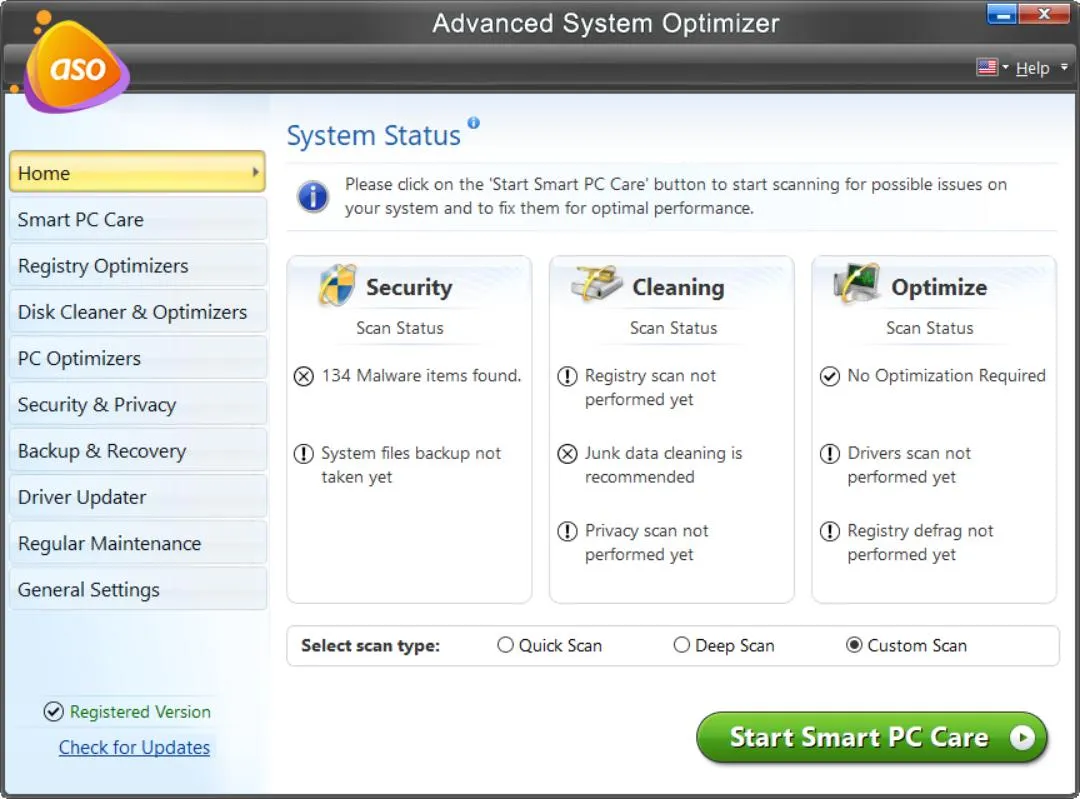
Windows settings handle most of this work for free. If you want one window for the job, try Advanced System Optimizer from Systweak. It bundles a Startup Manager, a Memory Optimizer, and a junk file cleaner. The Startup Manager lists the programs that launch with Windows. You can review and remove them without switching between Task Manager and Settings. The Memory Optimizer shows how much RAM is in use. Use it alongside the steps above, not instead of them.

Conclusion
Disabling background apps may help Windows 11 when supported apps use resources or power while inactive. The effect varies, and some PCs may show little change. Review each app’s purpose before restricting background activity, especially if you rely on notifications or syncing. If your PC remains slow, use Task Manager and other Windows troubleshooting options to investigate the cause.


Leave a Reply