


Summary
This article covers how to access Copilot in Windows 11, what it actually does (Ask Copilot, Copilot Vision, File Explorer integration, Narrator descriptions), and the key distinction between features any PC can use versus those needing a Copilot+ PC’s NPU.
Microsoft Copilot is built into Windows 11 by default now, whether you look for it or not. You’ll see it on your taskbar and popping up inside apps like File Explorer, Notepad and Settings from time to time. Microsoft Copilot AI has grown fast since it first launched and it’s easy to end up either ignoring it entirely or using a fraction of what it actually does. This guide covers how to open and set it up, what it’s genuinely useful for, and which features need a specific kind of PC to work at all.
What Is Microsoft Copilot in Windows 11
Copilot is Microsoft’s built-in AI assistant, with the ability to answer questions using a chat format, write content and generate images, and increasingly deep integration across Windows itself, including taskbar search to File Explorer to the Settings app. The model that runs Copilot is based on cloud AI models rahter than running entirely on the user’s local machine; however some new features are shifting toward on-machine processing on hardware built for it.
How to Access Copilot AI in Windows 11
Step 1: Open Copilot from the Taskbar or Keyboard Shortcut
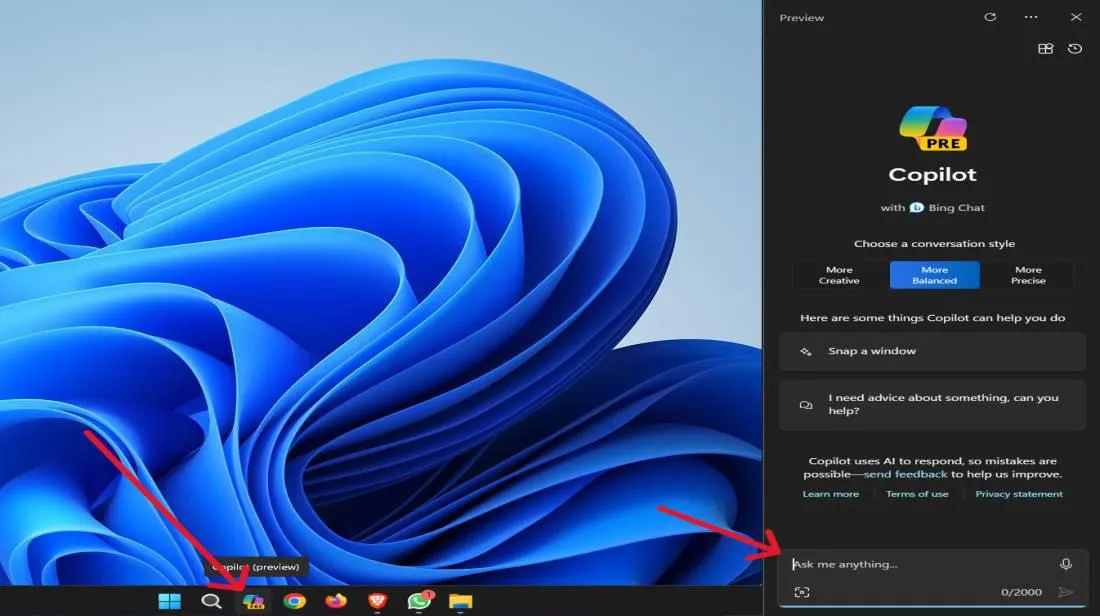
- To access Copilot, either click on the Copilot icon on your Taskbar, or simply press “Windows key” + c to quickly launch Copilot directly from your keyboard.
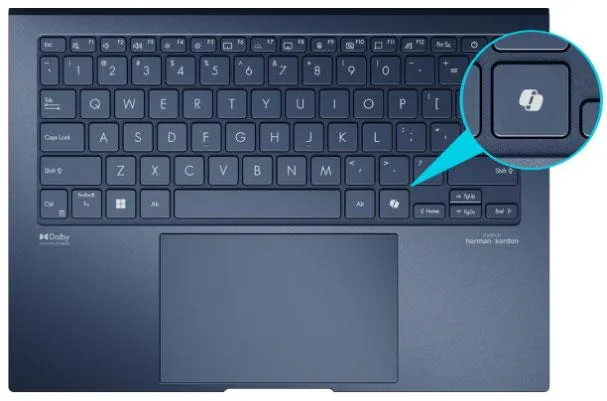
- If you have a pc that includes a dedicated Copilot key located somewhere on your keyboard, use this key as an alternative way of accessing Copilot.
- Once Copilot is launched, type a query, or enter a request into the new chat window that has opened.
Step 2: Sign In With a Microsoft Account
- If you are not currently signed into your Microsoft account then click sign in in the copilot window.
- The advantages of signing into a Microsoft account include; having access to conversation history, having your experience personalized and higher usage limits compared to using Copilot signed out.
Step 3: Turn On Voice Mode
- Open Copilot Settings from within the Copilot app.
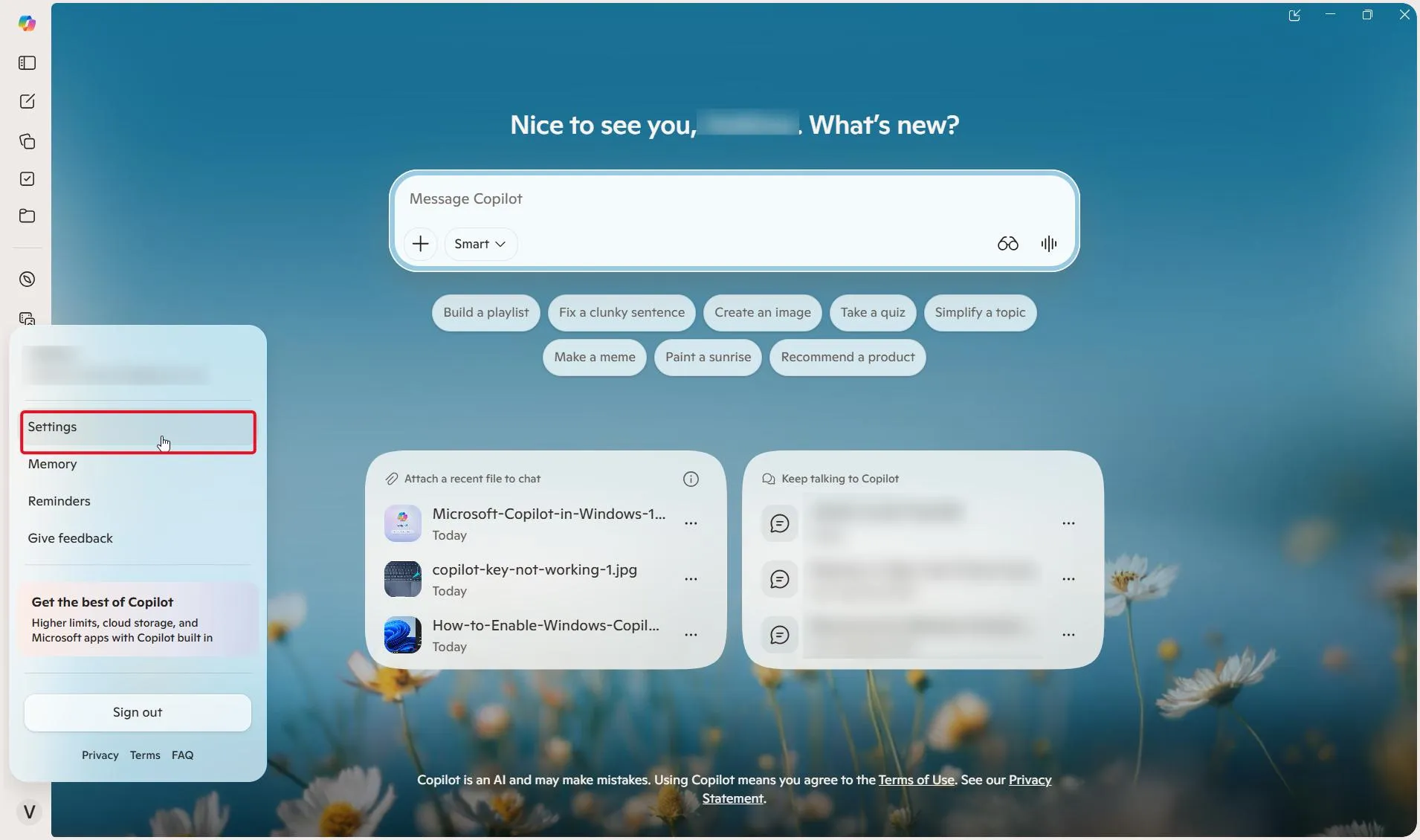
- Enable the wake word feature and choose which microphone to use if you have more than one.
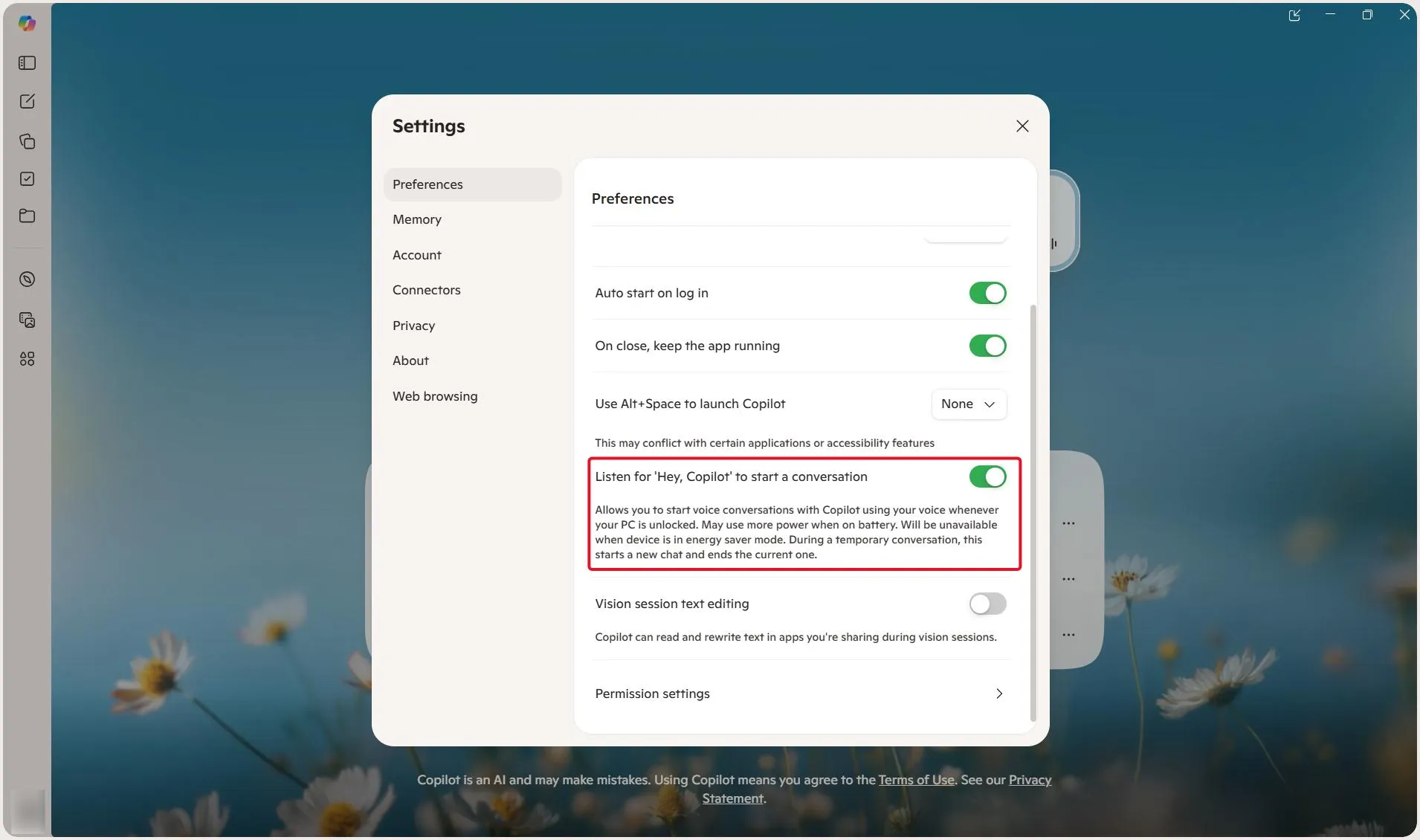
- Once enabled and selected simply say “Hey Copilot” and begin hands free conversations. To discontinue a hands-free conversation simply state either “Goodbye” or “That’s all for now”.
What You Can Actually Do With Copilot
Ask Copilot (taskbar search): Type into the Ask Copilot on the taskbar and it works differently from classic Windows search because it can understand more natural conversational phrasing compared to exact matches of keywords while still searching local files, apps and settings using the same index. Copilot cannot read contents of local files unless you upload one and ask about it specifically.
Copilot Vision: It allows you to display either your screen or a selected application window to receive real-time voice feedback from Copilot as needed when exploring an unfamiliar application, navigating a video game, etc. It’s available in over 170 markets through the Copilot app, though usage limits apply and can change over time.
Copilot in File Explorer: A more recent addition that lets you invoke Copilot from within the File Explorer, so you don’t have to switch to a different window.
Settings Agent: Allows you to describe your setting changes using everyday language within the Settings app, as opposed to having to search through all of the menu options to locate the specific toggle.
Narrator with Copilot: For accessibility, Narrator can now ask Copilot to describe an image or your entire screen in detail, using Narrator keys + Ctrl + D to get details about the picture that has focus at the moment or press Narrator keys + Ctrl + S to get a description of your whole screen. This recently became available on all Windows 11 devices, not just Copilot+ PCs, and the image is only shared with Copilot after you specifically choose to describe it.
Copilot vs. Copilot+ PC: What Needs Special Hardware
This is the part most Copilot guides gloss over, and it causes real confusion in Microsoft’s own support forums. “Copilot” the app and chat assistant runs on any Windows 11 PC. “Copilot+ PC” refers to specific hardware with a Neural Processing Unit (NPU) built in, which unlocks a separate tier of on-device AI features, including Click to Do (a contextual action menu that appears over anything on your screen), Windows Recall, and, previously, higher-quality Narrator image descriptions before that specific feature was opened up to all devices in early 2026.
The practical upshot: if a Copilot feature is described as running “on-device” or specifically references Copilot+ or an NPU, it needs that specific hardware. If it’s just “Copilot” or “Ask Copilot,” it works on any Windows 11 PC, cloud-connected. Microsoft has been steadily moving individual features from the Copilot+-only list to the everyone list over time, so it’s worth checking current availability for any specific feature you’re after rather than assuming based on an older article.
Frequently Asked Questions
The bottom line
Copilot Windows 11 features cover a lot more ground than the chat box most people first notice, from taskbar search and File Explorer integration to accessibility features like Narrator image descriptions. The features worth knowing about split cleanly into two groups: those that work on any Windows 11 PC through the cloud, and those that need a Copilot+ PC’s NPU, and Microsoft keeps moving individual features from the second group into the first over time.


Leave a Reply