


Summary
You should never leave your PC unlocked because it contains your personal files, passwords, and other sensitive information. But if you have accidentally left your PC open, you can lock it using your phone. In this guide, we have explained all methods for how to lock Windows 11 remotely.
There is a lot more that your phone can do apart from just making a call or sending out a message. The phone can be useful in securing your Windows 11 PC. You could use features such as dynamic lock or remote access capabilities to lock your computer at any time when you move away from it.
Why Lock Your Windows 11 PC Automatically?
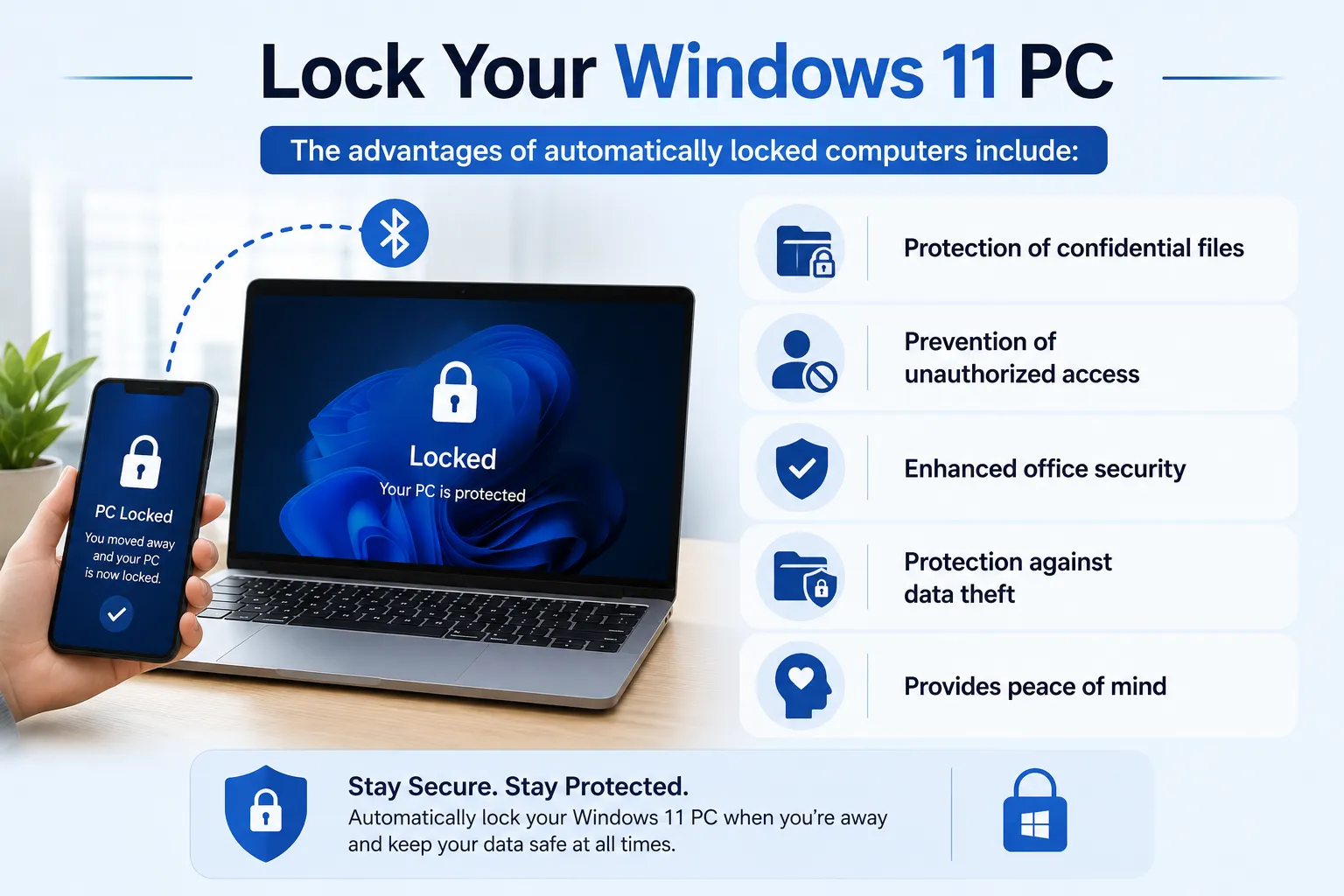
Pressing Windows+L manually each time you leave your workstation may be convenient, but you might just forget it. In case you are often away from your computer because of work-related or personal reasons such as attending meetings, taking a break, or answering the phone, automatically locking your computer can bring some additional security. The advantages of automatically locked computers include:
- Protection of confidential files
- Prevention of unauthorized access
- Enhanced office security
- Protection against data theft
- Provides peace of mind
Expert-Recommended Method to Lock Windows 11 with Phone
Method 1: Use Windows 11 Dynamic Lock (Recommended)
Dynamic Lock is an inbuilt feature by Microsoft that locks the PC automatically once your Bluetooth-enabled phone moves out of its range.
How Does Dynamic Lock Work?
Windows continuously checks for the Bluetooth link between the computer and the mobile phone. Once there is a reduction or loss of the Bluetooth connection due to moving away from the computer, Windows gives some time of around 30 seconds, after which it automatically locks the PC.
Before you start, make sure that you have a Windows 11 computer with Bluetooth support, a smartphone, either an Android or an iPhone with Bluetooth activated, and lastly, you must have administrator rights on your account. Here is what you need to do –
- To begin with, connect the smartphone using Bluetooth by pressing Win + I to bring up the Settings window.
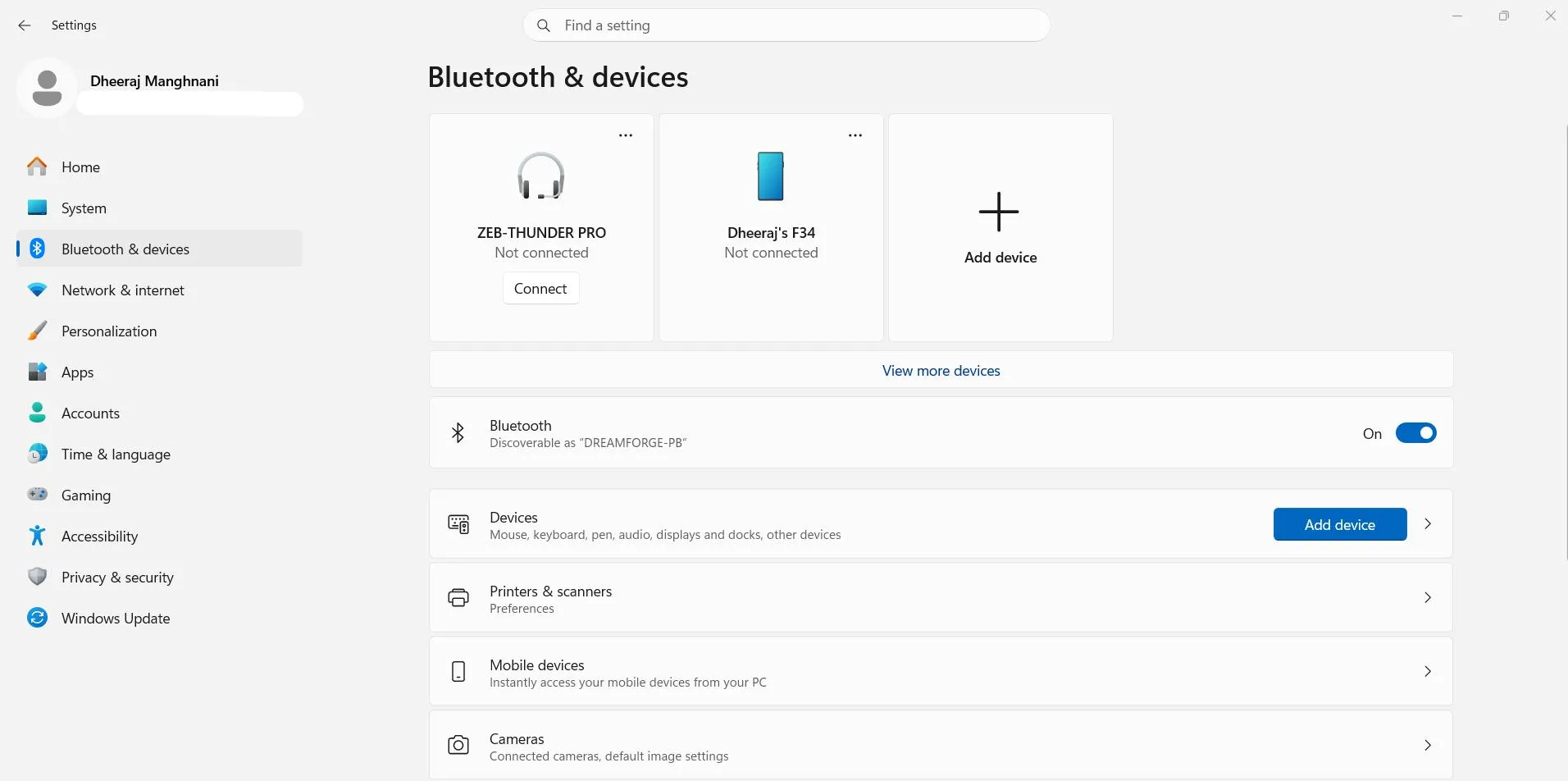
- From the left pane of the menu, click on Bluetooth & Devices and then turn on Bluetooth from the right pane.
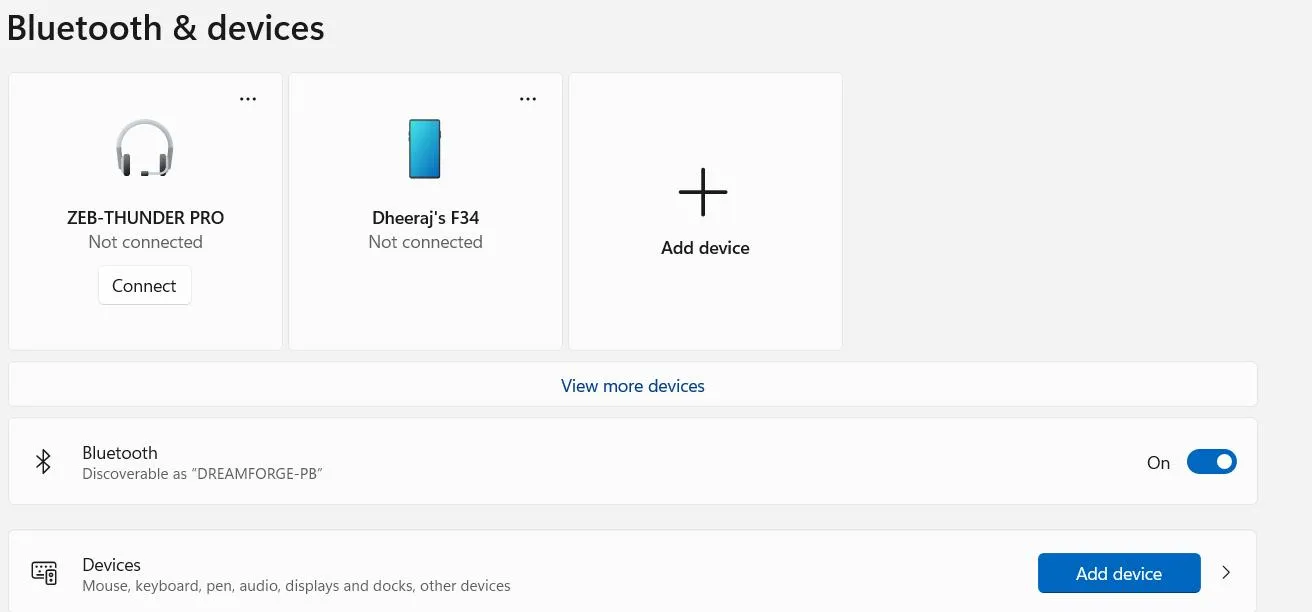
- After that, click on Add Device and select Bluetooth.
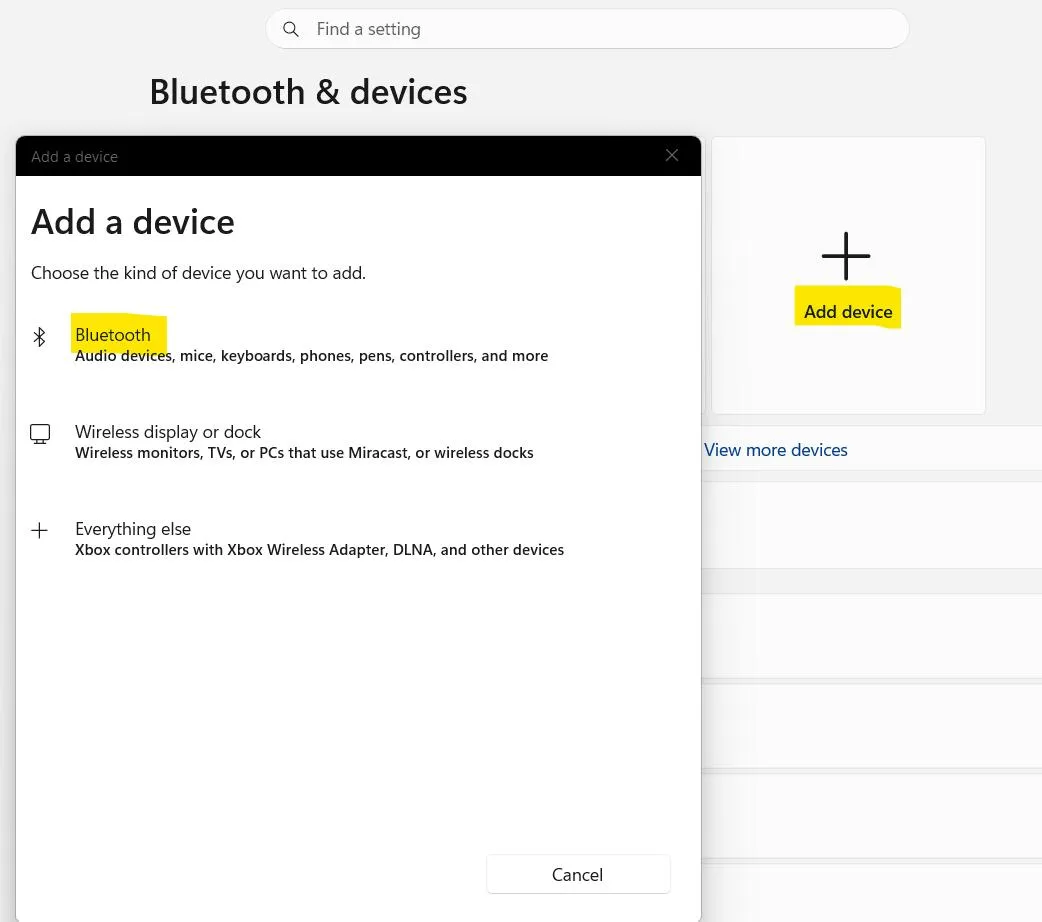
- Then, on your smartphone, open the Bluetooth settings and turn on Bluetooth.
- Pair with your Windows computer and enter the pairing code on both devices.
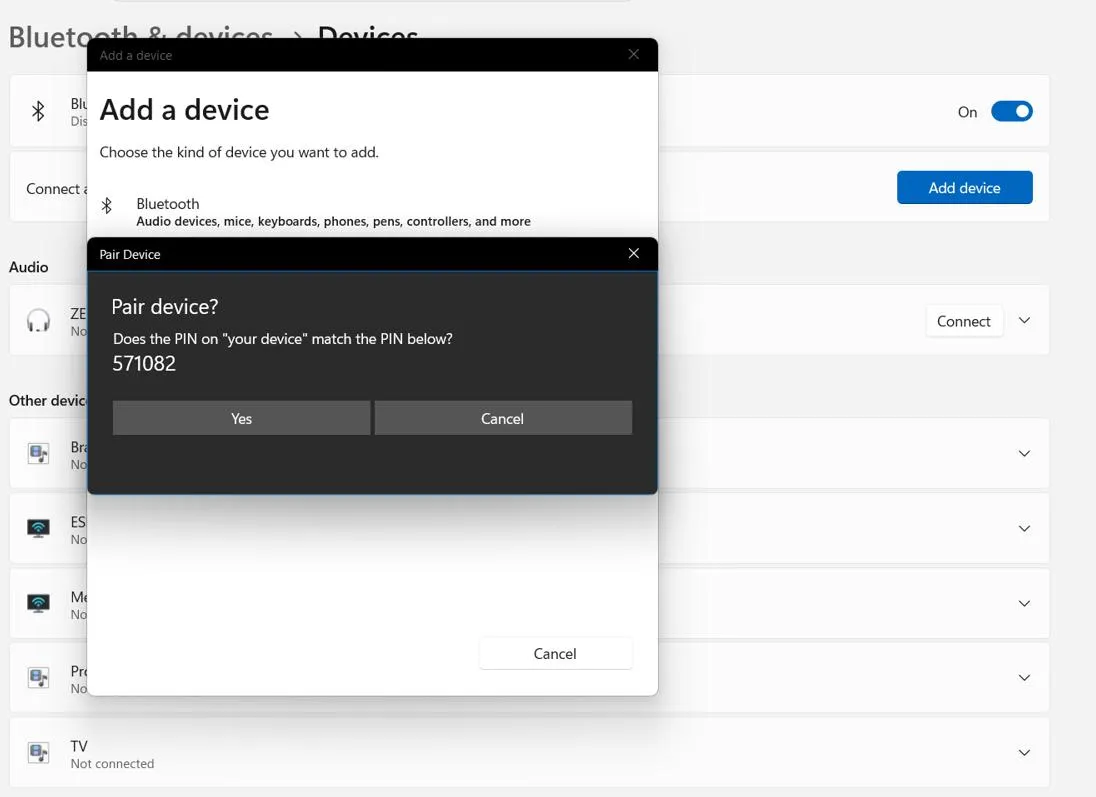
- After that, your phone will be added to the list of Bluetooth devices.
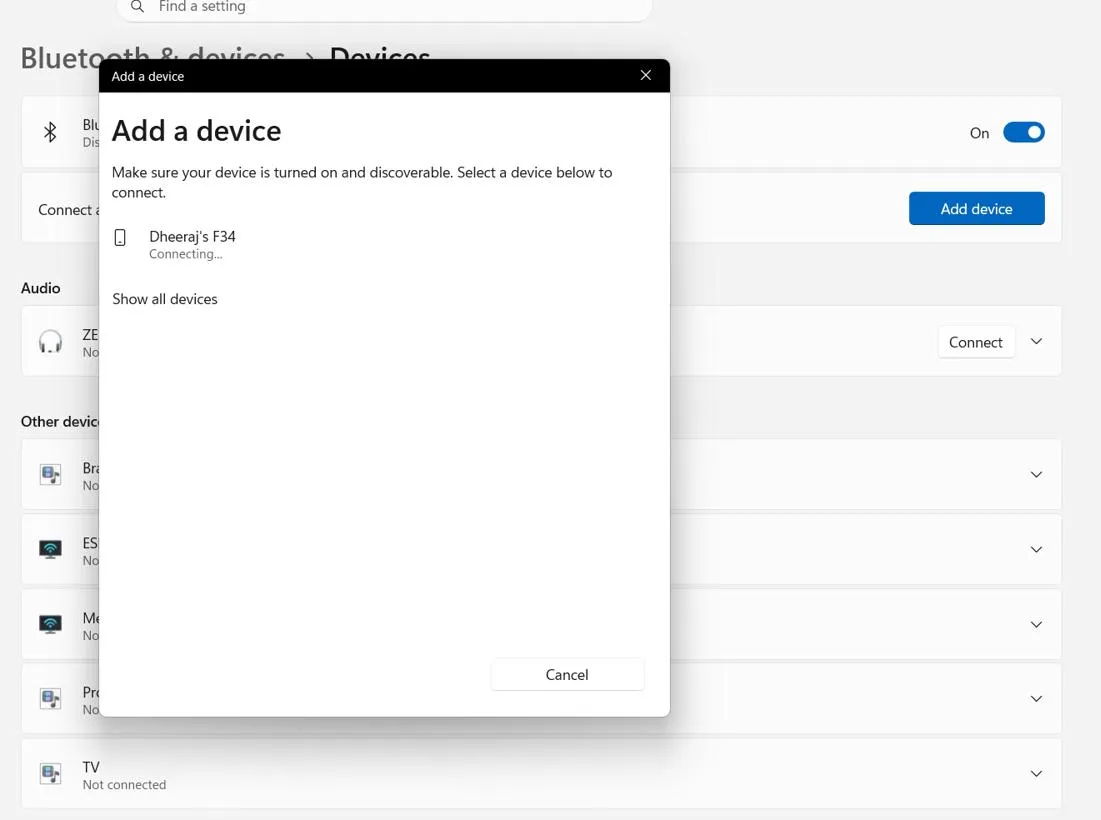
- After that, to enable Dynamic Lock, go back to Settings.
- Click on Accounts from the left panel and then click on Sign-in options.
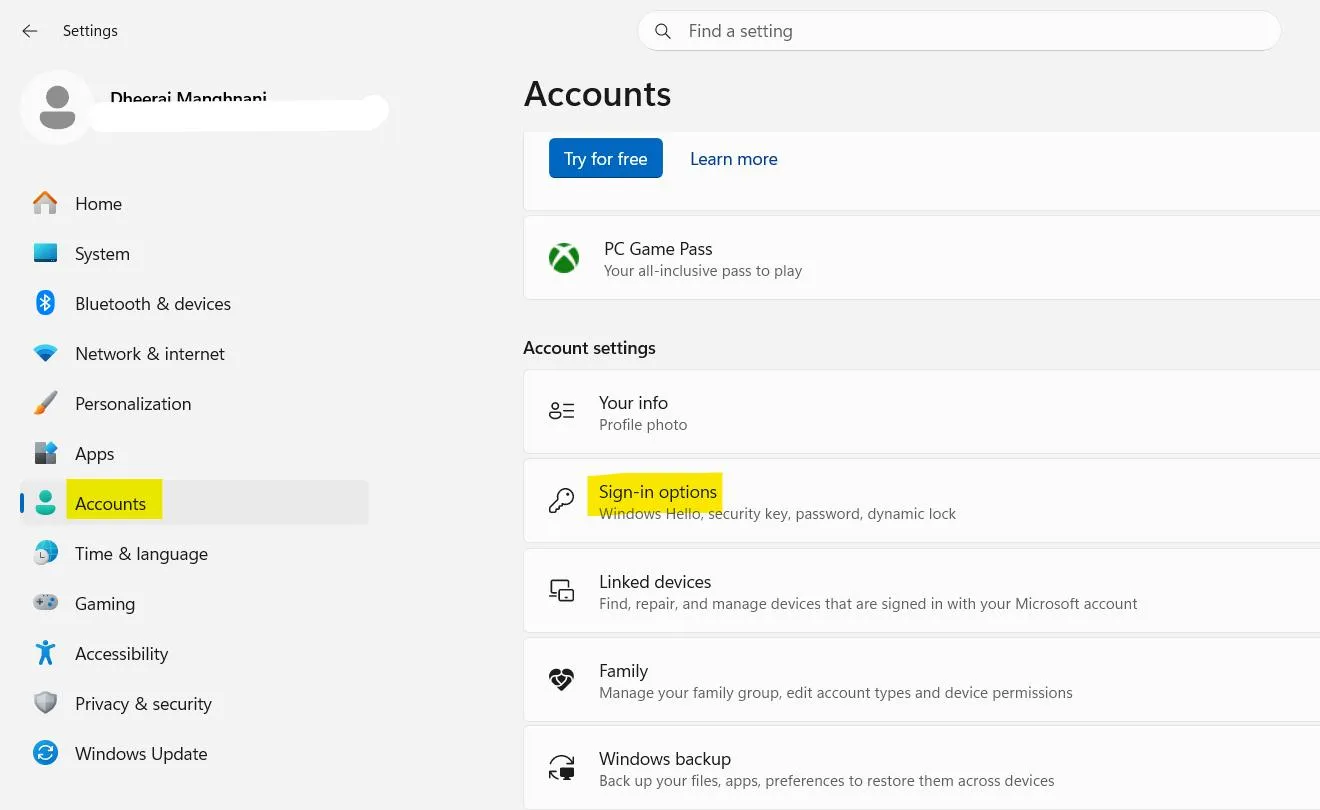
- From there, scroll down to Dynamic Lock and click on the section to enable the following option.
Allow Windows to automatically lock your device when you’re away.
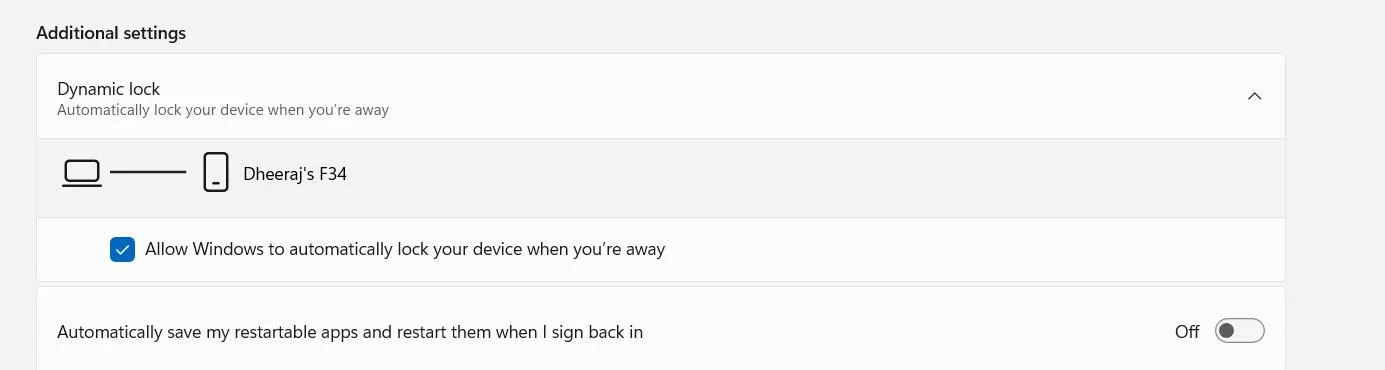
This way, Windows will automatically use the paired device to detect if you have left. To test the connection, simply leave your PC unlocked and walk away from it while carrying your phone. Windows usually locks within 30 seconds of the disconnection of Bluetooth.
Method 2: Lock Windows 11 Remotely Using Chrome Remote Desktop
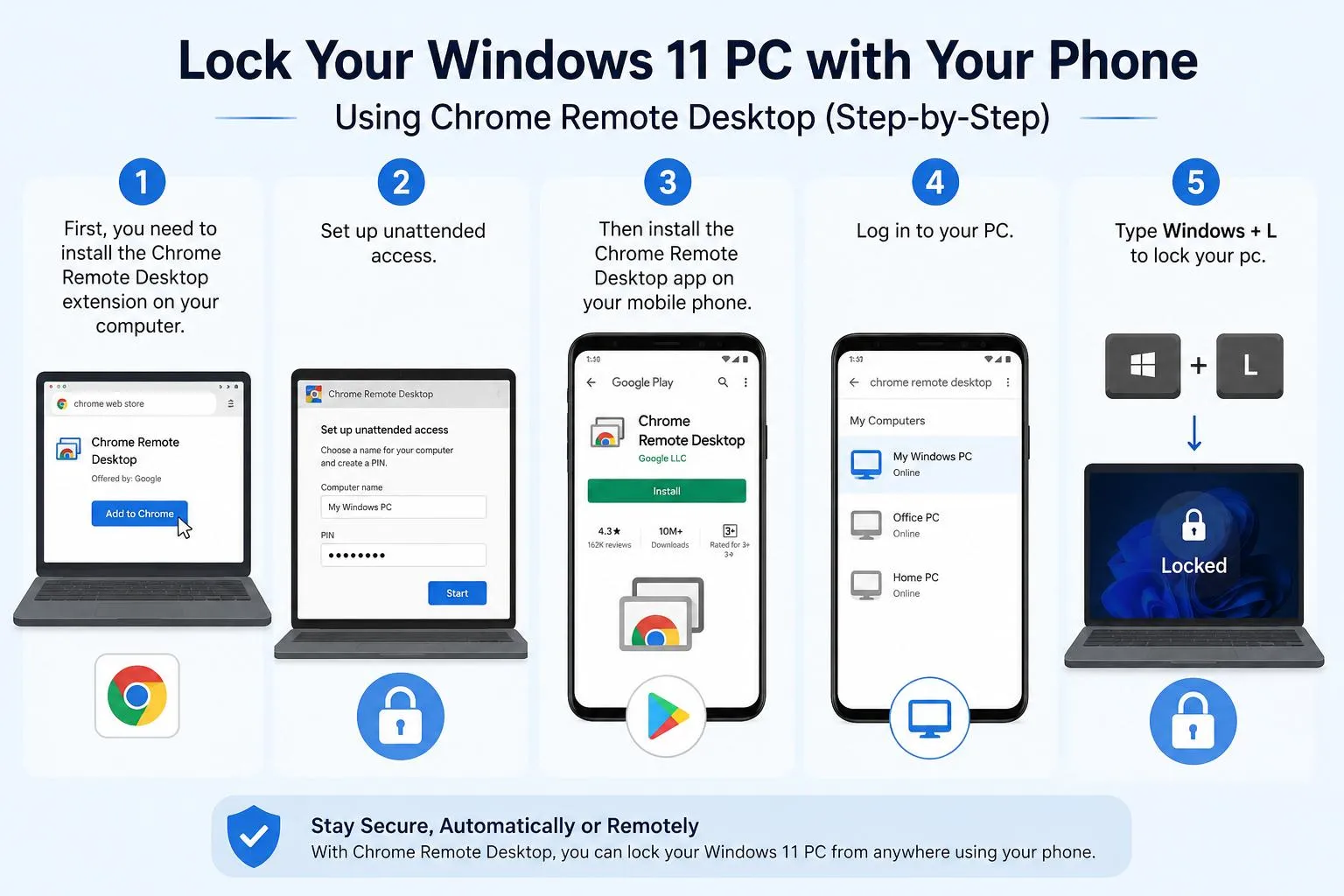
The Dynamic Lock will not work when you are out of the home or office since it is available only for Bluetooth. In such a case, remote access to your computer becomes possible.
- First, you need to install the Chrome Remote Desktop extension on your computer.
- Set up unattended access.
- Then install the Chrome Remote Desktop app on your mobile phone.
- Log in to your PC.
- Type Windows + L to lock your pc.
This will work from almost any location with an Internet connection.
Method 3: Use Remote Desktop Apps
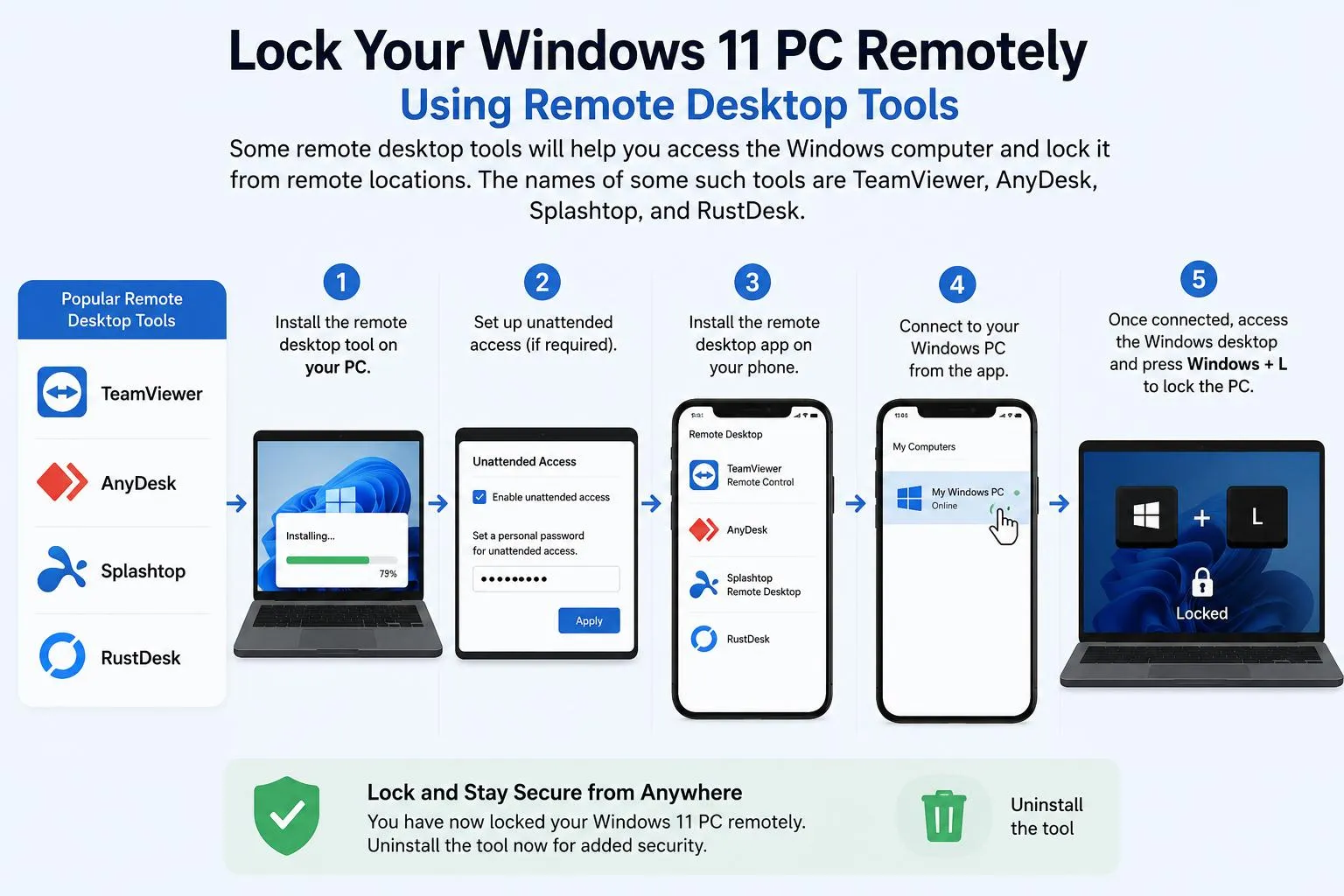
Some remote desktop tools will help you access the Windows computer and lock it from remote locations. The names of some such tools are TeamViewer, AnyDesk, Splashtop, and RustDesk.
Once connected, access the Windows desktop and press Windows + L to lock the PC remotely from any part of the world. Uninstall the tool now.
What Happens After Dynamic Lock Activates?
If Dynamic Lock determines that you have gone away, only the screen will be locked and the rest of the activity will keep going on.
- Your Windows session is locked.
- Open programs remain running.
- Downloads continue.
- Background processes continue.
- Any unsaved work remains unaffected.
Security Tips for Better Protection
Dynamic Lock performs optimally when used in conjunction with other security options available within Windows. You might want to think about using these other security options.
- Windows Hello facial recognition
- Fingerprint authentication
- Strong password for your account
- Using a PIN
- BitLocker drive encryption
- Two-factor authentication of your Microsoft account
Frequently Asked Questions
Conclusion
Having an unlocked Windows 11 PC is an innocent mistake that could turn into something more dangerous. Luckily, the **Dynamic Lock** function offered by Microsoft allows for easy securing of your computer by simply walking away with your phone that is connected to your machine.
For people who want a bit more control over this process, remote PC control software such as Chrome Remote Desktop or TeamViewer will come in handy to be able to lock a PC from far away. This option can be used together with Windows Hello, a password, and frequent system updates. No matter whether you use your computer in an office, library, or co-working space, making sure that the PC locks automatically is one of the easiest ways to ensure your privacy.


Leave a Reply