


Summary
If you are facing phone screen not responding issues, there is no need to get scared. Most likely, this problem happens due to software bugs, dirt on the screen, incompatible screen protectors, or old software and not because of broken hardware. Here are 11 ways to fix touch screen phone not working problems described in detail.
The smartphone screen is used to interact with various applications and settings. Once the phone screen is not working properly, even such simple actions as unlocking the phone and making calls become a challenge. No matter if the phone freezes or responds to only some areas of the display, the situation is frustrating. We have described steps that will work for the vast majority of smartphones, both from Android and iPhone manufacturers.
Why Does a Phone Touch Screen Stop Responding?
Before getting straight to the remedies, let’s first find out why such an issue occurs. Knowing the cause will make it easier to select the right way to fix it. Among the causes are:
- Software issues
- Lack of RAM
- Frozen applications
- Lack of available space
- Exposure to water
- Damaged screen
- Charging accessory problems
- Outdated operating system
- Bad screen protector
- Overheating
How to Fix Phone Screen Unresponsive Touch
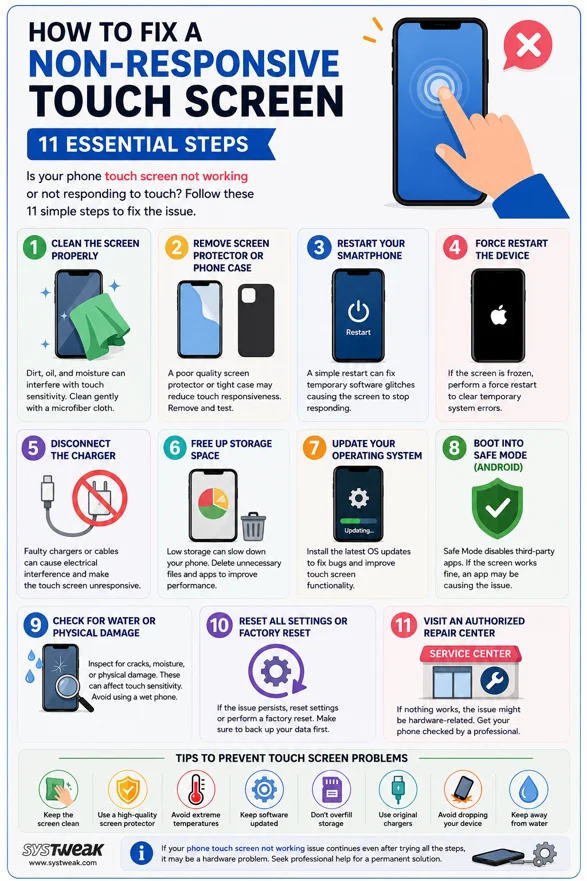
Method 1. Clean the Screen Properly
This remedy is often overlooked by many users. Dust, oils, sweat, and moisture affect touch sensitivity. Here is what you should do
- Turn off the device.
- Clean fingerprints from the screen with the help of a microfiber cloth.
- Dampen the cloth in distilled water if necessary.
- Gently clean the display.
- Let the screen dry before powering on the device.
Note: Do not use cleaning solutions or lots of water. If the reason for the malfunctioning of the touch screen of your phone was dust or moisture, it may be solved instantly after cleaning the display.
Method 2. Remove the Screen Protector or Phone Case
Sometimes a badly fitting tempered glass protector can decrease the touch sensitivity of the display. Similarly, bulky cases may exert pressure on the screen edges. Test the device without:
- Screen protector
- Phone case
Method 3. Restart Your Smartphone
One of the simplest means to deal with temporary software glitches is to restart your device.
In case you own an Android phone –
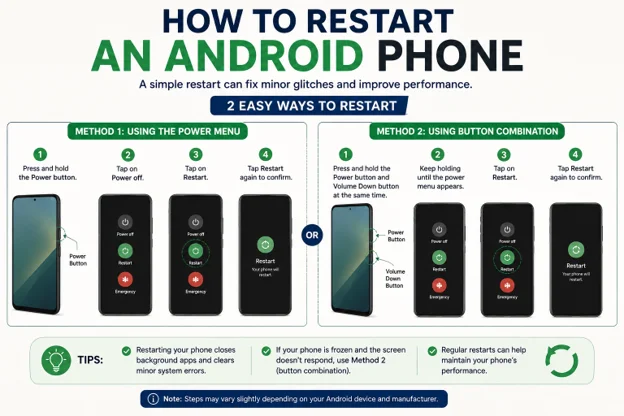
- Press the Power button.
- Select “Restart.”
For users of an iPhone –
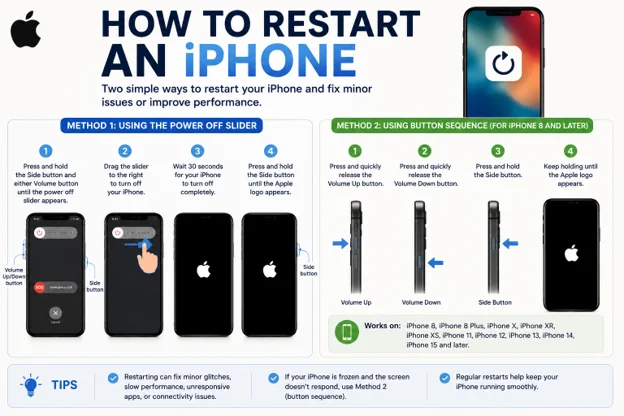
- Press the Side and Volume buttons.
- Drag the slider to turn off your phone.
- Switch it on.
In case your phone is non-responsive to touches (it happens temporarily), then restarting helps solve the issue.
Method 4. Force Restart the Device
In case your screen is completely frozen, do a force restart.
If you have an Android smartphone, follow these instructions. The key combination will be different depending on the brand of your device.
- Press and hold the Power key for 15-20 seconds.
It is very simple for iPhone users.
- Press the Volume Up key.
- Press the Volume Down key.
- Press and hold the Side key until the Apple logo pops up.
Method 5. Disconnect the Charger
Surprising or not, defective charging devices frequently result in touch problems. Low-quality or broken chargers could cause interference, leading to fake touches or an unresponsive touchscreen. Here’s what you can do about it:
- Disconnect the charger.
- Check the touchscreen.
- Use the original charger.
- Get new charging wires if necessary.
It is common for people wondering why my phone isn’t working to realize that the charger was at fault all along.
Method 6. Free Up Storage Space
A phone with almost full memory tends to lag. It will seem like your screen does not respond anymore.
This is what you should do if your device is an Android smartphone.
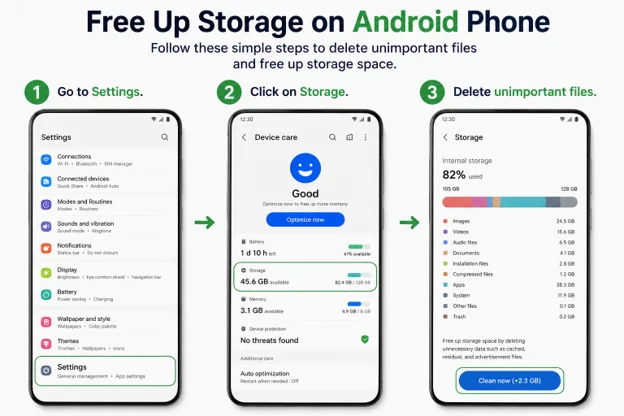
- Go to Settings.
- Click on Storage.
- Delete unimportant files.
And this is for iPhone users.
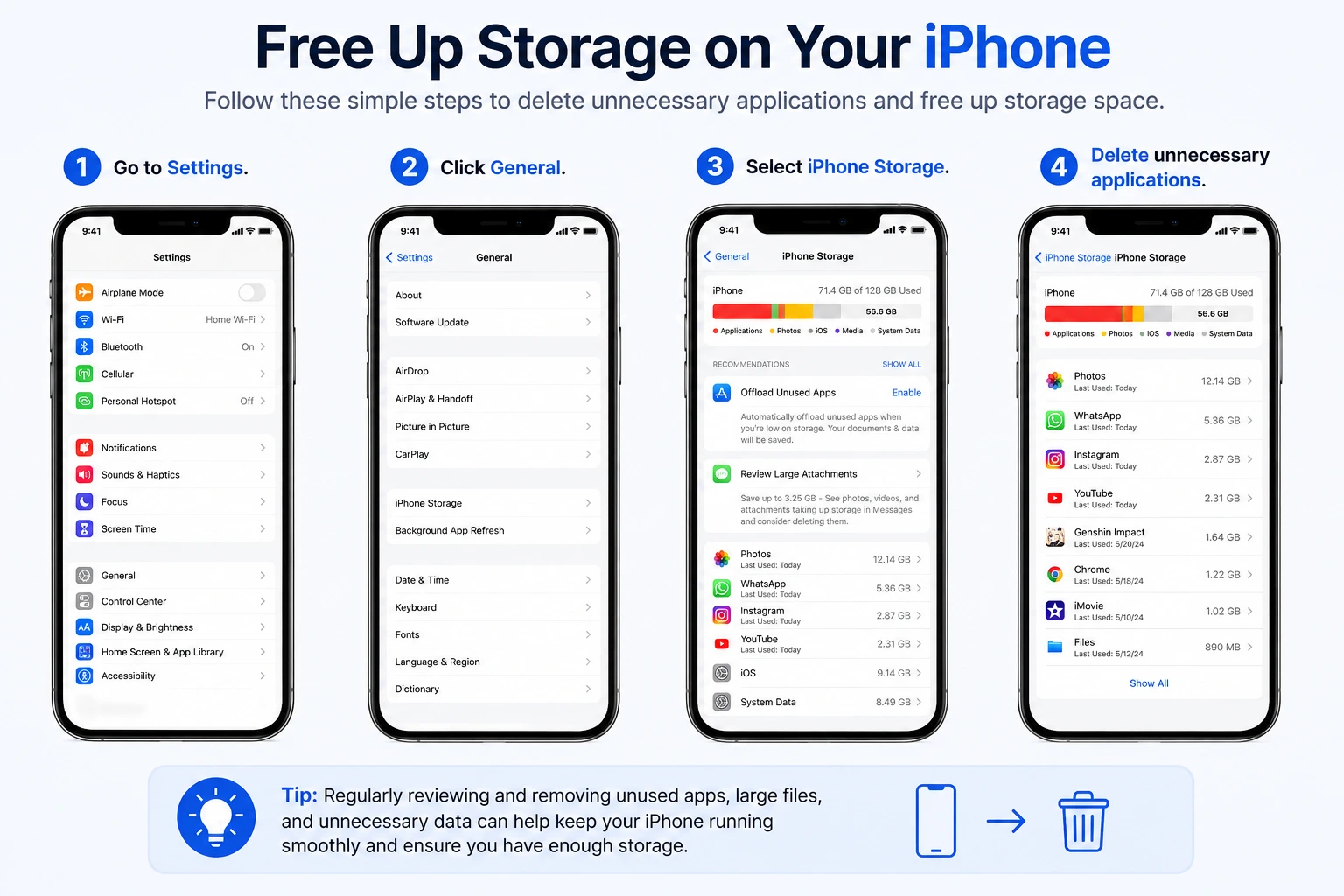
- Go to Settings.
- Click General.
- Select iPhone Storage.
- Delete unnecessary applications.
Maintaining 10-15% of available memory free boosts performance.
Method 7. Update Your Operating System
Updates for touch bugs are released frequently.
For Android phones, here are the instructions.
- Go to Settings.
- Tap on System.
- Click on Software Update.
- Update the software.
For iPhone, here are the instructions.
- Go to Settings.
- Tap on General.
- Tap on Software Update.
- Update the software.
If you are researching how to fix a phone screen unresponsive touch, updating the software is essential in the troubleshooting process.
Method 8. Boot into Safe Mode (Android)
Occasionally, third-party applications can cause problems with screen responsiveness. Safe mode suspends the downloaded applications for a temporary period of time. This is what you should do.
- Press the Power button.
- Press and hold the Power off option.
- Choose Safe mode.
- Try out the touchscreen.
If everything is working fine, recent downloads are probably causing the problem. Delete those apps one by one.
Method 9. Check for Water or Physical Damage
Today’s smartphones have water-resistant features, although water can impact touchscreen functionalities. Check your phone for the following:
- Cracked screen
- Water in the camera lens
- Presence of water near the charging port
- Bent body
- Discoloration on the screen
Should your phone have experienced any fall or been exposed to water, then damage to the internal hardware could be responsible for the problem. Refrain from charging a wet phone.
Method 10. Reset All Settings or Factory Reset
A factory reset will resolve your problem if the problem is due to any corruption of the software. Before you begin, you need to create a backup of all your Videos, contacts, messages, and documents.
For Android phones
Open Settings.
Click on System.
Then select “Reset Options”.
Finally, choose “Factory reset”.
For iPhones
Open Settings.
Go to “General”.
Select “Transfer or Reset iPhone”.
Choose “Erase all content and settings”.
Method 11. Visit an Authorized Repair Center
In case the above-listed techniques do not help, there might be a problem with the display hardware. The following issues can occur:
- Digitizer damage
- Loose display connector
- Motherboard defect
- Touch controller damage
- Water damage
Professional technicians can identify these problems with the help of special equipment. In case your phone is under warranty, do not try to open it on your own.
Tips to Prevent Touch Screen Problems
Proactive maintenance of the phone will considerably lower any future problems with its touchscreen. The following guidelines will assist you in accomplishing that:
- Make sure that the screen is always clean.
- Buy a reliable screen protector.
- Try not to expose your phone to extremes in temperature.
- Make sure to install the latest software updates.
- Don’t overload the storage.
- Utilize only original charger equipment.
- Don’t drop the device.
- Do not get it wet.
- Restart the phone from time to time.
This way, you won’t be facing a situation when your phone’s touchscreen stops working at an inconvenient moment for you.
When Should You Replace the Screen?
A replacement screen could be required in the following cases:
- Cracks
- Black spots
- Flickering
- Touch dead areas
- Vertical lines
- Ghost touches
- No touch functionality after a factory reset
These hardware repairs must be conducted by authorized repair specialists in order to properly install the screen and preserve warranty eligibility.
Frequently Asked Questions
Conclusion
It does not necessarily follow that your smartphone is irreparably broken if the screen of your device does not react to touch. In many situations, all it takes to get everything back to working order is to clean the screen, remove the problematic screen protector, reboot your smartphone, update the software of your device, or free up some storage space. If, after applying each of these steps described in how to fix phone screen unresponsive touch, the problem remains unsolved, it probably indicates that there is something wrong with the hardware of your device.



Leave a Reply