


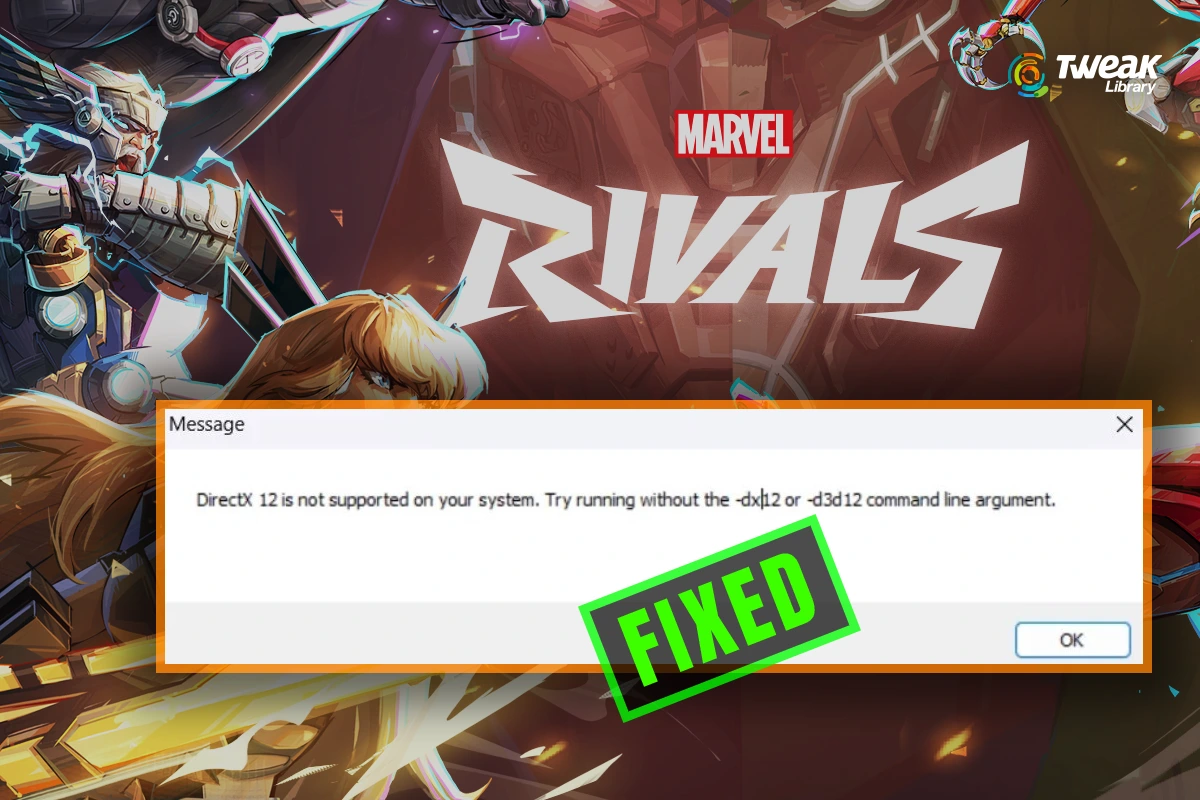
It is quite irritating when you are planning to play Marvel Rivals, but the error shows “DirectX 12 is not supported on your system”. The players are not able to play Marvel Rivals because DirectX 12 is not supported, even if the system is updated.
The reason is not always obvious. It could be triggered by outdated graphics drivers, hardware limitations, or a corrupt system that is not permitting the game to identify DirectX 12 properly.
In this article, we’ll discuss why the Marvel Rivals error takes place, the reasons, and the best way to fix the Marvel Rivals DX12 unsupported issue. So that you can play without interruptions.
Why my PC doesn’t support DirectX?
It can be frustrating when you are trying to play Marvel Rivals, but see such an error if you already have DirectX 12. The following are some reasons that might be causing this error:
- Graphics card is too old: Some graphics cards don’t support DirectX 12. They only support DirectX 11 or lower.
- Driver issues: If the graphics card is outdated or damaged, this error can show. Such drivers can stop DirectX 12 from working properly.
- Missing DirectX files: There is a chance that some important DirectX files are missing or corrupted.
- Windows is outdated: If you have older versions of Windows on your computer, it may not support the latest features of DirectX.
- The game is using an older version of DirectX: Because of a configuration issue, sometimes games are set to work with older versions of DirectX.
Fix Marvel Rivals Error: DirectX 12 Not Supported
The error “DirectX 12 is not supported on your system” in-game Marvel Rivals stops the game from starting and also causes the game to stop while playing. This error occurs because of hardware problems, driver problems, or system configuration.
You can fix this error by trying the following ways:
1. Check Your GPU’s DirectX Support
Not every GPU supports DirectX 12, especially older models. If your device is not compatible with the required feature level, Marvel Rivals will not work properly.
How to check:
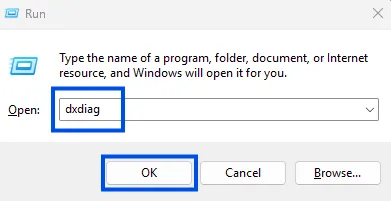
Step 1: Press Windows key + R, type dxdiag. Press Enter.
Step 2: In Display, check the “Feature Levels”.
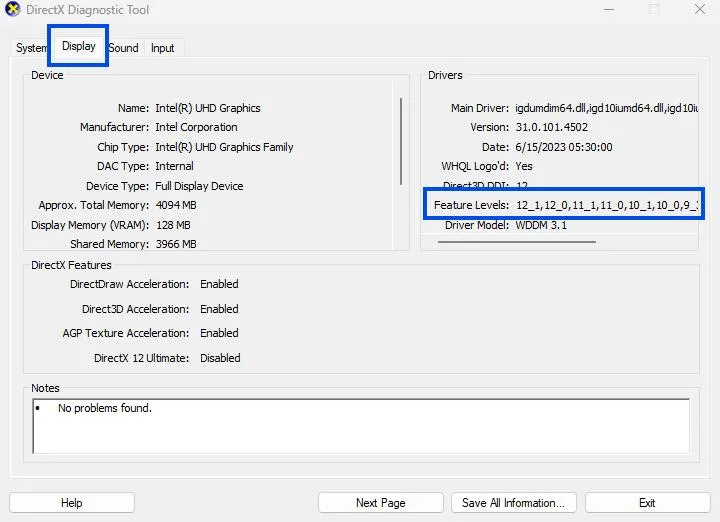
Step 3: You should be able to spot at least 12_0 or 12_1.
Solution: The only option is to upgrade your GPU if DX12 is not supported.
2. Update Graphics Drivers (Recommended: Use Advanced Driver Updater)
Even if your GPU supports DX12, faulty or old drivers can result in the Marvel Rivals DX12 Not Supported Error.
Best Solution: Update old or missing drivers automatically using Advanced Driver Updater.
Why use it?
- Quick, easy updates
- Works with all important GPU manufacturers like NVIDIA, AMD, and Intel.
- Solves compatibility problems in new games
- Purges existing drivers before updating
Steps:
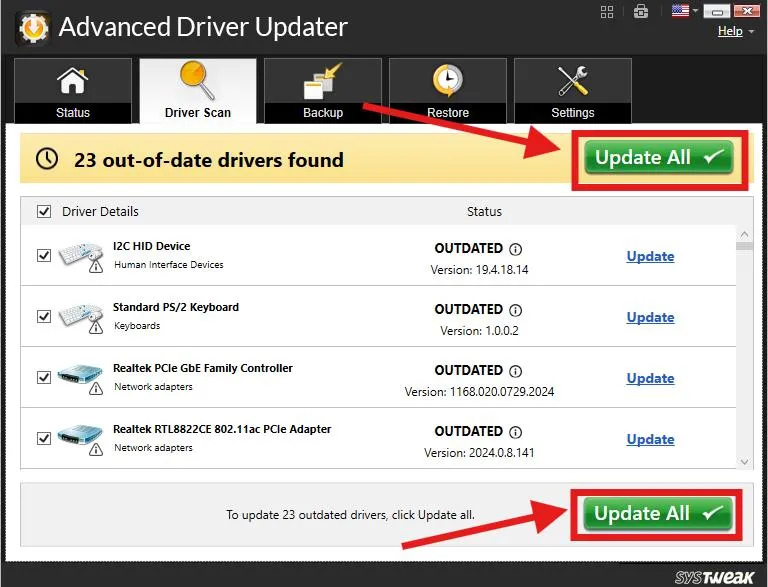
- Install Advanced Driver Updater.

- It will automatically scan your PC and list the drivers to update.
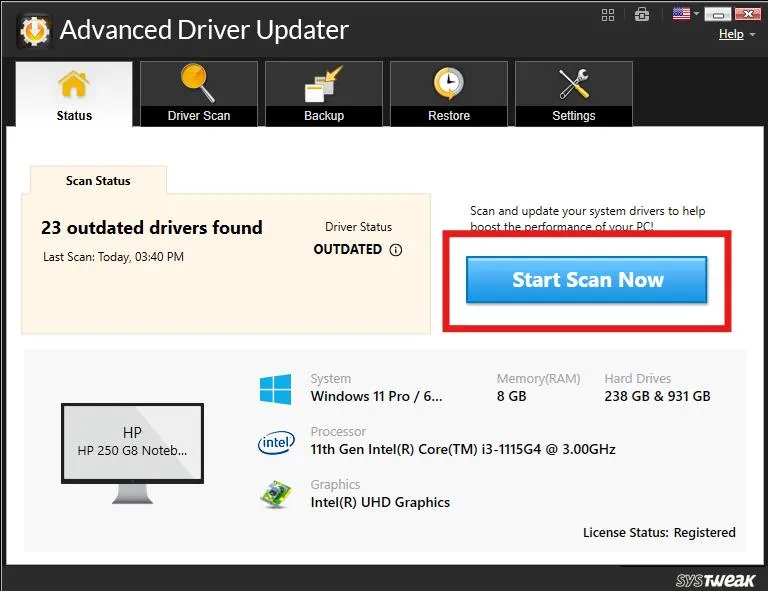
- Update all old drivers.
- Restart your computer.
3. Reinstall or Fix DirectX Runtime Files
A faulty DirectX install will also stop the game from using DX12 capabilities.
You can resolve this by following:
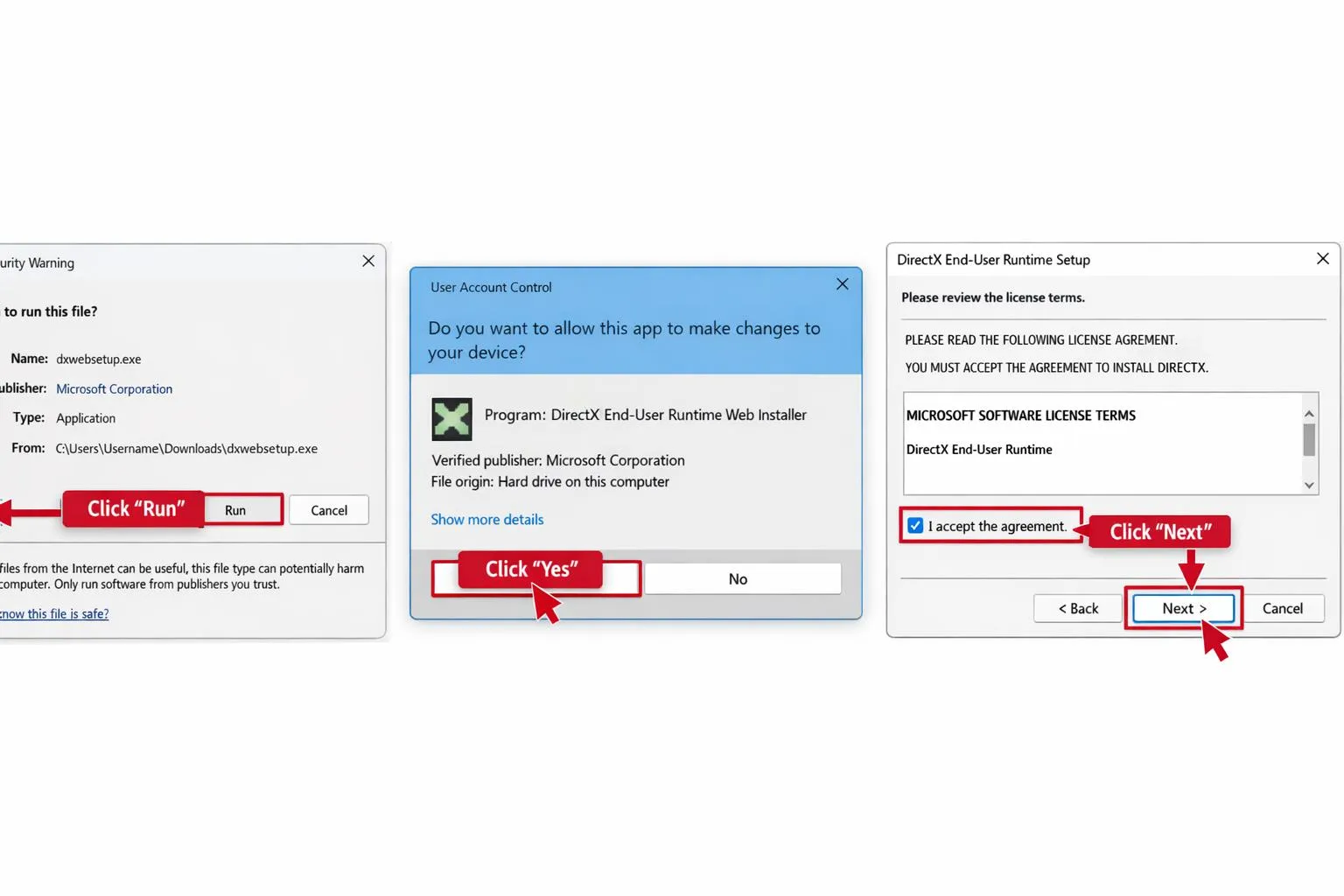
Step 1: Download and install the DirectX End-User Runtime Web Installer.
Step 2: Run it and follow the prompts.
Step 3: Restart your computer.
4. Ensure You’re on Windows 10 or 11
DirectX 12 is only available on Windows 10/11. If you have Windows 7 or 8, the game will not open.
To check:
Use Windows + R and type winver, and hit Enter.
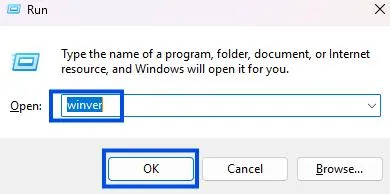
Fix: Upgrade your Windows to a DirectX 12-supported version to avoid compatibility issues.
5. Set Game to run using your Dedicated Graphics Card
To avoid using built-in graphics cards that do not support DirectX12 as the primary source follow these steps:
Steps:
- Depending on the graphics card you are using open NVIDIA Control Panel or the AMD Radeon Settings.
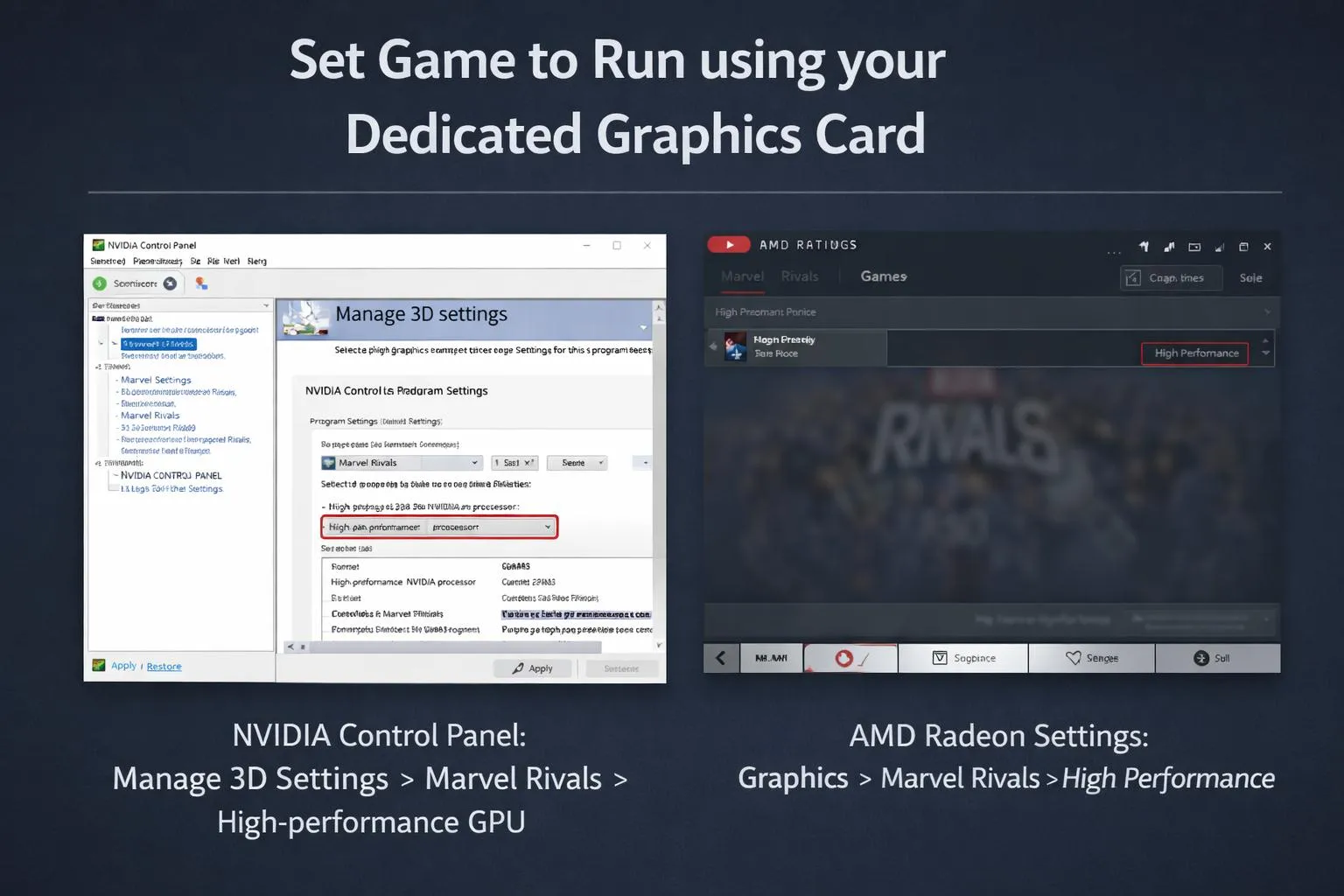
- Go to Manage 3D Settings and look for Marvel Rivals as a game.
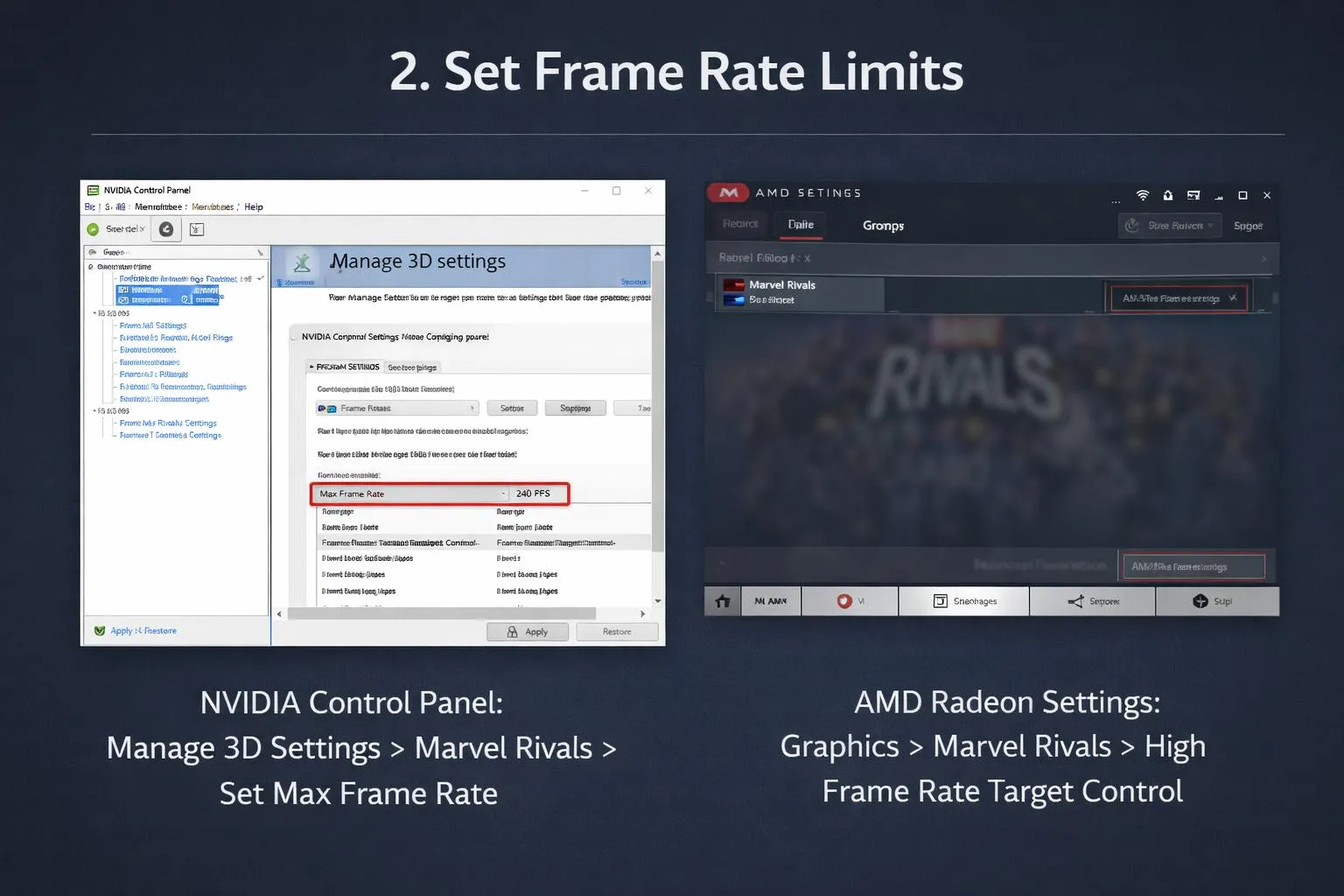
- Select the preferred GPU as high-performance.
- Apply and restart.
6. Disable Compatibility Mode
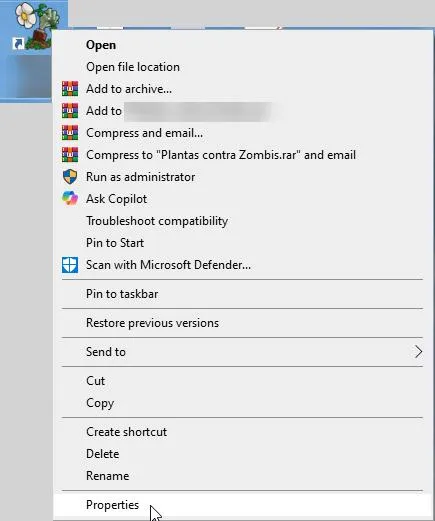
Step 1: Right- click the game’s shortcut icon and select Properties.
Step 2: Click the Compatibility tab.
Step 3: Select “Run this program in compatibility mode for.”
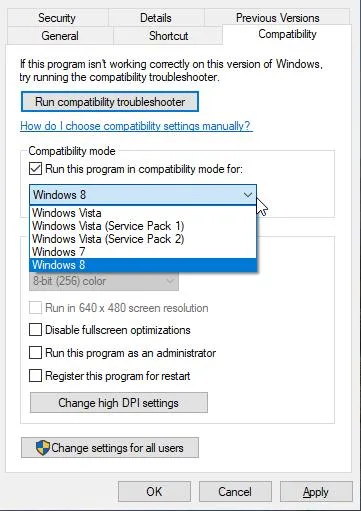
Step 4: Click on Apply and restart the game.
7. Verify Game Files
- Steam: Library > Marvel Rivals > Properties > Installed Files > Verify integrity of game files.
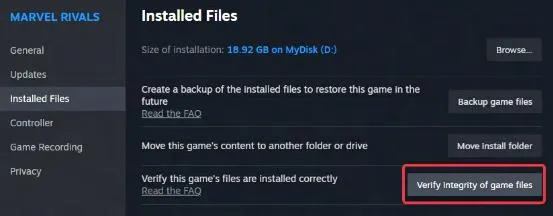
- Epic: Library > Three dots > Check
8. Reinstall Marvel Rivals
The last solution is to reinstall and uninstall the game.
- Uninstall through Steam ( open Game Library, right-click on Marvel Rivals, hover over “Manage,” and select “Uninstall”) or Epic Games (open your Library, click the three dots (…) next to the game, and select “Uninstall”).
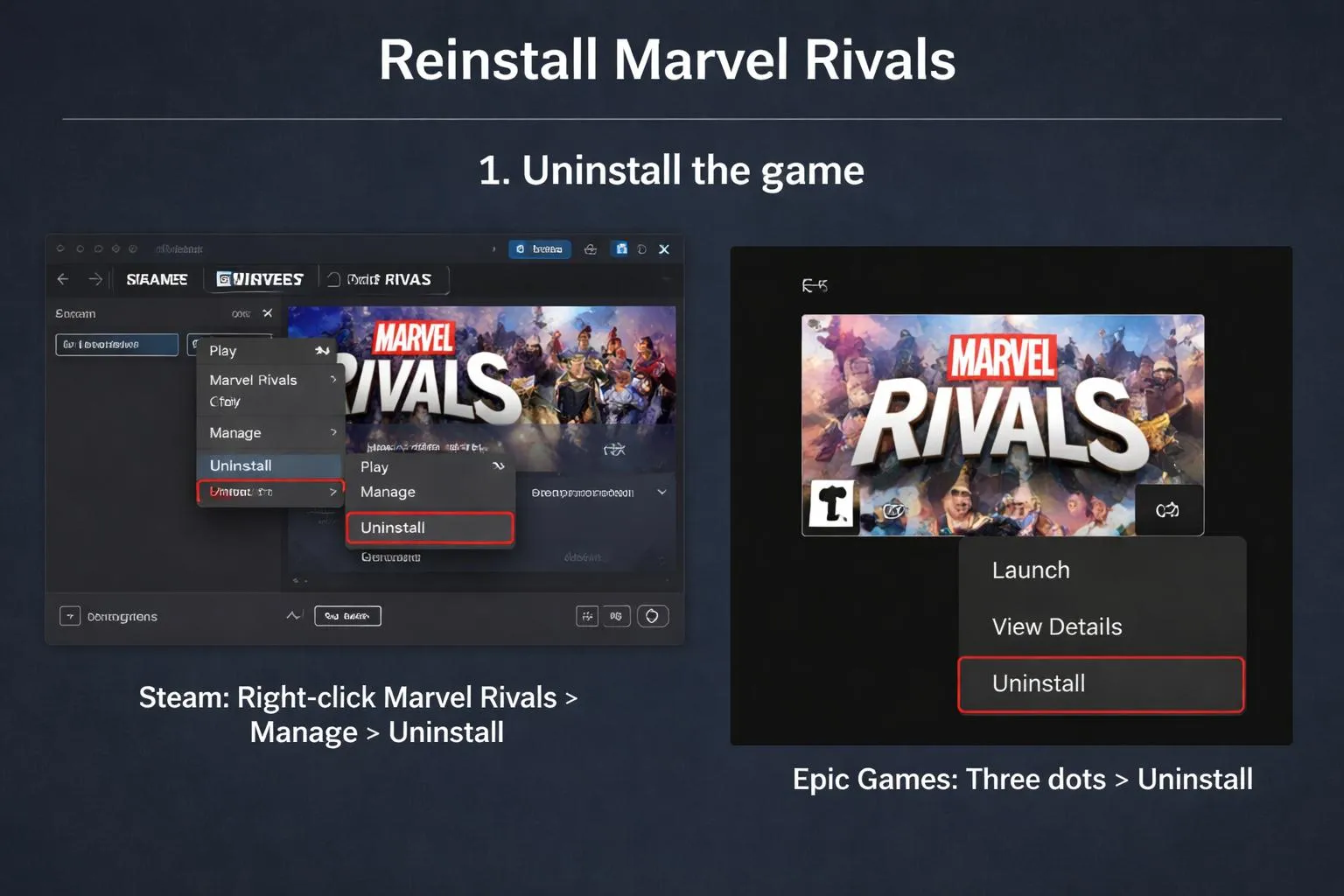
- Therefore, if you find any unwanted files, manually remove them.
- Reinstall the game and restart.
Bonus Tip: Keep your System Optimized
To avoid encountering these errors, keep your system optimized.
Why is Optimization Important for Games Like Marvel Rivals?
New games like Marvel Rivals are highly dependent on graphics performance, memory usage, and system performance. A small issue, like a faulty GPU driver or system setting, will lead to issues like the Marvel Rivals Not Working.
Here is how to stay one step ahead:
1. Clear Up Background Processes Timely
There are too many unnecessary software and services running in the background. These processes waste CPU and RAM that your game may be using.
How To:
- To locate programs consuming substantial resources, use the Task Manager by pressing Ctrl + Shift + Esc.
- Stop programs from launching at startup that you do not use.
- If you do not want to do this manually, you can use a lighter third-party program to optimize your PC.
2. Keep All Drivers Updated-The Easy Way
Outdated drivers can cause the Fix Marvel Rivals DX12 Not Supported Error, but they can also slow your entire system down.
Rather than searching for drivers manually or risking installing the wrong version, have Advanced Driver Updater do all the work for you.
Pro Tip: Scan weekly using Advanced Driver Updater to avoid random performance issues before gaming.
3. Update Windows and DirectX
For your computer to run DX12, its hardware must be compatible and its System and DirectX need to be current.
- Make sure Windows Updates are enabled.
- Install DirectX Runtime Components regularly to repair file corruption.
4. Disk Space
Not enough available disk space can affect the performance of virtual memory in addition to potentially causing games to lag or fail to load.
What you can do:
- Use either Disk Cleanup or Storage Sense in Windows to remove files to free up disk space.
- Uninstall useless programs.
- Keep at least 10%-15% of your hard disk space free at all times for best performance.
5. Malware or Conflicting Software Scanning
Malware or heavy software sometimes interferes with DirectX or GPU performance.
To solve this:
- Run a full scan using Windows Defender or another antivirus solution to check your computer for any malware
- Remove old driver software that might interfere with GPU driver.
Final Words
Getting the message “Your system does not have support for DirectX 12,” while trying to play Marvel Rivals, can be a pain in the neck; however, resolving this issue is not just updating hardware, but fixing issues with driver updates for hardware, system settings, and sometimes issues with the program itself.
Regardless of whether you are seeking to find out why my computer does not support DirectX 12, or troubleshooting how to fix the Marvel Rivals DX12 Not Supported Error, these previous lists of things to check will help you troubleshoot with confidence. From hardware check for compatibility to fixing DirectX runtime files and updating drivers, every step counts.
Advanced Driver Updater makes that part simple by removing the task from your hands. So you’ll never have to deal with such errors as Marvel Rivals Not Working again.



Leave a Reply