


Summary
When Windows Hello fingerprint not working appears after a restart, sign in with your PIN first. Then restart the Windows Biometric Service, update or reinstall the fingerprint driver, and re-enroll your fingerprint. Next, try Fast Startup, Memory Integrity and account checks only if those fail. Reset the biometric database last.
If Windows Hello fingerprint not working is what you see after a restart, try signing in using your PIN, then follow these step-by-step fix options in order: restart the Windows Biometric Service; either install an updated version of the fingerprint driver or uninstall/reinstall it; finally, re-enroll your fingerprint. These three steps are the best place to start.
You restart your PC, touch the sensor, and nothing happens. Or Settings says “This option is currently unavailable”. Either way, your files are fine. This guide covers what usually breaks Windows Hello fingerprint after a restart. Then we will show you the normal fix for it. And how to know if its the sensor itself that is the problem.
Quick Answer: 7 Steps
- Sign in with your PIN or password for now.
- Shut down, disconnect from power for a short time, restart.
- Clean the sensor and clean your fingers.
- Check for and install pending Windows updates.
- Update, roll back or reinstall the fingerprint driver.
- Restart the Windows Biometric Service.
- Remove and re-add your fingerprint.
Why Does Windows Hello Fingerprint Stop Working After a Restart?
| Likely cause | What you see |
| Windows Biometric Service not running | Fingerprint option missing or greyed out |
| Driver problem after an update | Sensor missing under Biometric device |
| Fast Startup | Works after a full cold start only (reported by users) |
| Memory Integrity and an old driver | Setup loops or sensor warnings |
| Enhanced sign-in security with an external reader | Reader not accepted |
| Work or school account settings | All Windows Hello options show “unavailable” |
| Damaged fingerprint data | Prints not recognised |
How to Fix Windows Hello Fingerprint Not Working After a Restart
Work through these fixes in order. Test fingerprint sign-in after each one and stop when it works.
Fix 1: Use Your PIN or Password to Log into the System, and Check the Basic Stuff
Log into your system with your PIN or password. Next, restart your computer, clean off the sensor and your finger, and apply all available Windows Updates.
Also confirm you have a reader. Microsoft says fingerprint sign-in requires one; however, you can purchase a new fingerprint reader (USB) to connect to your computer if it does not currently have one installed.
Fix 2: Power Cycle the PC
Shut down the PC, unplug the power for 30 minutes, then start it again and test your fingerprint. A community adviser on Microsoft Q&A suggested this fix for a fingerprint sensor that stopped working. This is just community based; as such, you can attempt this fix prior to attempting the other possible fixes.
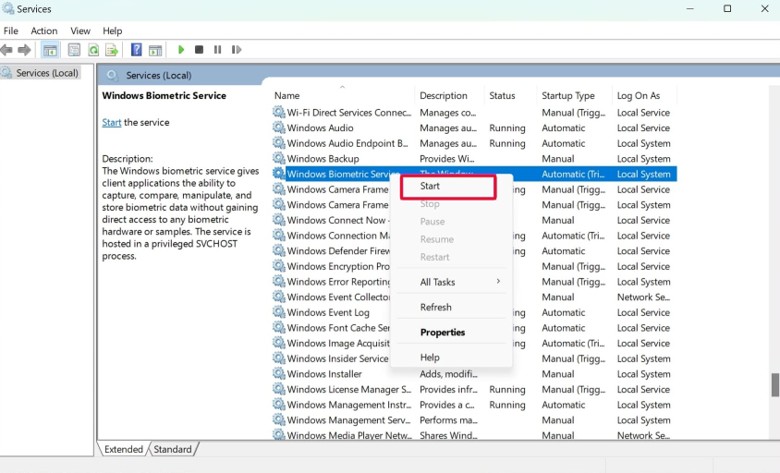
Fix 3: Restart the Windows Biometric Service
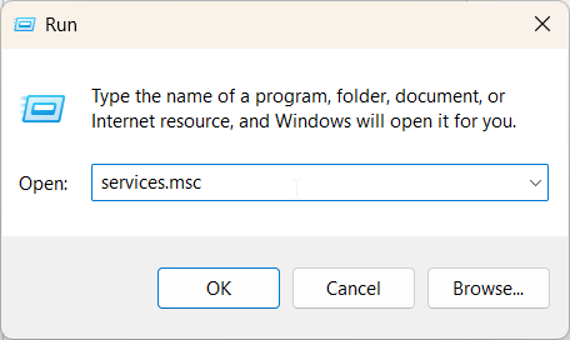
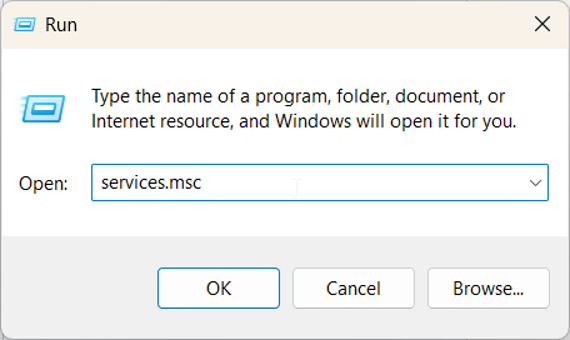
1. Press Windows + R, type services.msc and press Enter.
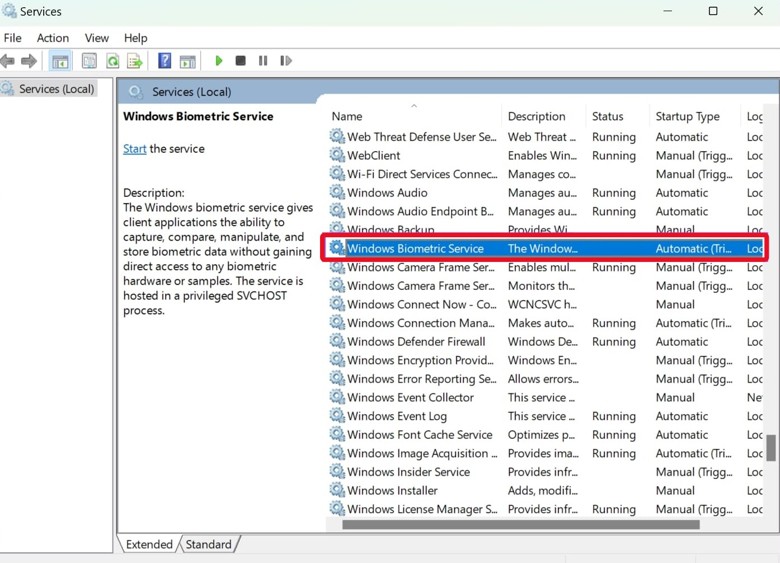
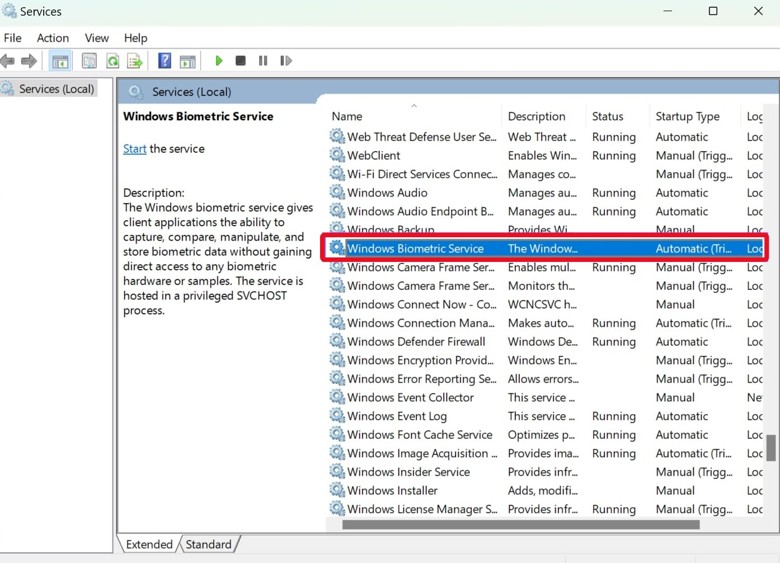
2. Right-click Windows Biometric Service and choose Properties.
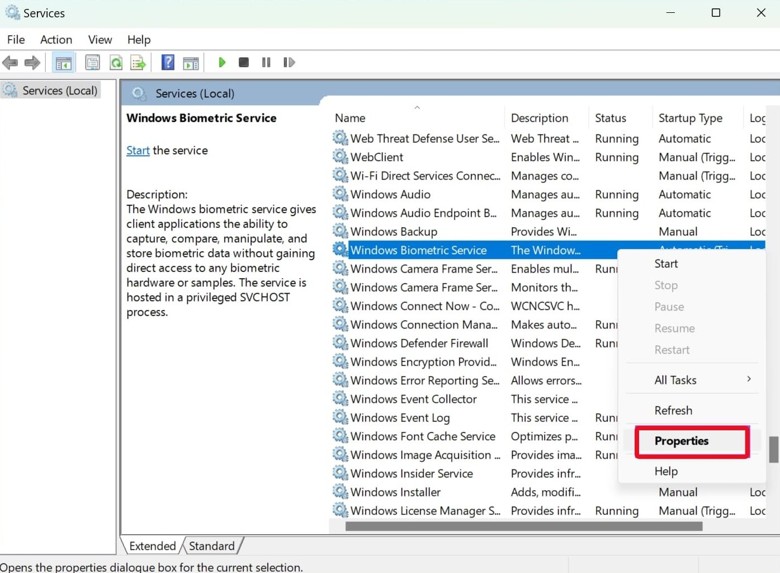
3. Set Startup type to Automatic, then click Apply.
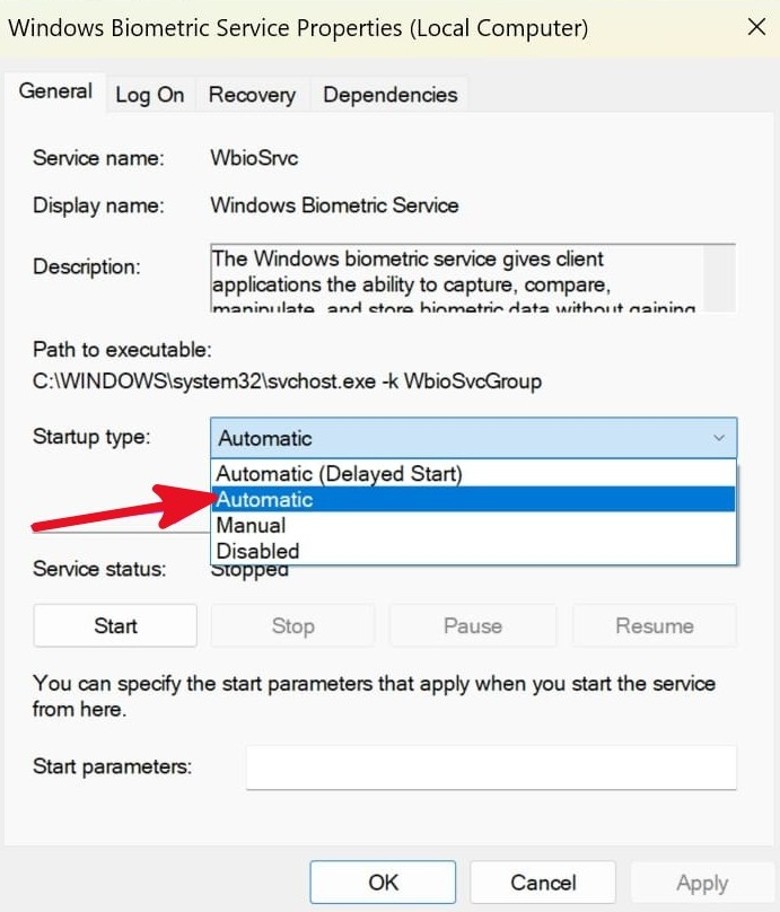
4. Click Start if the service is stopped.
Alternatively you can right click on cmd.exe and select run as administrator. Then type in “net stop wbiosrvc && net start wbiosrvc”
The use of this command was by Microsoft to reset the biometric service when a user is experiencing an issue with their advanced sign in security.
Fix 4: Update, Roll Back or Reinstall the Fingerprint Driver
1. Open Device Manager and expand Biometric devices.
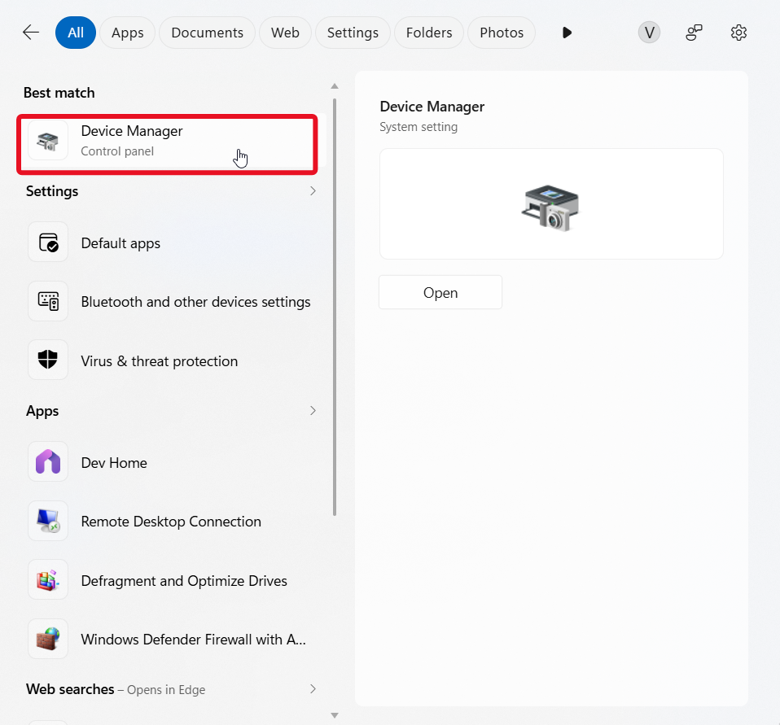

2. Right-click the fingerprint sensor and choose Update driver.
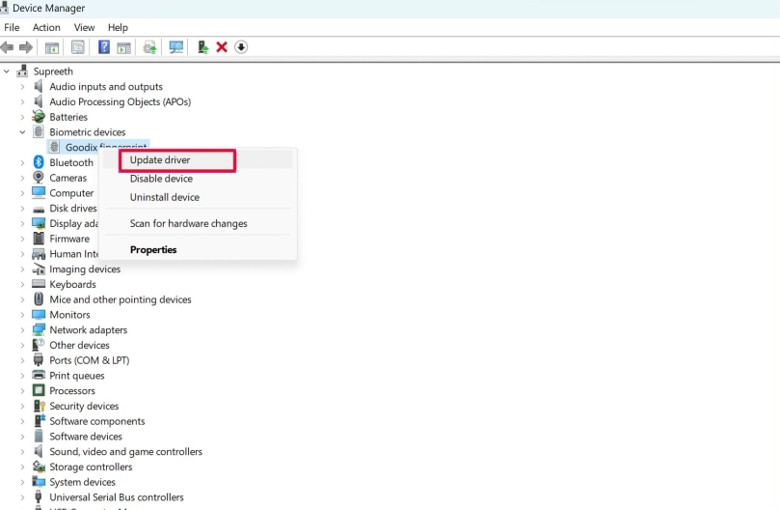
3. If it was working before an update, open Properties > Driver > Roll Back Driver instead.
4. To reinstall, choose Uninstall device, right click on the sensor in Device manager (Biometric) and select uninstall. Reboot and windows will automatically install the correct driver for your specific model of laptop.
Fix 5: Turn Off Fast Startup
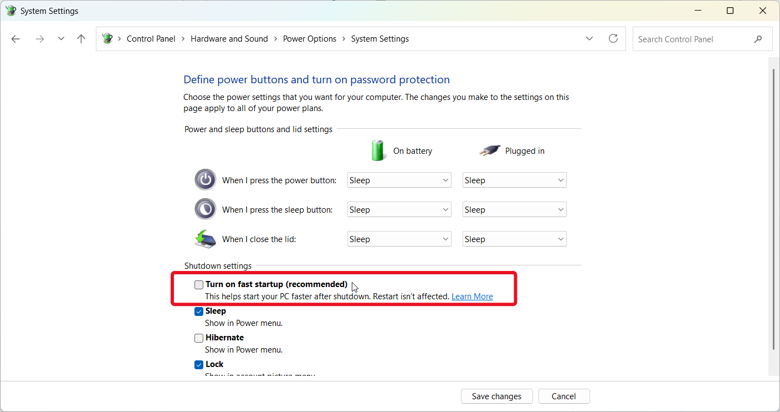
Some customers report that turning off ‘Fast Startup’ is helpful in cases where you can only successfully use fingerprint sign-in after completely shutting down your computer.
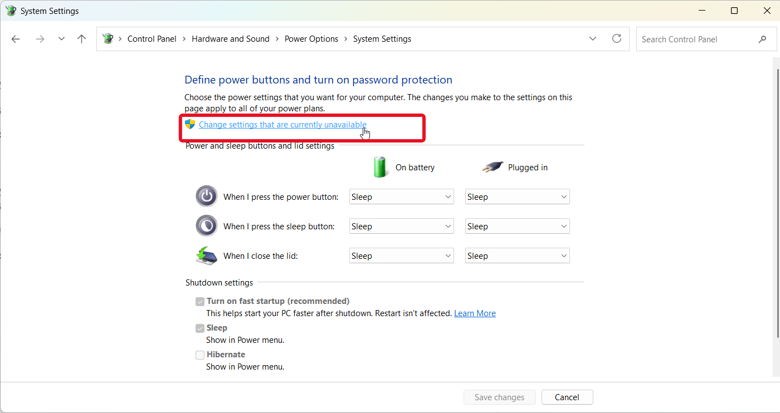
1. Open Control Panel > Power Options > Choose what the power buttons do.
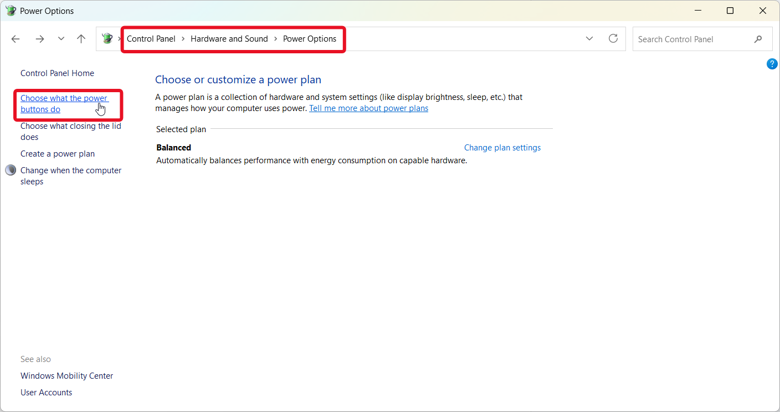
2. Click Change settings that are currently unavailable.
3. Clear Turn on fast startup and save.
Fix 6: Remove and Re-Add Your Fingerprint
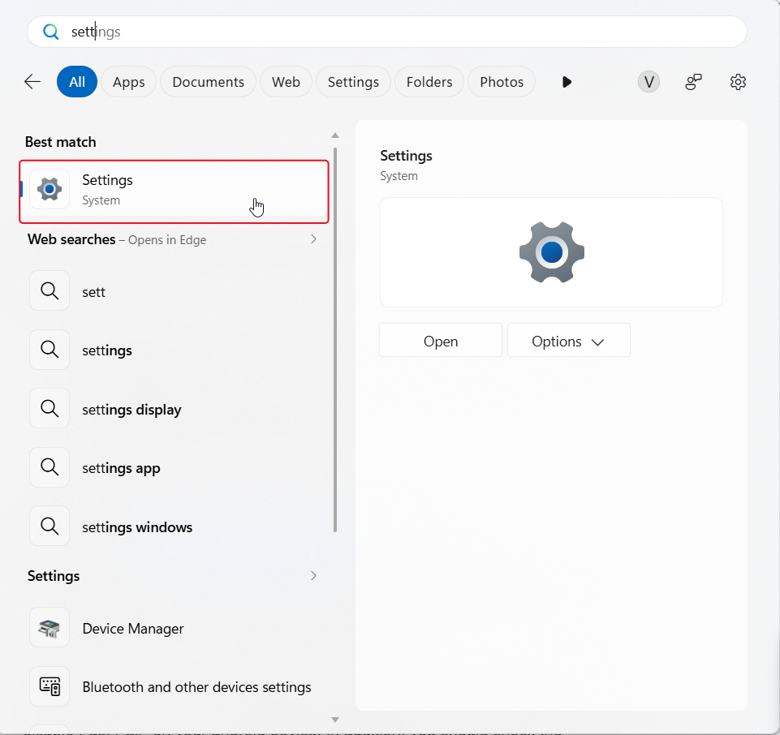
1. Open Settings > Accounts > Sign-in options.
2. Under Fingerprint recognition (Windows Hello), choose Remove.
3. Choose Set up and follow the prompts.
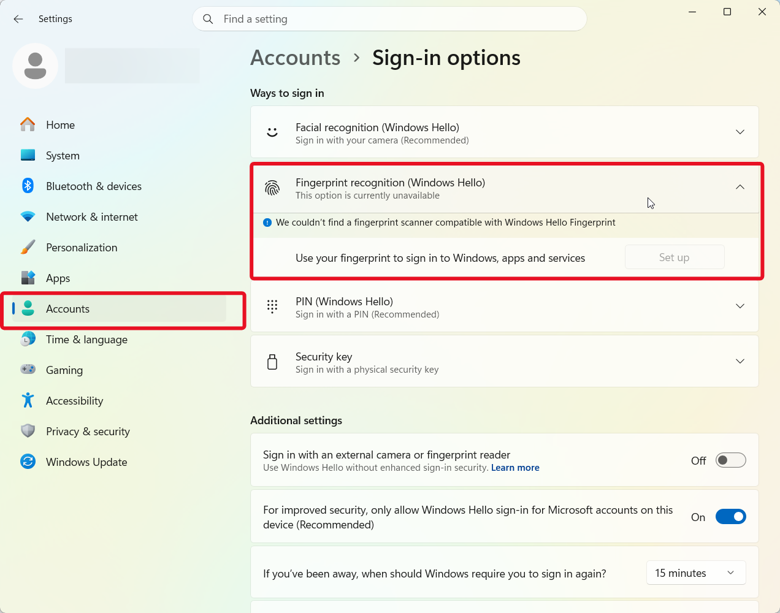
If “Settings” indicates that this option is unavailable at this time, please refer to fix 8.
Fix 7: Reset the Biometric Database
This deletes all saved fingerprints, so you must re-enroll afterwards.
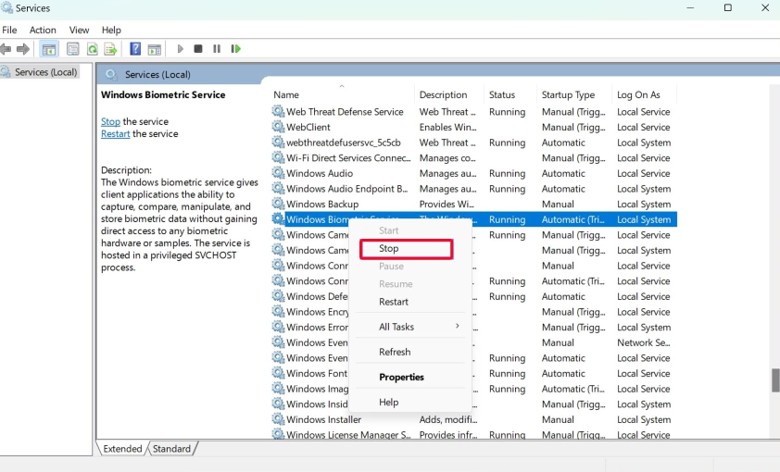
1. Enter “services.msc”. Stop the “Windows Biometric Service”.
2. Locate the WinBioDatabase folder at C:\Windows\System32\WinBioDatabase.
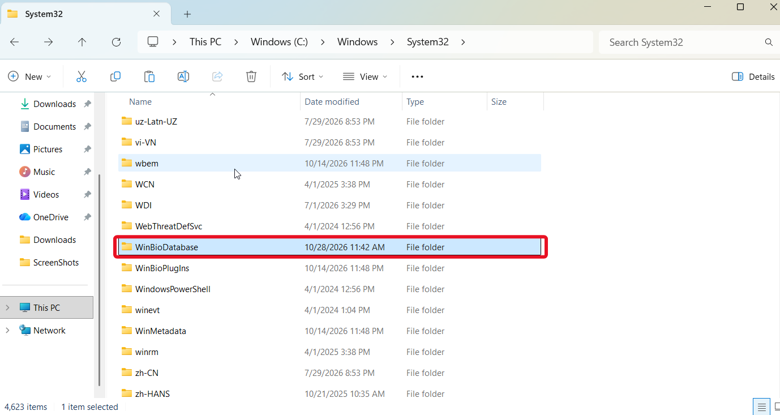
3. Create a backup copy of the entire contents of the WinBioDatabase folder. Delete the contents of the WinBioDatabase folder. Leave the WinBioDatabase empty folder itself intact.
4. Start the service again and re-enroll (Fix 6).
Fix 8: Disconnect a Work or School Account
If PIN, fingerprint and face all show as unavailable, a Microsoft Q&A adviser reported success this way in January 2026:
1. Open Settings > Accounts > Access work or school.
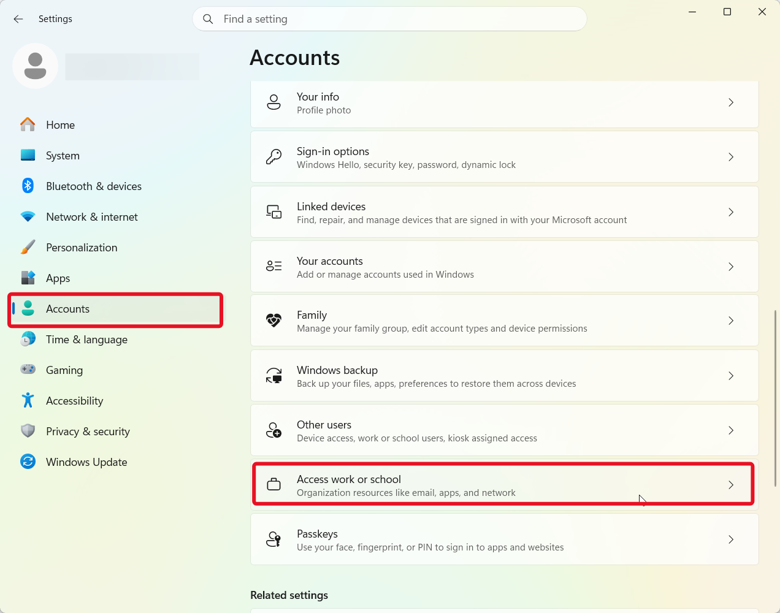
2. If an organisation email is listed, select it and choose Disconnect.
3. Restart and test Windows Hello.
Do not do this on a company laptop without asking your IT team.
Fix 9: Check Memory Integrity and Enhanced Sign-in Security
Memory Integrity. An old fingerprint driver can fail while it is on, and that you should turn it off only as a short test, then look for a newer driver. Leave it on if the test changes nothing.
External readers. Microsoft says you may be unable to sign in with a third-party fingerprint reader if Enhanced sign-in security is on. On Windows 11 24H2 or newer, open Settings > Accounts > Sign-in options and turn off the Enhanced sign-in security toggle for that reader. Disabling ESS removes all current ESS enrollment and credential information including passkeys, which you can set up again later.
Fix 10: Group Policy Check (Pro, Enterprise, Education)
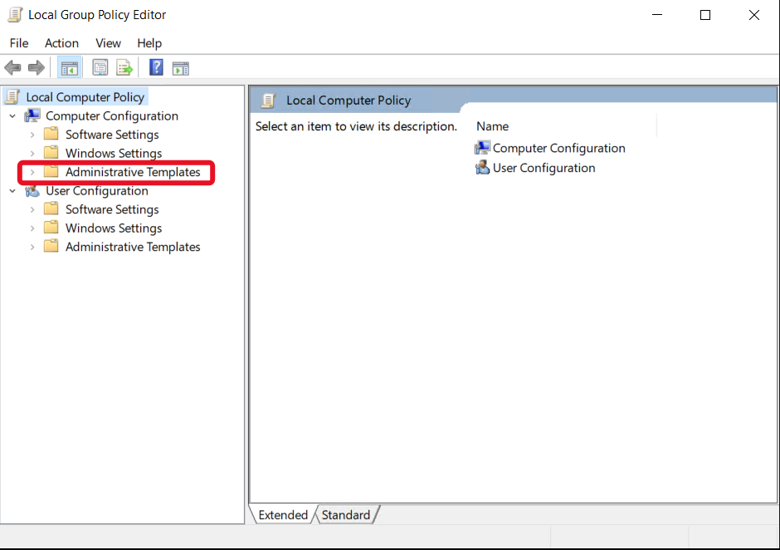
Open gpedit.msc and check that biometrics are allowed: Allow the use of biometrics under Biometrics, and Use Biometrics under Windows Hello for Business. Restart afterwards. Home editions do not include this tool.
Path: Computer Configuration > Administrative Templates > Windows Components > Biometrics
When the Sensor Is the Problem
If the sensor does not appear under Biometric devices even after a driver reinstall, or fails on every account, it may be hardware. Check the maker’s support page and contact support. Do not install files from unknown driver sites.
How to Prevent It Next Time
- Install driver updates from your laptop maker.
- Keep a PIN set up as a backup.
- Re-check fingerprint sign-in after major Windows updates.
- Do not delete biometric files unless a fix calls for it.
Frequently Asked Questions
The Bottomline
Windows Hello fingerprint not working after a restart is usually a service, driver or enrollment problem, not a dead sensor. Start with the PIN, restart the biometric service, fix the driver, then re-enroll. If these less complicated methods do not resolve the problem of fingerprint functionality on your device, reset the database or disable security features.






Leave a Reply