


Summary
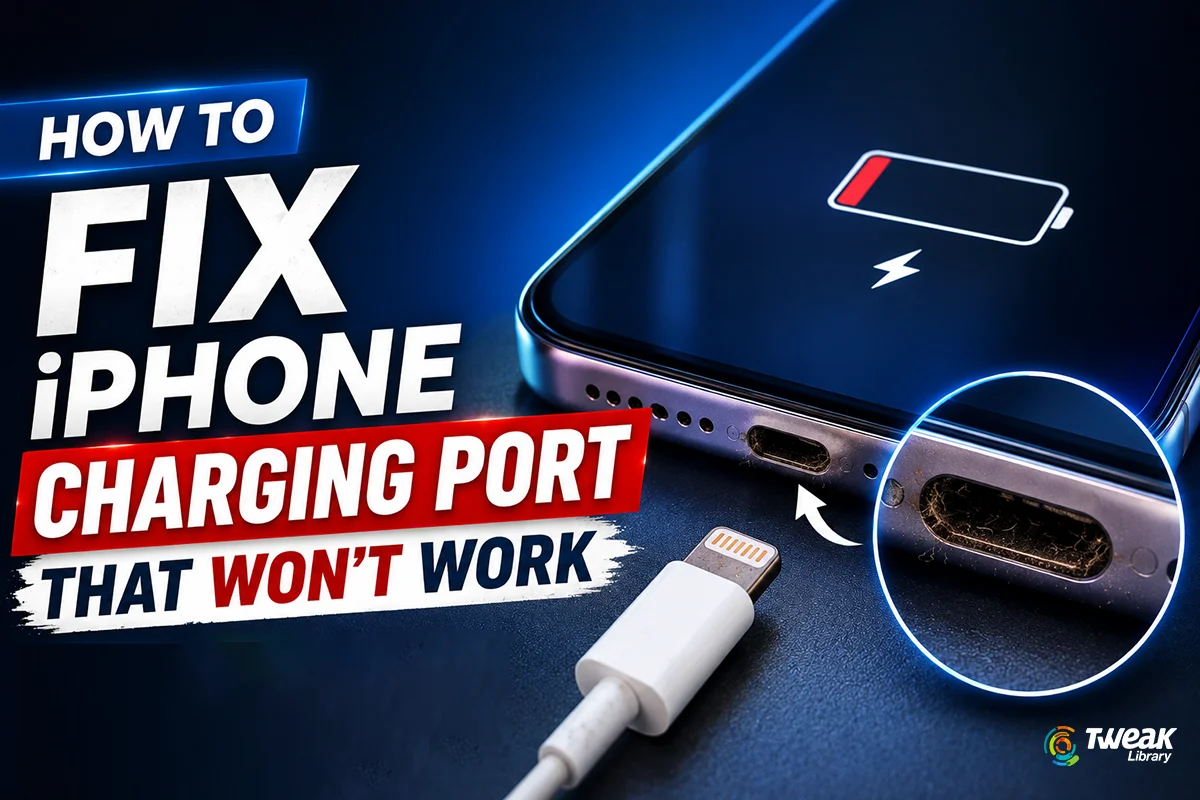
It is common to plug your iPhone into the charger and find that it is not charging. The first assumption that comes to one’s mind is that either the charging cable is faulty or the hardware port on the iPhone has a defect. But this is not always the case. We have explained a few tips and tricks to fix this issue without visiting the Apple Service Center.
Most people panic when their iPhone does not charge, and the battery percentage keeps dropping. The most common action is to unplug the cable and plug it back in at different angles, but to no avail. Some even try to restart the phone with the cable plugged in. However, when nothing works, we assume that either the phone or the charger is faulty. But did you know that this issue of the iPhone not charging can be fixed by cleaning the dust in the charging port or fixing software glitches?
We have listed a few basic checks and simple troubleshooting steps in this guide to fix this issue if it’s not a hardware issue, along with when you should visit an Apple Store.
Why Is My iPhone Charging Port Not Working?
Before we jump to troubleshooting steps, it is important to understand the reason why this happens and determine which method would be more suitable for our iPhone. Some of the common causes of an iPhone charging port not working are listed below.
- Dust, Lint, Debris, or similar is stuck in the charging port.
- Damaged Cable.
- The Charger or Power adapter is faulty.
- Recent iOS updates might have software bugs.
- The charging connector might have moisture.
- Using third-party accessories or cables that are not certified by Apple.
- Charging Port pins have been bent.
- Hardware failure due to phone drop or liquid damage.
Note – Before you take your iPhone to the Apple Store, work through the fixes to determine the real problem.
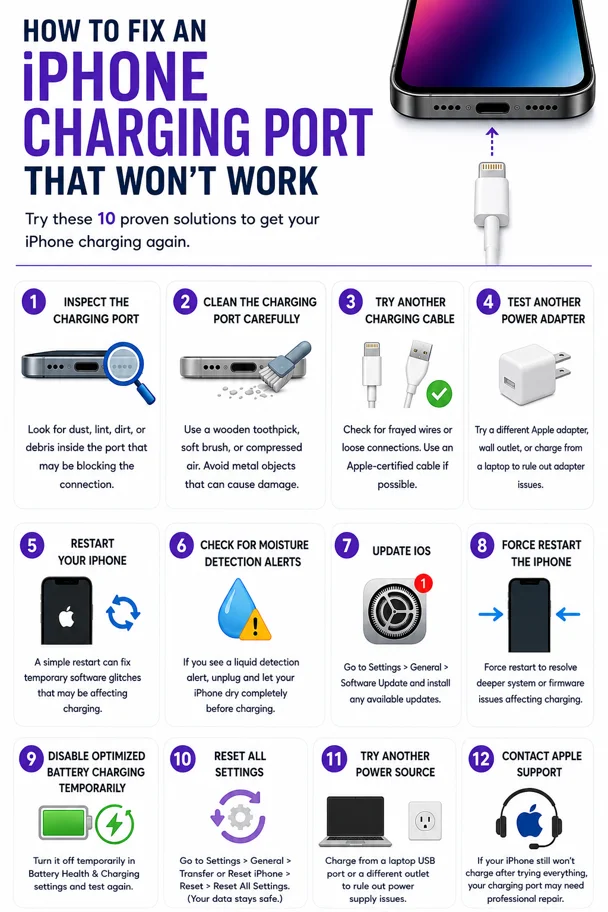
Expert-Recommended Methods on How to Fix an iPhone Charging Port That Won’t Work.
Method 1. Inspect the Charging Port
The first step you need to take to fix the iPhone charging port not working issue is to use a flashlight and check the charging port of your iPhone. You need to look for pocket lint, dust, dirt, small fabric fibers, and finally check if the connector pins are bent or not.
Did you know that a small amount of dust or lint can cause iPhone won’t charge issues, as there won’t be proper contact between the charging cable and pin?
Method 2. Clean the Charging Port Carefully
If you find that the charging port is not clean, then you need to remove the dirt or lint. Always use a wooden toothpick, a clean and dry toothbrush, or a soft anti-static brush. You can also carefully use compressed air if possible. Remember to hold the iPhone with the charging port facing downward so that the debris falls out sooner with the pull of gravity.
Avoid using metal objects like Needles, Safety pins, Paper clips, and Metal tweezers, as these objects can permanently damage the charging connector.
Method 3. Try Another Charging Cable
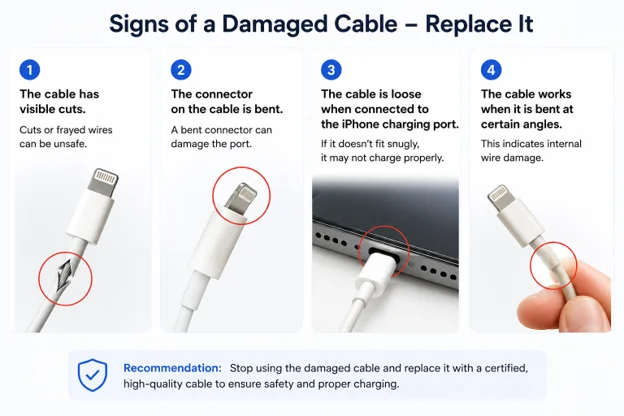
If you have finished cleaning the charging port or it was clean from before, then you need to use a different approach. Try using a different charging cable and check if the charging resumes. Some of the things you can observe on your old charging cable to determine if it is faulty are –
- The cable has visible cuts.
- The connector on the cable is bent
- The cable is loose when connected to the iPhone charging port.
- The cable works when it is bent at certain angles.
Note – Always use an Apple-certified cable, as cheap Chinese third-party cables fail quite soon.
Method 4. Test Another Power Adapter
After you have checked the cable and are still wondering “why is my iPhone not charging when plugged in”, then you must focus on the wall adapter instead of the charging cable. You must try another Apple Wall charger, or any other USB Type-C charger socket if you have one.
Try changing the wall outlet and charging from your laptop using the cable. This will help you determine if the cable is faulty or not.
Method 5. Restart Your iPhone.
Some experts have stated that temporary software bugs can interfere with charging. The quickest solution to this issue is to restart the iPhone, which will refresh the background services.
If your iPhone has Face ID, then follow these steps.
- Press and hold the Side button and either Volume button.
- Drag the Power Off slider.
- Wait 30 seconds.
- Turn the device back on.
For iPhones with a Home Button, use these steps.
- Hold the Power button.
- Slide to power off.
- Turn it back on.
Method 6. Check for Moisture Detection Alerts
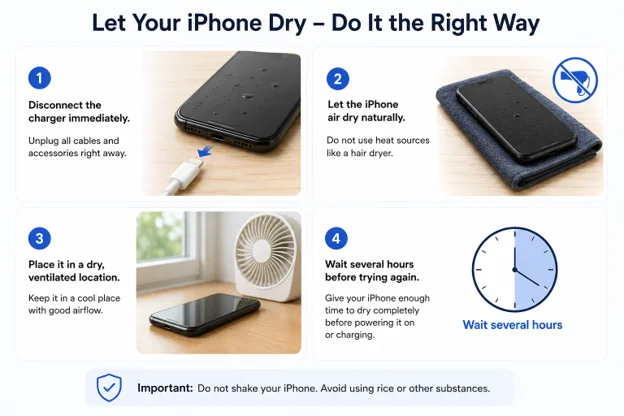
The new iPhones have a moisture detection feature, and if there is water or any liquid inside the charging connector, then you will get a message stating –
“Liquid Detected in Lightning Connector” or “Liquid Detected in USB-C Connector.”
If this is the case, then here is what you need to do.
- Disconnect the charger immediately.
- Let the iPhone air dry naturally.
- Place it in a dry, ventilated location.
- Wait several hours before trying again.
Note – Do not use a hair dryer to speed up drying or place the phone in a container filled with rice. These tips are uncertified and often found on social media and cause more harm than good.
Method 7. Update iOS
If the charging cable, adapter, and moisture are not the culprits behind the “my iPhone won’t charge” issue, the next suspect could be bugs and glitches that occur after software updates. These bugs will be fixed by Apple by releasing newer updates. Here are the steps to update your iPhone.
- Open Settings.
- Tap General.
- Select Software Update.
- Install any available update.
- After the update process is over, try charging your iPhone.
Method 8. Force-Restart the iPhone
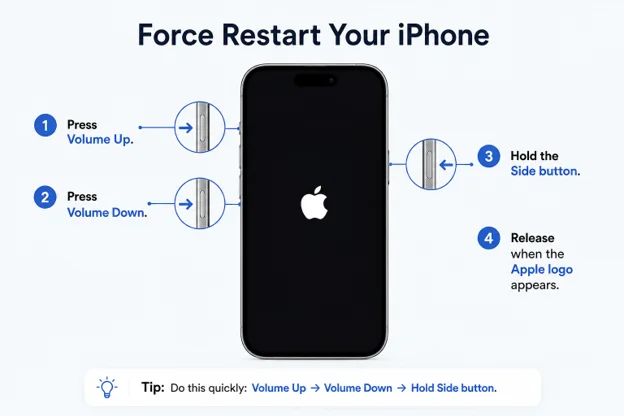
Some experts have recommended performing a force restart, which is different from the normal restart. Here is what you need to do.
- Press Volume Up.
- Press Volume Down.
- Hold the Side button.
- Release when the Apple logo appears.
This can resolve temporary firmware glitches that may affect the normal charging process.
Method 9. Disable Optimized Battery Charging Temporarily
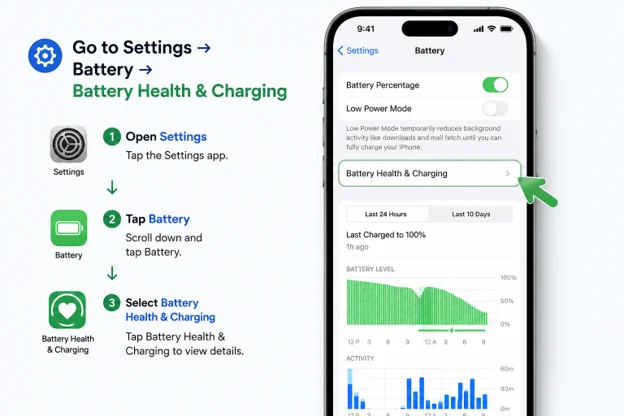
If you have enabled the Battery Optimization feature, then you need to disable it and try charging your iPhone to fix the iPhone charging port. Here is what you should do.
Go to Settings → Battery → Battery Health & Charging.
Temporarily disable Optimized Battery Charging and test whether charging resumes normally.
If the charging resumes, then allow the iPhone to charge and re-enable this option to help preserve long-term battery health.
Method 10. Reset All Settings
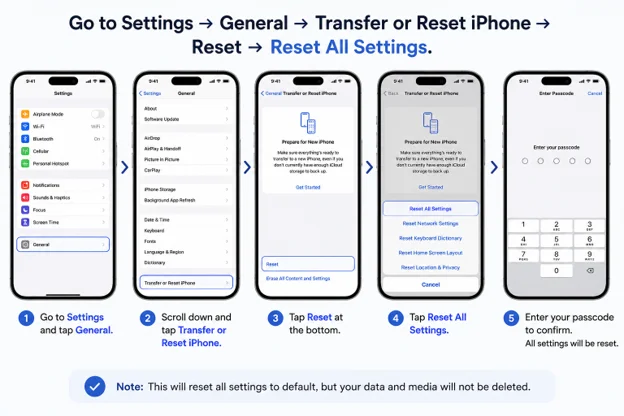
The final method you can undertake to fix the iPhone charging port, especially if the issue was initiated by updating iOS or changing certain settings, is to reset the settings to default. Here are the steps.
Go to Settings → General → Transfer or Reset iPhone → Reset → Reset All Settings.
Note – This will not erase your photos, apps, or personal files. But it will reset your Wi-Fi passwords, Bluetooth devices, Display settings, and Privacy settings.
Signs Your Charging Port Is Physically Damaged
If your charging port is physically damaged, then cleaning will not help you fix iPhone charging port. You will have to take your iPhone to an Apple Service Center. Here are some signs of hardware damage.
- The charger falls out easily.
- The charging only works at a specific angle.
- There are visible bent pins.
- You can see Burn marks or Corrosion in the charging port.
- The charging connector is loose.
- There is no charging response with multiple cables.
If you notice these symptoms, the charging port may need replacement.
What Causes iPhone Charging Ports to Fail?
Here are a few reasons why the “my iPhone is not charging when plugged in” issue occurs and what you can do to prevent it in the future.
Issue – Pocket Lint can enter the charging port of your iPhone in the form of tiny fibers every time you place your phone in your pocket.
Action – Clean the Port once every 15 days with a wooden toothpick or anti-static cleaning brush.
Issue – Frequent Cable Removal results in repeated plugging and unplugging that eventually wears down the connector.
Action – Do not force the charging cable into the port. Also, remove the cable by holding the connector instead of pulling the wire.
Issue – Liquid Exposure may cause corrosion after moisture enters the charging port in these water-resistant iPhones.
Action – Keep your iPhone away from moisture and sand.
Issue – Cheap Charging Accessories like low-quality cables may overheat or wear out quickly, leading to faulty charging.
Action – Use Apple-certified charging accessories
Issue – Physical damage, like dropping the phone while it’s plugged in, can loosen or damage the charging connector.
Action – Consider wireless charging for routine charging to reduce wear on the port.
When Should You Visit Apple or a Repair Center?
Seek professional repair by visiting the Apple Service Center if –
- Multiple certified cables fail.
- The charging port appears loose.
- Pins are visibly damaged.
- Liquid damage or corrosion has occurred.
- The iPhone won’t charge after all troubleshooting steps.
- The device overheats while charging.
- Charging repeatedly starts and stops.
Frequently Asked Questions
Conclusion
Not all cases involving an iPhone that cannot be charged due to a non-working charging port necessarily require costly repair work. Sometimes, all it takes is removing accumulated lint, replacing the charger cable that stopped working properly, or fixing a temporary software malfunction. The steps described below should help you fix the problem yourself.
If the iPhone does not charge after going through all of these procedures, then the problem is most probably related to some hardware component, and the device should be sent to a repair center for inspection and necessary repairs.





Leave a Reply