


Most of us know that PDFs can be edited using a PDF Editor Software on a Windows PC, but did you know that there are a few lightweight mobile PDF Editor apps? Yes, you can perform basic edits on a PDF using your Android smartphone or tablet. This blog explains a few different ways in detail to edit your PDF on Android when you are on the move and do not have access to your PC.
What Does Editing A PDF Mean? Is It Free?
When you speak of editing a PDF document, it means that you can modify the text, add or remove the images, highlight and annotate the content, sign the document, manage the pages, and more.
Editing a PDF can be done for free on Android devices with Systweak PDF Editor. However, on PC, these apps will require a subscription or one time license.
Best Free Ways To Edit A PDF On Android
Method 1: Using Google Drive
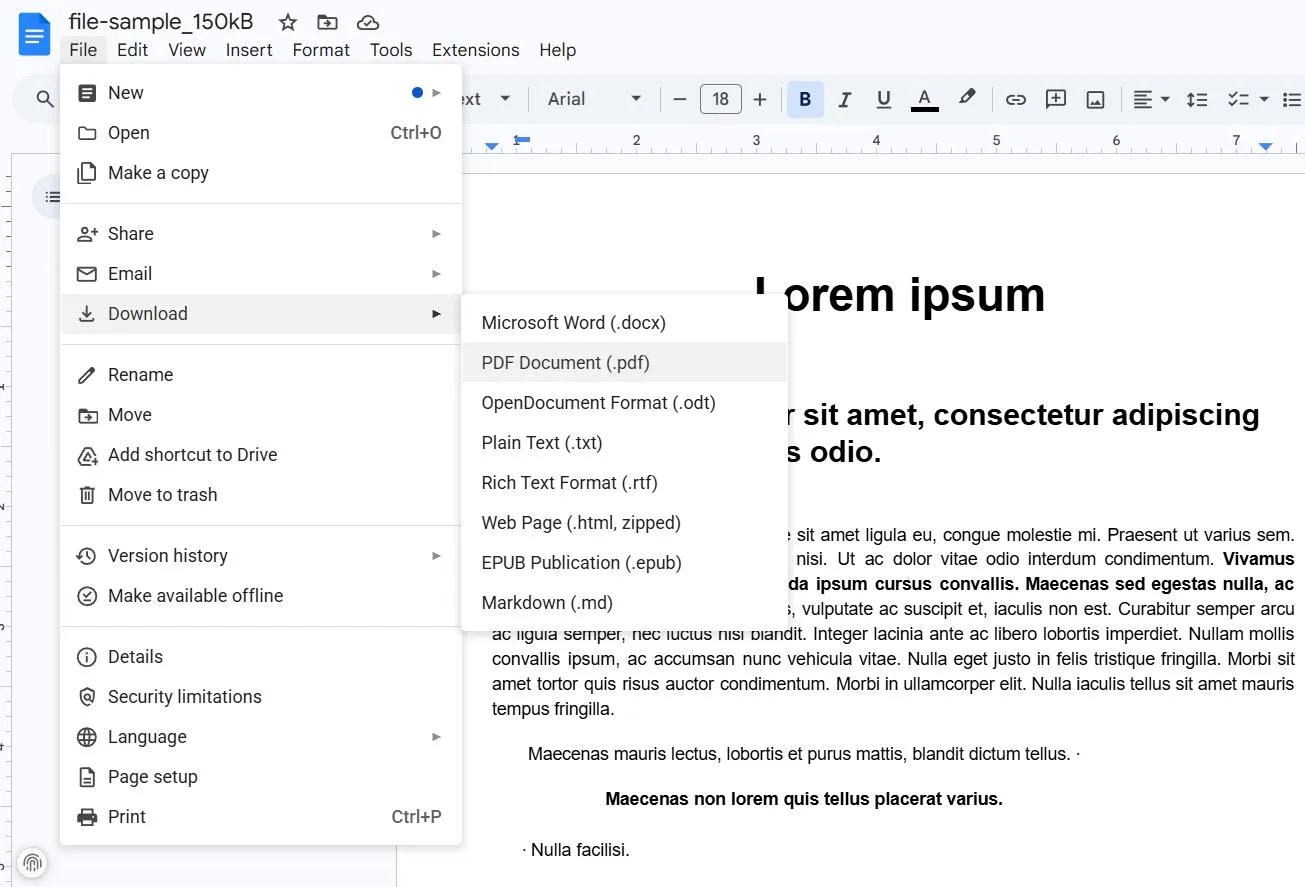
All Android phones already have Google Drive installed by default. If you have signed into a Google Account when you were setting up the device, then you will receive 15 GB of free storage space for personal use. All you have to do is upload the PDF and open it in Google Docs. Here are the steps.
- Upload your PDF to Google Drive.
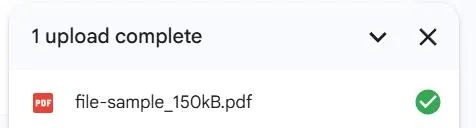
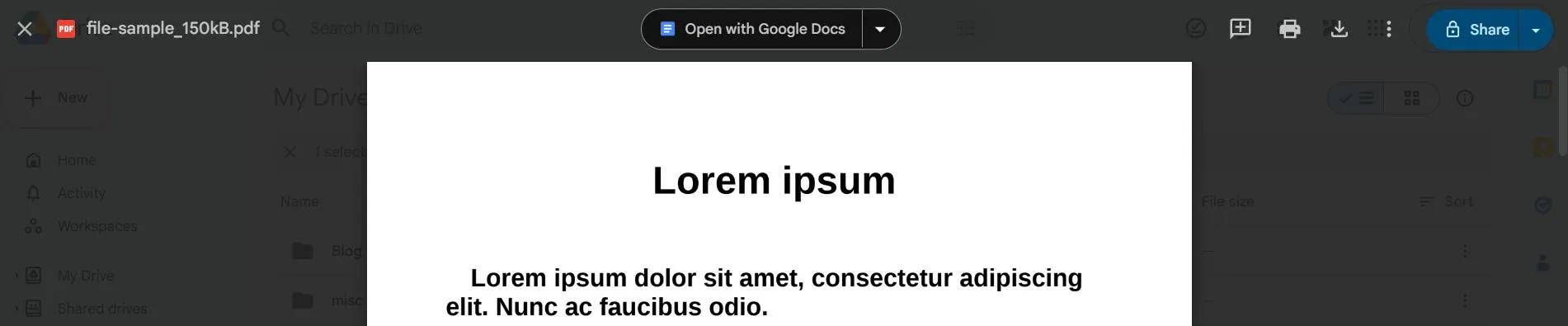
- Tap the file and open it.
- Choose “Open with Google Docs”
- Edit the text.
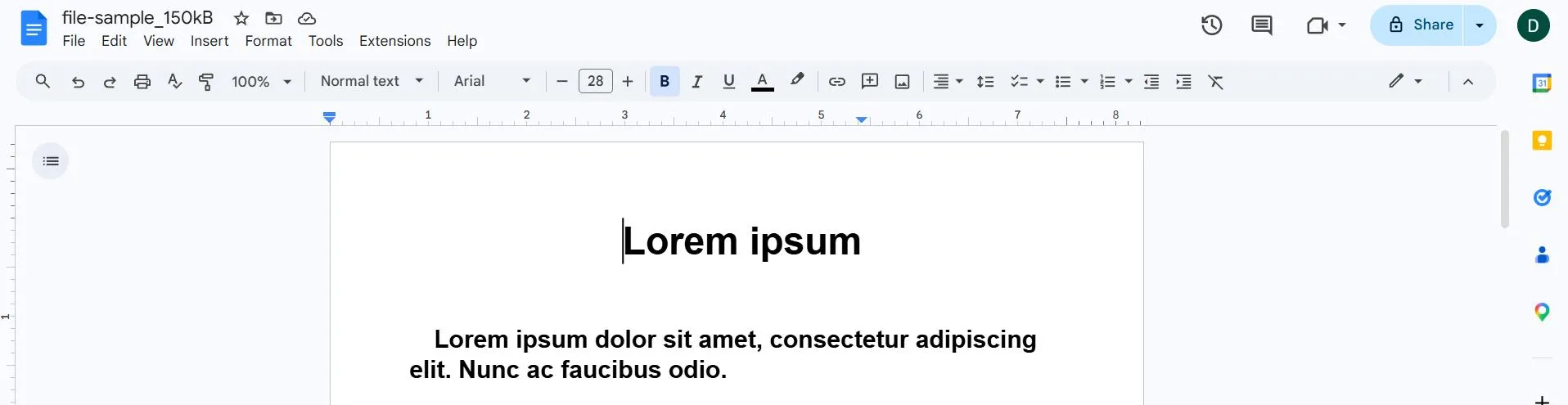
- Save and download the updated file.
- No need to install any extra apps
- Free to use
- Very easy and quick results
- Original format will not be retained
- Will not work for complex PDFs
Method 2: Using Systweak PDF Editor.
Systweak PDF Editor is an all-in-one PDF editor app that helps users to edit PDF documents on Android for free. Here are the steps to use this tool.
- Download and install Systweak PDF Editor from the Google Play Store using the link provided below.

- Tap on the View & Create button to open a PDF file that you wish to edit.
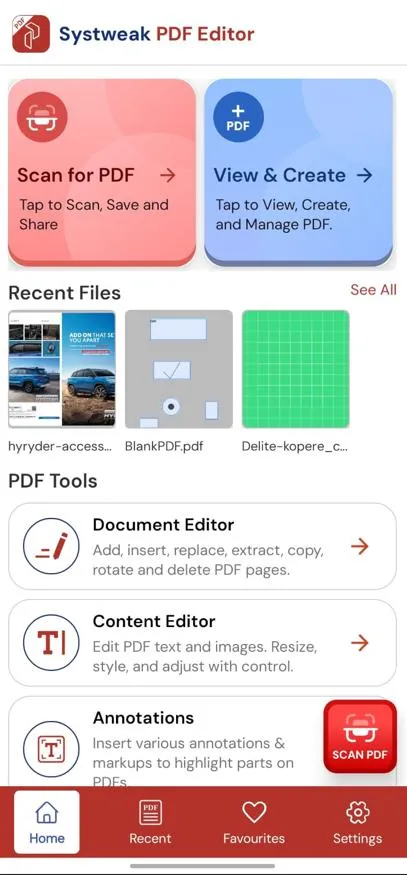
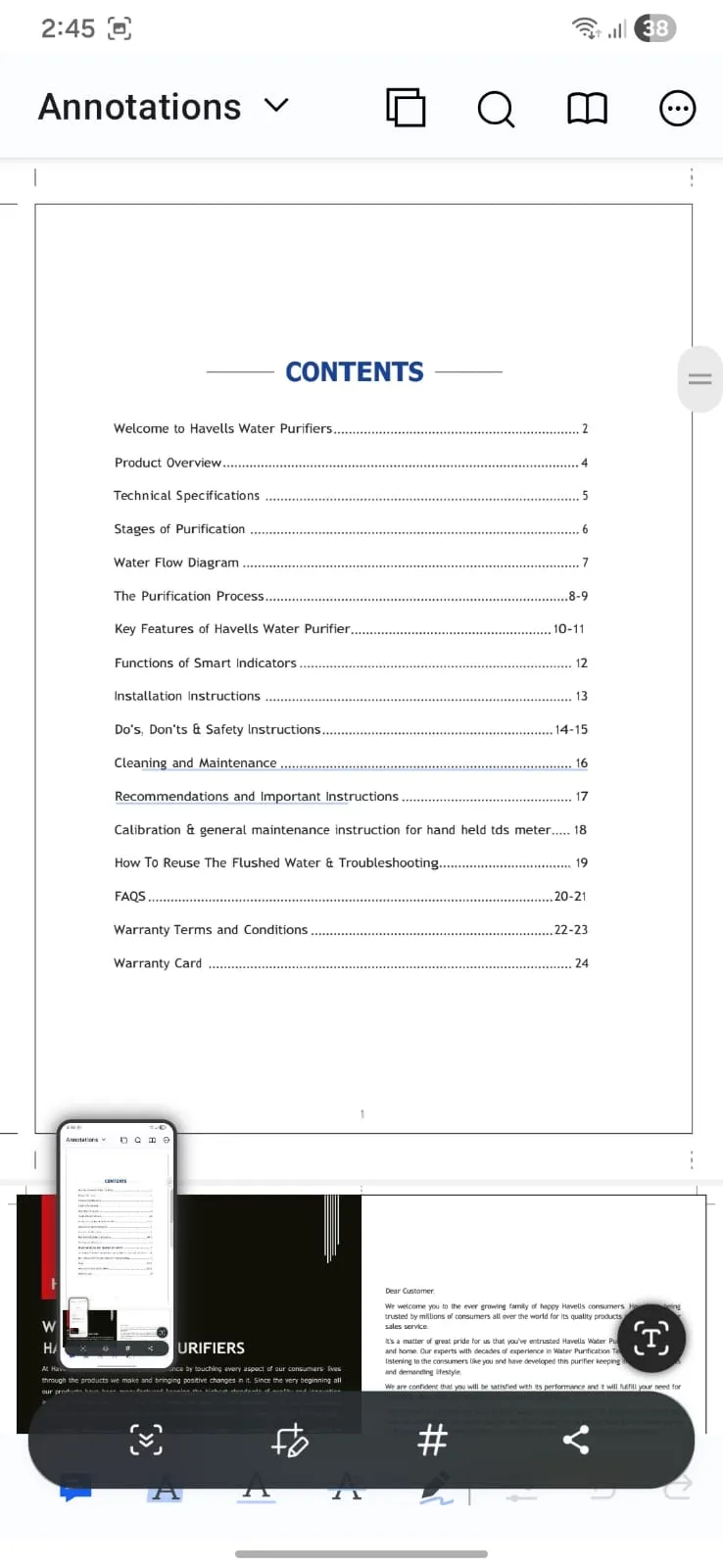
- After the PDF opens in the app, click on the Viewer dropdown in the top left corner and choose edit options.
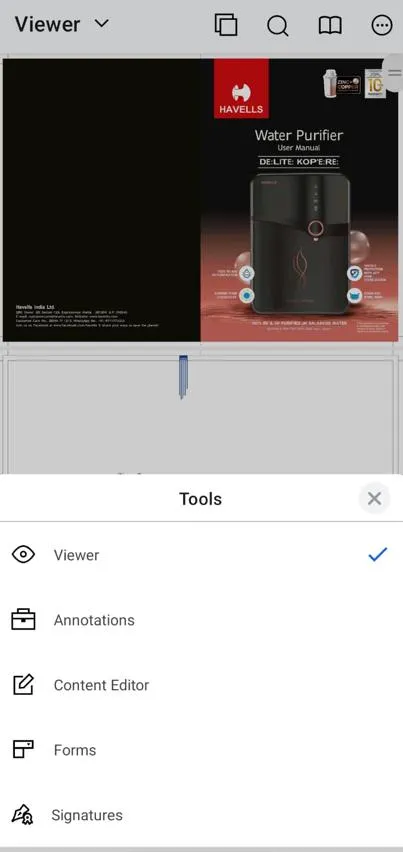
- You can choose the Content Editor option and change the content and images within the PDF.
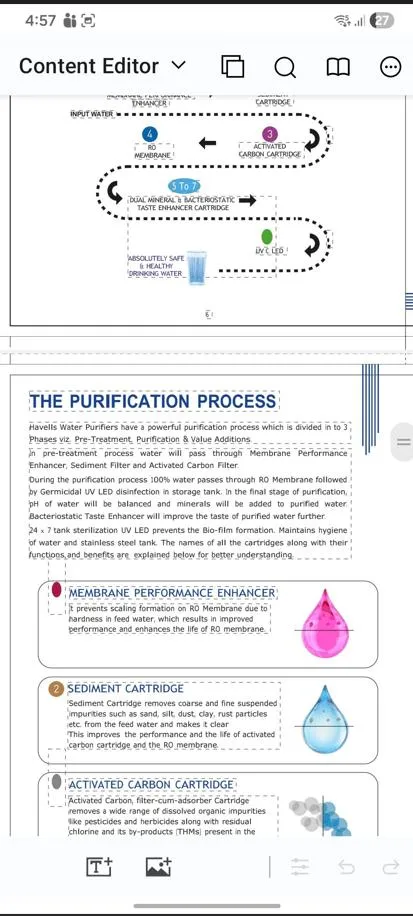
- If you wish to annotate the PDF then you can add highlights, underline, strikethrough, comment, or draw on PDFs to highlight the important content and distinguish it from the rest.
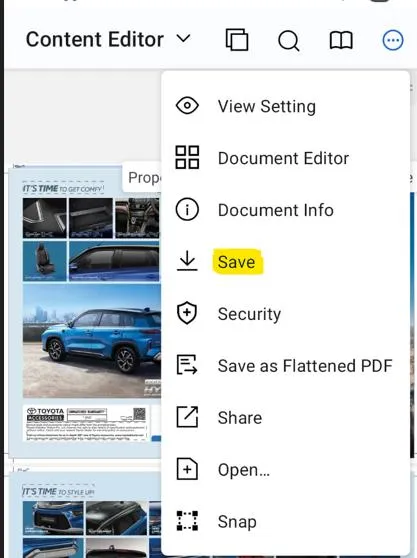
- After you have completed the editing, click on the three dots in a circle in the top right corner and choose Save.
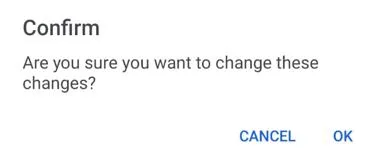
- Click on OK in the confirmation prompt box, and your PDF file will be saved with all the changes that you have made.
- Reliable and widely used
- Free to use
- Great for annotations and signatures
- Not as such
Method 3: Using Online PDF Editors
Did you know that you can upload your PDF to a PDF editing web tool and make the required changes? However, we do not recommend this method as there is no guarantee when you PDF document will be deleted from the Web tool’s server. But if your PDF does not contain important or confidential information, then you can opt for this method. Here is what you need to do.
- Open your browser
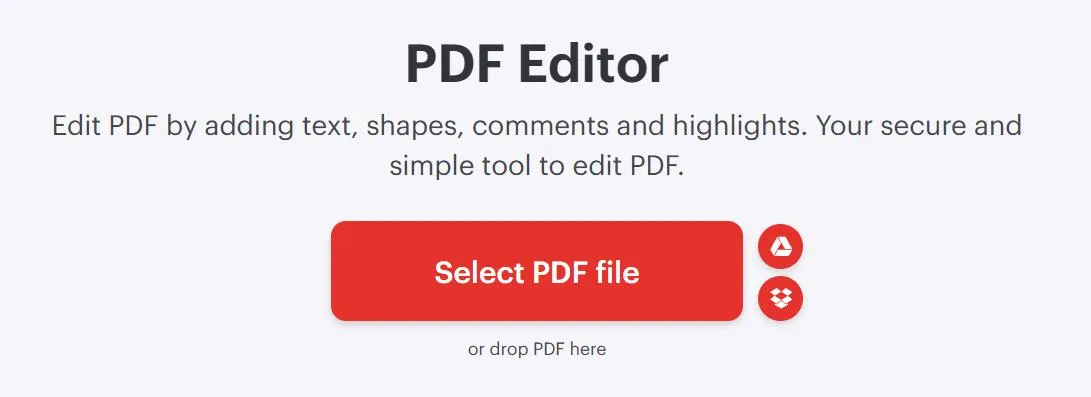
- Visit an online PDF editor like I Love PDF.
- Upload your file by clicking on the Select PDF File.
- Make the changes and edit the document.
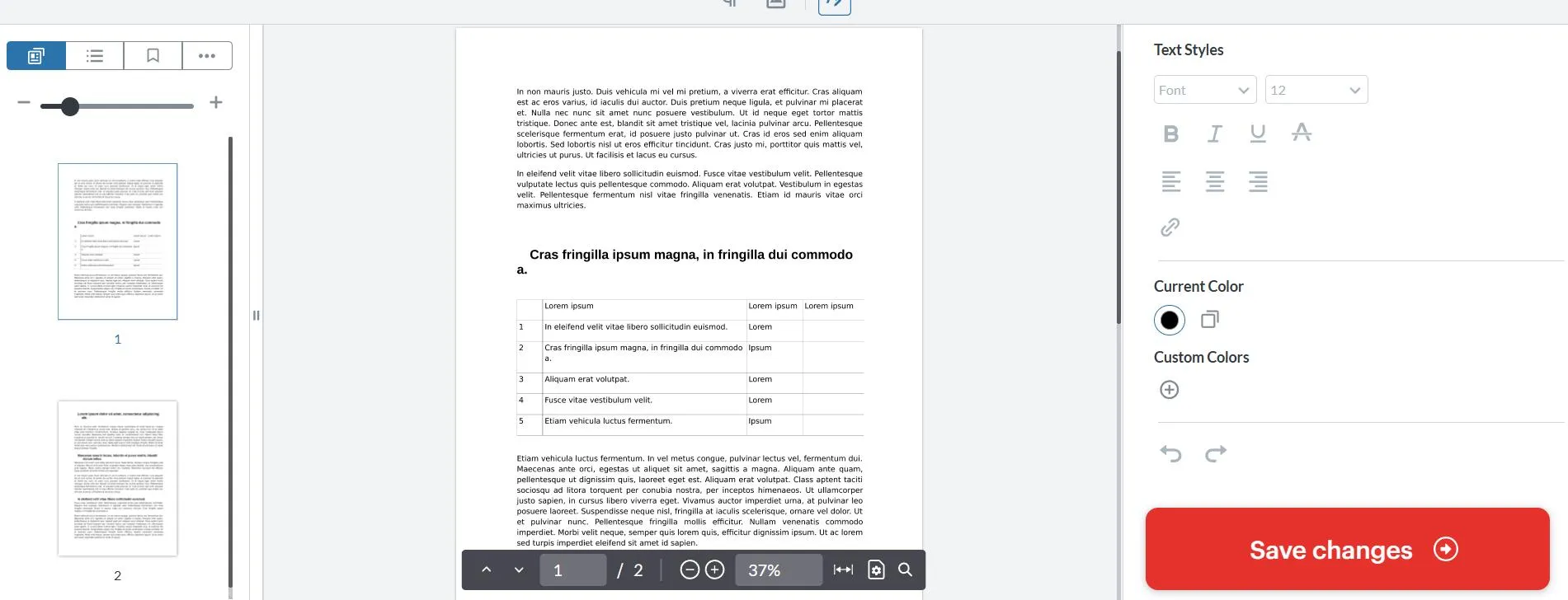
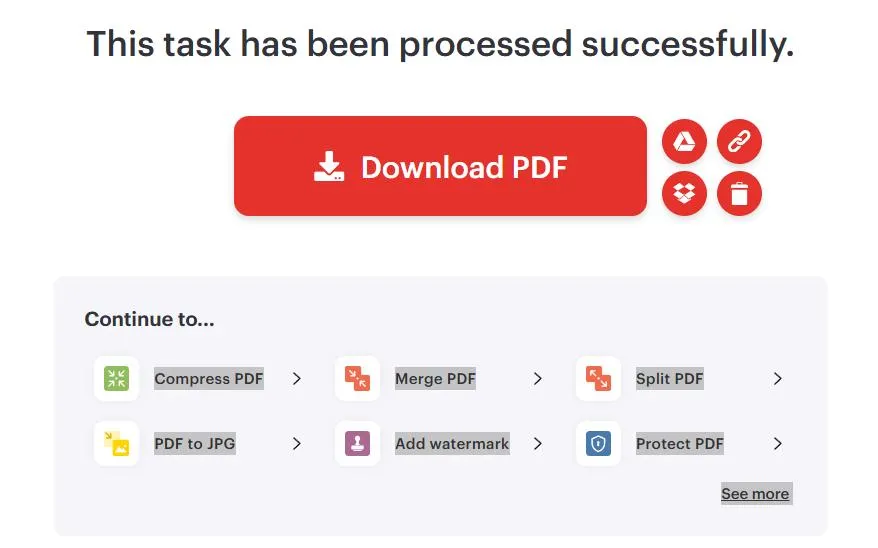
- Click on the Save Changes button.
- Download the edited document.
- No installation required
- Free to use
- Works on any device
- Requires internet
- Data is not secure
How To Edit PDFs Effectively On Android
Working on the device screen is as delicate as working on silk, and the accuracy might be difficult. Zooming in on the device while editing can help with accuracy. It is always recommended to have backup files for future use, just in case something goes wrong. In addition, using smaller PDF files can help prevent lags and improve the experience of using the software. Lastly, do not forget to review your work at the end of the day to check for errors.
Best Situations To Use The Tools
There are many instances where free Android PDF editors will come in handy. Firstly, there is the fact that such apps can be very helpful to students looking to make changes to their assignments and class notes. Secondly, such applications are very helpful to professionals who may wish to sign and review documents on the go. Thirdly, they will come in handy when one wishes to edit PDFs without using a laptop.
Frequently Asked Questions
Conclusion
Editing PDFs on Android is no longer difficult; you can easily do it on your mobile or tablet. If you have a simple PDF, then you can use the Google Drive method. But if the PDF contains formatting, layouts, images, and other elements, then we recommend you use the free PDF editor by the name of Systweak PDF Editor.
Next Read:
Best PDF Reader Apps for Android
How To Convert PDF To Word For iPhone



Leave a Reply