


Summary
RAM clearing helps to boost your Mac’s performance and multitasking. Read about freeing up memory and reducing lag by restarting your Mac, stopping unnecessary apps, checking Activity Monitor, and other ways to improve your computer’s speed. Read also about memory management techniques and the most frequently asked questions about RAM.
Macs are fast and reliable computers, but even the fastest Macs slow down after some time of use. When your applications start loading slower, your browser freezes, and you keep seeing the spinning beach ball icon, then your Mac runs out of available RAM. Learning how to free RAM on a Mac will make your computer more responsive without purchasing additional hardware. Whether you have a MacBook Air, MacBook Pro, iMac, or Mac Studio, clearing your memory will help you use your computer faster and more effectively. This guide is about RAM, the reasons behind its filling, and the most effective methods of freeing up memory on your macOS.
What is RAM On A Mac?
RAM (Random Access Memory) is a type of storage that enables your Mac to have efficient application and system process execution. RAM is different from an SSD or hard drive in that it is capable of storing information only when the Mac is turned on. With increased RAM, your Mac will be able to execute multiple tasks at once. Some of the symptoms of low RAM include:
- Slow app launch
- Spinning beach ball
- System freezing
- Difficulty switching between apps
- Constant browser tabs reloading
- High memory pressure in Activity Monitor
Why Is Your RAM Full?
RAM can get used up for several reasons:
- Too many programs running at once
- Too many tabs open in the browser
- Software that uses too much memory (e.g., Photoshop or Final Cut Pro)
- Programs with memory leaks
- Items running in the background during login
- Old versions of macOS or programs
However, in most cases, your RAM problems can be easily solved within minutes.
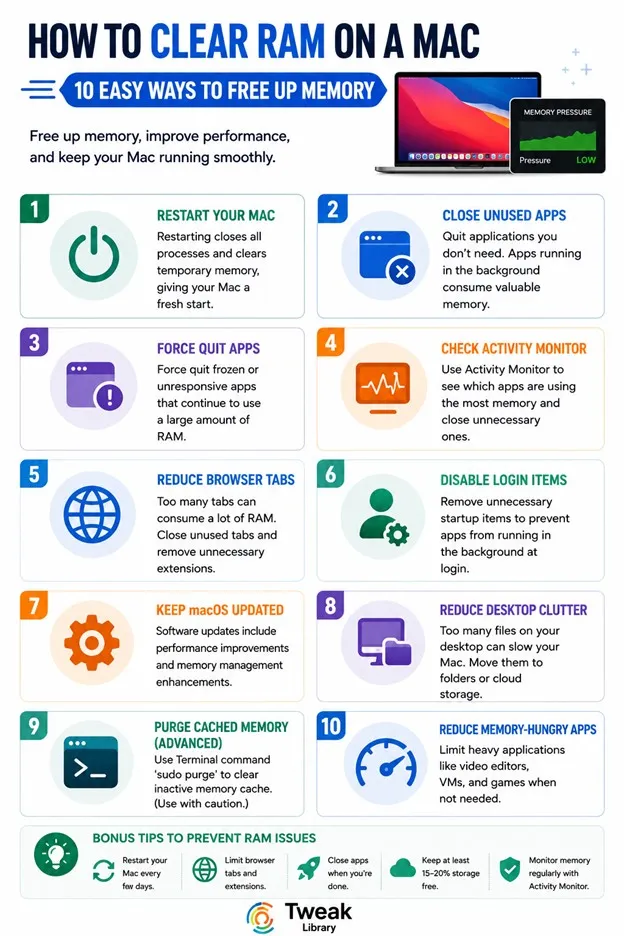
10 Ways to Clear RAM on a Mac

1. Restart Your Mac
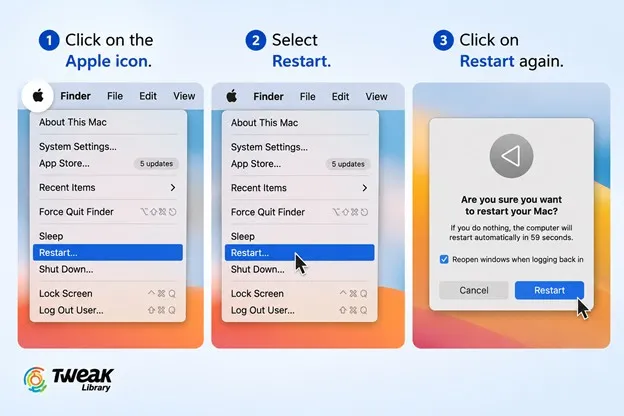
The simplest way to clean RAM is to reboot your Mac. When macOS boots up, all of its processes will be closed, and temporary memory will be cleared out. Here’s how you do it.
- Click on the Apple icon.
- Select Restart.
- Click on Restart again.
Rebooting is highly recommended, especially when your Mac has been working for a few days.
2. Close Applications You Aren’t Using
Apps tend to keep using memory even when they are inactive in the background. Close unnecessary apps. Here is how.
- Right-click the app from the Dock
- Quit or Command + Q
Do this for any unnecessary app.
3. Force Quitting Frozen Apps
There are times when an app becomes non-responsive but continues using up lots of RAM. This is what you should do.
- Press Command + Option + Escape.
- Choose the frozen app.
- Click on Force Quit.
This will instantly free up the memory used up by the app.
Also Read: How to Fix a Frozen MacBook or Mac
4. Checking Memory Usage Using Activity Monitor
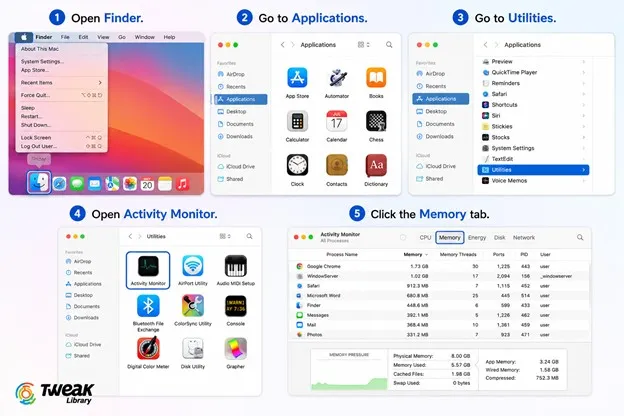
Activity Monitor allows you to determine which apps are eating up most of your RAM. Do these:
- Open Finder.
- Go to Applications.
- Go to Utilities.
- Open Activity Monitor.
- Click the Memory tab.
In this tab, you will see:
- Memory Used
- Cached Files
- App Memory
- Memory Pressure
When Memory Pressure stays yellow or red, your computer is running out of memory.
5. Reduce Browser Tabs
Current browsers tend to eat up several gigabytes of memory. If you have numerous tabs open at once, your MacBook will start working much more slowly. It is recommended that you try to do the following.
- Close unnecessary tabs
- Uninstall additional extensions
- Restart your browser from time to time
- Use Tab Groups
The Safari browser consumes less memory compared to other Chromium browsers.
6. Disable Unnecessary Login Items
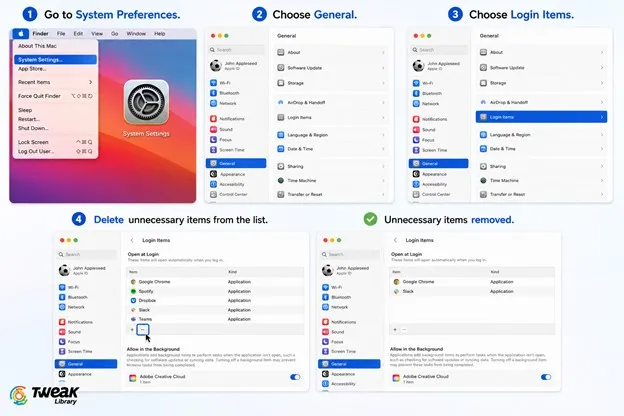
There are some applications that automatically start each time your Mac computer boots up. Such apps are constantly taking up your system memory. This is how you should proceed.
- Go to System Preferences.
- Choose General.
- Choose Login Items.
- Delete unnecessary items from the list.
Your Mac will start much faster and consume less RAM.
7. Keep macOS Updated
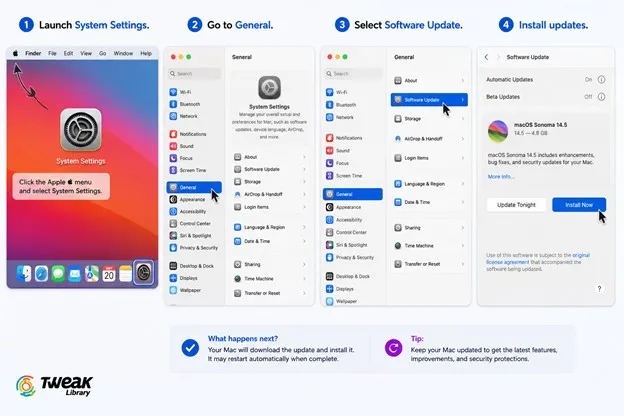
Improvements in memory management are frequently made by Apple through the process of software updates. The latest macOS will solve all the memory leaks and performance problems. Below is how it can be done.
- Launch System Settings.
- Go to General.
- Select Software Update.
- Install updates.
8. Reduce Desktop Clutter
Each file on the desktop uses up little bits of computer memory. If there are too many files on the desktop, then your computer will not work well.
9. Use Terminal to Purge Cached Memory.
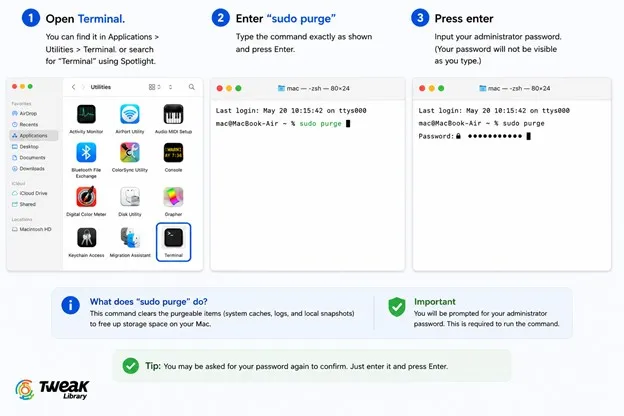
The purge command allows experienced users to flush out their unused cache memory through Terminal.
- Open Terminal.
- Enter “sudo purge”
- Press enter
- Input your administrator password.
Notice that this command is only available on some newer versions of the macOS operating system.
10. Reduce Memory-Hungry Apps
Some programs will inherently need more memory than other programs. These can be:
- Video editors
- Virtual machines
- Programs for editing large images
- 3D rendering software
- Newer games
If you have multiple resource-intensive programs open at once, try to close any that you aren’t currently using.
How to Check Which Apps Use the Most RAM
Activity Monitor offers useful information on how much memory is being used. Sort your applications based on the Memory column to see which ones use up a lot of memory. Here are some of the common memory-hungry applications:
- Chrome
- Photoshop
- Xcode
- Final Cut Pro
- Microsoft Teams
- Zoom
Stopping unnecessary programs can immediately release several gigabytes of RAM.
Is RAM Managed Automatically by macOS?
Yes. It’s because macOS is programmed in such a way that it manages its own RAM through functions such as:
- Memory Compression
- Cache Memory
- Swap Memory
- Resource Allocation
Should You Use RAM Cleaner Apps?
Memory cleanup tools available as third parties guarantee a great improvement in performance. Indeed, most contemporary editions of the operating system are capable of efficient memory management. However, using such a tool too often can result in temporary improvements only, while, sometimes, it causes performance degradation due to forced reloading of cached memory. If you do not have any problems, it would be reasonable to use native tools of macOS.
Is It Possible to Upgrade RAM in Your Mac Computer?
It depends on the computer you own. It was possible for older iMacs and some MacBooks with the Intel processor to increase their RAM capacity. Apple computers with silicon chips M1, M2, M3, and further do not allow RAM upgrading after their purchase. It is preferable to buy a Mac computer with larger memory capacity for those who work with video editing, virtualization, software development, etc.
Tips to Prevent RAM Issues
Here are some tips for maintaining optimum performance on your Mac:
- Reboot your Mac from time to time.
- Maintain the software of your Mac.
- Quit unused applications.
- Reduce the number of open browser tabs.
- Do not run unnecessary programs at startup.
- Remove any unnecessary browser add-ons.
- Leave at least 15 to 20% of your storage space free to allow virtual memory to work effectively.
These are some basic things that can ensure your system runs consistently.
Conclusion
Cleaning out your Mac’s RAM is one very useful technique for boosting performance and avoiding sluggishness. Most of the time, all you need to do to ensure smooth operation is to restart your Mac computer, close any programs that you do not use, monitor your Activity Monitor, and minimize background activities.
As mentioned above, RAM clean-up is something that should rarely be necessary for a Mac since its operating system, macOS, is capable of managing RAM very effectively. You can use the recommendations outlined in this article to ensure efficient performance of your Mac even while doing demanding tasks.



Leave a Reply