


Summary
Google Maps now stores your home address in your Google Account instead of directly on Google Maps. Changing it takes less than a minute through the Personal Info section of your Google Account. This article explains the step-by-step process to change your home address on Android, iPhone, and desktop.
Why will you want to change the saved home address on Google Maps? You moved last month, but Google Maps still thinks you live at your old place. Or maybe you never set a Home address at all, and every time you ask for directions, you have to type your full street address by hand instead of just saying “home.” The better way is to fix the issue that takes under a minute once you know where to look.
The confusing part is that the process has shifted over the past few years. Older guides point to a menu inside the Google Maps app that may not match what you see on your screen. That’s because Google now manages this through your account settings rather than the app alone. This guide walks through the current steps for Android, iPhone, and desktop, along with what to do if the change doesn’t reflect.
Where Does Google Store Your Home Address?
The Google Maps application does not save Home address in itself. Instead, it gets saved to your Google Account (the same account you use for Gmail or YouTube).Google Maps accesses the information from there, which is also why your Home address is the same irrespective of whether you check them from your phone, your laptop, or any other computer after signing in.
The reason why you might notice two slightly different menus, one in the Maps app and the other in your account settings at myaccount.google.com, is because of that account-level setup. They both essentially refer back to the same address. When you make an edit in one part of the tool, it updates everywhere else also, usually within a few seconds.
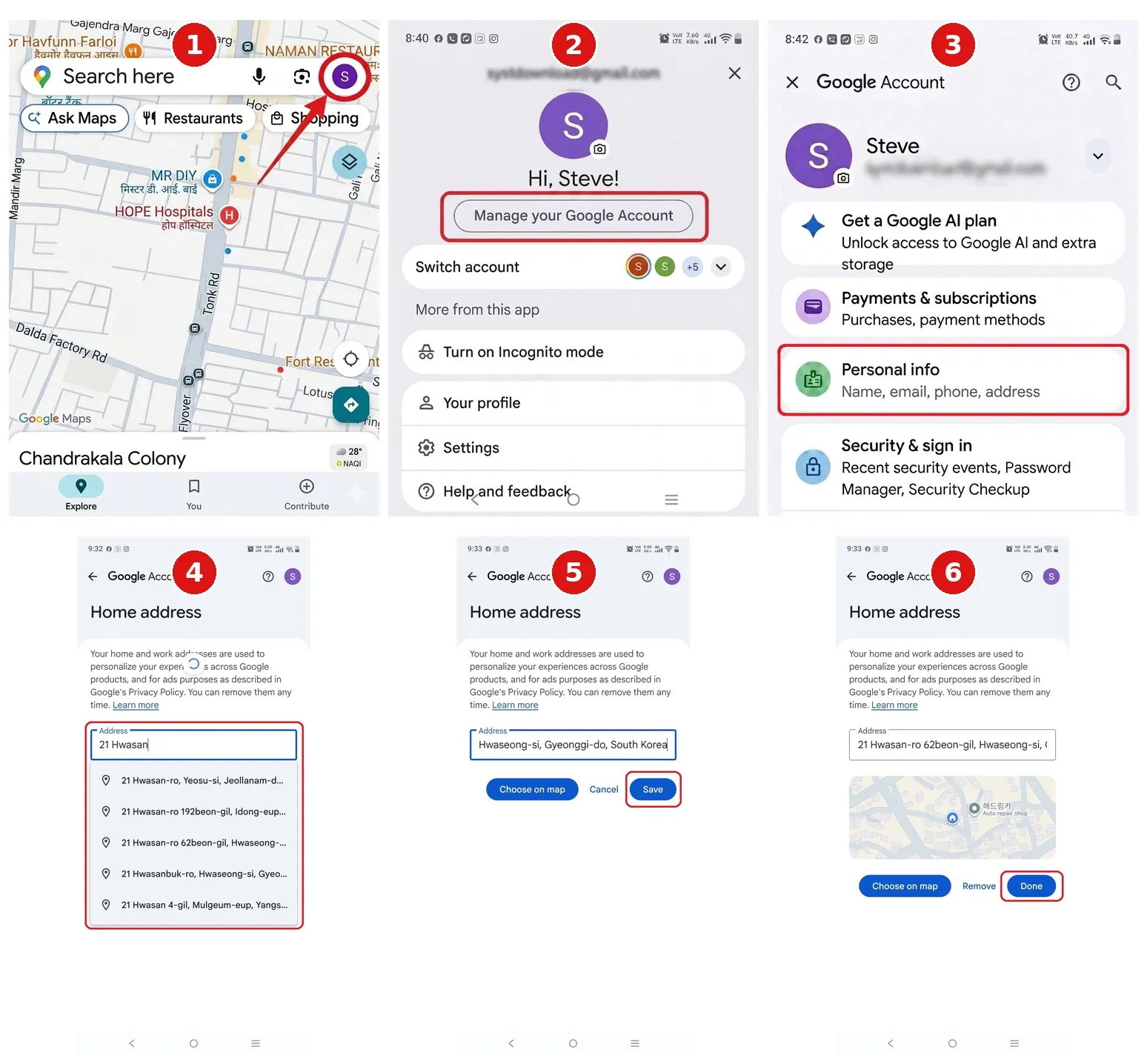
How to Change Your Home Address on an Android Phone –
- Open Google Maps on your phone.
- Tap on your profile, that is at the top-right corner of the screen.
- Then, tap on Manage your Google Account.
- Tap Personal info from the options on the screen.
- Then, tap on the Home address option.
- Remove the old address, type your new address, and select from the drop-down list..
- Tap Save and then Done.
How to Change Your Home Address on iPhone and iPad –
These steps are similar to the steps for Android phone, with minor difference in options:
- Open Google Maps on your phone.
- Tap on your profile, that is at the top-right corner of the screen.
- Then, tap on Manage your Google Account.
- Tap Personal info from the options on the screen.
- Then, tap on the Home address option.
- Remove the old address, type your new address, and select from the drop-down list.
- Tap Save and then Done.
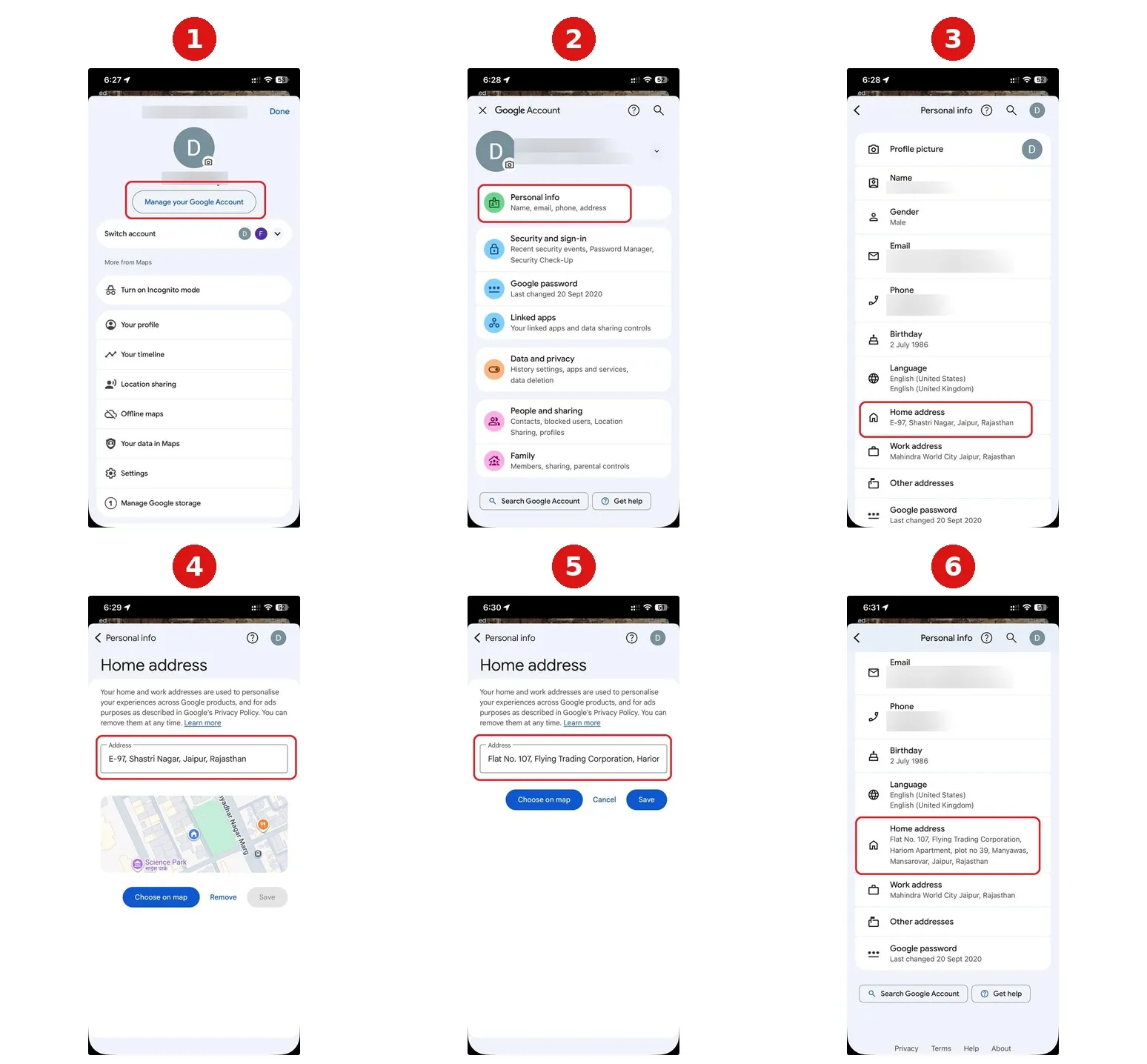
If you’d rather use the map itself instead of typing an address, tap Choose on map where it appears, then drag the pin to your building. This helps in places where the typed address lands a block or two off, which happens more often than you’d expect in new developments or rural areas with unusual numbering.
How to Change Your Home Address on Desktop
- Login into maps.google.com with your account.
- Click on your profile, that is at the top-right corner of the screen.
- Then, click on Manage your Google Account.
- Here, click on Personal info in the left pane.
- Finally, click on Home address.
- Remove the old address, type your new address, and select from the drop-down list.
- Click Save and on the next screen click Done.
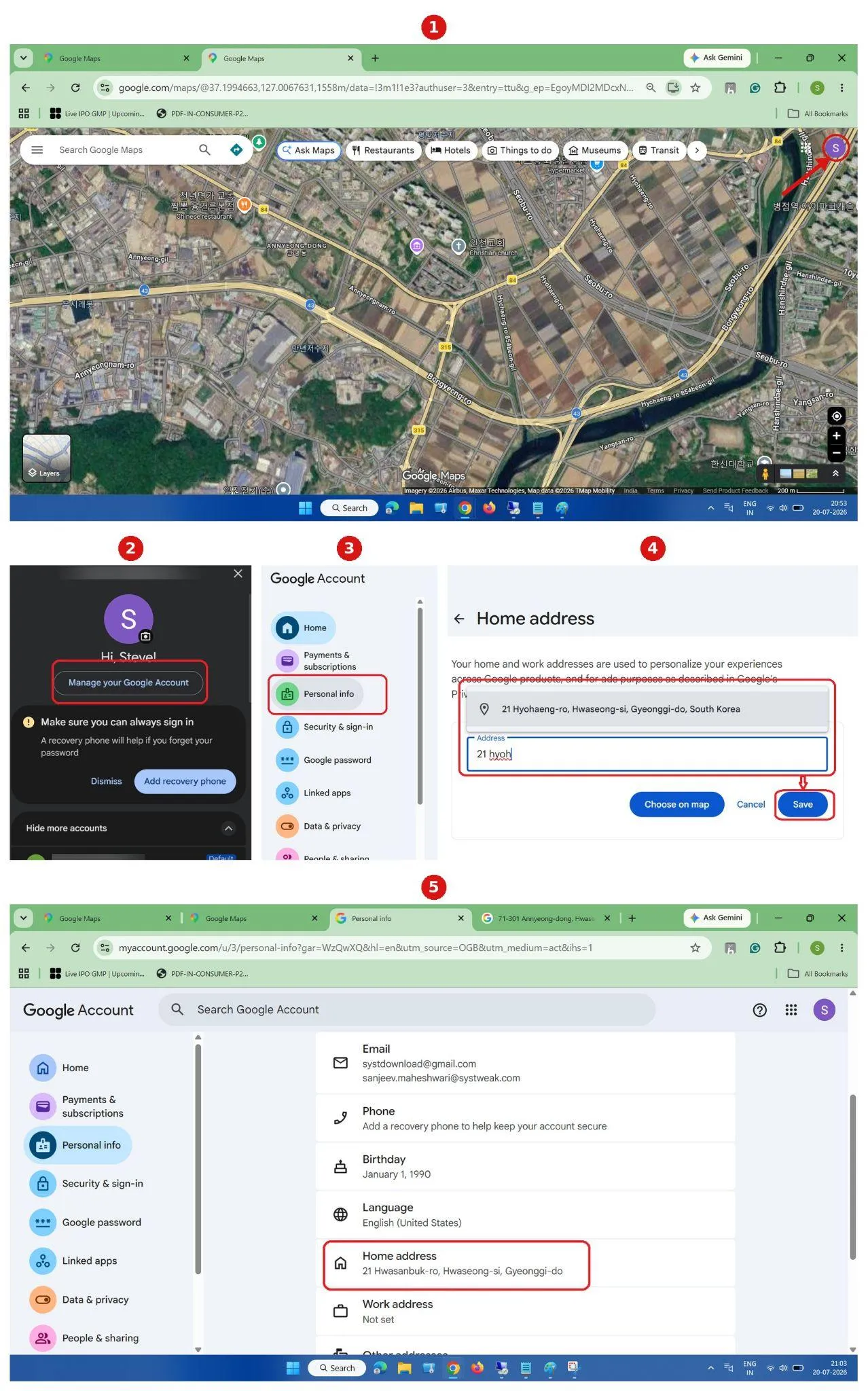
You can also go straight to myaccount.google.com, then address, then home in your browser, which skips the menu navigation and drops you directly on the Home address page.
What Should Be Done When Changes Are Not Reflected?
There may be occasions when you change home location on google maps but it doesn’t reflect. For this, look for the below given reasons:
Updated the wrong Google account –
If you have more than one Google account on your phone, check the account in which you have updated the Home address. Tap your profile picture in Maps and confirm you’re editing the address on the account you actually use for navigation.
Apps are not synced –
Android Auto, CarPlay, and Google Assistant sometimes hold onto the old address for a few minutes after you save the new one. Close and reopen the Maps app, or restart your phone, and check again before troubleshooting further.
No Internet connection –
A dropped connection can make it look like nothing happened. Confirm you have a working connection and try the save again.
Delete and add again –
Sometimes changing Home addresses doesn’t help. It keeps on showing old address itself. In such a case, what is required is that you delete the Home address entirely, wait a minute, and then add the same address again. This is because the old entry is stuck in the memory and not giving way to the new one.
Conclusion
Changing home address in Google Maps is quick and easy. All you need to do is follow a few steps as explained. Once the address is updated, Google maps will guide you through the correct route and exact traffic status. All your connected devices also gets synced instantly, like Android Auto or Google Assistant. However, if there is a delay, there could be a few possibilities from the reasons stated above. Check and resolve accordingly, and you are get to go.



Leave a Reply