


Your headphones won’t connect, your mouse keeps dropping out, or Bluetooth has vanished from Settings entirely. Bluetooth not working in Windows 11 problems come in a few genuinely different flavors, and which one you’re dealing with changes which fix actually works. Here’s how to match your specific symptom to the right cause instead of working through every fix at once.
What Causes Bluetooth Not Working in Windows 11
A corrupted or outdated Bluetooth driver, especially right after a Windows Update replaced it, is the most frequently cited cause. In addition to this, other possible causes are: a service called Bluetooth Support Service stops running, causing problems with previously paired devices connecting again; a corrupted pairing database exists which will not allow you to connect with previously connected devices; too-restrictive discovery options have been set for Bluetooth device discovery; and Windows powering down the adapter to save battery can all produce different-looking symptoms. Rarely, the Bluetooth hardware itself has failed.
Where this points depends on exactly what’s happening: Bluetooth missing entirely from Settings usually points to a driver problem; a device that won’t pair for the first time often points to discovery mode or the pairing process itself; a device that pairs but won’t actually connect points to the Bluetooth driver or services, and a device that keeps disconnecting after connecting successfully often points to power management settings.
Quick Check: Physical Toggle, Airplane Mode, and BIOS
Before touching any settings, rule out the simplest causes. Confirm Airplane Mode is off in the taskbar notification area. If you have a laptop, make sure there isn’t a physical switch for Bluetooth or wi-fi on your keyboard; these are usually function keys, like Fn + F3. Also, check your laptop’s BIOS for a Bluetooth setting if the issue started after a BIOS update.
How to Fix Bluetooth Not Working in Windows 11
Fix 1: Run the Bluetooth Troubleshooter
Microsoft’s built-in troubleshooter checks your adapter, services, and drivers automatically, and resolves a meaningful share of cases on its own, particularly a stalled service.
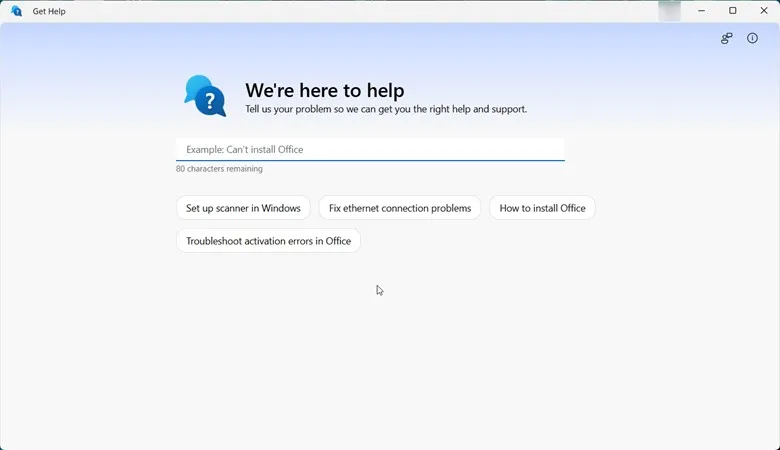
- Open the Get Help app (search for it in the Start menu), since Microsoft has moved several troubleshooters here from the older Settings menu on current builds.

- Ask it to run Bluetooth diagnostics, or search Settings for “Bluetooth” and run the troubleshooter if it still appears under Troubleshoot, Other troubleshooters.
- Let it run and apply any fix it suggests.
Fix 2: Restart the Bluetooth Services
Bluetooth won’t function at all if its underlying service has stopped.
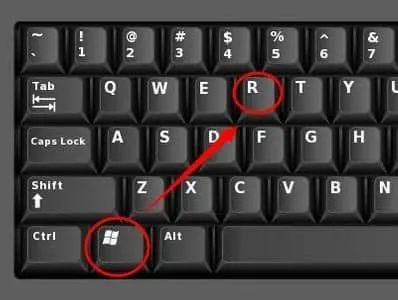
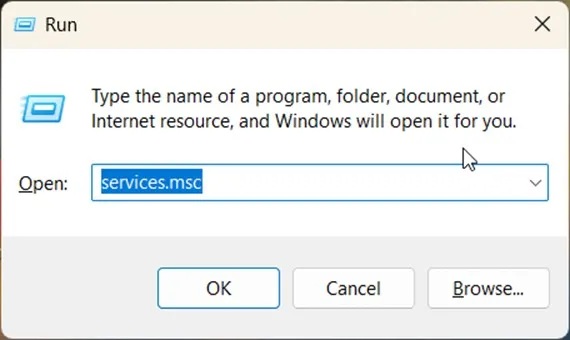
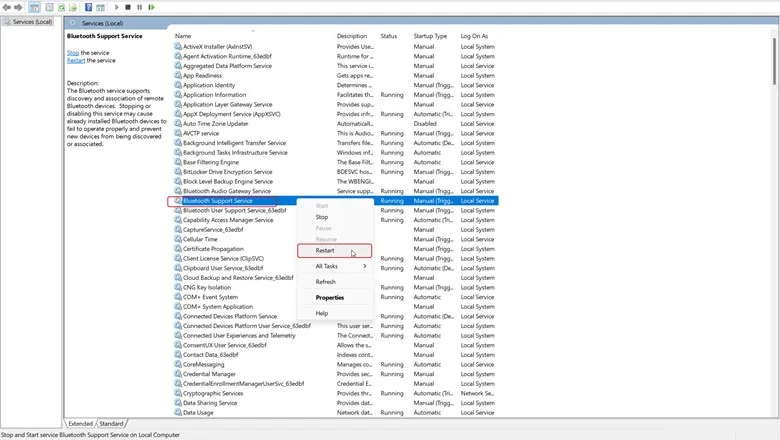
- Press Windows key + R, type services.msc, and press Enter.
- Find Bluetooth Support Service, right-click it, and select Restart, or Start if it shows Stopped.
- Follow the above steps to do the same with “Bluetooth Audio Gateway Service”, and “Bluetooth User Support Service”.
4. Confirm each service’s Startup type is set to Automatic, then restart your PC.
Fix 3: Remove and Re-Pair the Device
A corrupted pairing database can prevent a previously working device from reconnecting.
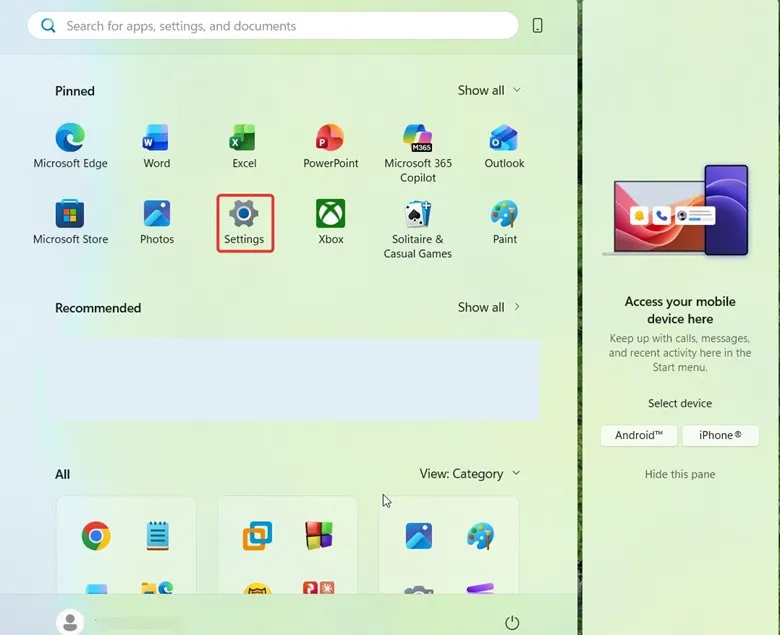
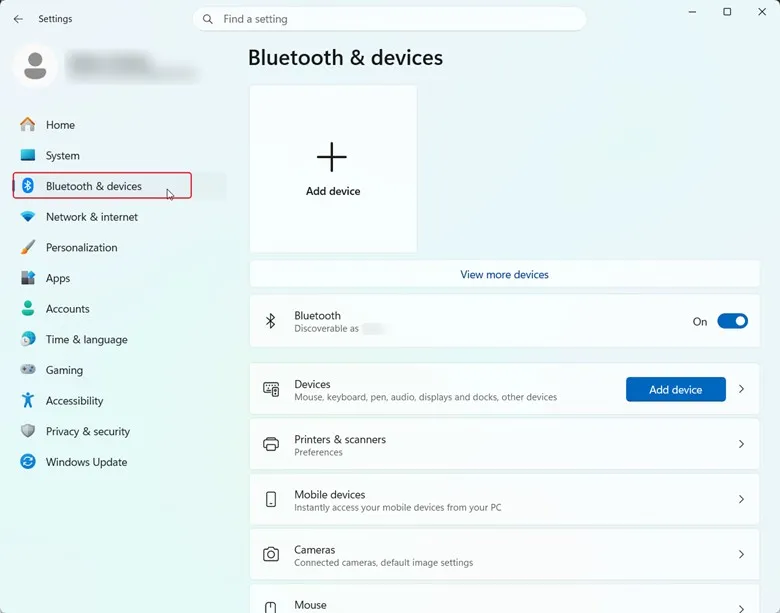
- Go to Settings, then Bluetooth & devices, then Devices.
- Select More options next to the problem device, then Remove device.
- Restart your PC, then go back into “Bluetooth & Devices” in your settings and pair your device again.
Fix 4: Update or Reinstall the Bluetooth Driver
Since a bad driver is the most common cause, especially after a Windows Update, this is worth checking directly.
-
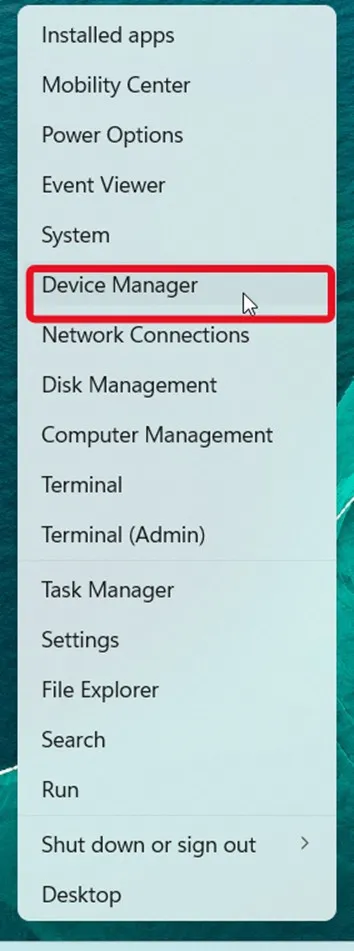
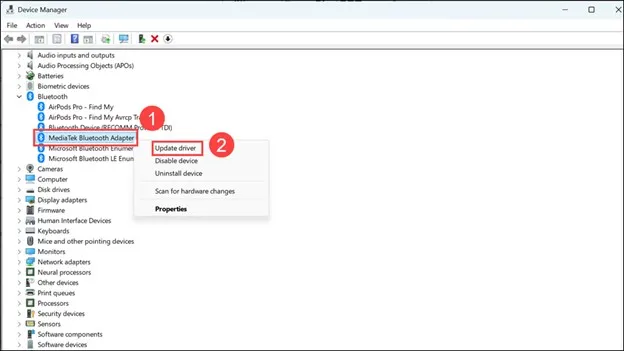
- Open the Device Manager by right-clicking the Start button or use the keyboard shortcut Win + X.
- Expand Bluetooth, right-click your Bluetooth adapter, and select Update driver.
- If you have installed updates recently and now find that bluetooth is not working, rather than trying to update, open the adapter’s Properties instead, go to the Driver tab, and click Roll Back Driver.
- Open the Device Manager by right-clicking the Start button or use the keyboard shortcut Win + X.
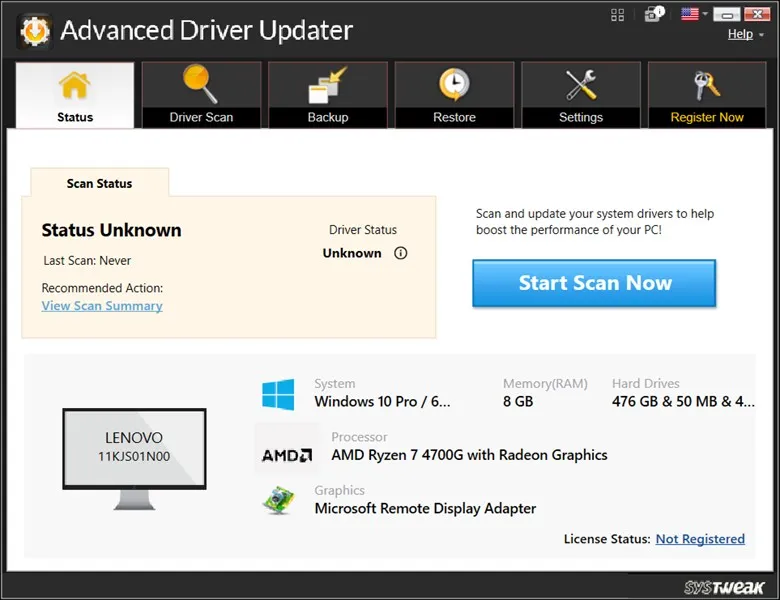
If the Device Manager can not find a working driver, Advanced Driver Updater from Systweak can scan for the correct one instead. Open the app and click Start Scan Now, then click Update Now next to the Bluetooth driver once it is flagged. Restart your PC and try pairing again.

Fix 5: Adjust Power Management Settings
Windows can turn off the Bluetooth adapter to save power, this causes devices to continually connect and disconnect, especially after sleep.
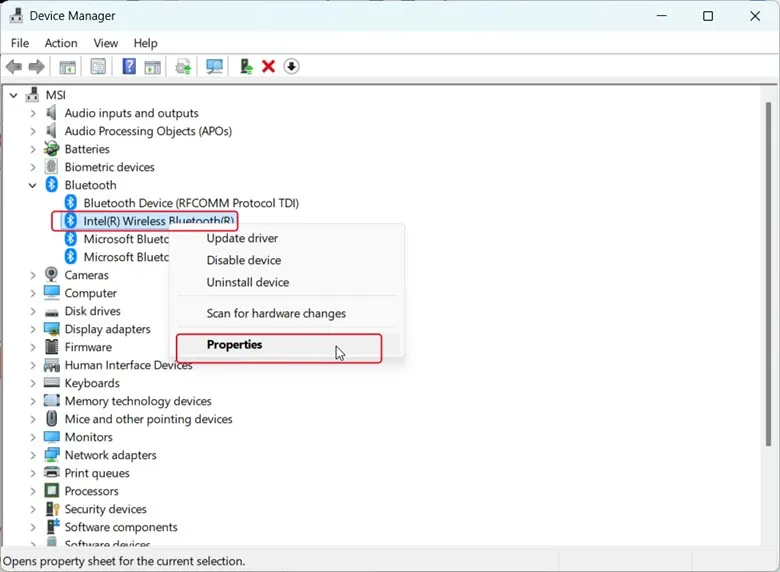
- In Device Manager, right-click your Bluetooth adapter and select Properties.
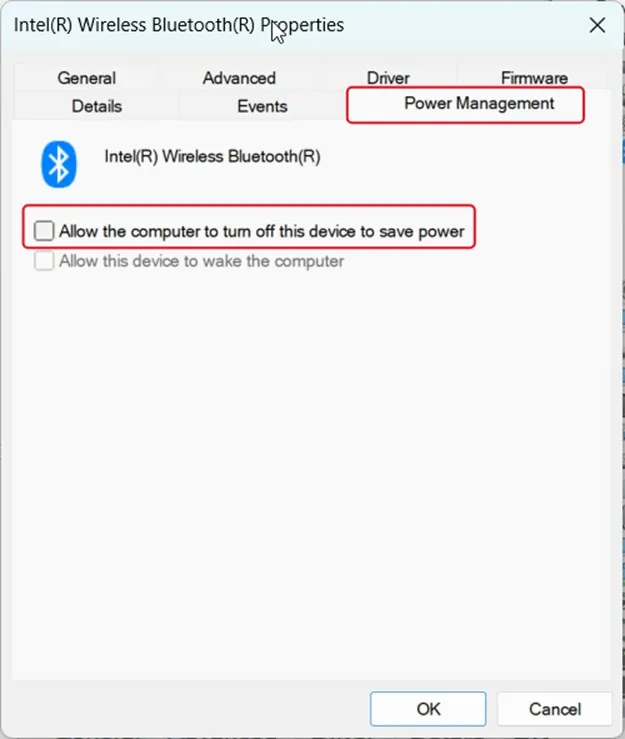
- Open the Power Management tab.
- Uncheck “Allow the computer to turn off this device to save power.”
- Shut down your computer and restart.
Fix 6: Change the Bluetooth Discovery Mode
A too restrictive discovery setting will prevent Windows from discovering your other device when you first pair them.
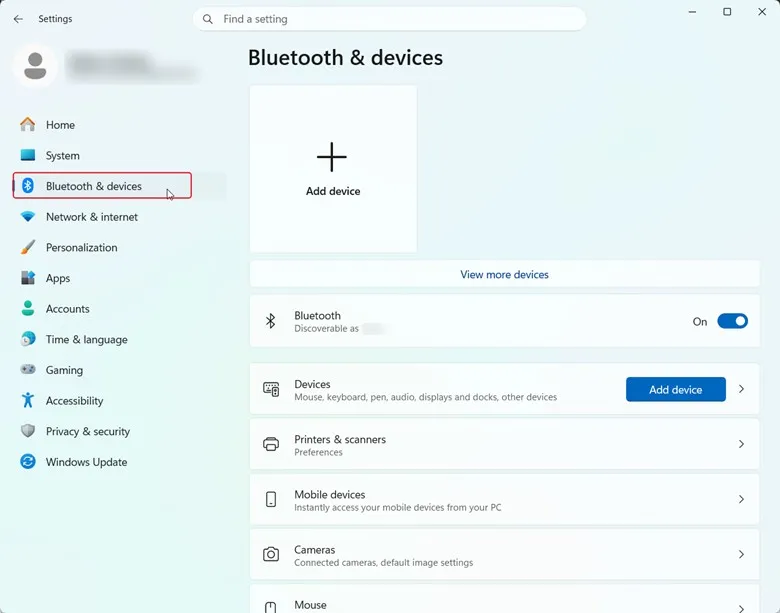
- Press Windows key + I to open Settings, then go to Bluetooth & devices, then Devices.
- Scroll down and change the Bluetooth devices discovery option to Advanced.
Fix 7: Reset Network Settings (Last Resort)
This is the most disruptive fix, so save it for when nothing else works.
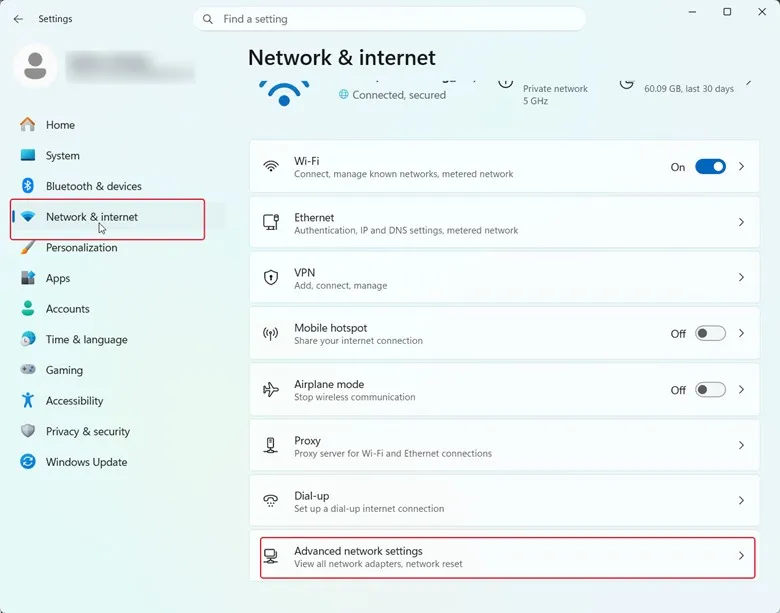
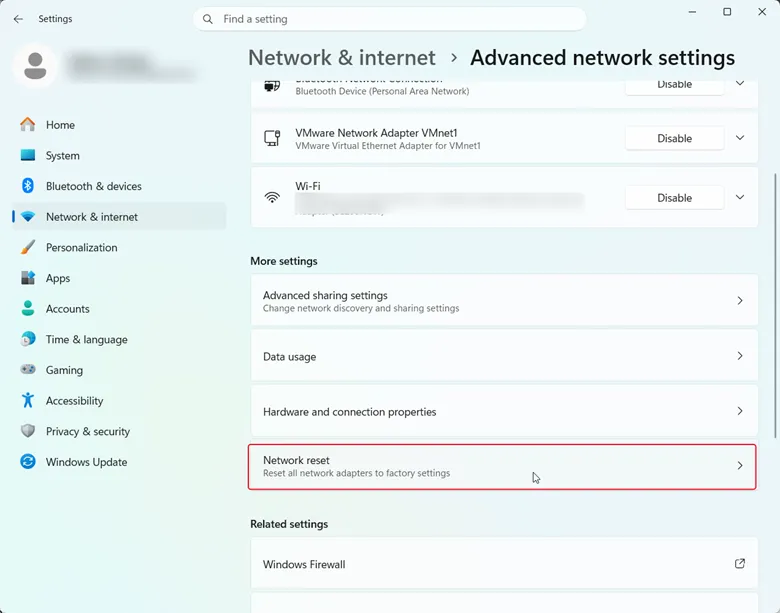
- Go to Settings, then Network & internet, then Advanced network settings, then Network reset.
- Confirm the reset and let your PC restart.
This removes all network adapters and reinstalls them. Therefore you may lose Wi-Fi passwords, Bluetooth pairing, as well as VPN connections that were previously established will all need reconfiguring, but it resolves deeper issues a targeted fix can miss.
Is It Actually a Hardware Failure?
If none of the fixes above work, check whether Wi-Fi also stopped working at the same time as Bluetooth. Most laptops have their Wi-Fi and Bluetooth in the same card, so both failing together points towards the card and not towards any driver or software. If only Bluetooth fails while Wi-Fi still works fine, hardware failure is far less likely, and it’s worth revisiting the driver and service fixes above instead.
Frequently Asked Questions
The bottom line
Bluetooth not working in Windows 11 usually comes down to a driver problem, a stopped Bluetooth Service, corrupted pairings, or power settings that have disabled the Bluetooth Adapter. By relating each symptom you see to likely cause, you can save yourself hours of time when it comes to actual troubleshooting. Start with the quick physical checks, then work through the fixes in order, and only consider hardware failure if Wi-Fi fails alongside Bluetooth.



Leave a Reply