


Summary
This article walks through pairing Beats with a Windows 10 and 11 laptop via Bluetooth, setting them as the default output and input device so audio and calls both work, and troubleshooting steps for when Beats won’t show up, connect, or reconnect, including checking the Bluetooth driver if the headphones themselves aren’t at fault.
Your Beats are charged, powered on, with the LED flashing, but your laptop either can’t find them or connects to laptop and then plays nothing. Typically, connecting beats to a Windows laptop is very easy as long as you know which screen to open and in what order, and the steps are close to identical on Windows 10 and Windows 11. Here’s how to get there, plus what to do when the standard steps don’t work.
What you need before you start
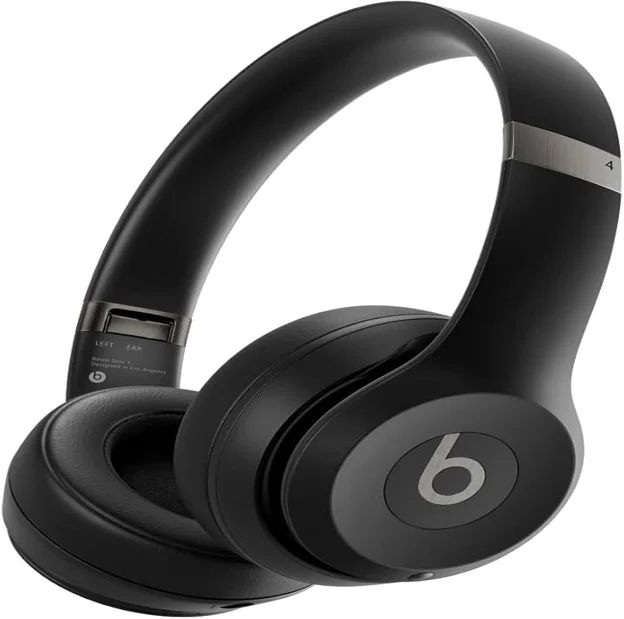
Ensure your Beats are charged for at least as long as you will need them in order to complete the pairing process. A dead pair of headphones during the middle of a pairing session will require you to restart the entire process. Keep your laptop within a few feet of the headphones, , because Bluetooth is severely attenuated by walls. Lastly, make sure there is either an internal Bluetooth module in your laptop, or an external USB Bluetooth adapter plugged in.Almost every laptop sold in the last decade has this built in already.
How to put your Beats into pairing mode
- Turn off your Beats if they’re currently on.
- Press & hold the power button (or your beats model’s dedicated bluetooth button for about 5 to 10 seconds).
- Watch for the LED indicator to start flashing white or red, which confirms pairing mode is active.
Some Beats earbud styles that have charging cases, like Beats Fit Pro, will automatically go into pairing mode when you first open a case near a new device. If yours doesn’t, use the power button method described above to get all of your Beats into pairing mode, though exact button placement varies by model.
How to connect Beats to Windows 11 or Windows 10
1. Press the Windows key and I together to open Settings.
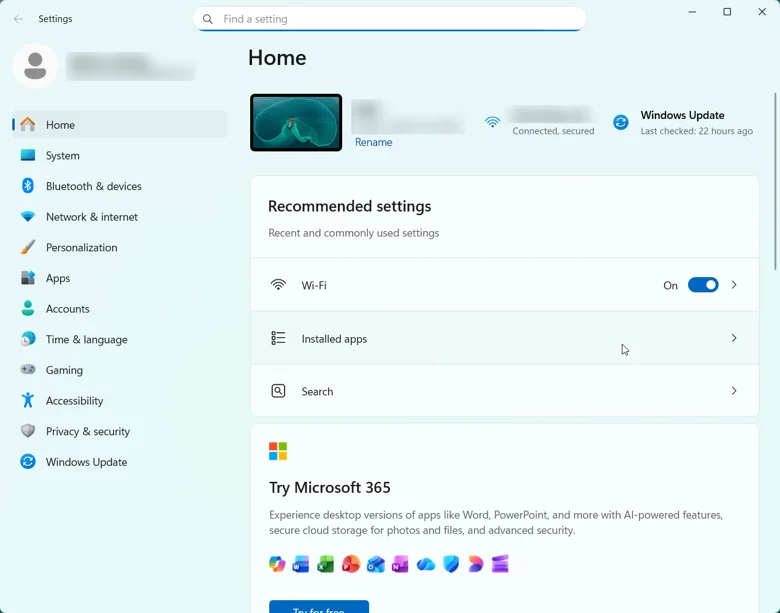
2. Click Bluetooth & devices (Windows 11) or Devices (Windows 10).
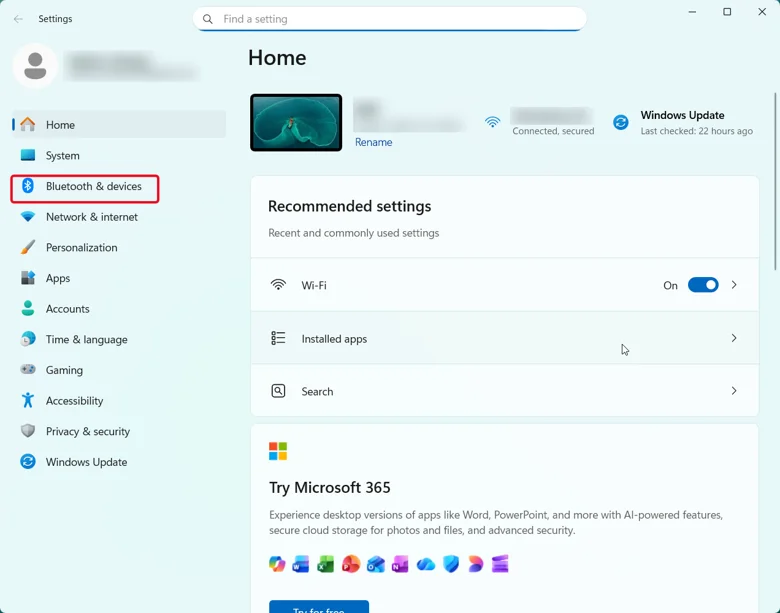
3. Toggle Bluetooth on if it isn’t already.
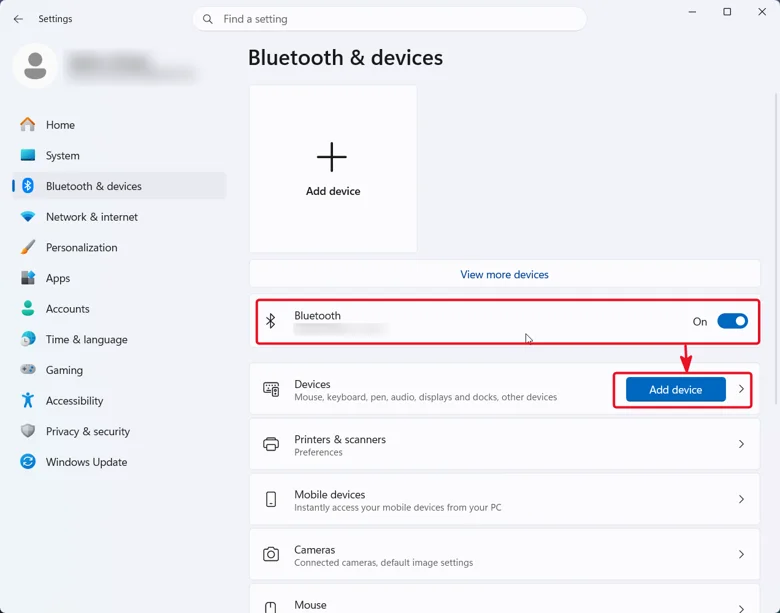
4. Click Add device, then select Bluetooth from the options.
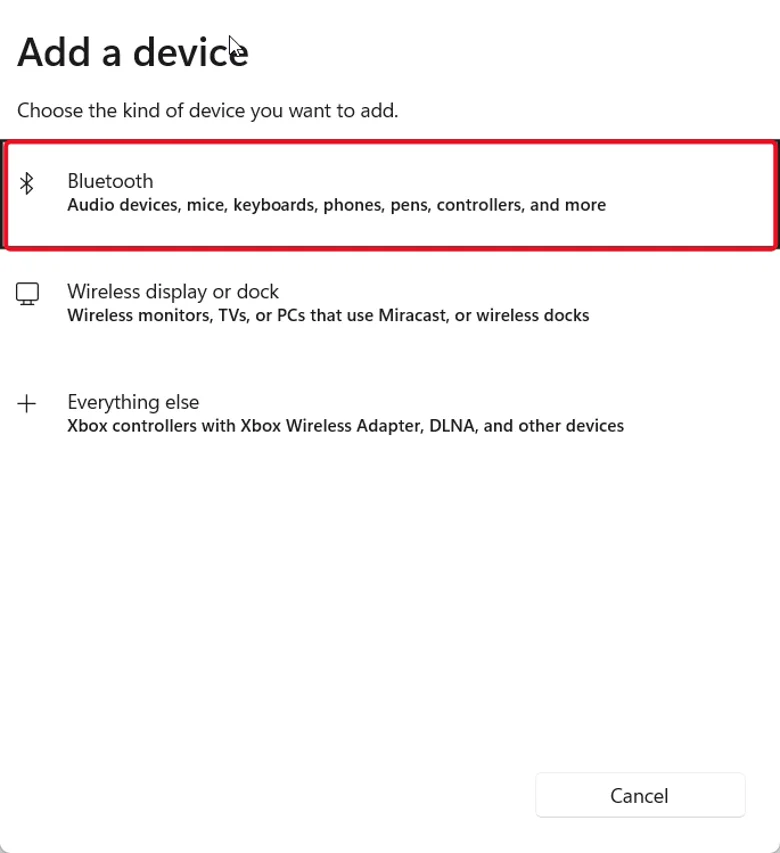
5. Select your Beats from the list of discovered devices once they appear.
6. Follow any on-screen prompt to finish pairing.
Once this finishes, Windows remembers the pairing, so your Beats reconnect to the laptop automatically the next time you turn them on near the laptop.
How to set Beats as your default audio device
When pairing is successful it doesn’t necessarily mean that Windows will route the audio from your PC to your Beats. So if you are getting sound out of your PC speakers, or on a call you get audio but no one can hear you speak when speaking into your Beats, this means that the Output or Input has been set incorrectly, the output or input device needs setting manually.
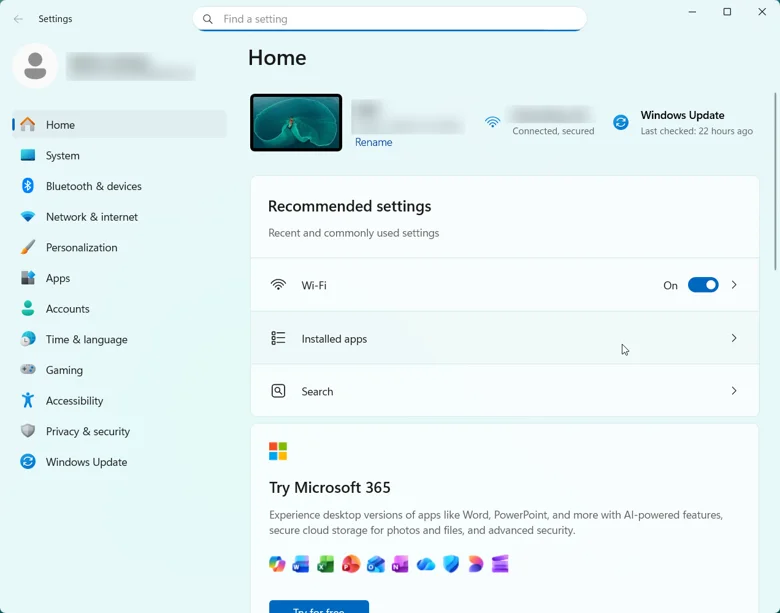
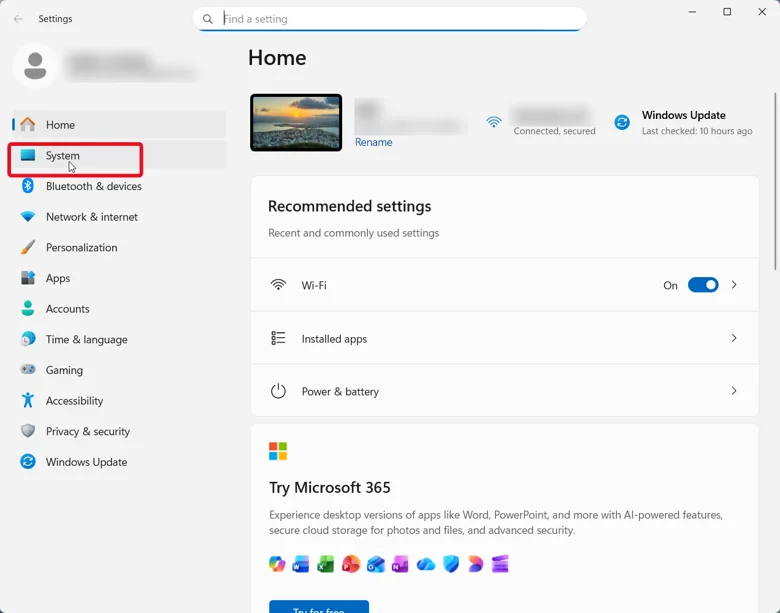
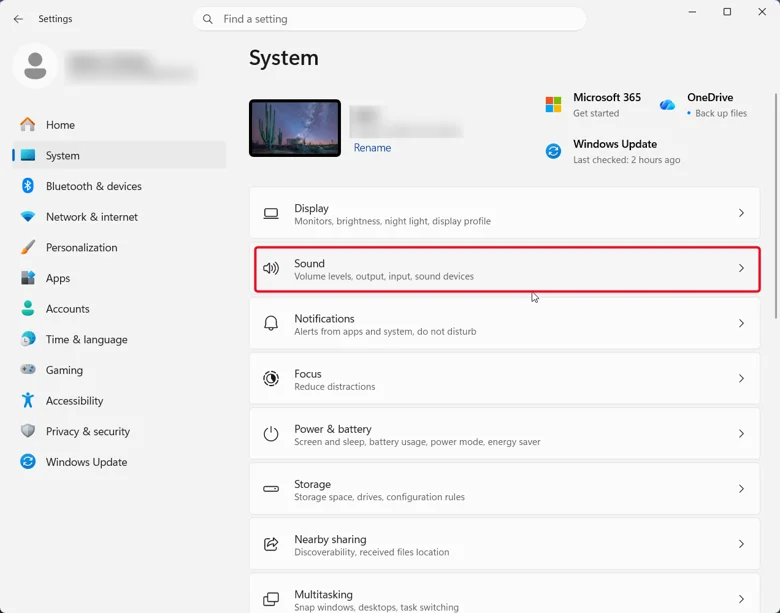
1. Open the “Settings” app on your computer. Then go to “System”, and then “Sound”.
2. Under “Pair a new output device”, click the “Add device” and then select bluetooth and pair your Beats.
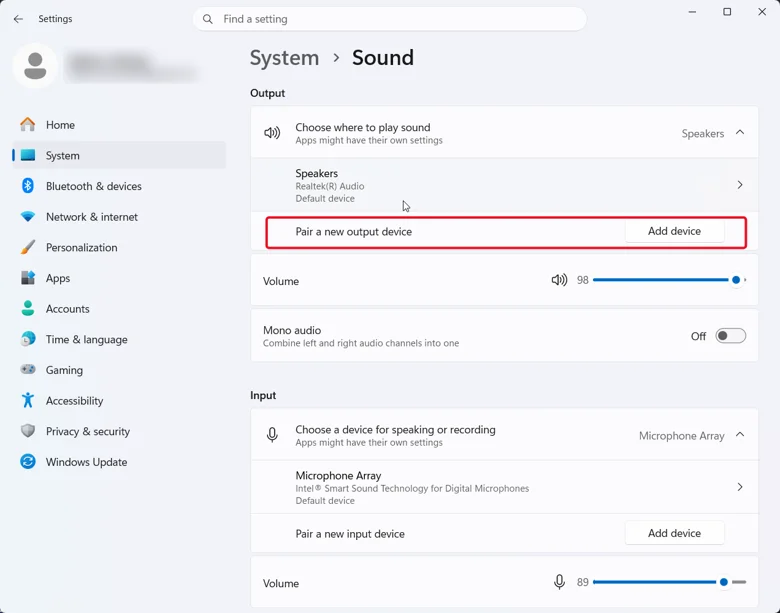
3. If you’re also using them for calls, scroll to Input and select your Beats there too.
4. Play something to confirm sound comes through, and test a call to confirm the microphone works.
Troubleshooting: Beats not showing up or not connecting
1. If your Beats never appear in the discovered devices list, toggle Bluetooth off and back on on both the laptop and the headphones, then try again with the Beats closer to the laptop. Restarting the laptop clears a surprising number of stuck Bluetooth states on its own. If you’ve paired the Beats with another device recently, like a phone, disconnect them there first, since some models only broadcast to one new device at a time while already linked elsewhere.
2. If the Beats show up but will not complete their connection, or appear after being paired and now will not connect to the laptop, unpair the beats and begin from the beginning. To do this go to settings>Bluetooth & Devices, locate the Beats listing, click on the three-dot menu next to your Beats , scroll down to Remove Device and click. Then restart the process of pairing the Beats as a new device. The Beats could have been disabled instead of removed. To determine this click the Volume icon in the lower left corner of your screen. Choose Manage sound devices from the drop-down menu. Look at the Disabled devices tab and enable if you find your Beats listed.As a last resort, reset the Beats themselves, usually by holding the power button and volume-down button together for about five to ten seconds, then pair them as a new device.
3. If none of that works, the Bluetooth driver on your laptop, not the Beats, is often the actual problem. Check this in Device Manager: right-click the Start button, open Device Manager, and expand the Bluetooth entry. A yellow warning icon next to your adapter means the driver is missing, outdated, or corrupted. From there you can search for an updated driver manually through Windows Update or your laptop manufacturer’s site, though finding the exact correct version for your Bluetooth chipset can take a while.
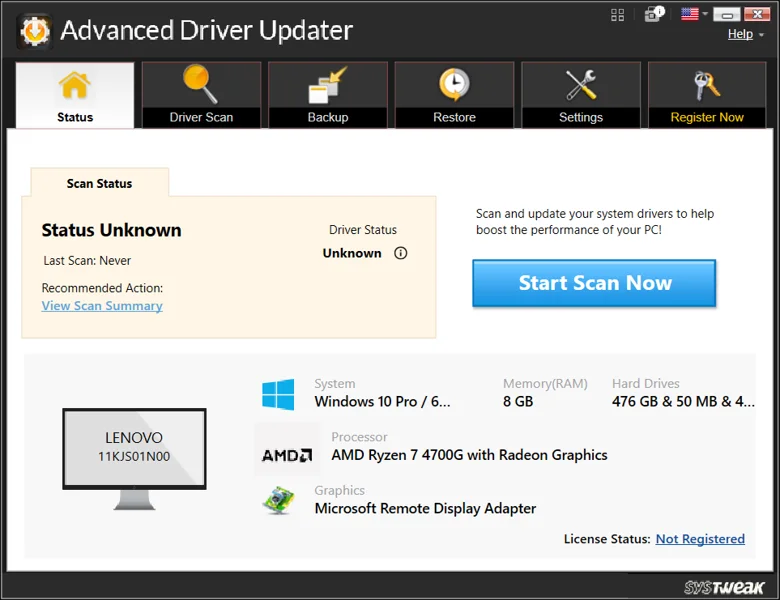
If you’d rather not hunt for the right driver yourself, Advanced Driver Updater from Systweak can scan for it and install it for you. Open the app and click Start Scan Now. Once the scan finishes, click Update Now next to the Bluetooth driver, or Update All if others show up too, then restart the laptop and try pairing the Beats again.

Frequently Asked Questions
The bottom line
Connecting Beats to a Windows laptop comes down to pairing mode, the Bluetooth settings menu, and one step most guides skip: manually setting the Beats as your default output and input device. If pairing keeps failing after that, check the Bluetooth driver in Device Manager before assuming the headphones are at fault.


Leave a Reply