


Summary
Netflix buffering issues are usually caused by outdated apps, network traffic, slow internet, or device-related issues. You can fix them by clearing the cache, updating the software, restarting devices, and other fixes explained below. Try them and enjoy your shows or movies without any interruptions.
The loading screen that comes when watching a movie or a show on Netflix is frustrating. Still, buffering happens without warning, but the good news is that it can be fixed by following the steps explained in this post without any technical expertise.
However, before learning that, you need to understand why buffering takes place.
Why Netflix keeps buffering
There are several reasons Netflix may buffer. Here we list the most common ones, and below is how to fix them:
- Slow Internet Speed
- Outdated Netflix app
- Multiple devices connected to the same network
- Weak Wi-Fi signals
- Devices with issues
- Slowdowns due to the ISP
- Corrupt cache files
- Issues with Router Configuration
- VPN and Proxy
12 Ways to Fix Netflix Buffering Issue
1. Check Internet Speed
If you are looking for an uninterrupted streaming experience, then we recommend that you check your internet speed by running an internet speed test. We have listed the Netflix recommended speeds based on the streaming quality you wish to view. If the speed of your internet is less than the recommended speed, then you will face buffering issues. Look at the table below.
Recommended Netflix Internet Speed
| Streaming Quality | Recommended Speed |
| Standard Definition (SD) | 3Mbps |
| High Definition (HD) 5Mbps | 5 Mbps |
| Ultra HD/4K | 15 Mbps or higher |
How to check internet speed
- Connect to your Wi-Fi or Ethernet.
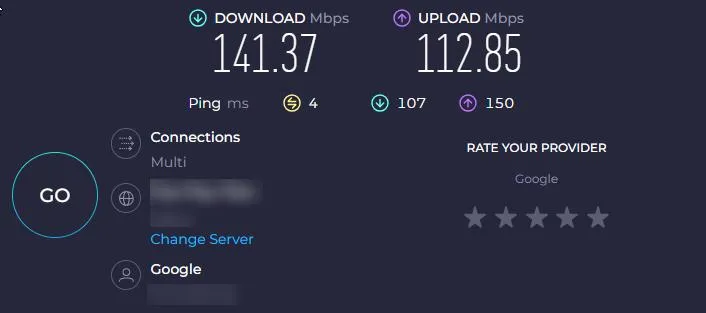
- Open the browser and type “speed test.” This will run the built-in tool.
Alternatively, you can visit Ookla’s Speedtest and check your download and upload speeds
How to fix it
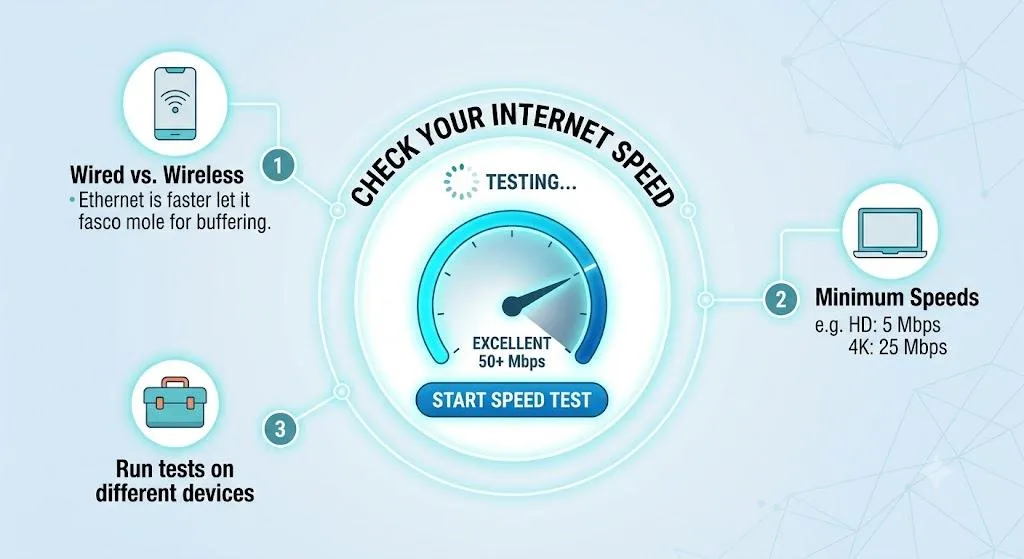
- Move the Wi-Fi router closer.
- If you are downloading large data, pause it.
- Disconnect devices using heavy bandwidth.
- Restart the modem and router.
2. Restart The Netflix App.
Did you know that the Netflix app collects cache, which are a bunch of temporary files used to speed up the application. Although cache files are useful, if these files are not refreshed in sometime they tend to get corrupted and can hamper the functioning of the app. Here are the steps to clear your cache by restarting the app.
Note: The cache temp files will be recreated after the app restarts.
- Close the Netflix app.
- Go to Phone Settings> tap Apps.
- Look for Netflix. Tap it, then tap Force Stop.
- Start streaming again.
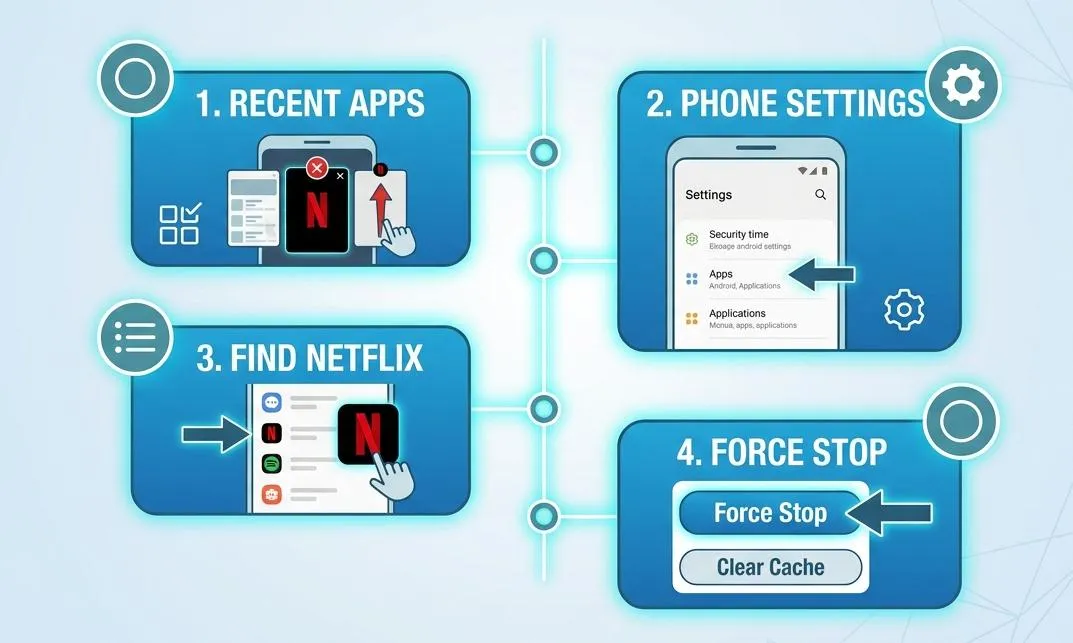
Now try to run the app again. When you force stop any app and reboot it, it runs properly, and restarting resolves temporary loading and playback issues.
3. Restart Your Streaming Device
Memory-related issues can affect streaming performance, especially if the device has been running continuously for a long time.
Restart:
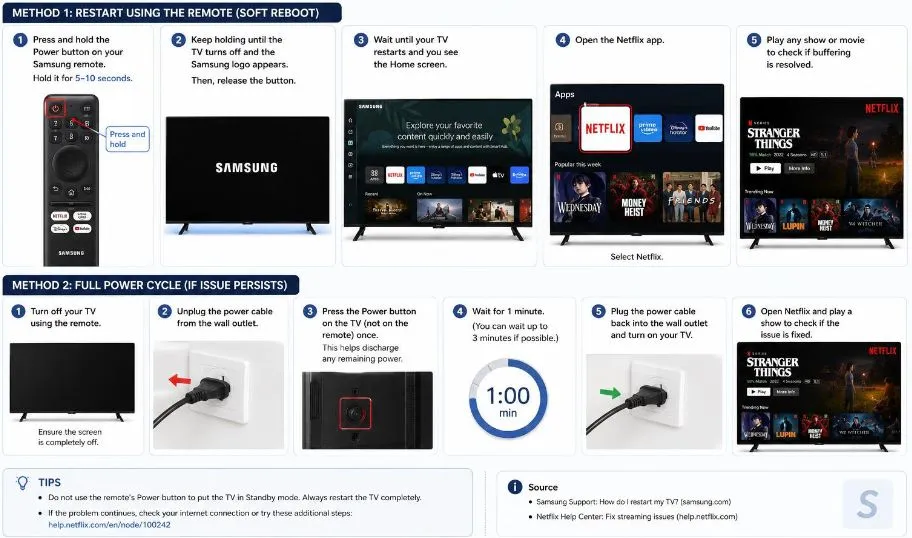
● Smart TV (Samsung)
Step 1
Press and hold the Power button for approximately 5–10 seconds until the TV turns OFF and you see a Samsung logo.
Step 2
Wait until you see the Home screen.
Step 3
Open Netflix and play any movie or TV show to see if the buffering persists.
● Android
Step 1
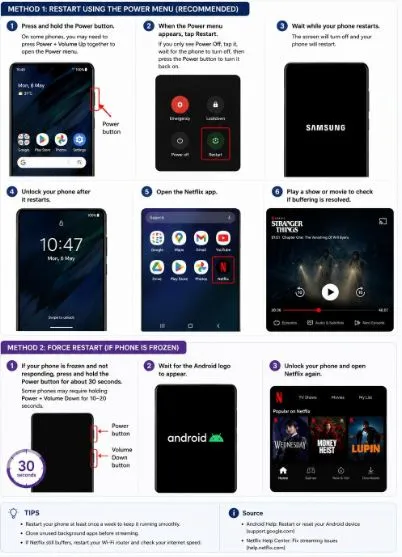
Press and hold the Power button.
Note: On newer Android phones (including Google Pixel), press Power + Volume Up together to access the Power menu.
Step 2
Select Restart from the Power menu. However, if you only get the Power Off option, tap it, let the phone shut down, and turn it back on.
Step 3
You will see the manufacturer’s logo (for example, Samsung, Google, OnePlus, Motorola, Xiaomi, or Nothing) as the phone boots.
Step 4
Unlock the phone and open the Netflix app. Play any movie or series to see if buffering has stopped.
Alternate Method Force Restart
If the phone’s touch is not working, follow these steps:
Step 1
Press and hold the Power button for approximately 30 seconds or hold Power + Volume Down for 10–20 seconds. Release the button and let the phone restart
Step 2
Launch Netflix to see if buffering has stopped.
● iPhone
Step 1
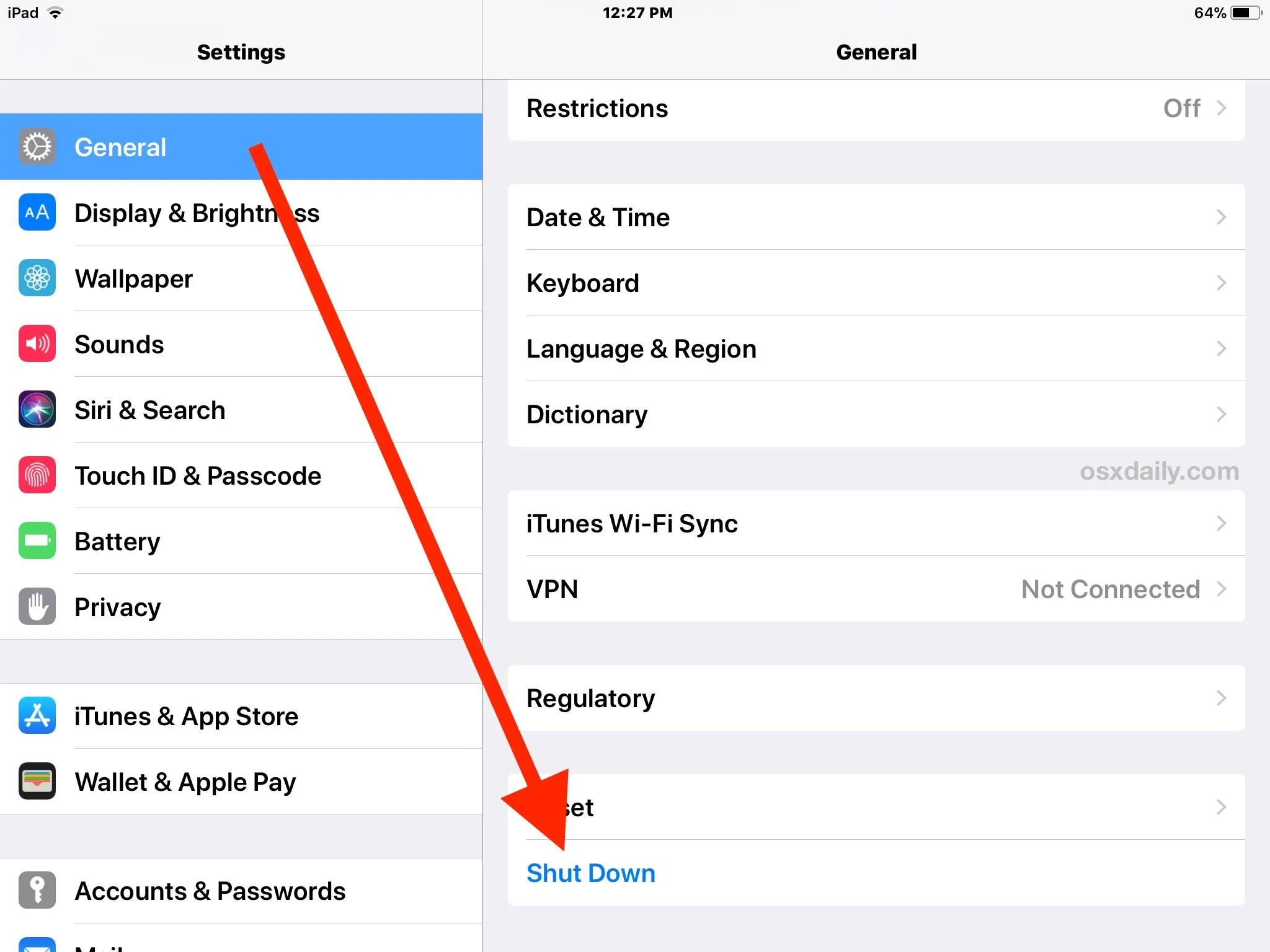
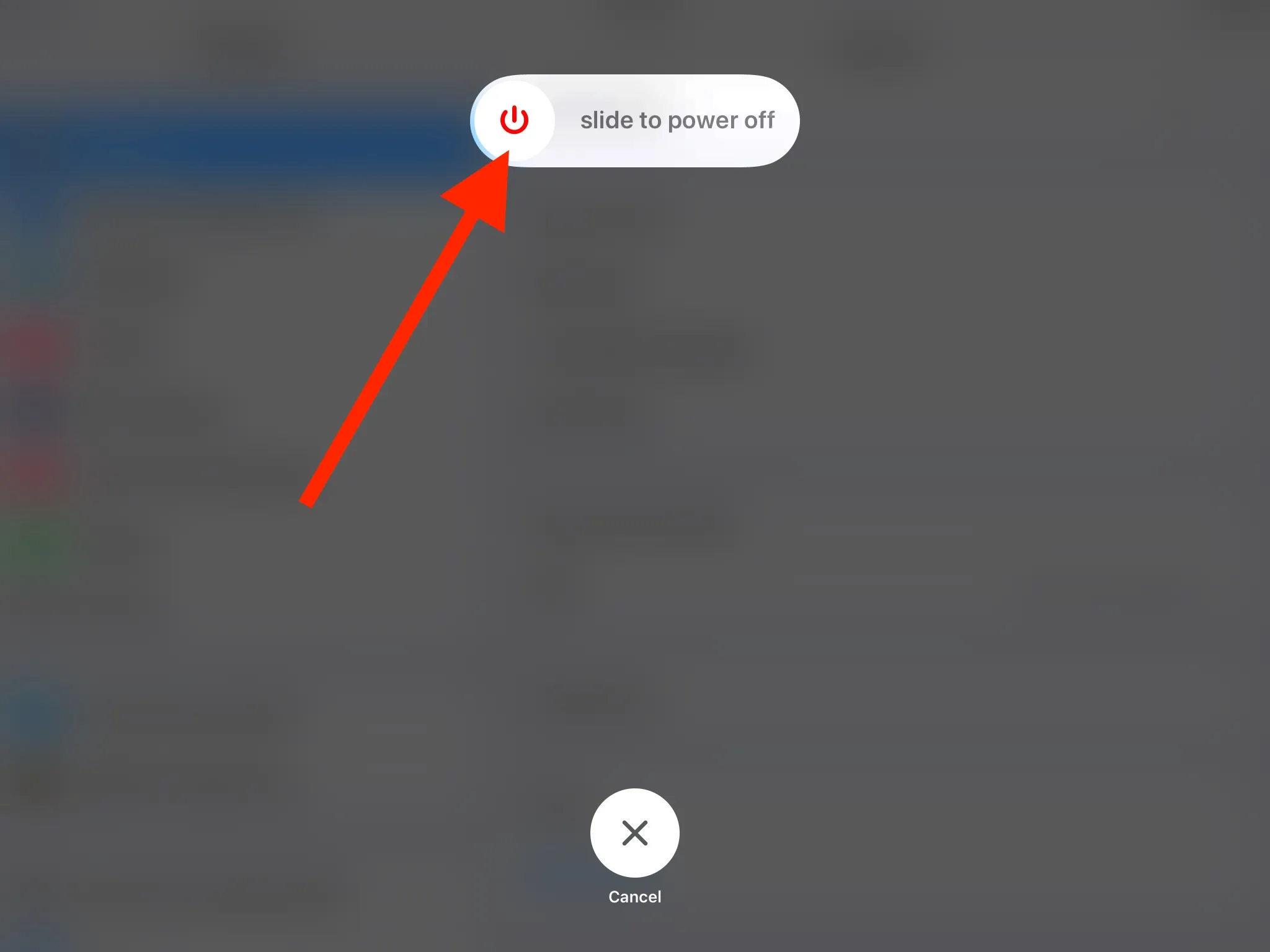
Open the Settings app > go to General > Shut Down and drag the slider to power off.
- Tablet
- Samsung Galaxy Tab:
Press and hold the Power and Volume Down buttons simultaneously for about 10 seconds. You will see a Samsung logo, and the tablet will restart.
- Google Pixel Tablet:
Open the Quick Settings panel > tap the Power icon > select Restart.
- Apple iPad:
Press and hold either the Volume Up or Volume Down button and the Top button simultaneously. Tap the power-off slider and wait 30 seconds for the device to turn off.
- Streaming stick
Unplug the power cable from the back of the device, wait 10 to 20 seconds, and plug it back in.
- Gaming console
Hold the power button for 10 seconds, then select “Restart.”
- Windows PC
Start menu > Power icon > Restart
Relaunch Netflix on the device where you were experiencing issues and check whether buffering persists.
4. Boost Wi-Fi Signal
Some experts suggest that walls, floors, ceilings, large metal furniture, and electronic devices can interfere and weaken the Wi-Fi signal. Here are a few recommendations to improve the quality.
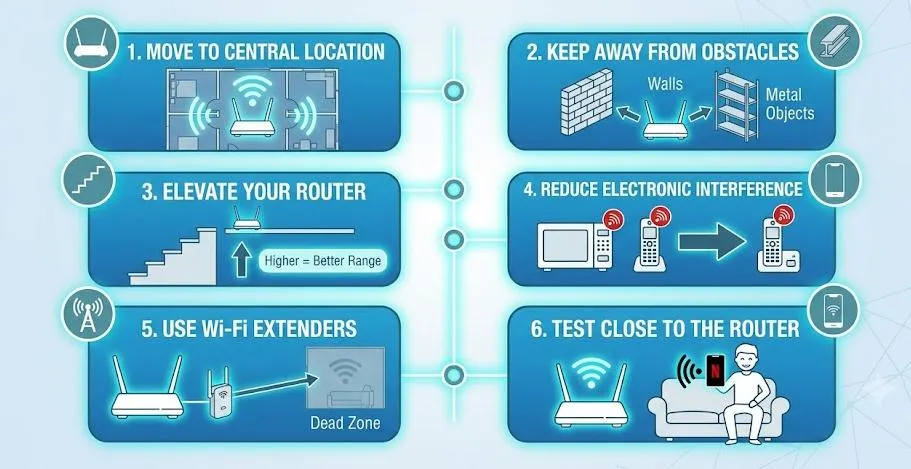
- Change the router’s location by moving it to a central spot away from walls and metal objects.
- Update the router’s firmware to enjoy better performance.
- Use a Wi-Fi analyzer to detect congested channels.
- Upgrade to Wi-Fi 6 or Wi-Fi 6E.
- Use Wi-Fi range extenders to strengthen signals.
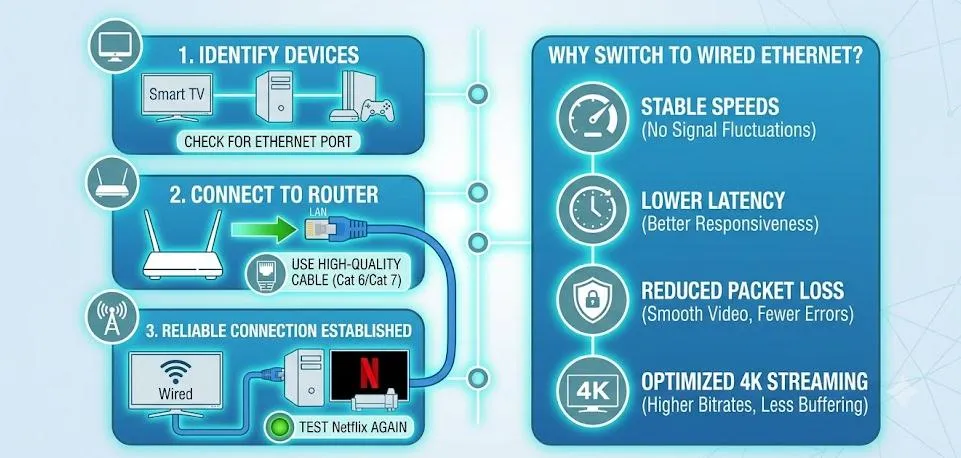
5. Switch to a Wired Ethernet Connection
Unlike Wi-Fi connections, Ethernet offers a more stable and reliable connection, with lower latency and fewer packet losses. Switch to a wired connection to smooth the Netflix experience.
6. Clear Netflix App Cache
All apps generate temporary files known as cache to help them run faster and more efficiently. But older cache may get corrupted and interfere with the functioning of the app. Here are the steps to clear the Netflix app’s cache.
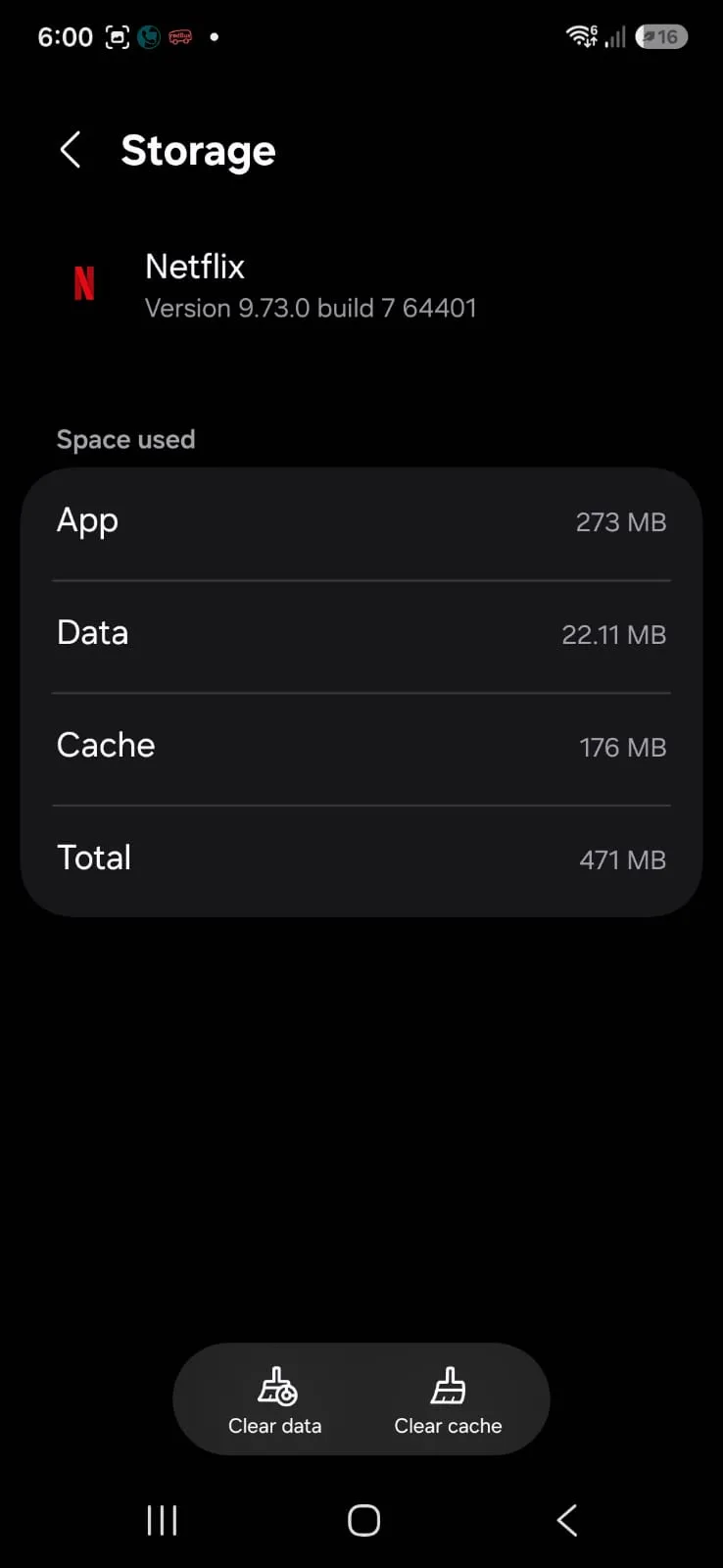
On Android:
- Open Phone Settings > look for Apps, tap on it.
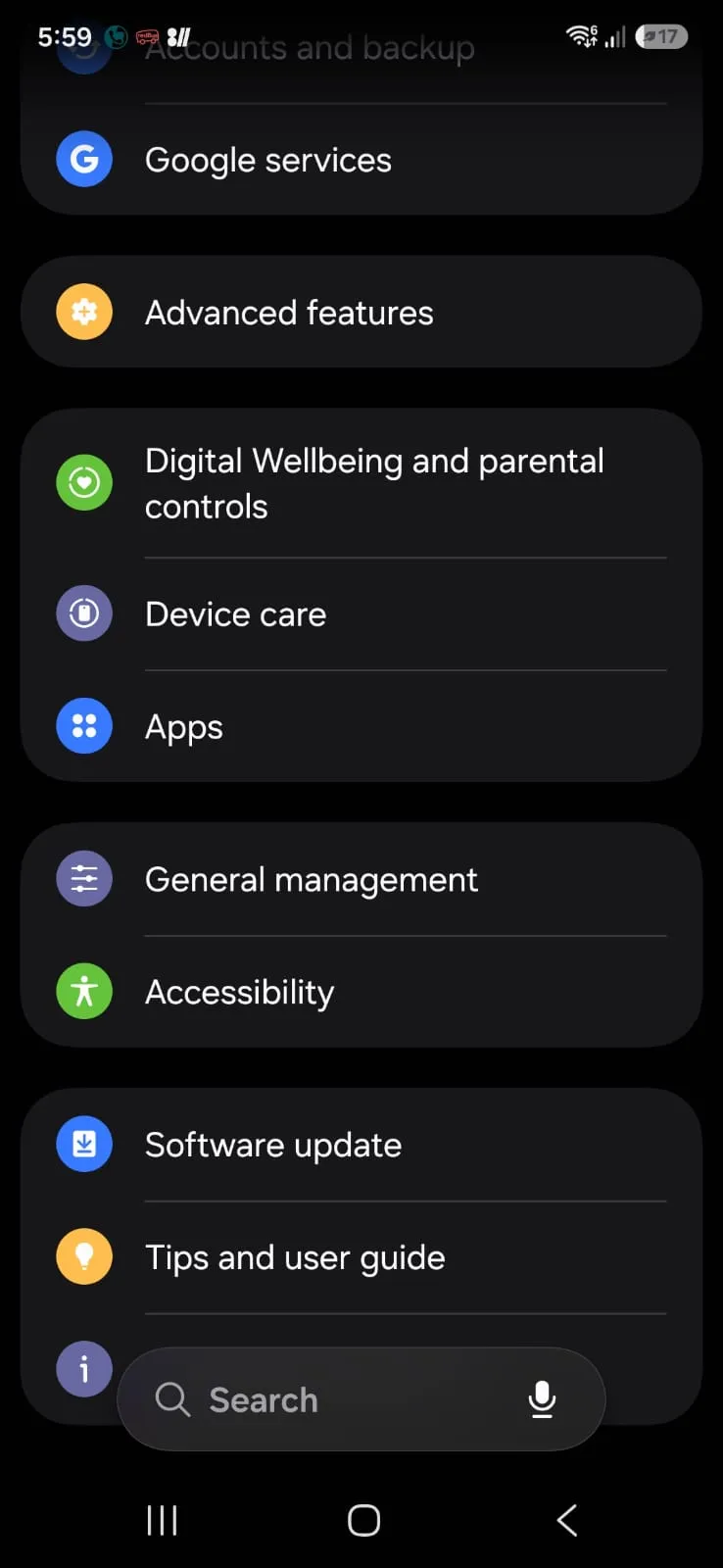
- Select Netflix.
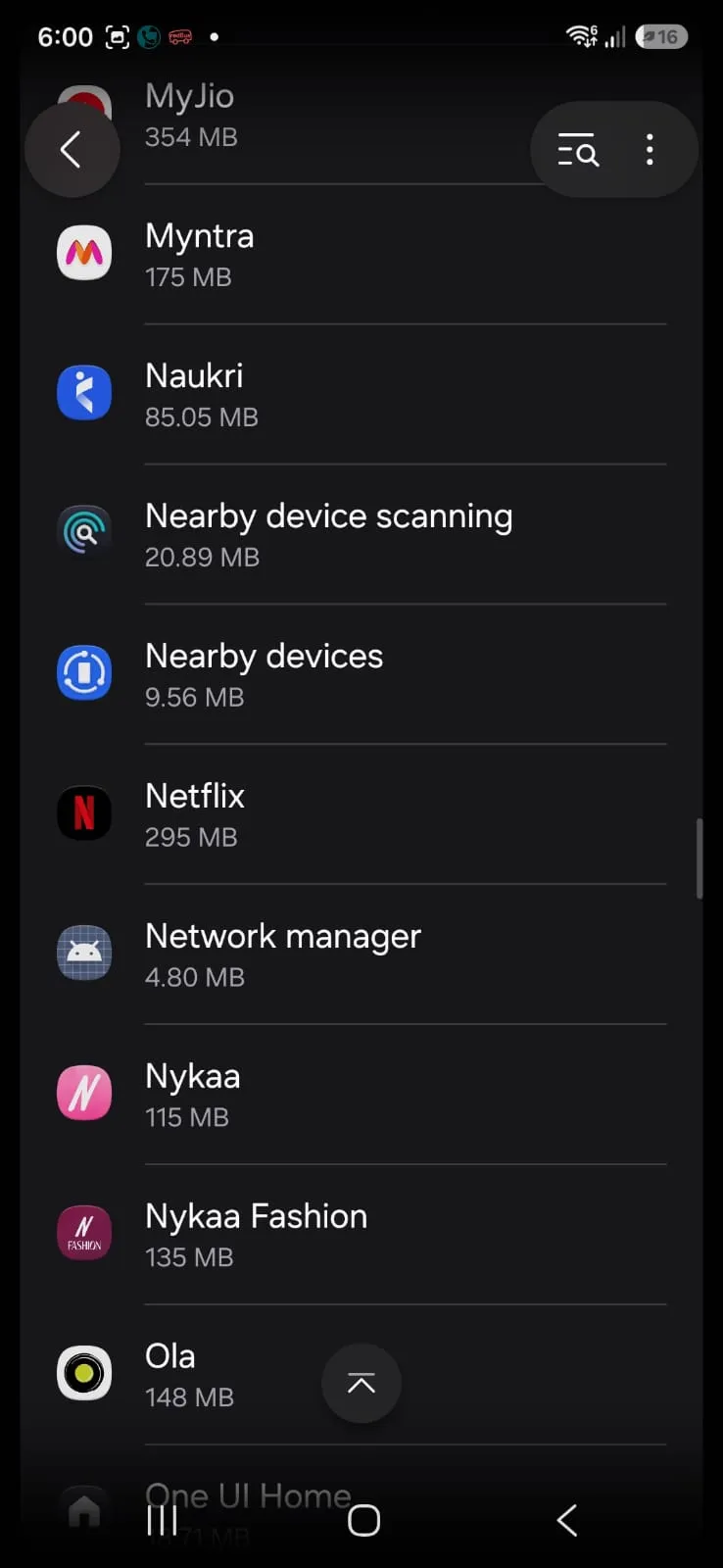
- Tap Storage.
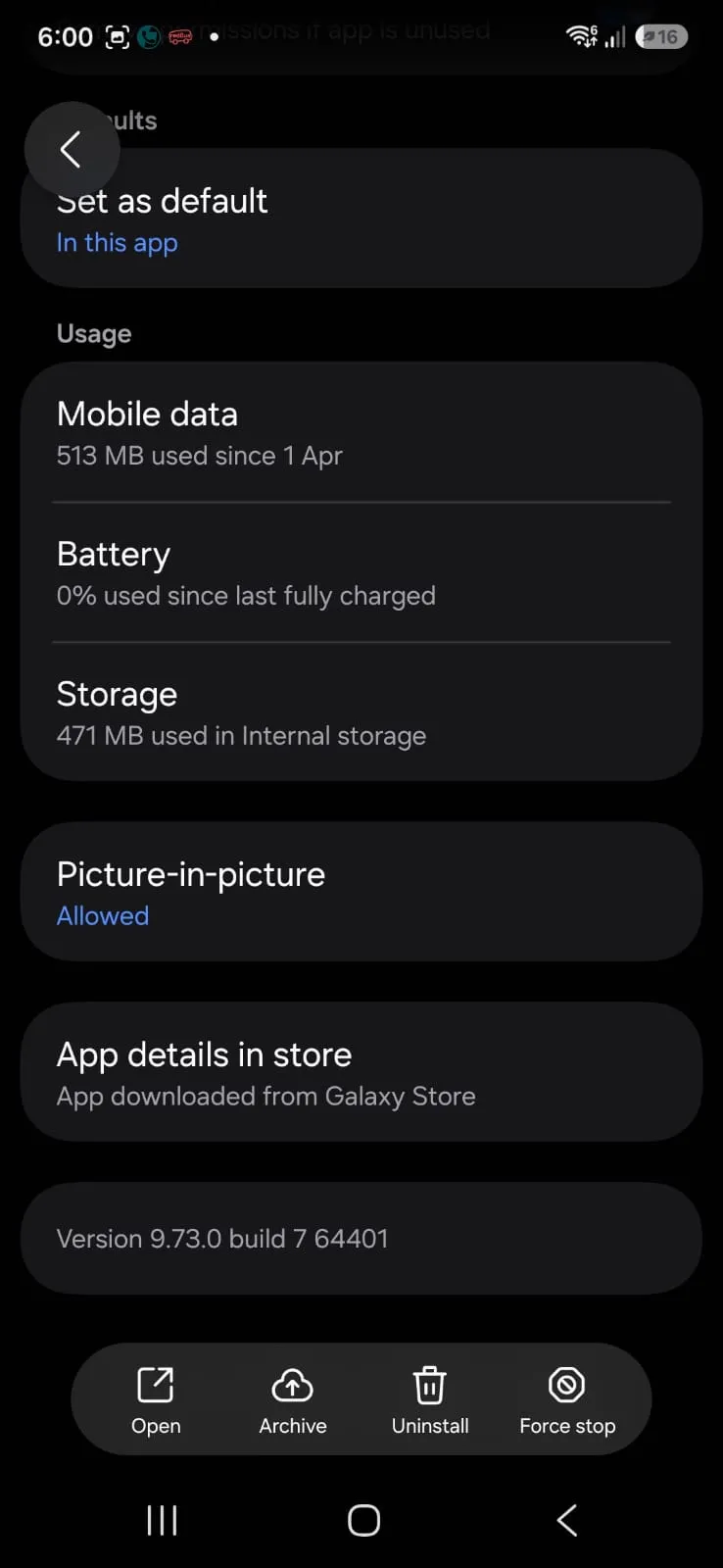
- Choose Clear Cache.
On Windows:
- Press Windows + I to open Settings.
- Go to Apps > Installed apps.
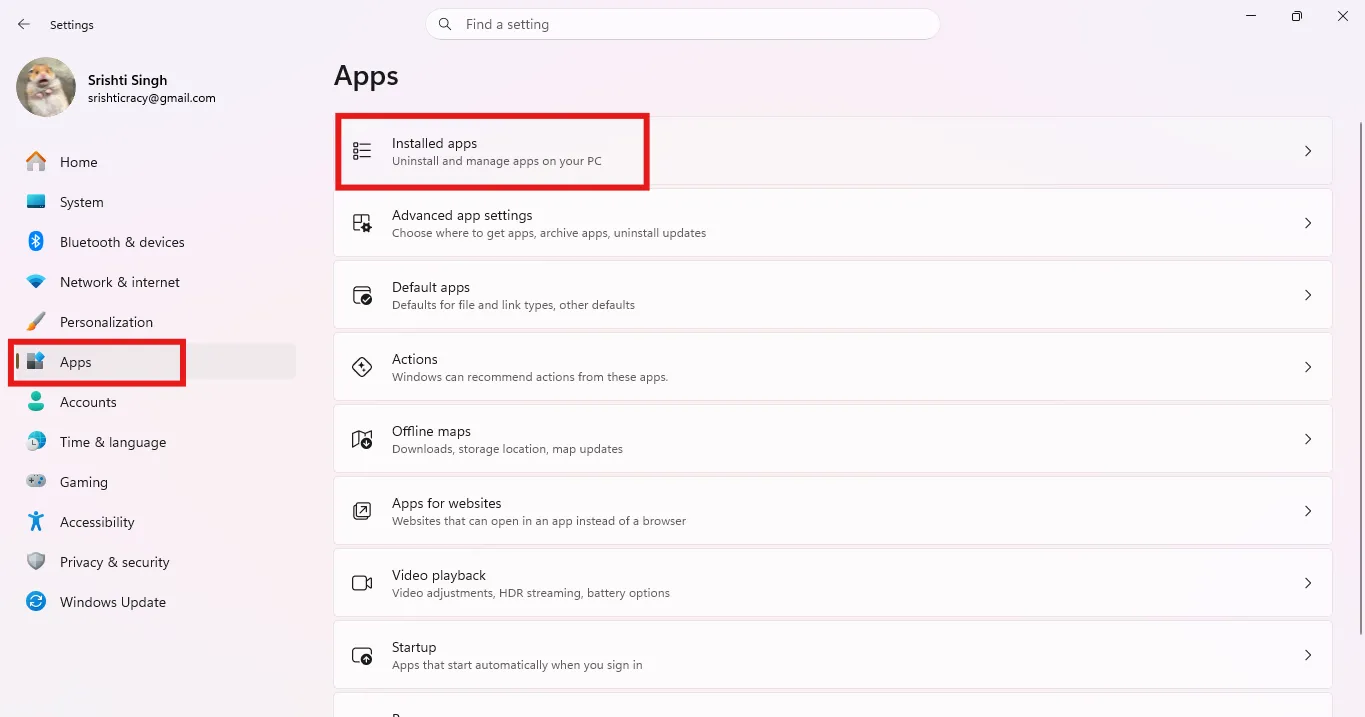
- Search for Netflix.
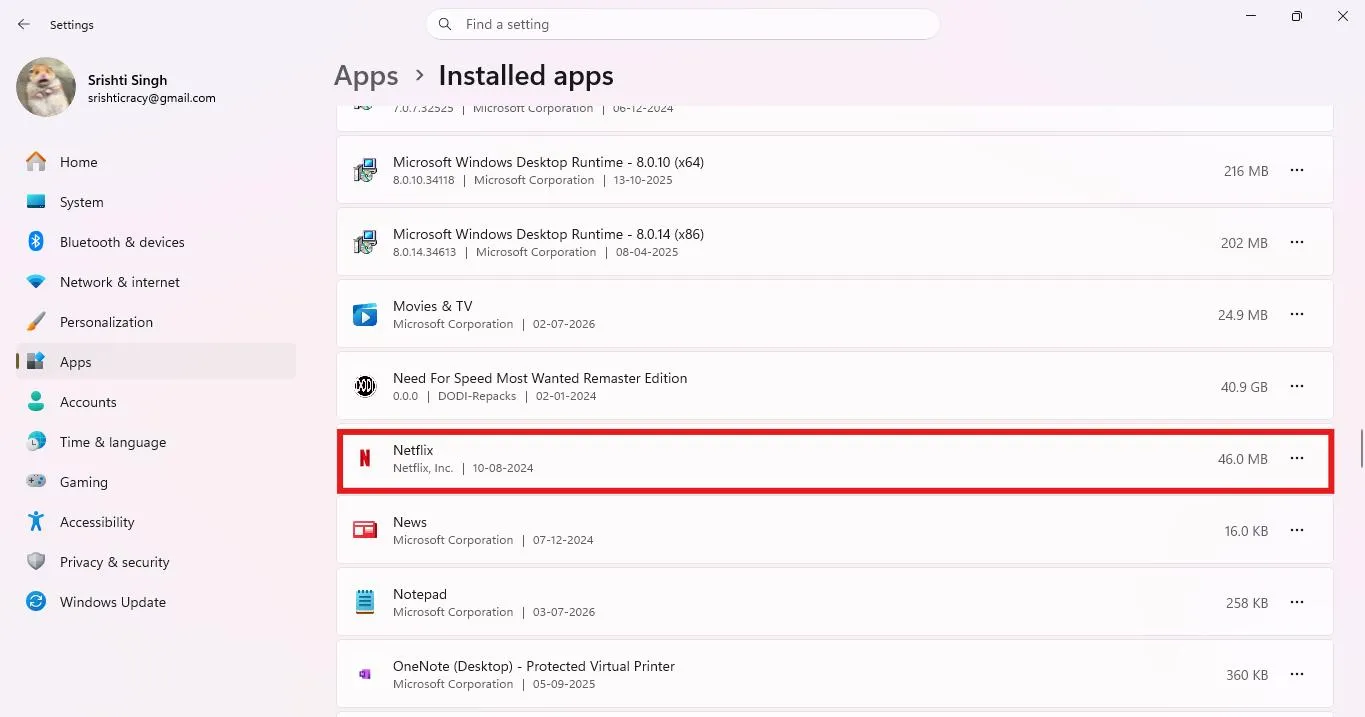
- Click the three-dot menu next to Netflix and select Advanced options.
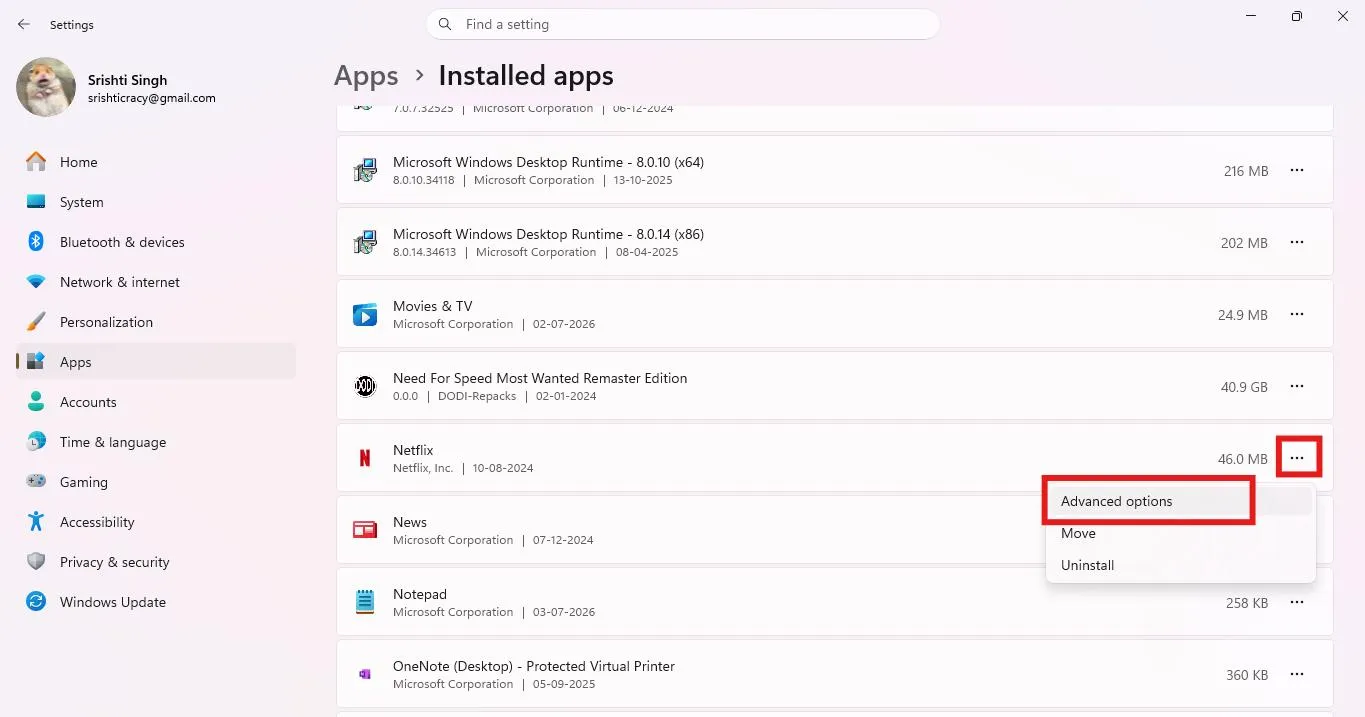
- Scroll to the Reset section and click Repair.
- Let Windows fix the issues, launch Netflix, and the buffering will be resolved.
On Other Devices, just reinstall the app, as there is no option to clear the cache.
Once the cache is cleared, sign in and run the app.
7. Update the Netflix App
After you have cleared the cache, it is time to update the app. You must update the Netflix app to fix bugs, compatibility, and performance issues.
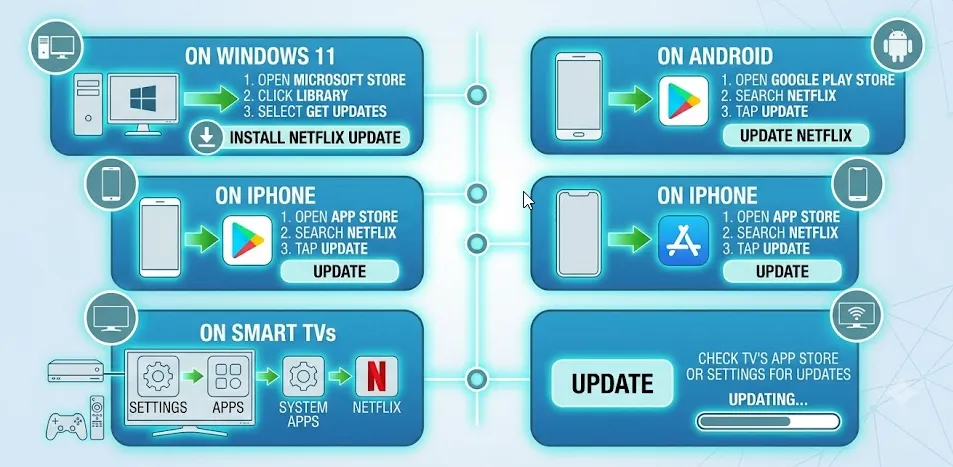
On Windows 11
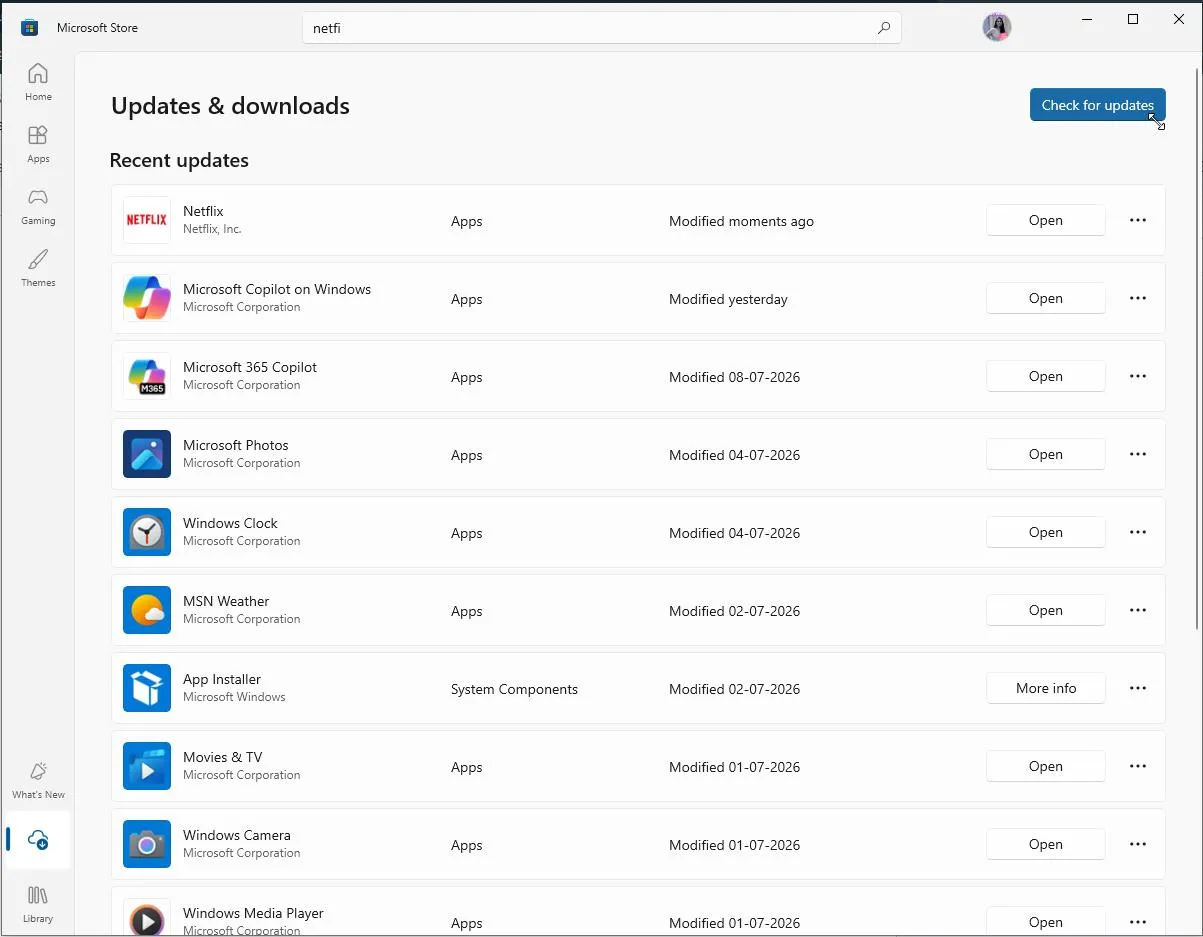
- Go to the Microsoft Store. Click the Library / Downloads section.
- Click Check for Updates to install any available Netflix updates.
On Android
- Open Play Store > search for Netflix and tap Update.
On iPhone
- Open App Store > search for Netflix > tap Update.
On Smart TVs
- Open your TV’s app store and check if a Netflix update is available.
Once the app is updated, restart the app before streaming and play your favorite show.
8. Update Device Software
Update the operating system on your device like Windows, Android, and iOS.
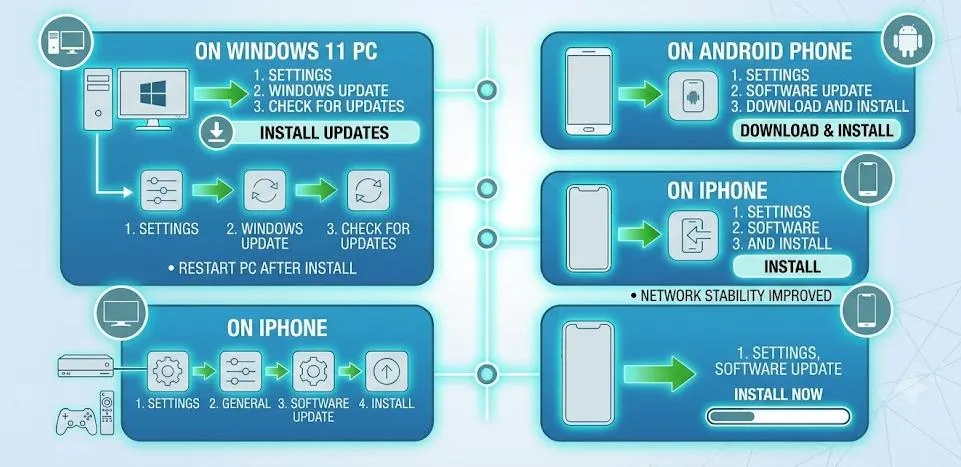
Update Windows 11
- Open Windows Settings > Windows Update > Check for updates > Download & Install.
Update Android
When updating Android, ensure you are connected to Wi-Fi and that your battery is charged to at least 50%.
- Go to Settings > About Phone > System or Software Update. Check for updates.
Update iPhone
Back up your data before updating the OS.
- Connect to Wi-Fi > Settings > General > Software Update >Download and Install.
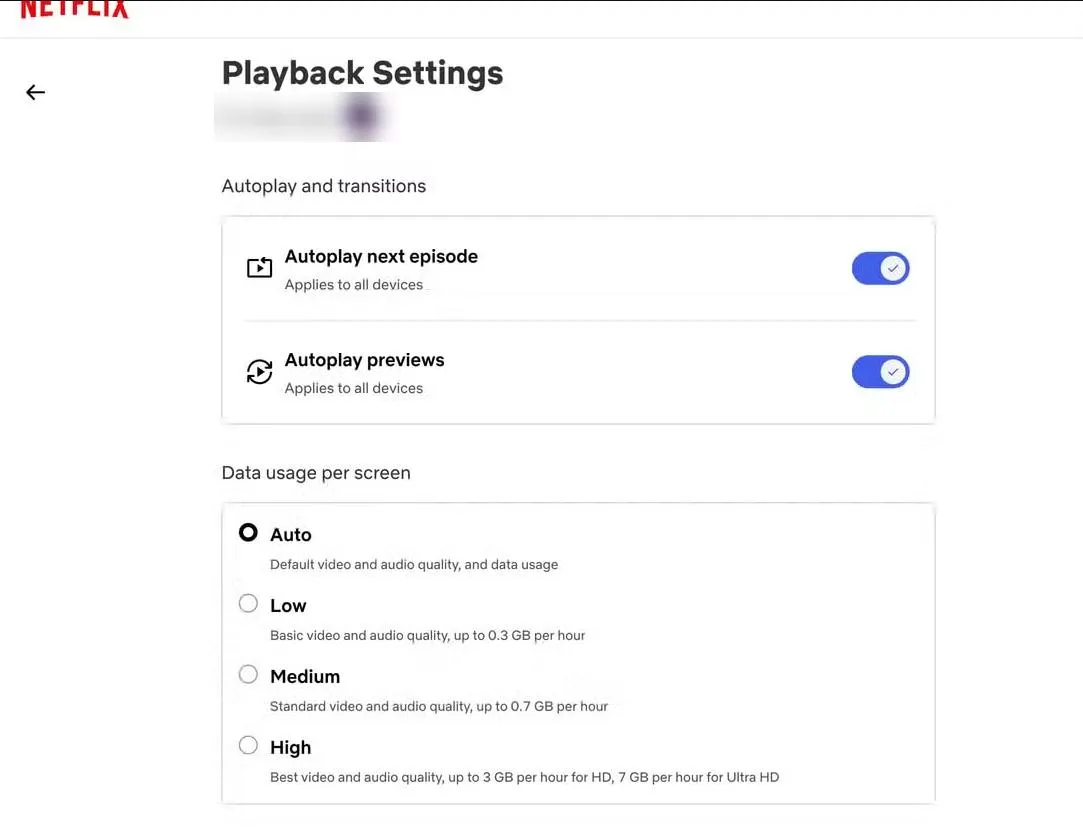
9. Change Video Streaming Quality
Reduce the playback quality.
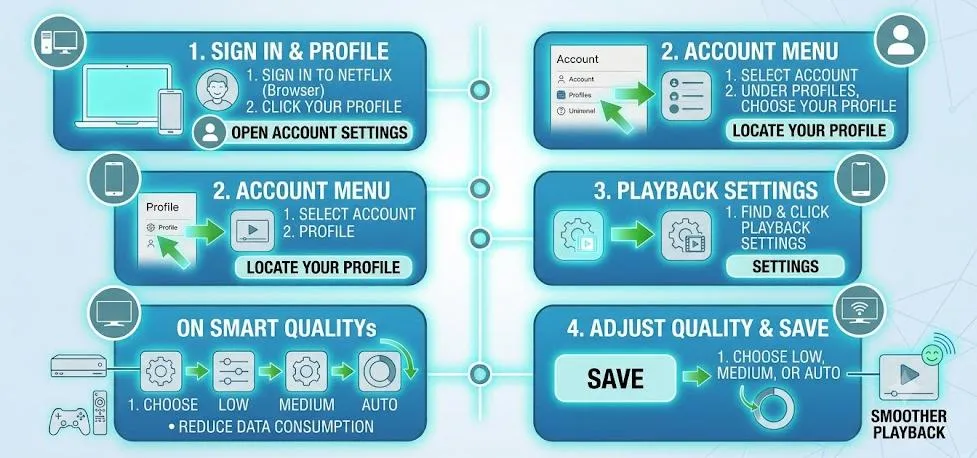
- Open a web browser and sign in to Netflix.
- Click your Profile > select Account.
- Click Playback Settings > choose either Low or Medium.
10. Disable VPN or Proxy Services
Some Netflix users use VPNs or Proxy servers to watch movies or series without interference and avoid ISP throttling. But did you know that although these services may help with masking your IP address, they can also reduce the connection speed, causing the Netflix app to buffer. We have explained steps to disable VPN service on Windows and Android.
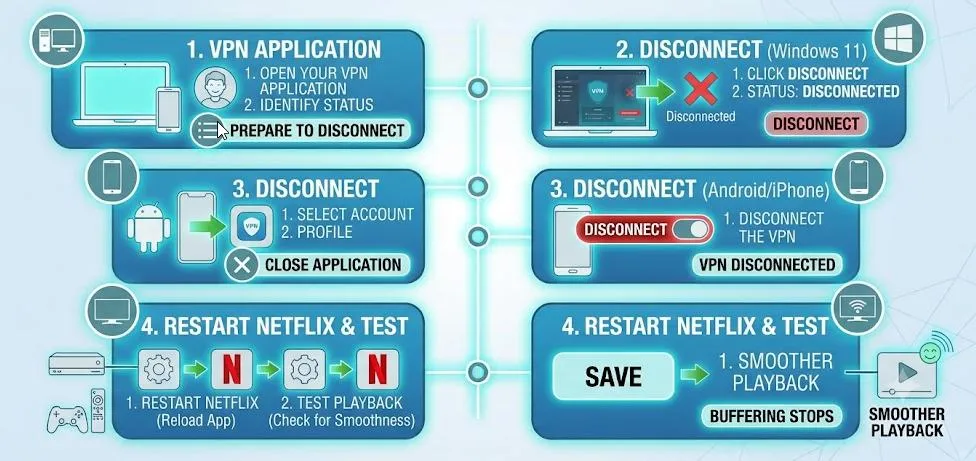
How to Disable a VPN:
Windows 11
- Press Windows + I to open Windows Settings > Network & internet > VPN.
- Select your VPN connection and click
- Now try running the app.
Alternatively, click the Wi-Fi/Network icon > select the VPN option > disconnect, then try running Netflix.
Android/iPhone
- Open your phone’s Settings
- Tap Network & internet or Connections (varies from device to device) > VPN.
- Tap your connected VPN and select Disconnect.
If buffering stops after disabling the VPN, you’ve identified the source of the issue.
11. Reduce Network Congestion
When multiple devices are connected to the same network during peak hours, for tasks like video conferencing, online gaming, large downloads, cloud backups, and 4K streaming, the Netflix app is sure to buffer as it does not receive the required bandwidth.
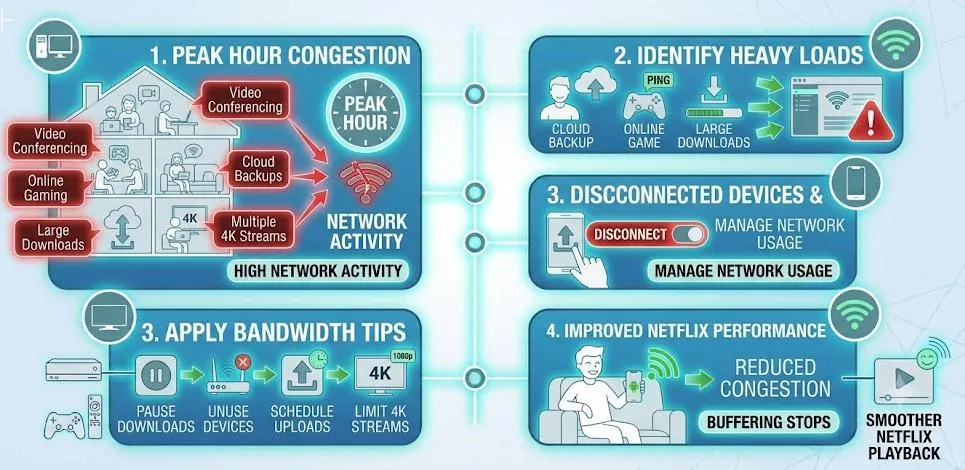
To avoid it, pause background downloads, disconnect devices not in use, download large files later, and limit simultaneous 4K streams.
This practice will reduce network congestion, improving Netflix performance.
12. Restart Your Router and Modem
Restart your modem and router to refresh your internet connection, that deletes any temporary files causing glitches and slow streaming problems.
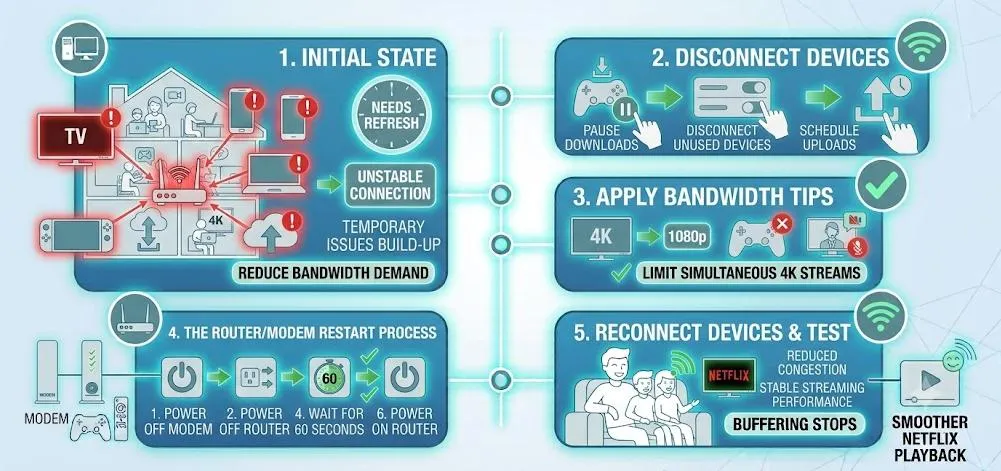
How to Restart Your Router
- Turn off your modem and Wi-Fi router.
- Unplug both devices from the power outlet and wait 60 seconds before plugging them back in.
- Reconnect your devices to Wi-Fi.
- Open Netflix and test streaming again.
Other Useful Tips to Improve Netflix Streaming
- Use the 5 GHz Wi-Fi Band instead of 2.4 GHz for faster speed.
- Close Background Applications to avoid unnecessary bandwidth consumption.
- Avoid streaming during Peak Hours, as multiple users accessing the network together can cause network congestion, resulting in buffering issues.
- Check for Router Firmware Updates, as it will help provide stable, secure Wi-Fi performance and reliable streaming.
Conclusion
Netflix buffering issues can easily be solved when you know the exact cause of the buffering problem. In most cases, the problem results from having many devices connected to the same network, and they all stream simultaneously. Sometimes the outdated app, the VPN, the proxy, and even the device cause the problem.
The best solution to this problem is switching to Ethernet connectivity, regularly restarting the router, keeping the app up to date, and maintaining a virus-free device.



Leave a Reply