


Summary
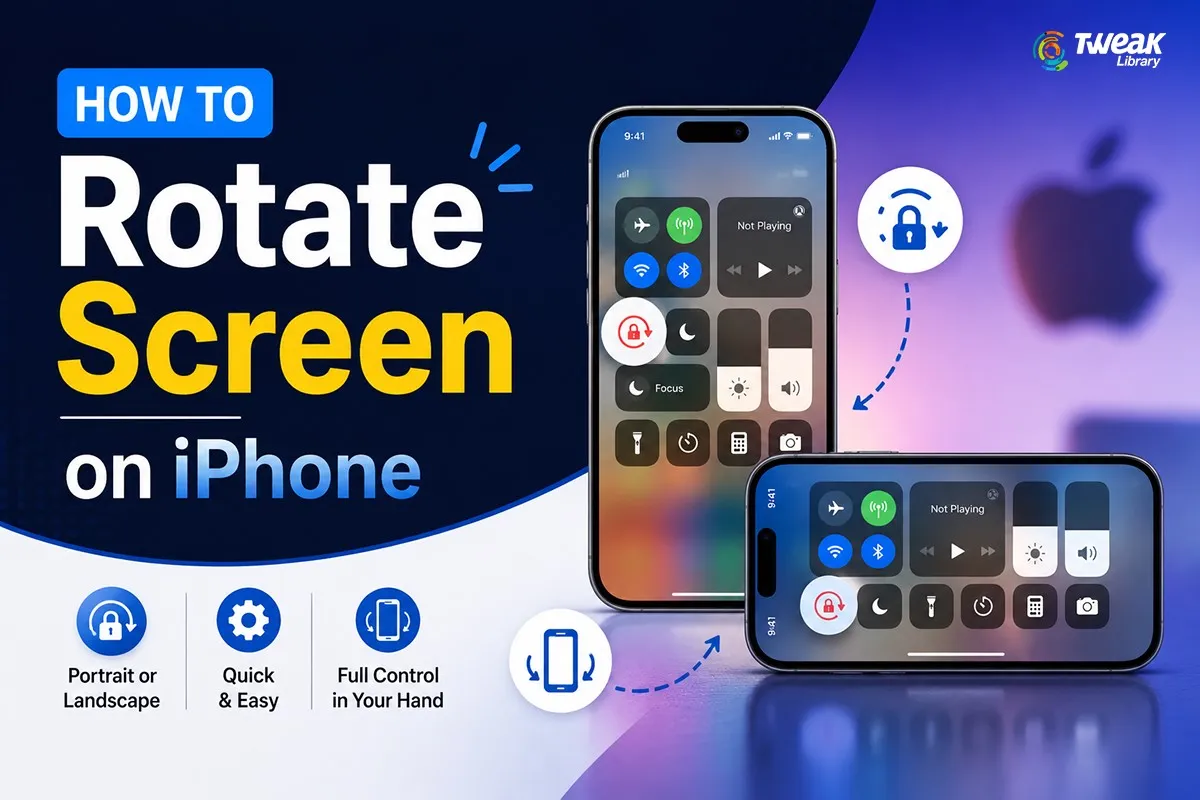
Automatic screen rotation makes it possible for your iPhone to adapt and change from portrait to landscape mode depending on how you hold the device. When streaming videos, surfing the internet, reading documents, or gaming, automatic screen rotation is a feature that will make the process of using the device much easier and more comfortable for you.
Your iPhone has a feature of rotating the screen automatically according to how you are holding your device. This feature will be beneficial whether you are watching videos, surfing the internet, reading documents, or even gaming. Nevertheless, many iPhone users are faced with issues where their screens fail to rotate. It might be caused by enabling the Portrait Orientation Lock, not supporting landscape mode by the application, or even software malfunctioning. In this tutorial, you will be able to learn about rotating the iPhone screen, orientation lock, and troubleshooting.
What Is Screen Rotation on iPhone?
The screen rotation function on iPhone switches the orientation of the screen from Portrait to Landscape depending on how the device is held. There are two orientations:
Portrait Orientation – Vertical view
Landscape Orientation – Horizontal view
The landscape orientation is very helpful for Viewing videos, Photo editing, Game playing, Reading PDF files, Web browsing, Working with spreadsheets, and Presentation viewing.
Important Point – If auto rotate works fine on your iPhone, there will be immediate change of screen orientation when you turn your phone.
How Does iPhone Screen Rotation Work?
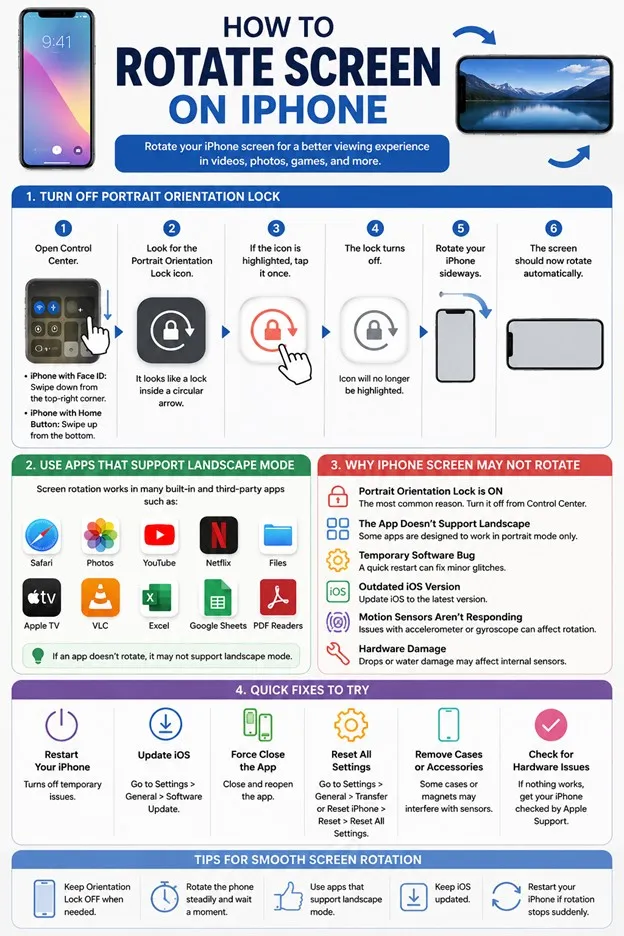
Unlike many other Android devices, iPhone does not contain an Auto Rotate button separately. What Apple has done here is use something known as “Portrait Orientation Lock.”
“Portrait Orientation Lock is OFF”
In case the above is true, then all apps compatible with it will automatically rotate the screen.
“Portrait Orientation Lock is ON”
In this case, whatever may be your orientation, your device will remain locked in portrait view.
Best Methods To Rotate Screen On iPhone.
Method 1: Turn Off Portrait Orientation Lock
This method is the easiest and fastest one. Here are the steps.
- Swipe down from the top right corner of your iPhone’s display (iPhone models equipped with Face ID).
OR
- Swipe up from the bottom of the screen (iPhone models equipped with the Home Button).
- Open Control Center.
- Look for the Portrait Orientation Lock.
- Tap it once if it is highlighted.
- The lock gets turned off.
- Turn your iPhone horizontally.
Method 2: Rotate While Using a Supported App
But not all applications work in landscape orientation. So try out those which can.
There are plenty of them like Safari, Photos, YouTube, Apple TV, Netflix, etc.
Launch any of these applications and turn the device sideways. If Portrait Orientation Lock is off, then the screen will rotate.
Method 3: Rotate While Watching Videos
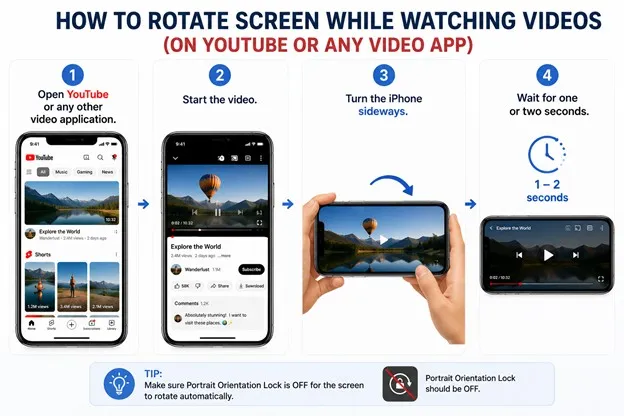
Most of the video applications will switch to landscape automatically. The steps below are what you have to follow.
- Open YouTube or any other video application.
- Start the video.
- Turn the iPhone sideways.
- Wait for one or two seconds.
The video will change to landscape orientation automatically. If it doesn’t, confirm that Portrait Orientation Lock is not enabled.
Method 4: Rotate Photos
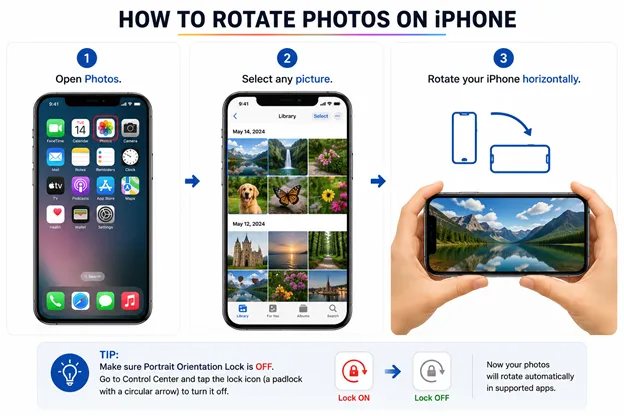
The Photos app supports landscape viewing. Here are the steps.
- Open Photos.
- Select any picture.
- Rotate your iPhone horizontally.
The image should automatically rotate with the device.
Method 5: Restart Your iPhone
Sometimes a temporary software glitch prevents screen rotation. Restarting the device often fixes the issue.
For iPhones with Face ID
- Press and hold the Side button and either Volume button.
- Drag the Power Off slider.
- Wait 30 seconds.
- Turn the iPhone back on.
For iPhones with a Home Button
- Hold the Power button.
- Slide to power off.
- Turn the phone back on.
After restarting, test screen rotation again.
Method 6: Update iOS
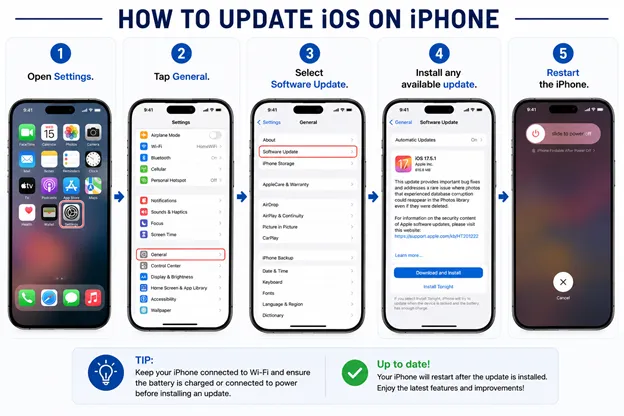
Older versions of iOS may contain bugs affecting orientation. Here is what you need to do.
- Open Settings.
- Tap General.
- Select Software Update.
- Install any available update.
- Restart the iPhone.
Apple regularly fixes bugs through iOS updates.
Method 7: Force Close the App
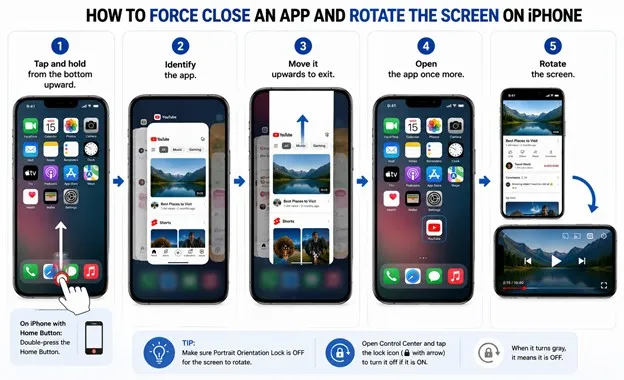
Sometimes, only one app fails to allow you to do that. In such a scenario, take these measures.
- Tap and hold from the bottom upward.
- Identify the app.
- Move it upwards to exit.
- Open the app once more.
- Rotate the screen.
Method 8: Reset All Settings
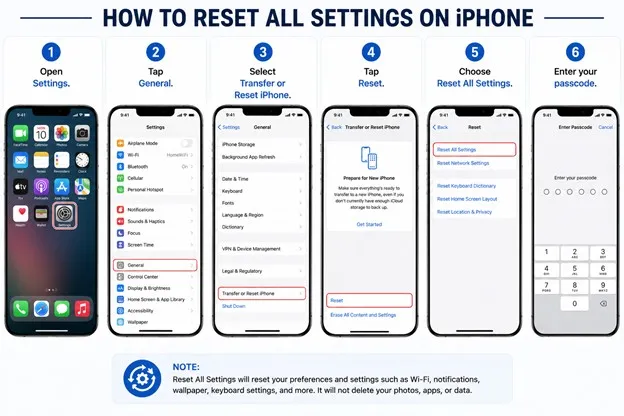
If you are having difficulty rotating the screen on numerous apps, then resetting the settings could be helpful. It does not delete any pictures, video files, or any installed apps. The procedure is as follows.
- Open Settings.
- Tap General.
- Select Transfer or Reset iPhone.
- Tap Reset.
- Choose Reset All Settings.
- Enter your passcode.
Your iPhone will restart. Test screen rotation afterward.
Why Isn’t My iPhone Screen Rotating?
Some of the possible causes of iPhone screen not rotating are:
- Portrait Orientation Lock is turned on and needs to be disabled from Control Center.
- The app doesn’t support landscape orientation, as many apps function only in portrait orientation. Some of the popular apps that run only in portrait orientation include Instagram, TikTok, Banking apps, and some shopping apps.
- A software bug that could be fixed through restarting the device.
- An outdated iOS version that needs to be updated to resolve the problem related to the display.
- Motion Sensors not functioning, leading to the iPhone screen not rotating.
- Hardware damage occurs when the accelerometer or gyroscope gets damaged due to falls and liquids.
How to Ensure Successful Screen Rotation
- Make sure Portrait Orientation Lock is turned off when required.
- Steady the device for a few seconds after turning the screen.
- Download applications that are compatible with landscape mode.
- Ensure all iOS system updates are installed on your iPhone.
- Reboot your iPhone when there is an unexpected problem with screen rotation.
- Do not use defective accessories which might affect sensor performance.
Frequently Asked Questions
Conclusion
Disabling Portrait Orientation Lock and using a supported app is normally sufficient when you want to rotate your screen manually on an iPhone. However, in case your screen doesn’t rotate even then, you can either reboot your phone, update iOS or reset settings.
Hardware malfunctions such as a malfunctioning accelerometer or gyroscope can cause problems with rotating your screen manually, if none of the above solutions help. Use the tips provided above in order to solve problems related to screen orientation on an iPhone.




Leave a Reply