


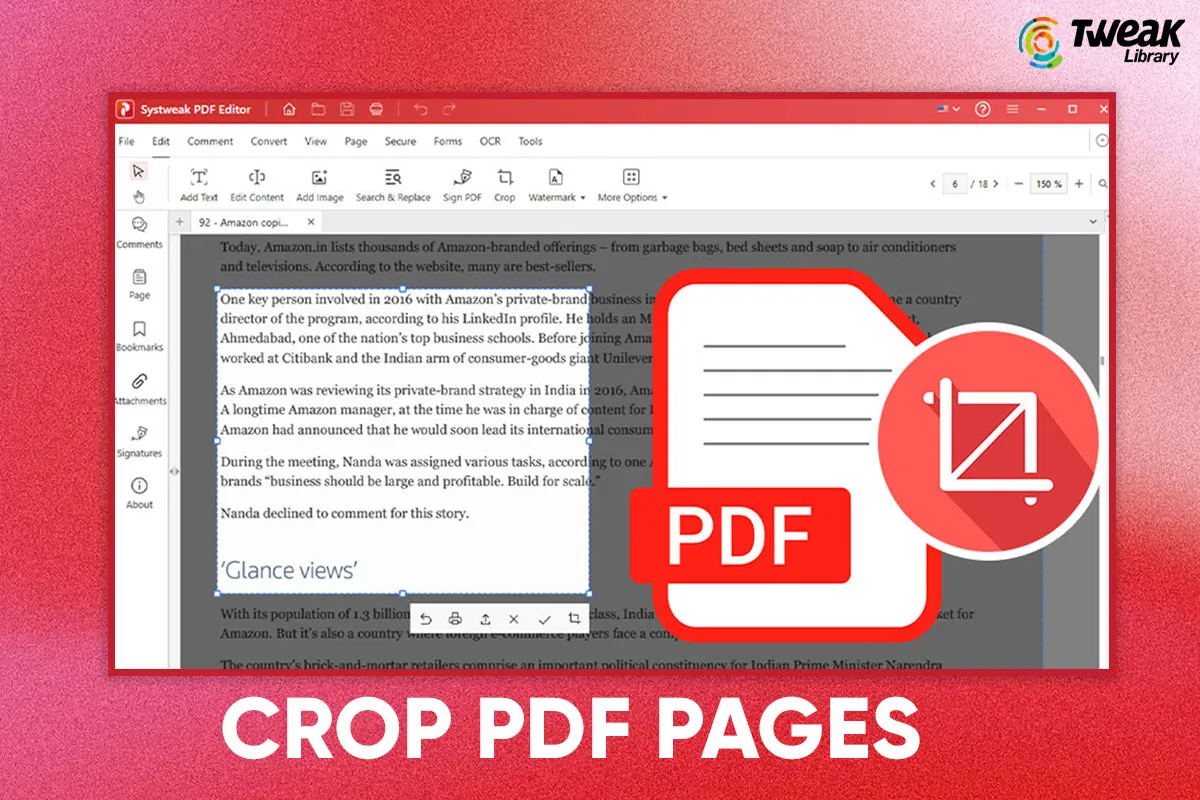
Proper handling of PDFs is rather important if you are a professional, a student, or someone who deals with digital documents daily. Sometimes you come across a PDF that contains unnecessary white space, unnecessary margins, or unwanted information that you do not need. And that is where cropping comes to your rescue. However, many Windows users have asked themselves: How to crop a PDF without compromising the format and quality?
This comprehensive tutorial intends to show ways in which PDF pages can be cropped on Windows without reformating, share the reasons with readers for doing so, and then take them through several different ways to do it, both via native Windows tools and feature-rich Systweak PDF Editor.
Why You Need to Crop a PDF Document in Windows?
PDFs are popular due to cross-platform compatibility and retained formatting. Sometimes, you would want to get rid of extra unnecessary portions of a PDF page by cropping. Here are several common scenarios where people need to crop a PDF in Windows:
- Erase Empty Spaces and Margins
Many scanned PDFs have extra margins or wasted space in them. Cropping cleans up a document and makes it easier to read.
- Highlight Specific Content
If you are working with just a chart, image, or part of a page, cropping aids in cutting down on unneeded parts.
- Improving Presentation
Hence, the file can be cropped for presentations, projects, or professional purposes in order to make the file readable and professional.
- Save File Size
In some cases, removing huge white spaces or pictures actually decreases the file size.
- Printer Optimization
Cropped PDFs are printer-optimized to save ink and reduce paper waste.
Briefly, cropping is not a matter of reforming but of leaving intact only the relevant content.
Ways to Crop PDF Pages From a PDF File
You can crop or trim a PDF page in several ways on Windows. We will guide you through two effective ways: using the built-in Snipping Tool and its more professional counterpart, Systweak PDF Editor.
1. Built-in Feature of Windows Snipping Tool
There is a pretty basic but helpful utility in Windows entitled the Snipping Tool. While it doesn’t crop in a PDF directly, it does let you capture something on the screen and save just what you need. It’s great when you want to copy part of the content without editing a PDF document.
Steps to crop a PDF using Snipping Tool:
- Open the PDF document in any viewer, such as Microsoft Edge or Chrome, or any other PDF reader.
- Navigate to the page or section you would like to crop.
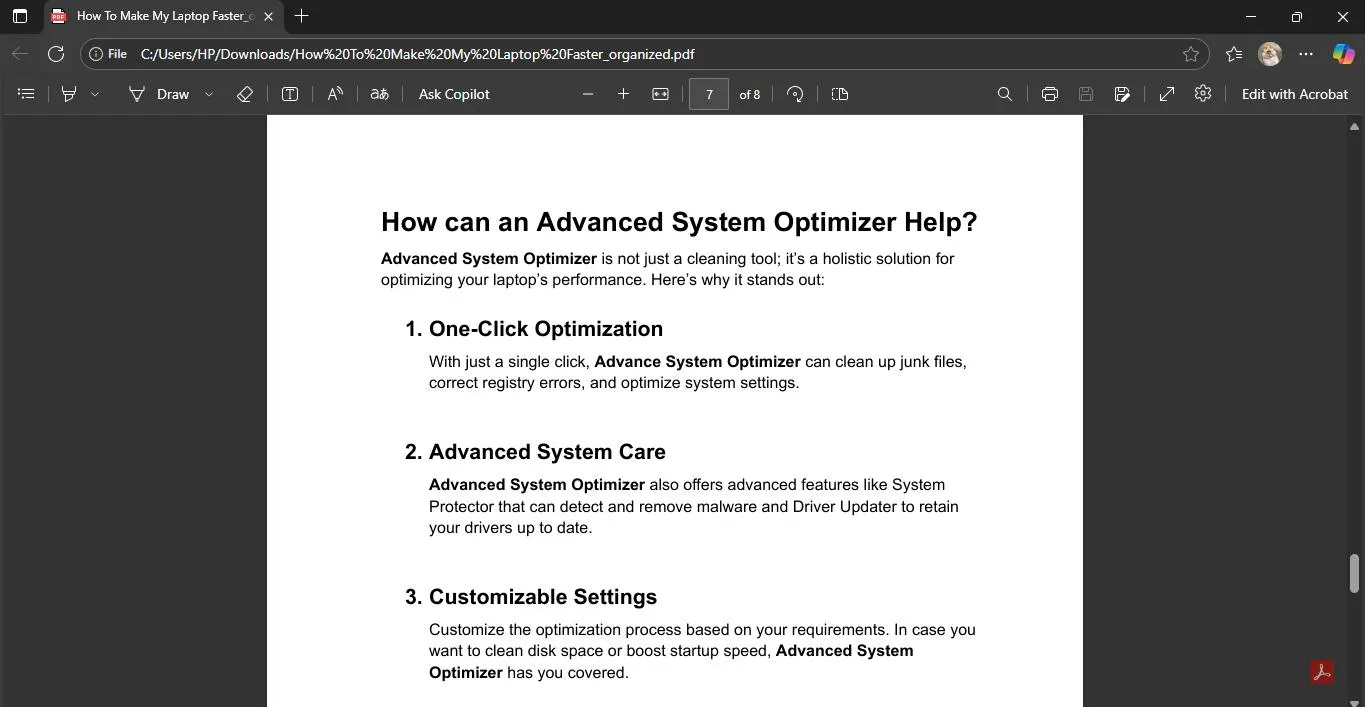
- Launch Snipping Tool through the Windows search icon or press keys Windows + Shift + S.
- Choose the Rectangular Snip option.
- Hold down the mouse button and click to select the region of the PDF you want to retain.
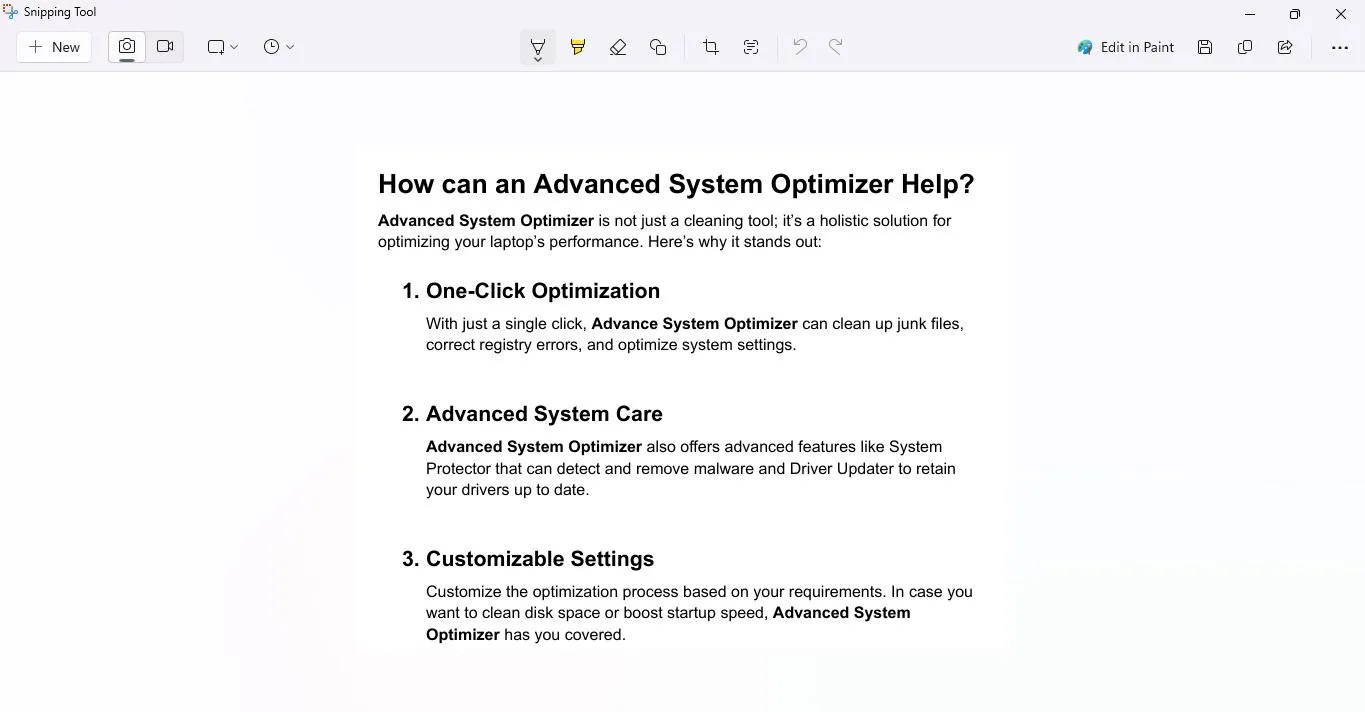
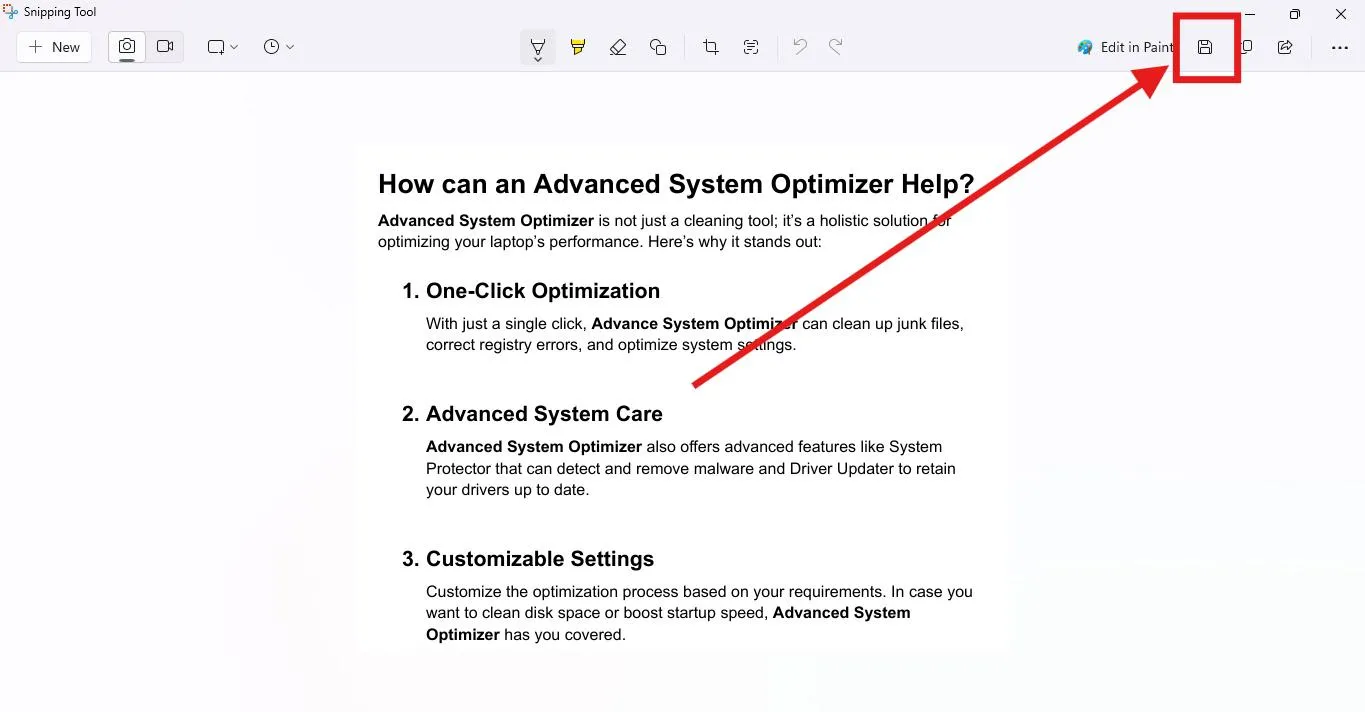
- Save the snip as an image or paste it into a new Word/Document.
Advantages:
- Free and comes pre-installed on Windows.
- Easy to use, particularly for new users.
- Fast method to copy specific information.
Disadvantages:
- Won’t enable cropping within the PDF document itself.
- Output is saved as an image, rather than an editable/cropped PDF.
- Quality could decrease if you subsequently reconvert the image back to PDF.
While the Snipping Tool is fine in straightforward situations, it isn’t the optimal option for expert PDF management.
2. Systweak PDF Editor
If you are looking to crop a PDF in Windows and still retain the quality, formatting, and don’t need to save it as an image, here’s the best and recommended way is to use Systweak PDF Editor. The software is light in size, high in capacity, and can edit files, convert, and create from PDF in Windows.
With its integrated cropping function, you’re able to simply trim PDF pages without modifying the images or text within. Unlike Snipping Tool, it directly edits the PDF and provides you with the option of cropping all the pages or selecting a few.
Steps to Crop a PDF Document using Systweak PDF Editor:
Download & Install Systweak PDF Editor
Go to the Systweak PDF Editor official website or download the application on your Windows PC from the button downbelow.

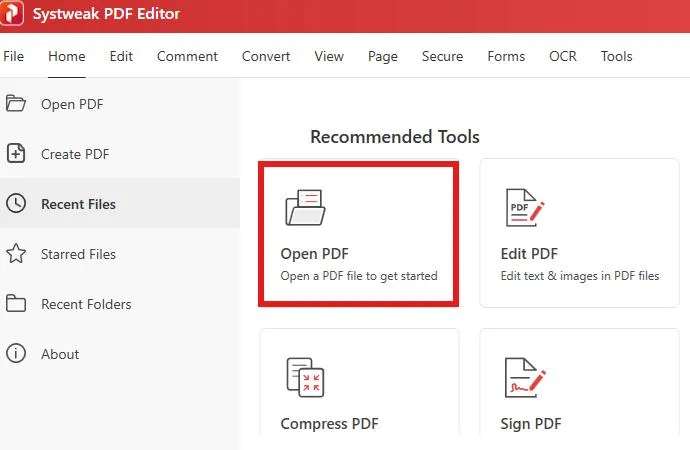
Launch the Application
Open the application and import your PDF file by clicking on the “Open PDF”.
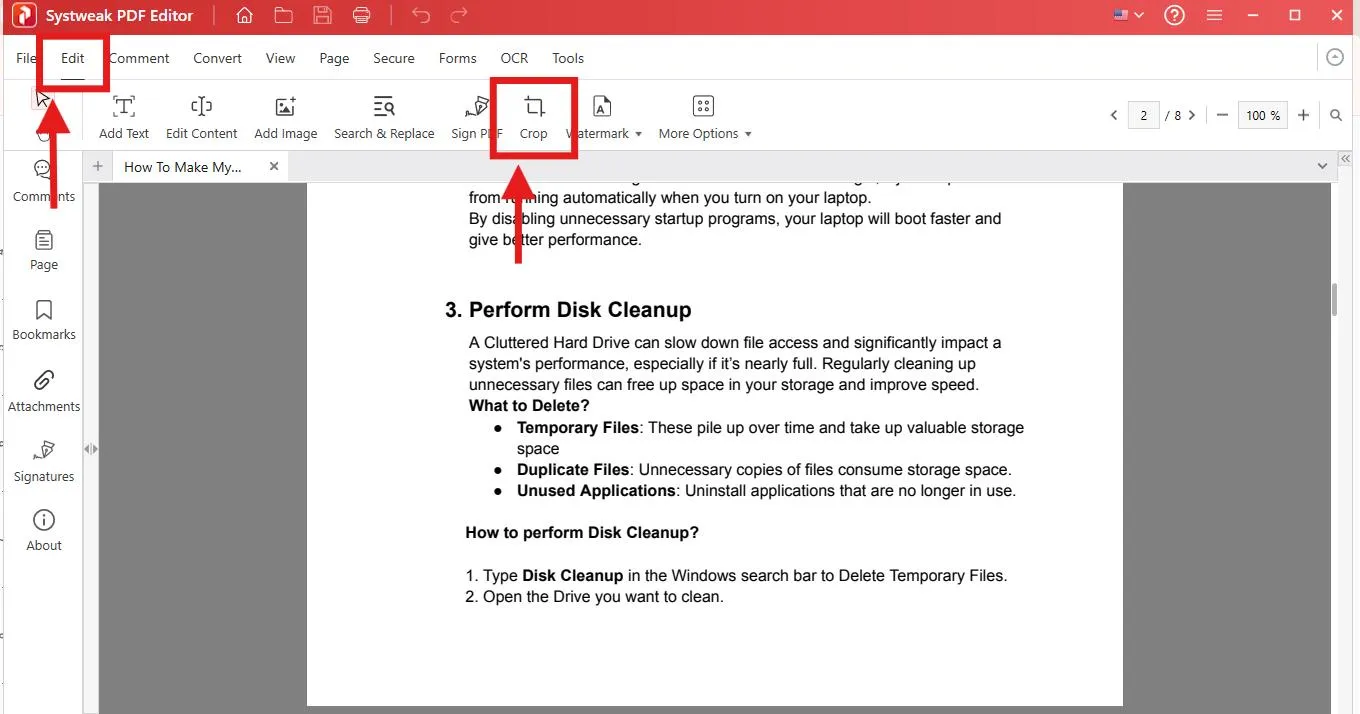
Choose the Crop Tool
Go to the Edit toolbar and select the Crop PDF option.
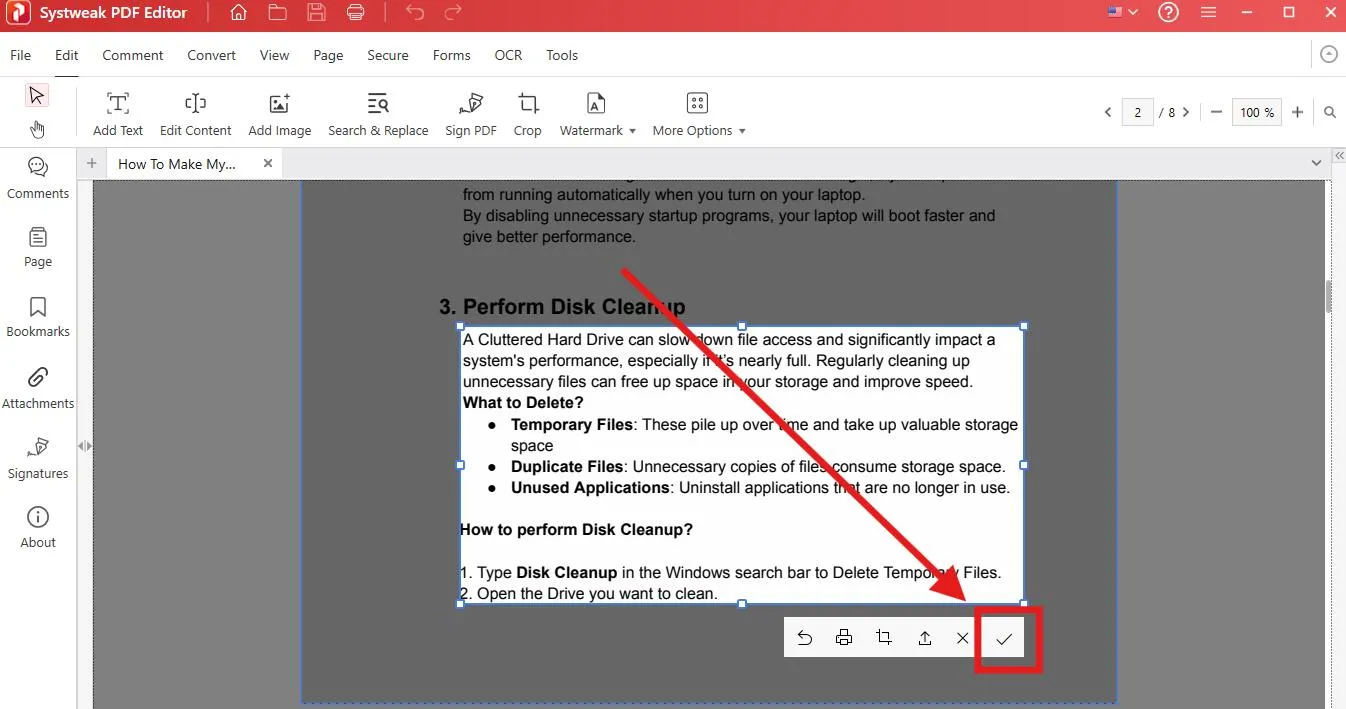
Make adjustments to the Cropping Area
Drag the selection box over the area of the page you wish to retain. Anything outside the box will be cut off.
Apply Cropping
You can crop one page, selected pages, or the whole PDF document.
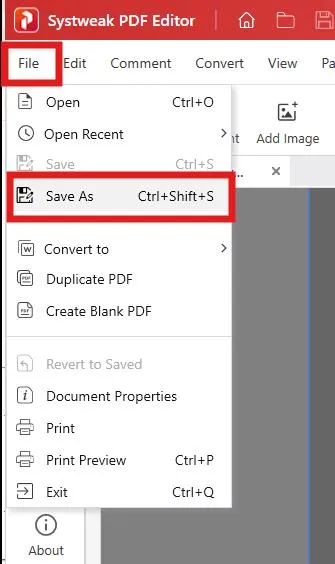
Save the File
Go to the File tab and click on Save As and save the document. Formatting, text quality, and pictures are not touched—only the unwanted area is trimmed.
Why Select Systweak PDF Editor?
- Crop a PDF without reforming it.
- You can crop only the pages you have selected or multiple pages.
- It keeps text and pictures intact.
- It offers many other editing functions, such as annotate, merge, split, and convert.
- Less likely to suffer from the heft of a heavyweight editor like Adobe Acrobat in terms of lightweight and ease of use.
For any individual searching for a consistent and professional way of cropping a PDF in Windows, it is clear that Systweak PDF Editor is the best choice.
Final Words
PDF cropping shouldn’t be an issue. If you just want a snip, Windows’ native Snipping tool will work fine. However, if you are looking for a robust tool that provides a necessary tool to crop PDF pages without losing the original formatting, the Systweak PDF Editor is the solution. It lets you crop PDFs exactly, and not only do you crop, but it also retains the original document formatting.
So, next time you sit and wonder how to potentially split PDF pages in Windows, know that you have a way to do it.
FAQs
Q: Will cropping reduce the size of my file?
Yes, sometimes cropping will slightly reduce the size of your file, especially if you crop out large images or whitespace, although you might not always notice a significant difference.
Q: Can I crop a PDF with some pages but not other pages?
Answer: Yes, using programs like Systweak PDF Editor, you can crop specific pages and/or crop multiple selected pages at once.
Q: How can I crop a PDF without Adobe Windows?
You can use Systweak PDF Editor for Windows as a lightweight alternative to Acrobat, which allows you to crop PDFs quickly without Adobe installed.
Q: Will cropping decrease the quality of my text/images within my PDF?
No, the cropping process only removes the visible margins, and there is no compression or alteration of text/images. Systweak PDF Editor retains the quality before and after cropping.
Read Also:
Best PDF Managers – Tools That’ll Make Organizing and Managing PDFs A Breeze



Leave a Reply