


Summary
A RAW drive usually means Windows cannot read the file system, not that your files are gone. Do not format it and do not run chkdsk. First, scan the drive with recovery software, save your files to a different drive, then reformat it as NTFS and copy everything back safely.
Repairing a RAW disk will require you to recover data from that disk before repairing the file system of the disk. Never format or run chkdsk on a RAW disk. Scan the drive with recovery software, save what it finds to a different drive, and only then reformat the drive as NTFS.
You connect a secondary hard drive using an external device, but Windows states “you will need to format this disk before its use,” and Disk Management shows that the file system has been designated as RAW, and you cannot locate your files. Although it may seem as if all of the information was lost, the majority of the time the data remains intact on the disk. This guide explains how to fix a RAW drive safely, provides some easy ways to recover lost files from that drive safely (and some checks first), and explains how to recover from a RAW-formatted drive (the recovery process), and then how to perform RAW disk repairs after your files have been safely recovered.
What Does a RAW Drive Mean?
RAW is not a real file system. It is an error message provided by Windows when it can’t read your file system (on a particular drive). The archived Microsoft TechNet blog post says that the file system info is contained in the partition table and the boot sector of the volume. If either gets corrupted, then the file system will be reported as “RAW” even if the files themselves are intact.
Common causes include:
- Unplugging the drive without ejecting it, or a power cut during a write
- Bad sectors in the area that stores file system information
- A corrupted or deleted partition table
- Malware or ransomware
- File System created with an operating system (OS), such as macOS or Linux, that Windows does not support
Gillware and Secure Data Recovery list the same triggers. Typically, these show up as a RAW drive that you can’t access. This could be a RAW external hard drive or a RAW USB drive. Most of the time, they will display an error message saying, “The type of file system is RAW. CHKDSK is not available for RAW drives.”
Here’s typically how they look and how to resolve them:
| Cause | What you see | What to do |
| Unsafe ejection or power loss | The drive turns RAW right after unplugging | Scan and recover first, then reformat |
| Damaged partition table or boot sector | RAW or unallocated space in Disk Management | Scan the disk, recover, then rebuild |
| Bad sectors | Freezes or errors while copying | Recover quickly, then replace the drive |
| Malware | Missing files or odd prompts | Scan with security software, then recover |
| macOS or Linux file system | RAW on Windows only | Copy files off using the original system |
Do This Before Any Fix
A wrong first move can turn a recoverable drive into a lost one.
- Stop using the drive. New writes can overwrite your files.
- Don’t format it. If you are asked to format a RAW drive, select “Cancel”. Once formatted, what remains of the index pointing to your files will be erased.
- Do not run chkdsk. In short, chkdsk cannot be used on RAW drives because it cannot read their file system. Any repair attempts can overwrite data that was still recoverable.
- Be attentive to your drive’s behavior. If it clicks, beeps, or grinds, power it off and skip to the professional-help section below.
Fix RAW Drive Without Formatting: Try These Checks First
Sometimes the drive is not truly RAW. Rule these out in two minutes:
- Try another USB cable, another port, or another computer. If the drive is RAW only to you, then it may be running a file system that your computer can’t read.
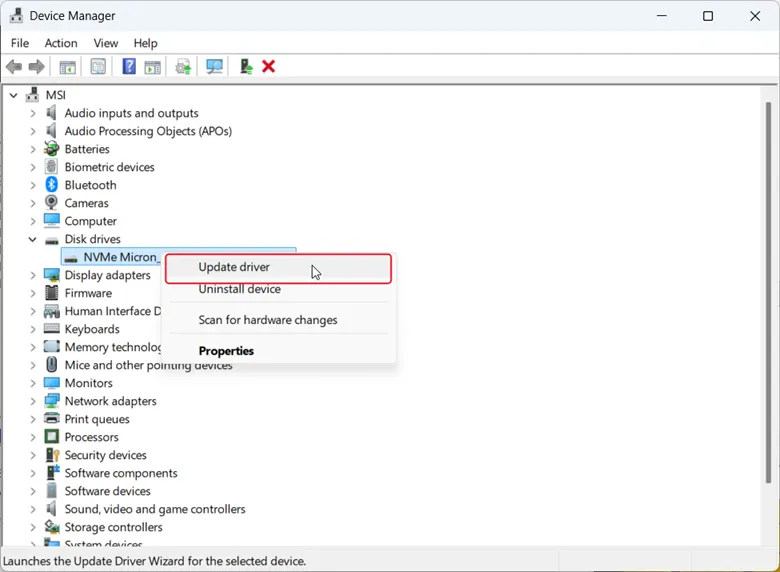
- Check for an updated version of the disk drive in Device Manager. Then uninstall & reinstall it under Disk Drives.

- In Disk Management, check whether the volume has lost its drive letter and assign a new one.
If the drive still shows RAW, then go to recovery. This is the real way to fix RAW drive problems without losing files.
The steps are always the same for all devices, with small changes. For a USB drive showing RAW or an SD card, try a different port or card reader first, because flash storage is especially prone to corruption. External Hard drives may need to have their cables checked along with their power source before attempting recovery via DiskGenius, as they also list “USB Port”, “Cable,” and “Power Supply” issues as common causes for drives showing RAW.
RAW Drive Recovery: Get Your Files Back First
To recover your files off of RAW drive partitions, you will need to use a raw file recovery tool. These tools ignore the broken file structure on the drive and locate your files based on known file signature patterns. Locate the RAW drive in Windows; if you see the RAW volume listed as RAW (it should show up in Windows Disk Management), select the RAW volume for scanning. If the RAW volume does not appear in Disk Management, but you do see unallocated free space where there was once an operating system or data partition present, then you may need to select to scan the entire disk.
- Install the recovery program on a healthy drive, never on the one you are rescuing.
2. Scan all sectors of the raw infected drive.
3. Tick the files you need and recover them to a different drive. Saving to the same drive can overwrite the data you are trying to restore.
4. Test several of the recovered files in order to verify they actually work.
If the drive is not listed, assign it a drive letter in Disk Management and rescan. Whichever RAW partition recovery software you use, recover first.
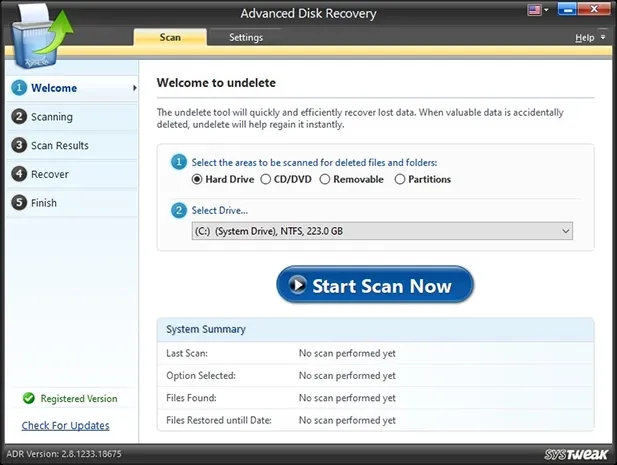
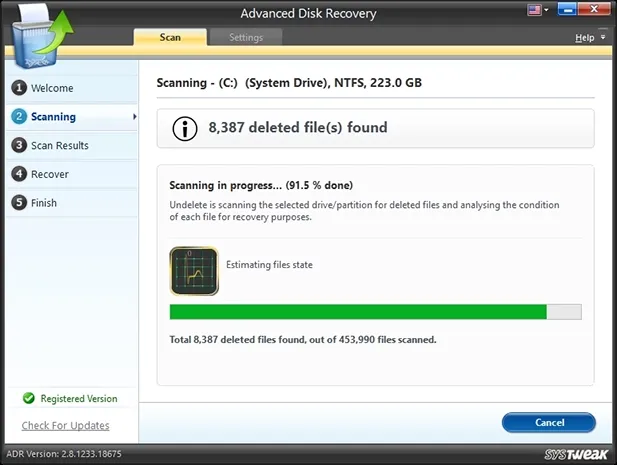
One option to try is Systweak’s Advanced Disk Recovery, data recovery tool for Windows 11, 10, 8.1, 8 and 7. It works with NTFS, FAT, FAT32 and exFAT drives. Choose the drive, click Start Scan Now and pick Deep Scan, which scans sector by sector and identifies files by their signatures.Advanced Disk Recovery uses Deep Scan for formatted drives. Select your files and save them to a different drive.

How to Repair RAW Hard Drive Volumes After Recovery
Once you have safely transferred all of your files off this hard drive, you can proceed to repair any RAW file system issues on the hard drive. There are ways to do this based on what is most convenient for you.
Method 1: Format in Disk Management
- Open Disk Management, right-click the RAW volume, and choose Format.
- Pick NTFS (or exFAT if you share the drive with a Mac), tick Quick Format and click OK.
- If the space is unallocated, right-click it and choose New Simple Volume instead.
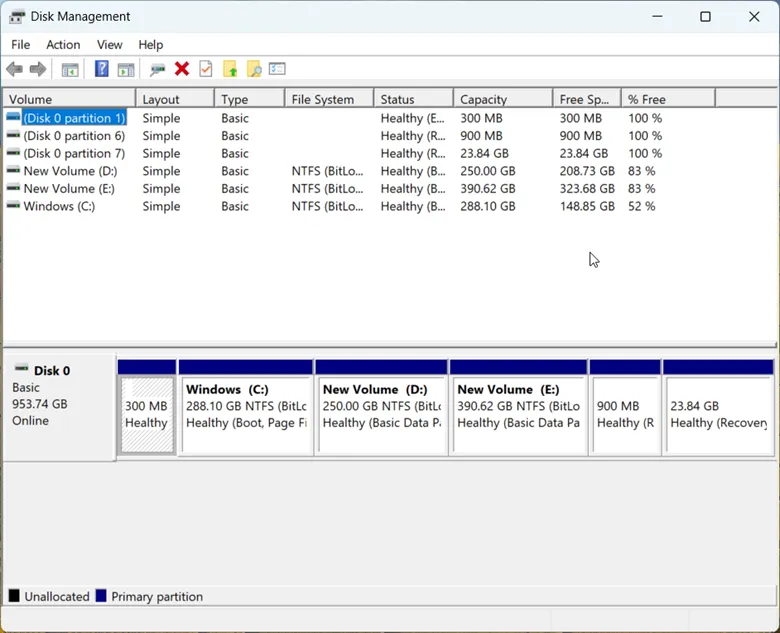
4: Then copy your recovered data back onto the disk.
Method 2: Delete the Volume and Start Fresh
If you are unable to format the disk with “Format” because it does not allow you to click on it (grayed), right-click the RAW drive, select “Delete Volume”, right-click where the volume was and select “New Simple Volume”.
Method 3: Rebuild the Drive With DiskPart
Open Command Prompt as administrator and run these commands one at a time:
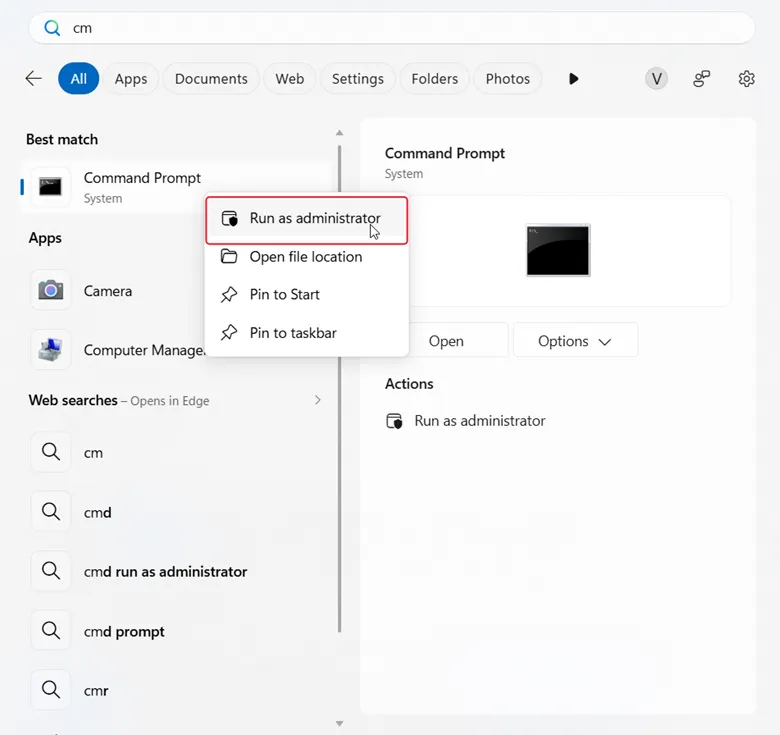 diskpart
list disk
select disk 1
clean
create partition primary
format fs=ntfs quick
Assign
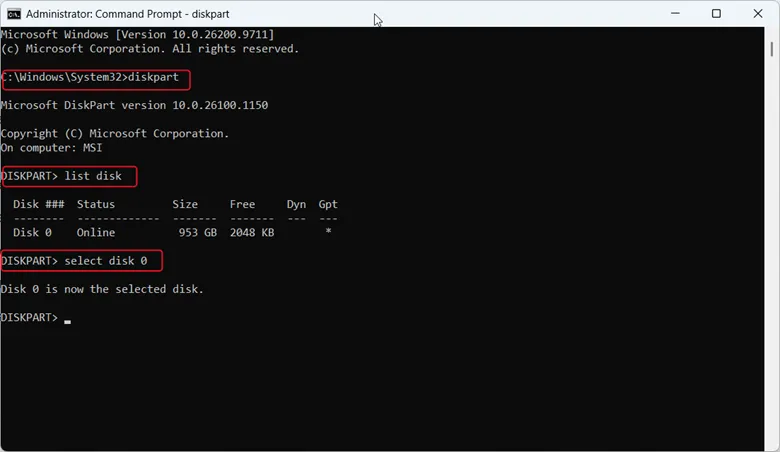
Replace 1 with your drive’s number, and check the size in the list disk output first. According to Microsoft, clean “removes any and all partition or volume formatting from the disk with focus”, so run it only after recovery and only on the right disk.
If malware may have caused the problem, run a full scan with your security software before you copy files back.
This is RAW partition repair in practice. There is no dependable way to change RAW to NTFS without losing data by converting in place, because conversion is not available for RAW drives and needs a readable file system. Recovery first, formatting second, is what protects your files. If the format fails, or the drive turns RAW again within days, suspect failing hardware and replace it.
When to Call a Professional
Stop DIY attempts if the drive makes noise, disappears from Disk Management, or holds files you cannot replace. The reason for this recommendation is that as stated by Gillware, long complete sector scans of a drive in failure can advance a partial failure to a full failure. A lab can image the drive first and work on the copy.
How to Avoid a RAW Drive Again
- Use Safely Remove Hardware before unplugging any external drive, and never cut power during a copy.
2. Keep a second copy of important files on another drive or in a cloud service.
3. Run security software to catch malware.
4. If you notice that one of your older hard disks is showing Bad Sectors, or freezes while attempting to copy files; replace it with a new one.
Frequently Asked Questions
The Bottomline
A RAW drive looks like lost data, but the files are usually still there. Do not format it, do not run chkdsk, and do not save anything to it. Determine if you have a deleted partition or a RAW volume by scanning it with a recovery application (such as Advanced Disk Recovery), and then transfer your recovered files from the RAW disk to an alternate drive. Next, format the disk using NTFS, move all of your files back onto the formatted disk, and make sure that you maintain at least one other duplicate of your files.


Leave a Reply