


Summary
The RGB lighting system looks great on gaming computers; however, some RGB control software uses low-level drivers that communicate with hardware inside Windows. According to Microsoft’s August 2026 update, some RGB drivers, specifically those with a name close to inpoutx64, caused crashes in some Windows 11 games after installing the KB5121003 update. These issues included unexpected game freezes and closures, EXCEPTION_ACCESS_VIOLATION error codes, and system restarts. The good news is that Microsoft has already solved this particular problem.
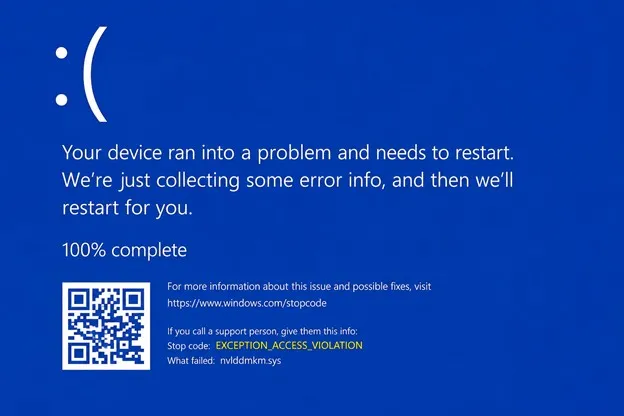 It should illuminate the gaming environment and not Windows 11. But that was the situation faced by many users of the Windows 11 August 2026 update KB5121003. Some games would freeze or crash back to the desktop, showing exceptions such as EXCEPTION_ACCESS_VIOLATION, and sometimes causing the computer to restart. The cause of this problem was discovered to be particular peripheral devices or internal hardware with RGB lighting that would install drivers or pieces of software named inpoutx64.
This is not to say that all RGB applications are dangerous or RGB lighting causes Windows crashes. This particular problem relates only to particular low-level drivers and how they interact with Windows and particular games. Therefore, if you are experiencing RGB software Windows 11 crash issues, then this is what happened and what to do.
What Is The Reason Behind RGB Software Causing Windows 11 Crashes?

RGB software is not just limited to changing the colors of the keyboard or PC fans; rather, many of them require low-level access to hardware to talk to controllers, motherboards, fans, RAM sticks, etc. Some utilities install kernel-mode drivers for accomplishing this task. Kernel drivers work closer to the Windows operating system than normal desktop applications do.
The August 2026 Windows 11 update unveiled a compatibility issue that affected certain RGB drivers. Microsoft pinpointed the drivers or components with filenames like inpoutx64. When running certain games on such machines, they would crash or behave erratically. Games that were reportedly affected were:

- ARC Raiders
- MARVEL Tōkon: Fighting Souls
- THE FINALS
The symptoms of these issues included:
- Games become unresponsive
- Games close unexpectedly
- EXCEPTION_ACCESS_VIOLATION errors occur
- Unexpected computer reboots
This is the reason why people first thought of the graphics card, the game installation, or even the Windows Update itself.
What Are the Symptoms of RGB Driver Issues?
However, not every time Windows crashes is due to RGB driver issues. If you encounter any of the following, there is a high probability that RGB drivers are causing trouble:
- The game crashes right after the opening.
- Sudden unresponsiveness of Windows 11 games.
- A game shuts down, but no error message shows up.
- The exception access violation error shows up on your screen.
- Your computer shuts down unexpectedly when you launch a game.
- Issues appeared after the installation of a Windows update.
- Switching off RGB drivers or hardware-control drivers temporarily helps.
- There is a driver with inpoutx64 in its name on your computer.
An RGB utility BSOD makes things even worse, as kernel drivers have better access to the operating system than regular programs.
How To Fix RGB Windows Crash Issues?
1. Updating Windows to the Latest Version
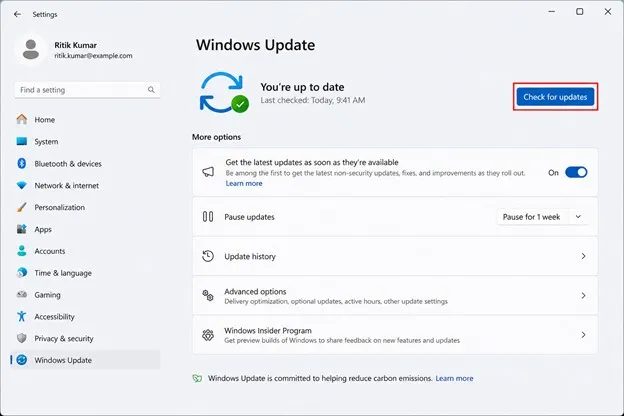
First things first, you need to open Windows Update. Head to:
Settings > Windows Update > Check for updates.
According to the release notes of Microsoft’s KB5121003, the problem with gaming is fixed by blocking the problematic inpoutx64 driver from loading into the device. This fix is available to consumers and businesses who aren’t under IT management systems.
2. Restart Your PC
Once Windows has installed the appropriate fix, restart your PC. The restart will allow Windows to install the changes to the drivers and to ensure that the component that is currently being blocked is not loaded anymore. If everything works fine after the reboot, you might not have to perform any changes manually.
3. Update Your RGB Software
Launch the RGB software installed on your PC and look for an update.
It depends on what kind of hardware you own, but you can think of the RGB software that controls:
- RGB keyboards and mice
- Motherboard lights
- RGB RAM
- Fans in the PC case
- Gaming peripherals
- Cooling systems
Outdated RGB software can keep using the old drivers, so the update will definitely help.
4. Disable RGB Software Temporarily
If you continue to experience crashes on Windows 11, try disabling your RGB software from starting with Windows. Access the Task Manager by using:
Ctrl + Shift + Esc
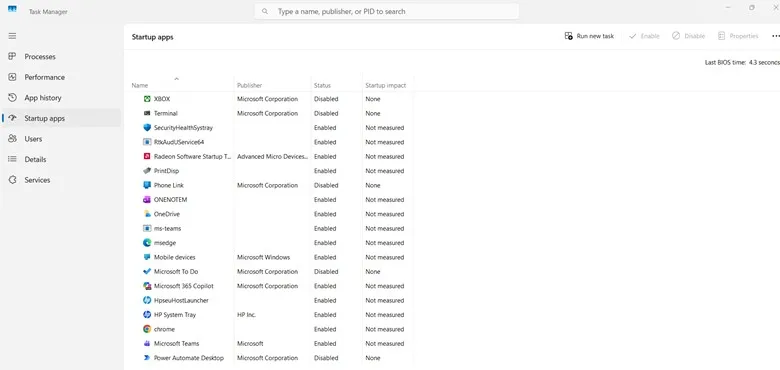
Go to the Startup option, locate the RGB application, right-click on it, and click Disable. Reboot the system and check whether the game works well. If the problem is solved, the RGB application and/or its drivers become a strong suspect.
5. Look for the Problematic Driver
Advanced users may need to check which drivers are installed for components associated with inpoutx64. Nevertheless, do not just randomly delete any driver file found in the Windows System32 folder because this might lead to even more issues with Windows. The latest resolution from Microsoft is to disable the problematic driver instead of deleting system files.
6. Do Not Attempt Registry Changes or Manual File Deletion
Some articles might recommend using Registry Editor changes or deleting inpoutx64 files manually. Incorrect registry entries will make Windows unstable. And since Microsoft has already found a solution for this particular issue involving KB5121003, Registry changes are not the first choice.
7. Submit a Report on Repeated Issues
In case your computer crashes despite the update of the Windows OS and the RGB program, report the issue via the Feedback Hub. Press Windows + F to open the Feedback box.
Describe the crash, indicate the game in which it happens, and provide error codes. Microsoft especially advises doing so for this kind of problem.
Does That Mean You Should Uninstall the RGB Program?
No. The RGB program per se does not cause Windows 11 to crash. In the case that the problem happened in August 2026, it was caused by a certain incompatibility with some RGB elements. If your computer functions properly at the moment, there is no need to uninstall the RGB software. Still, if you experience repeated crashes when using a certain RGB program, you may temporarily uninstall it to understand its role in the problem.
Frequently Asked Questions
Conclusion
While RGB lights might be the flashiest parts of your gaming computer, it is the drivers behind the scenes that you should pay attention to when experiencing crashes on Windows.
The case of the August 2026 KB5121003 has shown just how an RGB-related driver can get out of hand to cause problems in Windows and games. The components involved are similar to inpoutx64, and the issue has since been fixed by Microsoft.
However, if you have encountered an RGB software issue on your Windows 11 PC, refrain from directly assuming that the fault lies in your GPU or reinstalling your games. The first thing to try should be going through the Windows Update process and updating the RGB software.



Leave a Reply