


Summary
Struggling to edit a PDF and keep the original formatting? This guide explains how to edit text, annotate, rearrange pages, convert, and secure a PDF on Windows offline, in a few simple steps:
- Edit text and images: Make changes directly in the PDF without converting it.
- Annotate and highlight: Add comments, stamps, and notes to important sections.
- Rearrange pages: Reorder, rotate, merge, or split pages as needed.
- Convert PDF: Switch between PDF, Word, Excel, PowerPoint, or image formats.
- OCR : Turn scanned PDFs and images into editable, searchable text without retyping.
- Protect and sign: Add passwords, set permissions, and sign digitally.
Do it offline, without uploading your documents using Systweak PDF Editor.
Do you have a PDF that you wish to edit to correct typo mistakes, update information, make grammatical corrections, add an image, annotate text, or add a watermark, but couldn’t as editing PDF is not easy?
You are not the only one. A lot of users face this problem because PDF (Portable Document Format) is designed for reading, not editing. To make changes, you need a good PDF editing tool. You can find several tools or software in the market. Some are online while others are offline. You can use them as per your requirement. Online tools are dependent on an internet connection and process the files on third-party servers, while offline tools (desktop software) allow you to work on your PDFs locally without any internet connection.
Another drawback with online tools is that they change formatting and break layouts. This is why users who prefer privacy use offline tools, and in this how-to guide, we will discuss editing a PDF offline.
Why Do You Need PDF Editing Software?
Unlike editable Word documents or Excel sheets, PDFs are not designed for editing. You cannot start typing or make changes to the document as you do in any regular file. This is why PDF editing software is required. With it, you can perform the following and many other tasks:
- Make changes directly in the PDF (edit text or image).
- Keep the original formatting and layout.
- Highlight text, correct mistakes,
- Compress, merge, split, extract, and convert PDF
- Protect, sign PDFs, and do a lot more.
One desktop tool that offers all these features is Systweak PDF Editor for Windows. It is an offline PDF editor that lets you edit text and images from within the application, modify scanned PDFs, annotate, protect, add a header and footer, etc., without internet connection, file uploads, or formatting loss.
Key Features & Benefits of Systweak PDF Editor for Windows
Not all PDF Editors are alike. Here’s what sets Systweak PDF Editor apart and makes it one of the best offline advanced editing tools:
1. Edit limitlessly with an all-in-one PDF editor
Make changes to PDF content without any restrictions. Update text, alter images, add comments, annotate, and do more without any capping. Moreover, add or remove a watermark, add a header and footer, and more locally.
2. Annotate, Highlight & Add Notes
Convert plain PDFs into interactive ones, highlight important points, add notes, shapes, draw, add stamps, and more.
3. Rearrange & Organize Pages
Reorder, rotate, split, extract, merge, delete, or duplicate pages with simple drag-and-drop, or combine, extract, split, and compress documents.
4. Fill, Secure, and Sign PDFs
Sign and fill PDFs from your desktop without printing them. Add text boxes, draw or upload your signature, and protect them with a password.
5. Convert PDFs
Convert PDFs into Word, Excel, PowerPoint, or Image formats or vice versa without size restrictions and losing formatting.
6. OCR — Make Scanned PDFs Editable
Using the built-in AI-based OCR (Optical Character Recognition), convert images and documents into editable, searchable, and selectable text.
How to Edit a PDF on Windows (Using Systweak PDF Editor)
To modify text, convert the document, make changes to a scanned file, or to change layout, while keeping the structure and format like the original document, follow these steps:
Step 1: Download and install Systweak PDF Editor
- Click the “Download Now” button to get the product’s .exe file of Systweak PDF Editor.

- Double-click the setup file and follow on-screen instructions to install the product.
Step 2: Open Your PDF
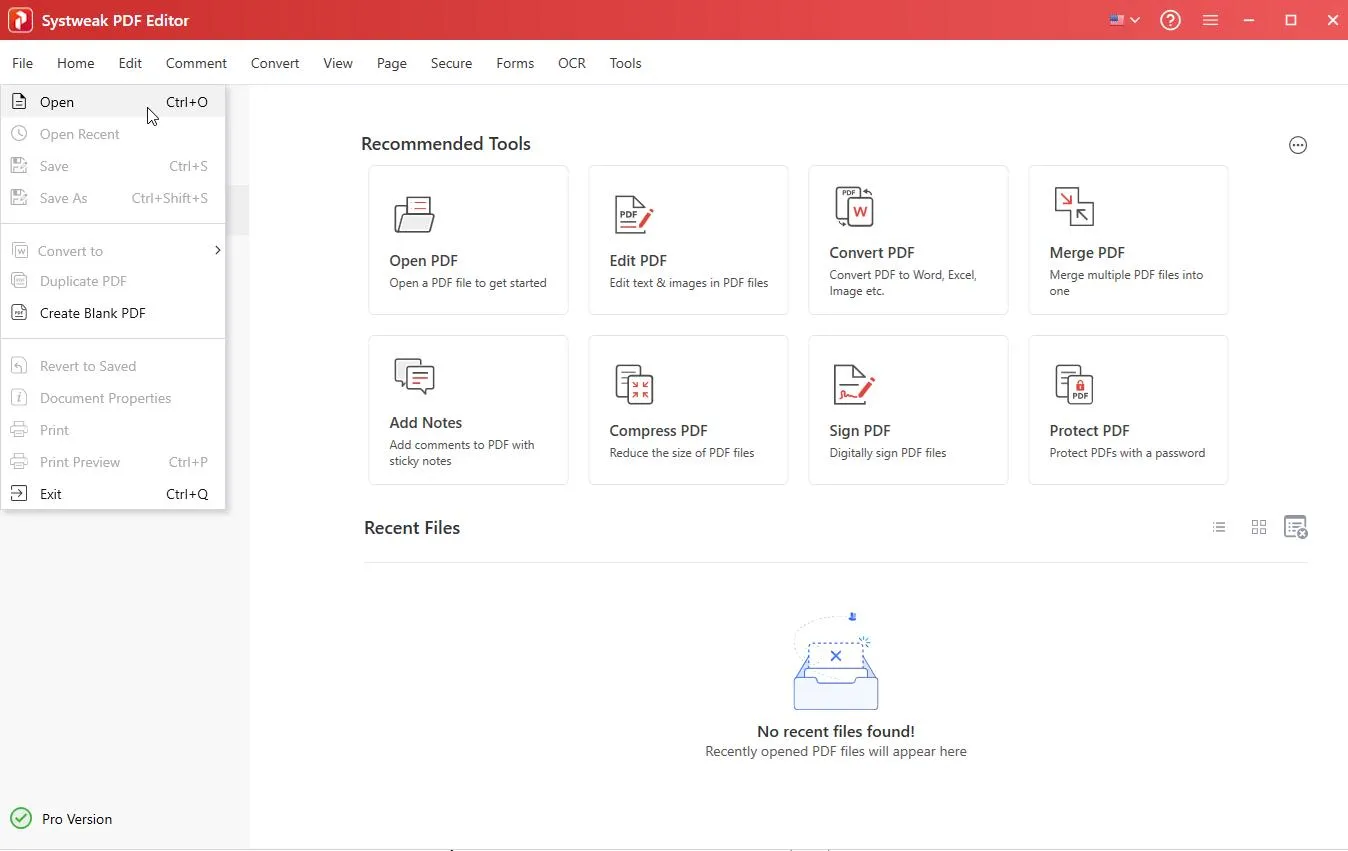
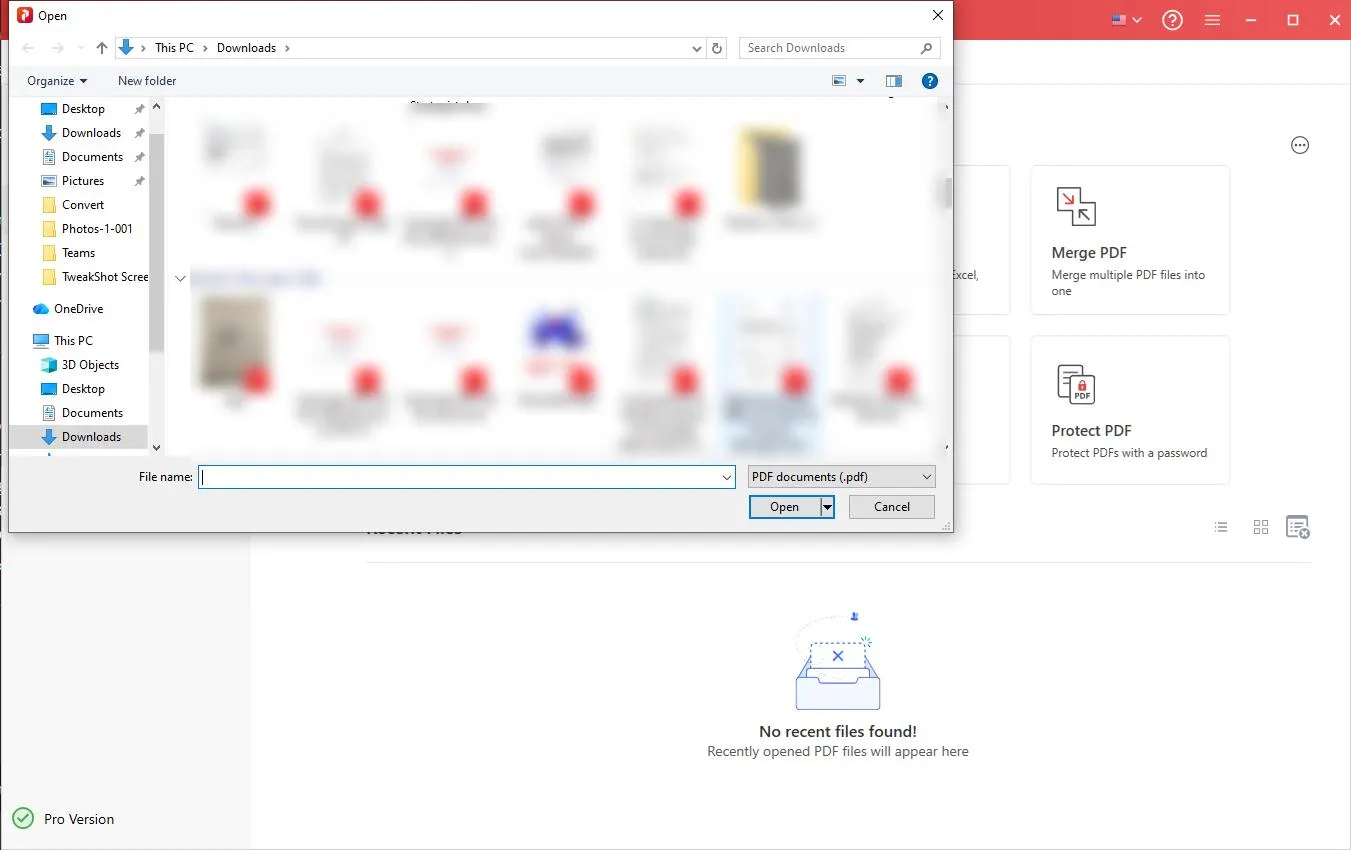
- Launch the PDF editing software and click Open PDF option from the quick access tiles or File > Open.

- Add the PDF you want to edit.
Step 3: Edit Text, Images, and Layout
- Now that the PDF is added, to make changes to the text, click the Edit tab.
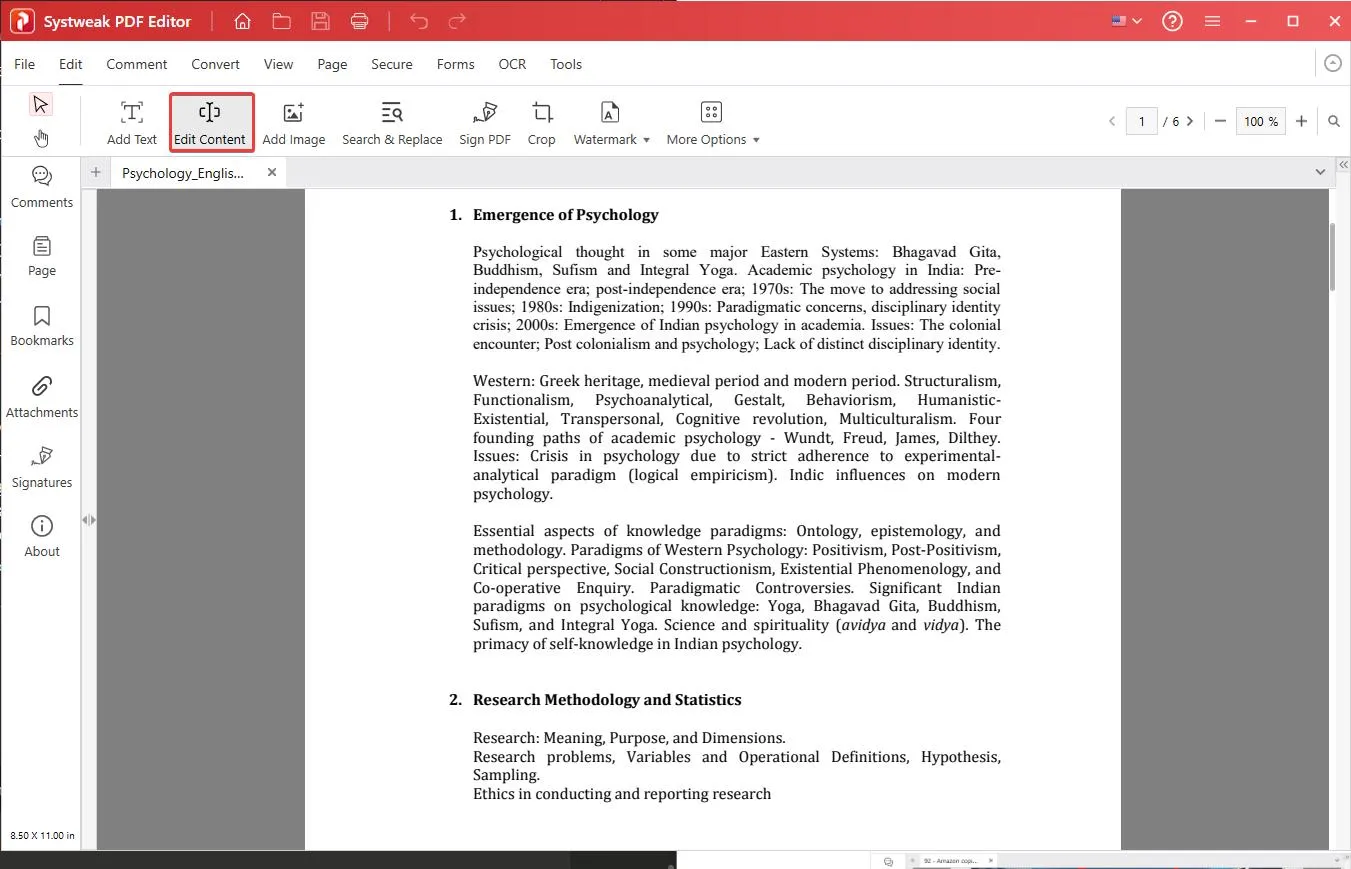
- Here you will find different editing options.
- To edit the text, click Edit Content. The text will now be surrounded by dotted boxes.
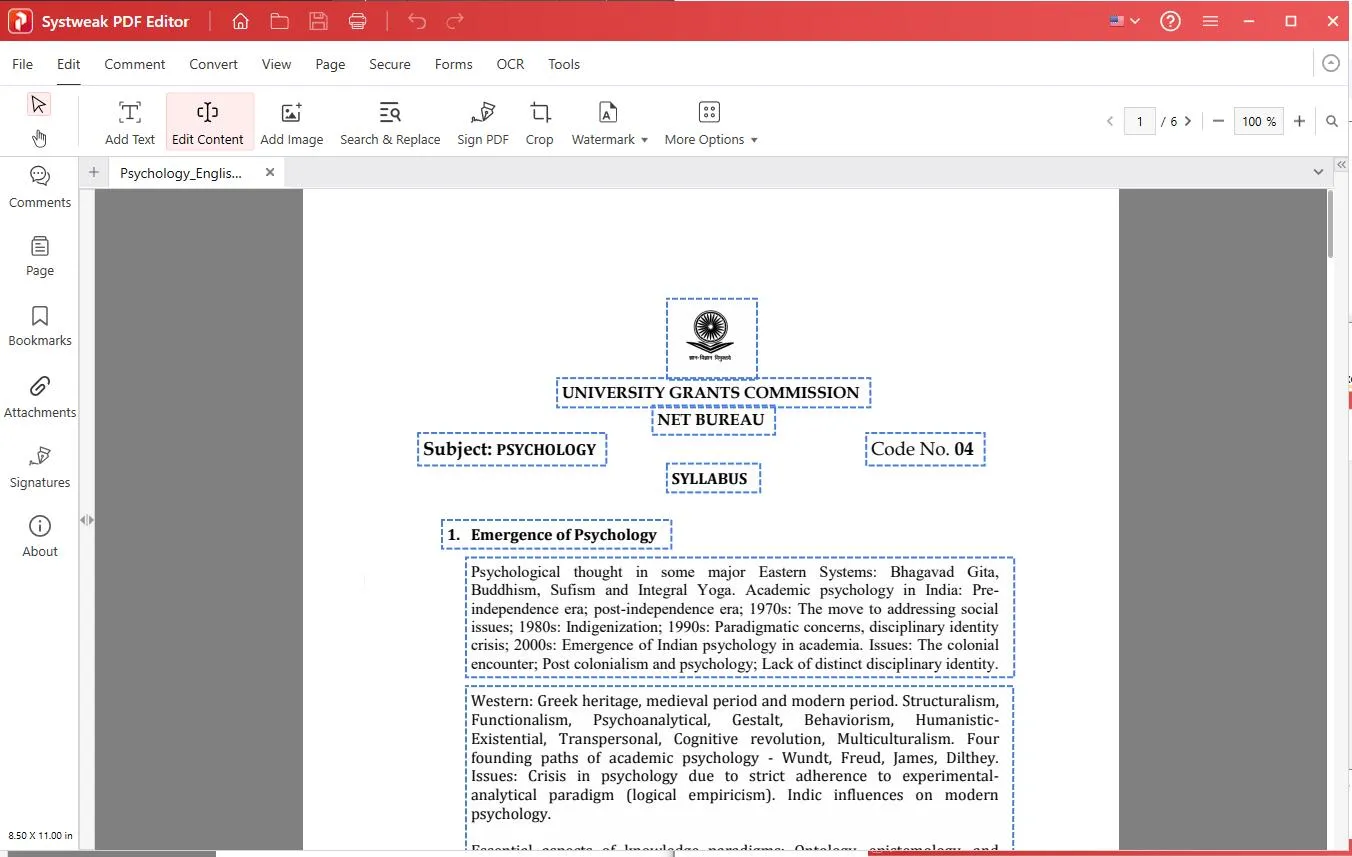
- Press the left mouse button next to the text you want to edit. This will change the dotted box to bold lines. Now, using the mouse, place the cursor, and start typing.
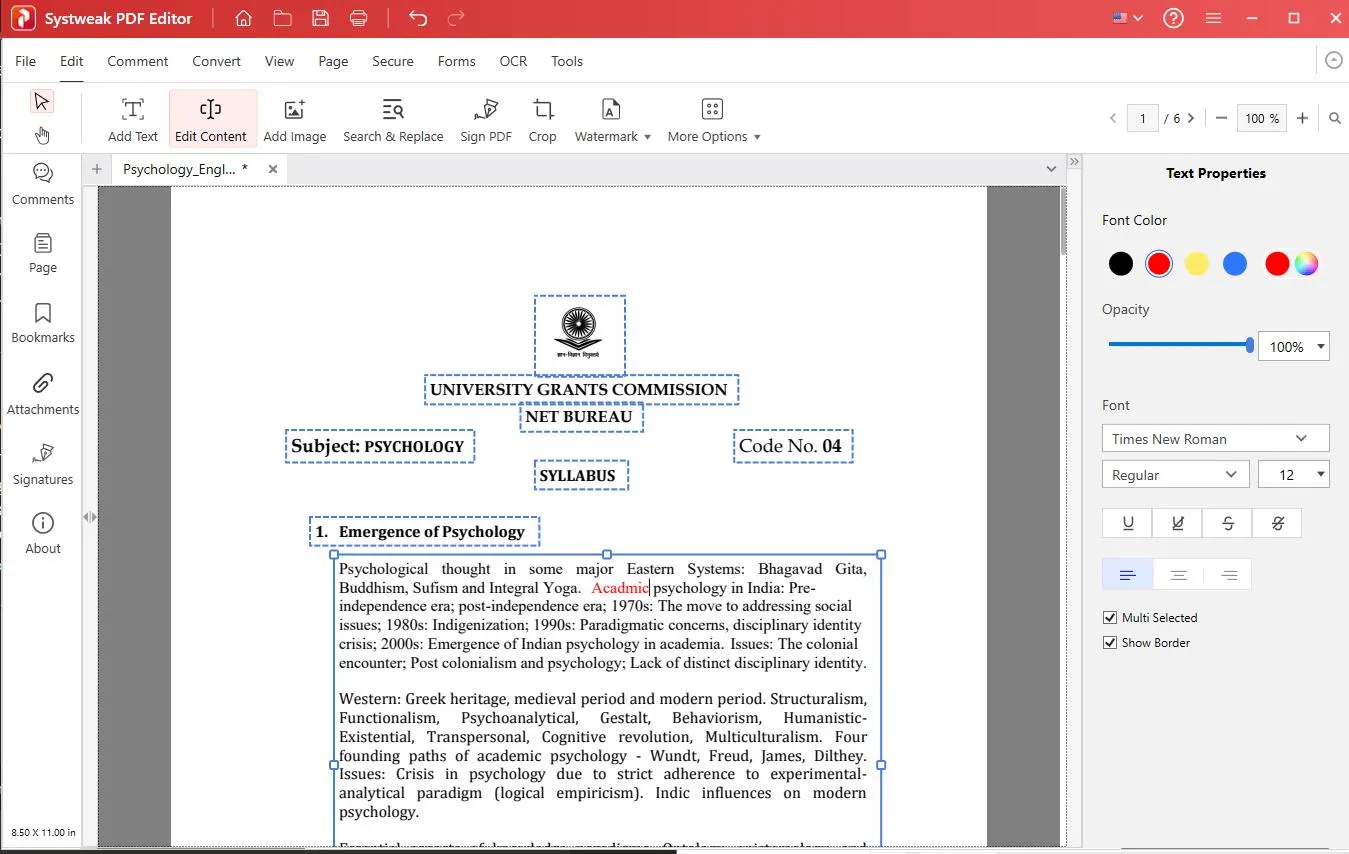
- From the right pane, select the font color, opacity, font, font style, size, and alignment.
- When done, click File and Save the document.
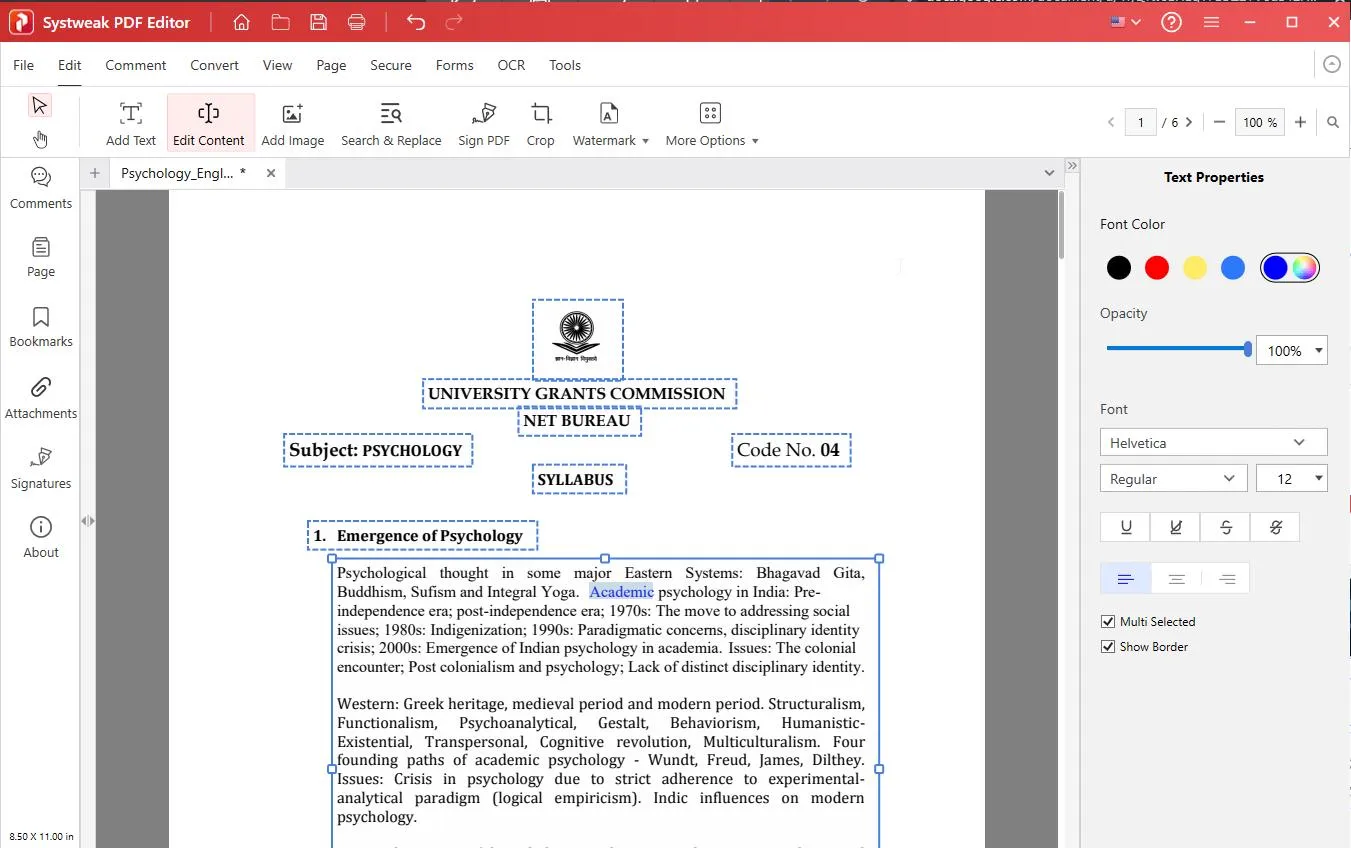
This way, without converting the PDF file, you can easily modify edit text.
Step 4: Add Text to PDF
To add new content, follow these steps:
- Click Add Text option.
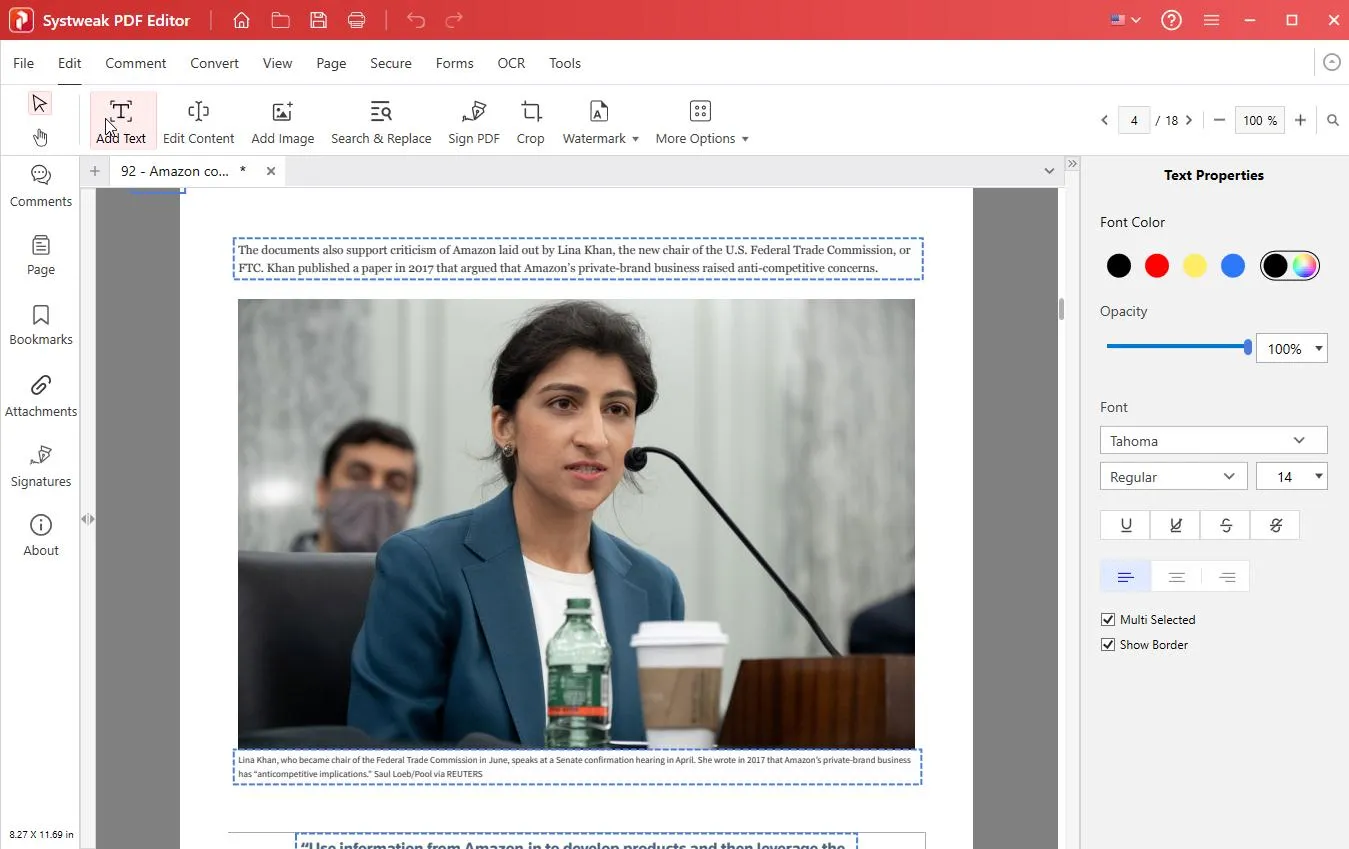
- Place the cursor where you want to add text. You will now see a dotted box.
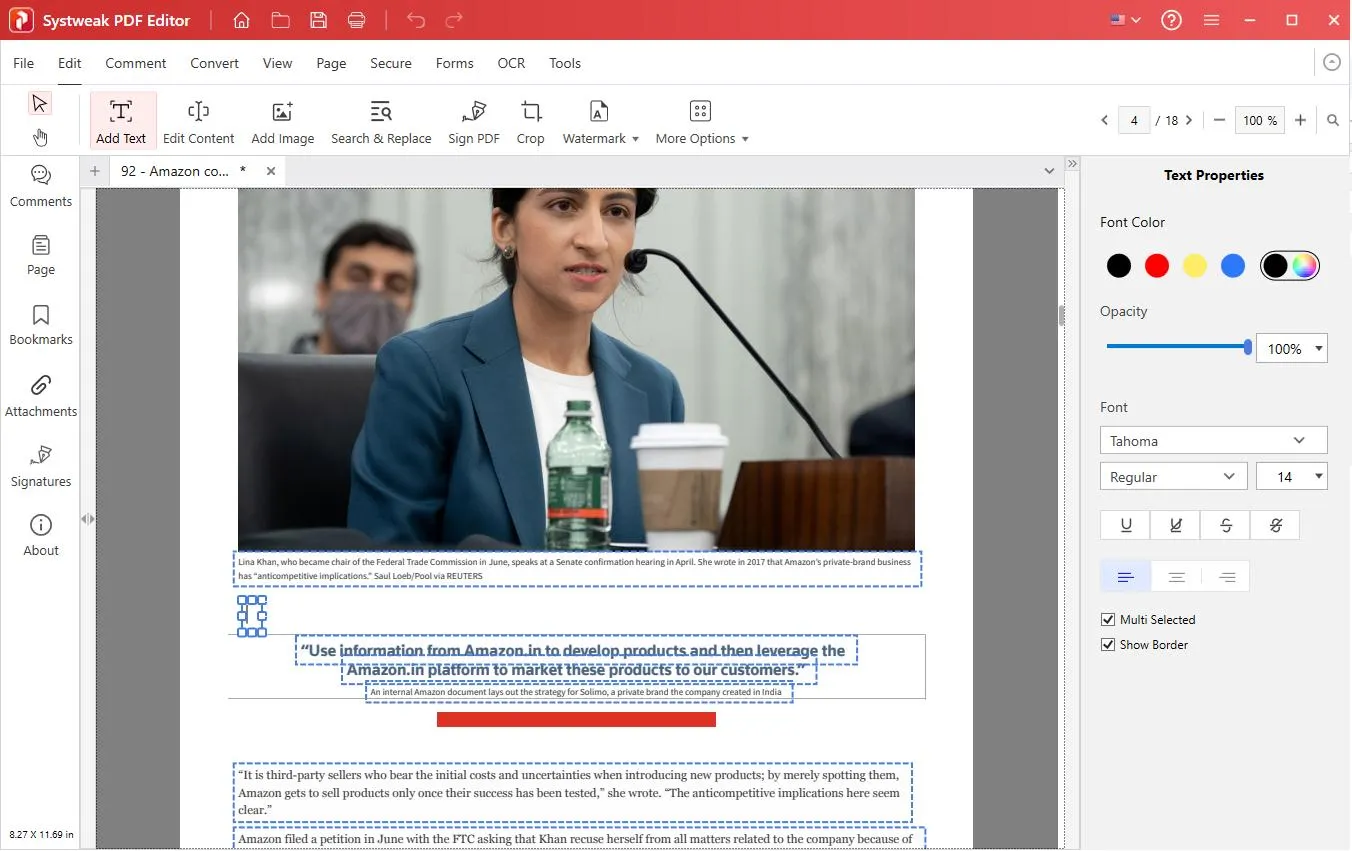
- Here you can start typing the text you want to add. From the right pane, you can pick the options to change font, font style, size, opacity, color, and alignment.
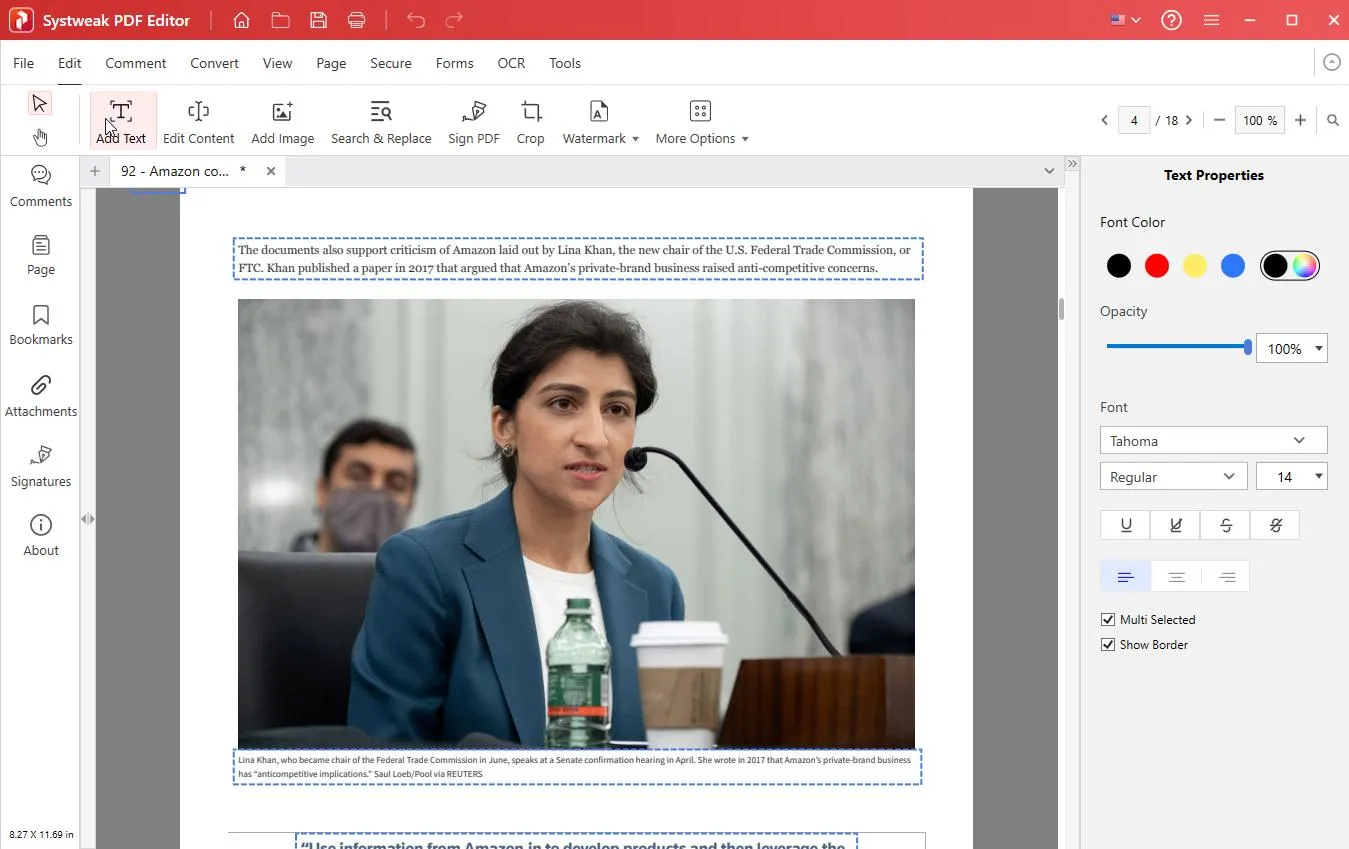
- Click File > Save to apply the changes.
Step 5: Annotate and Comment
- After editing the text, you can also highlight key points or save notes.Click the Comment tab to annotate PDF files. Here, using the different options like highlights, underlines, and strike-throughs, add notes, stamps, and freehand drawing tools, you can annotate a PDF file.To highlight an important point, simply select it, click Highlight, and then select the options from the right pane.
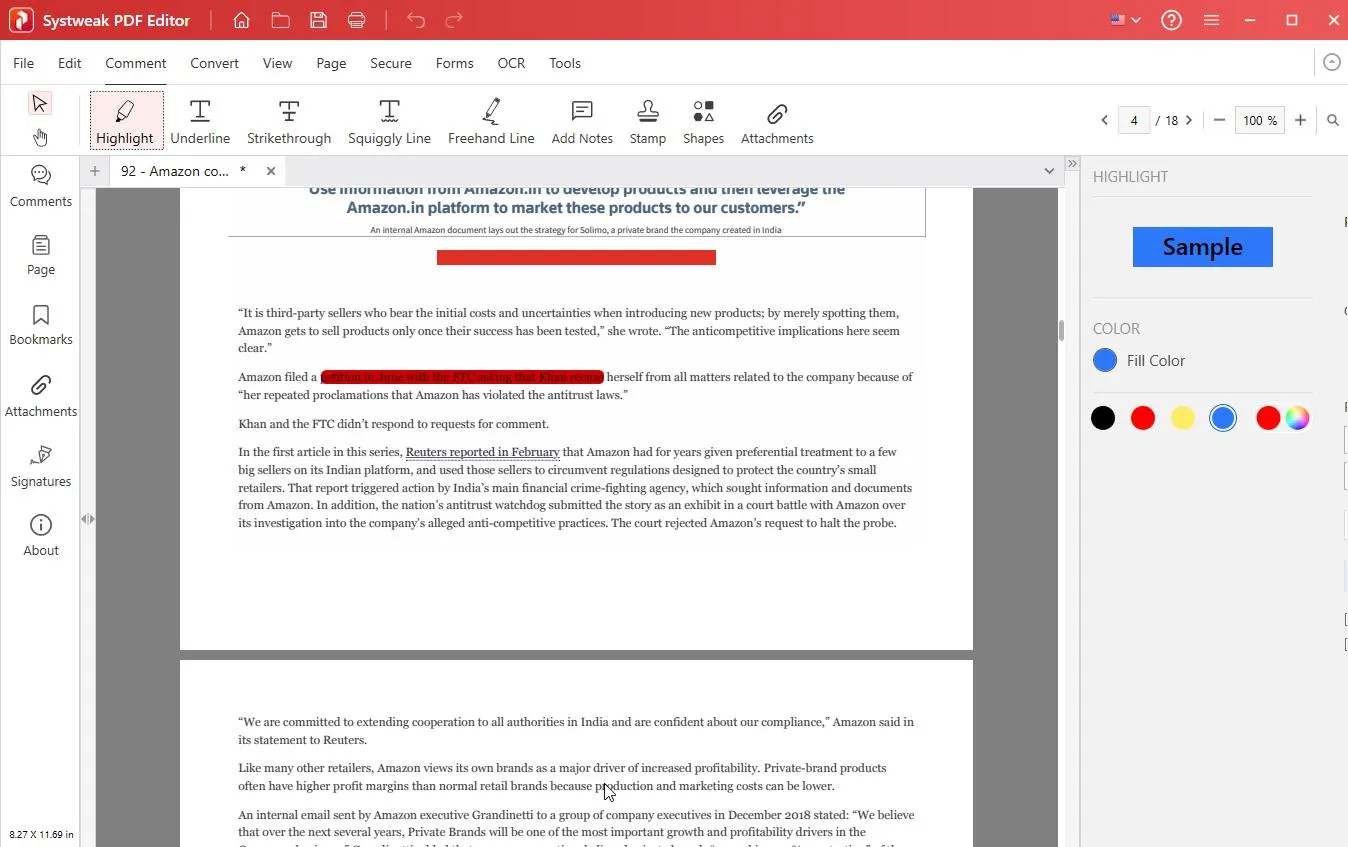
- That’s it, this way you will have highlighted text.
- Similarly, you can annotate any text in the document.
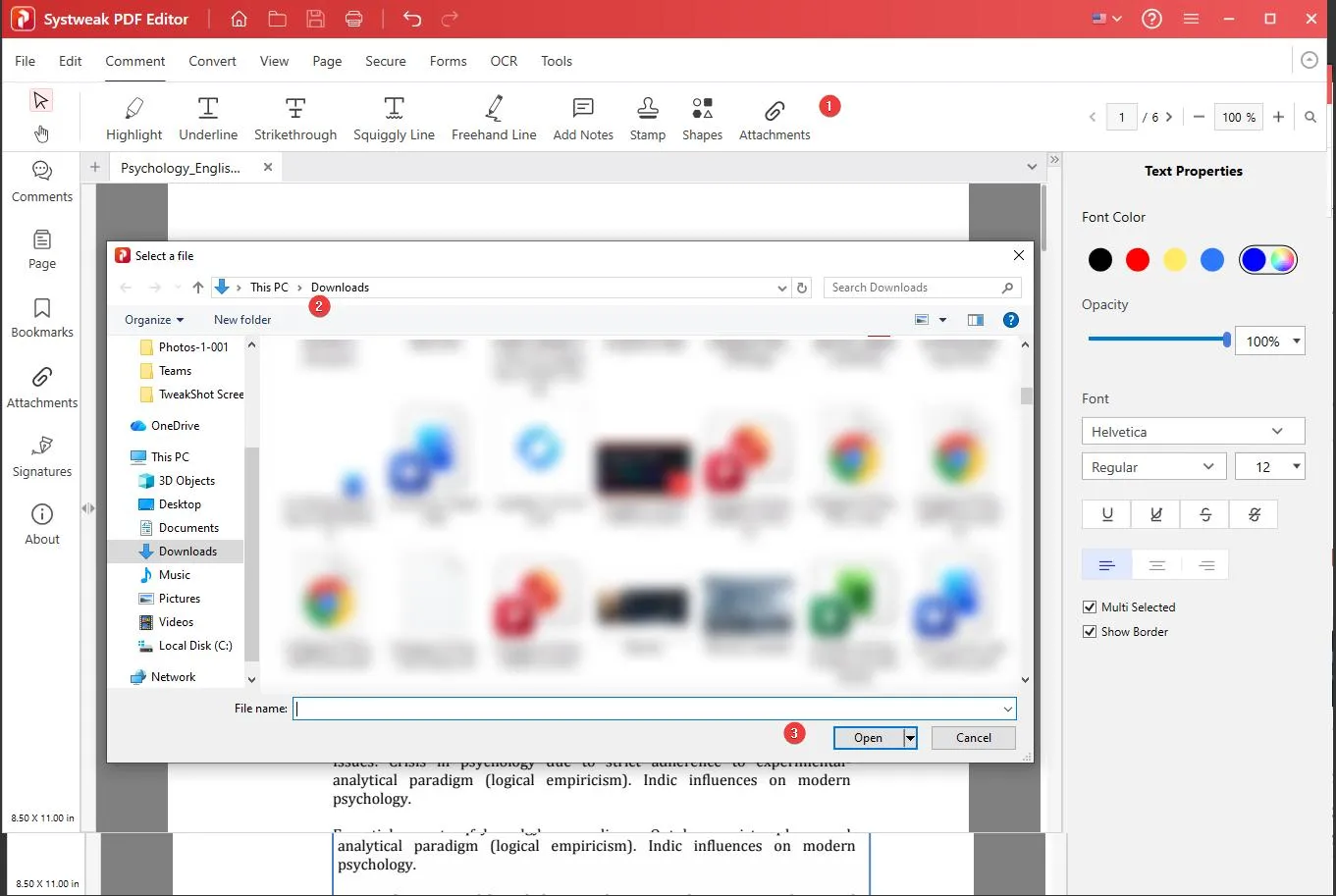
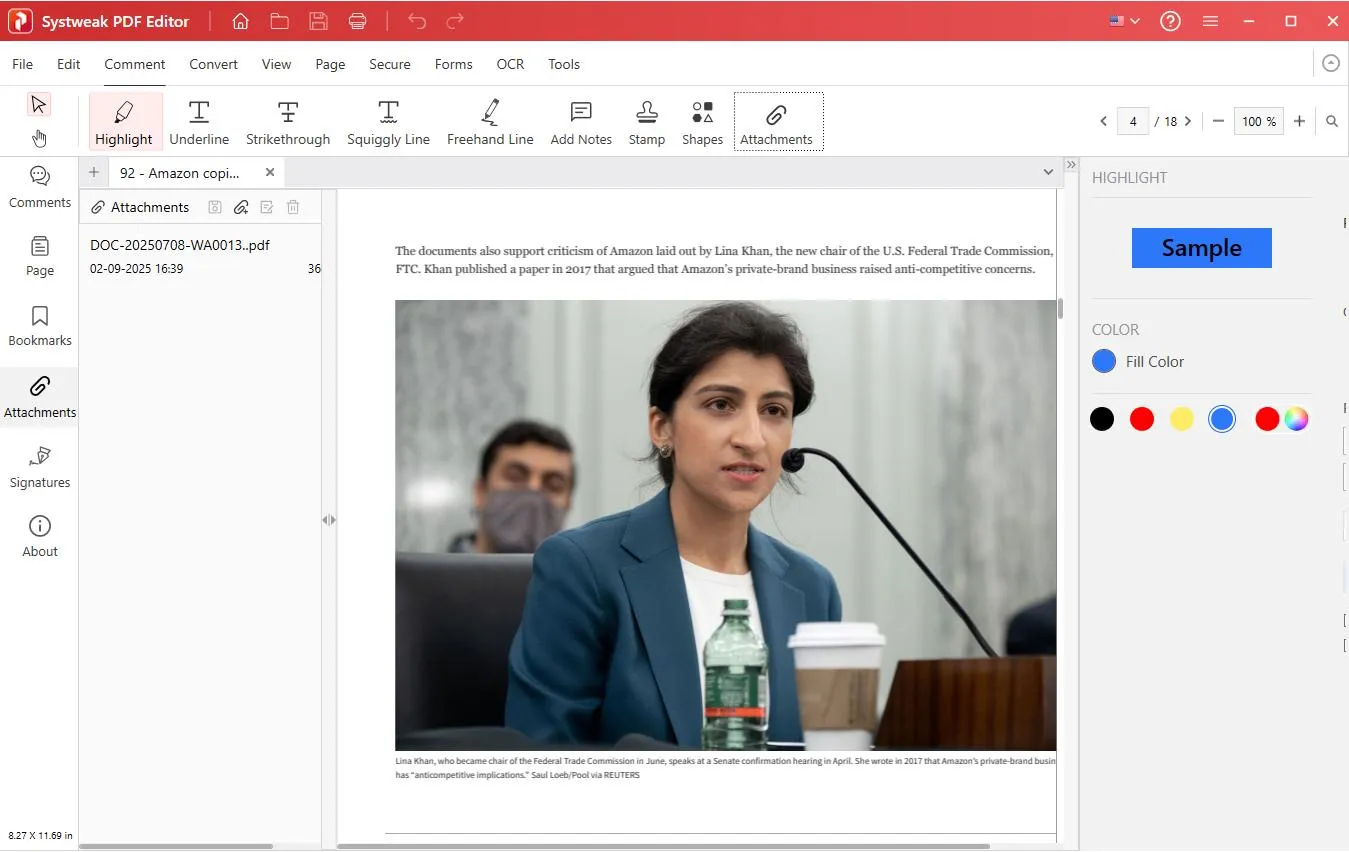
- You can even add external attachments through the Attachments option.
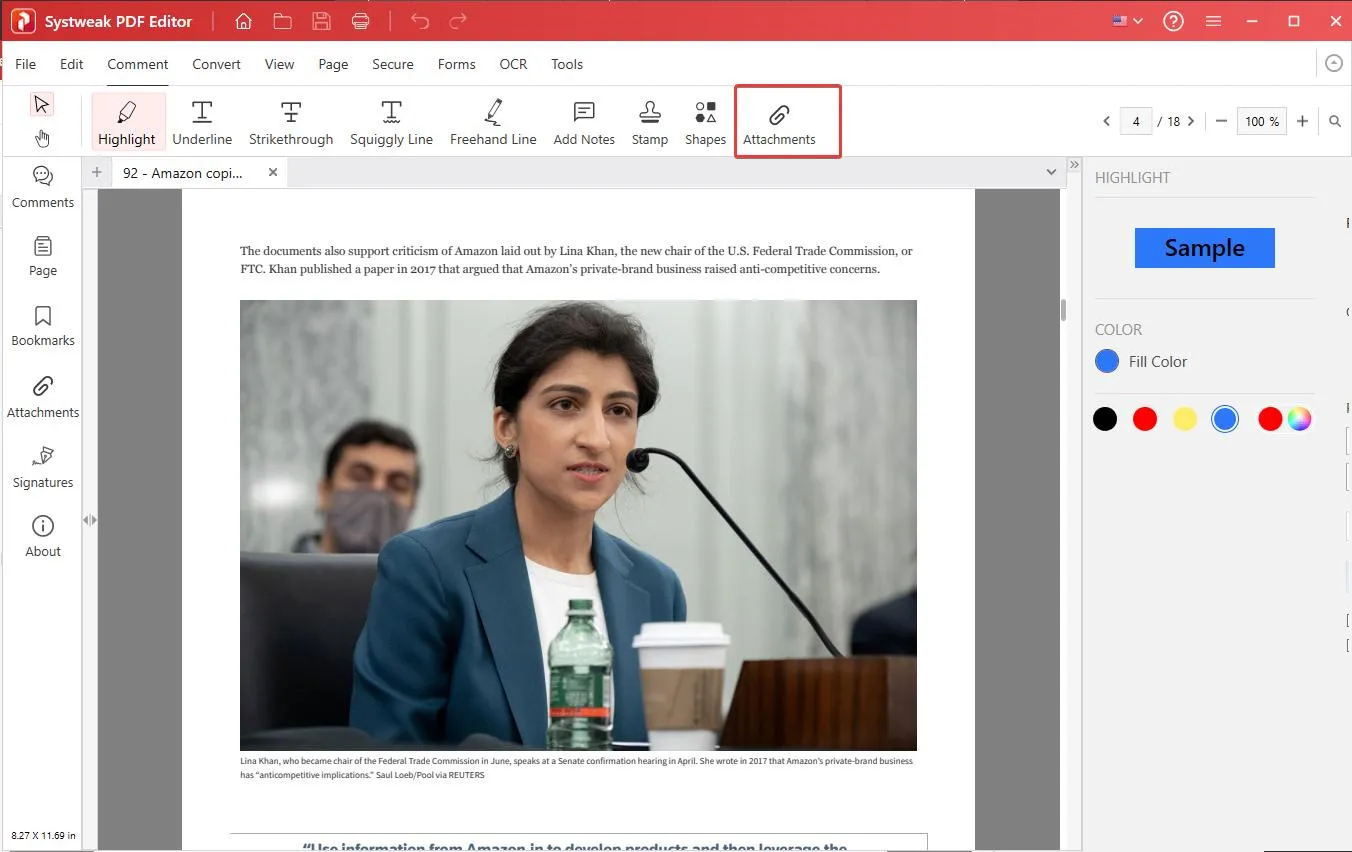
- Click the option > select the file, and it will be added to the active PDF.
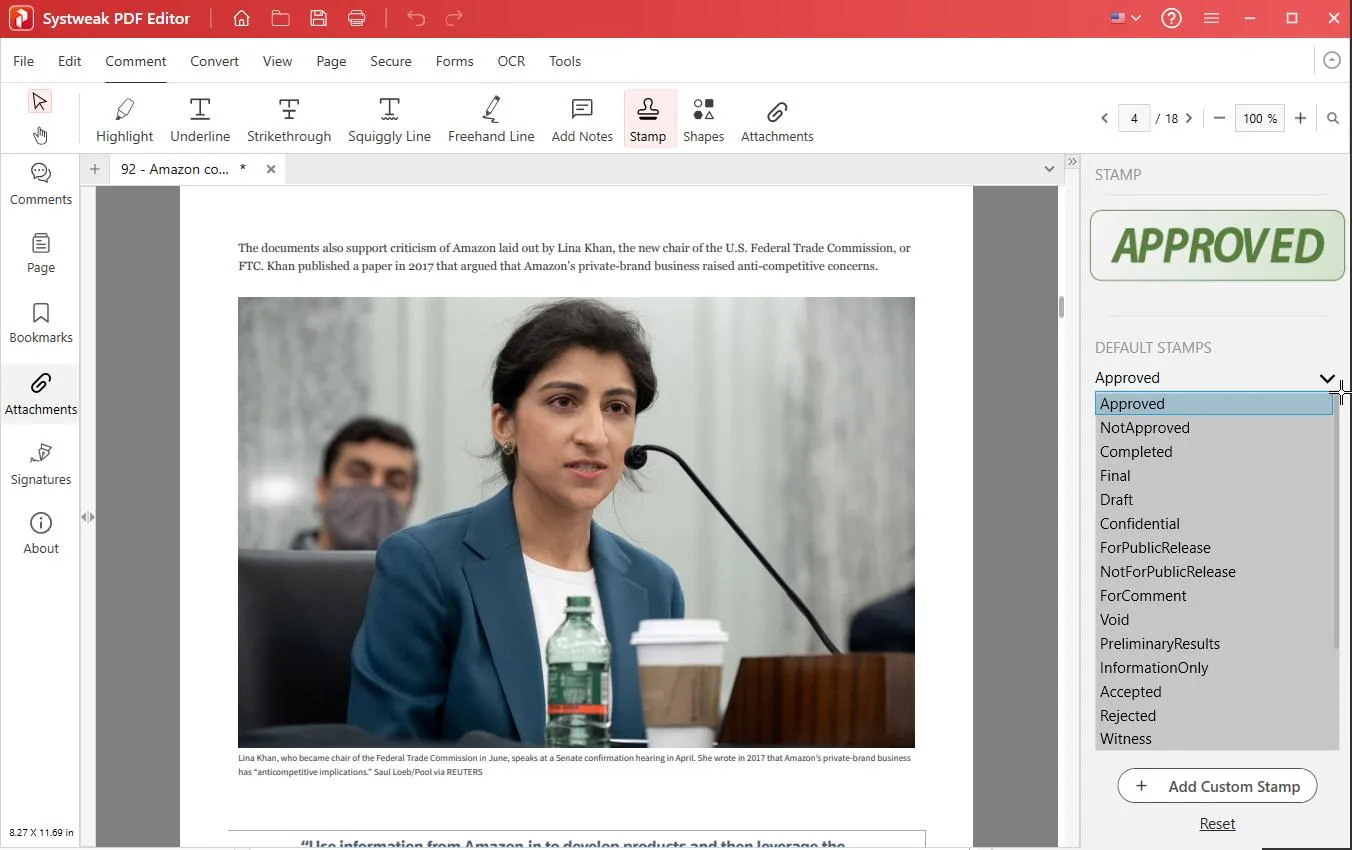
- Add preset and custom stamps using the Stamp option, and explore additional features.
Step 6: Arrange, Rotate, or Merge Pages
If you just need to reorder, remove blank pages, or rotate pages, you can do that too.
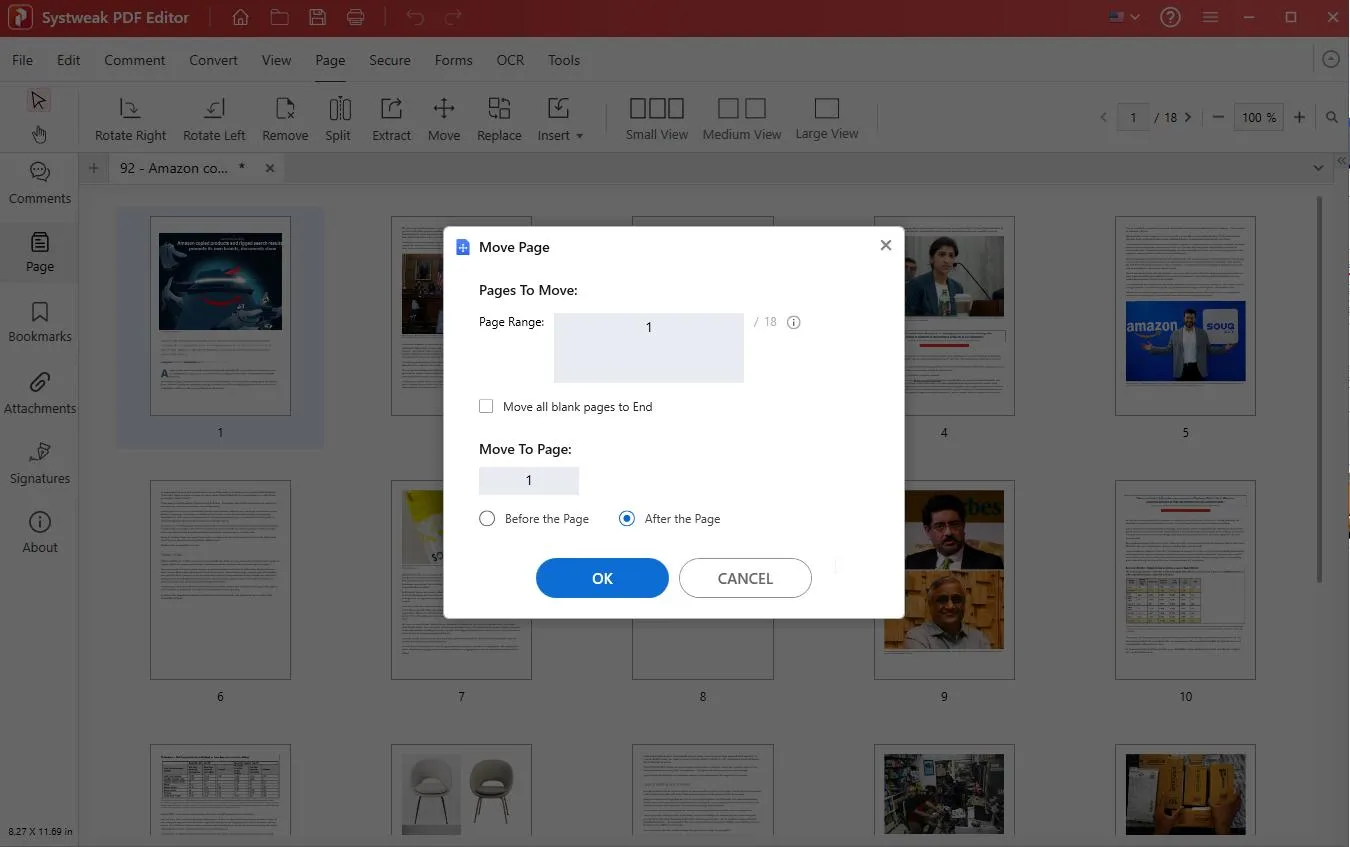
To do so, click the Page tab.
- To arrange PDF pages, just drag the thumbnails over one another.
Alternatively, you use the Move option to move pages before and after the page you select or you can simply move all blank pages to the End.
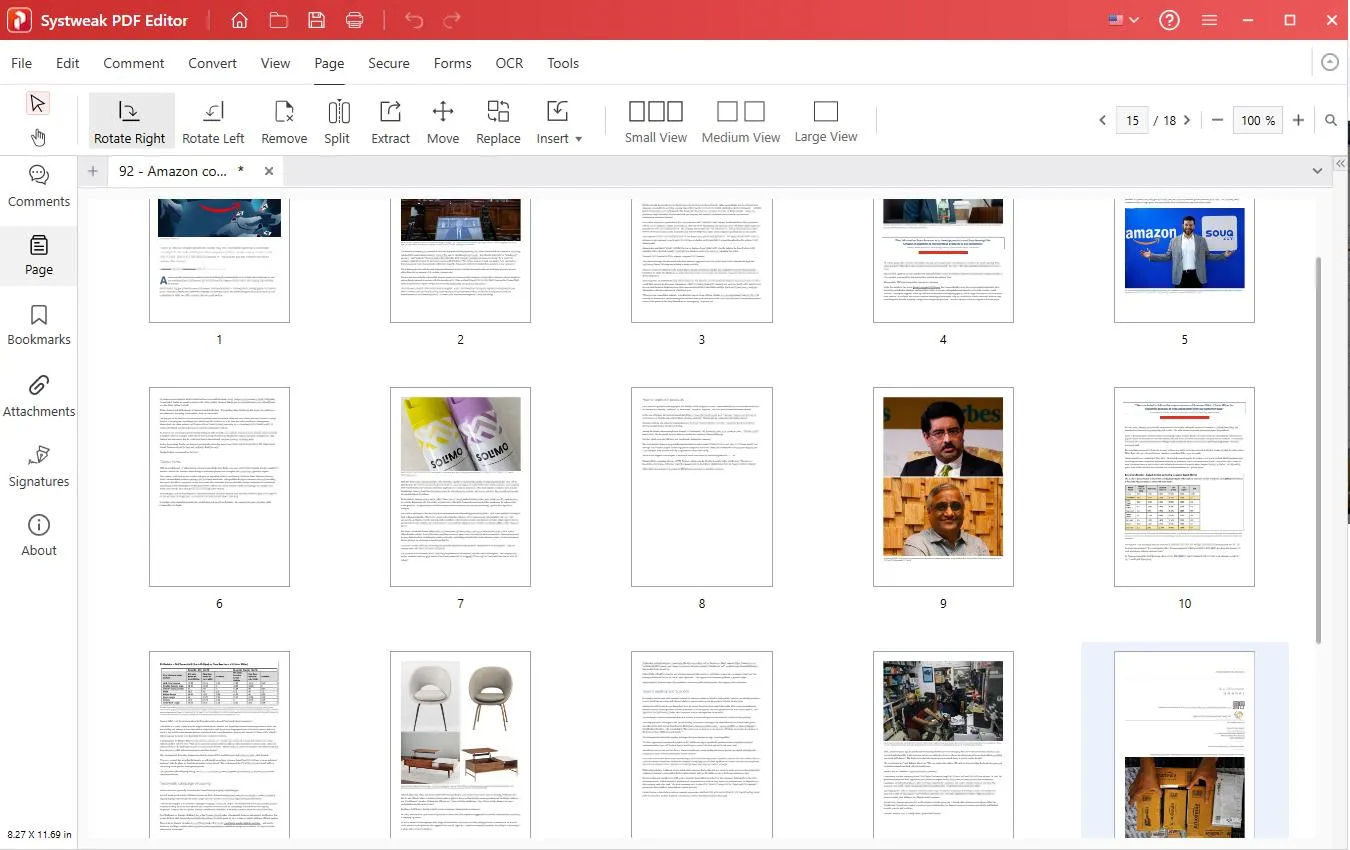
- To Rotate select the pager thumbnail and choose from the options Rotate Right or Rotate Left as per the requirement.
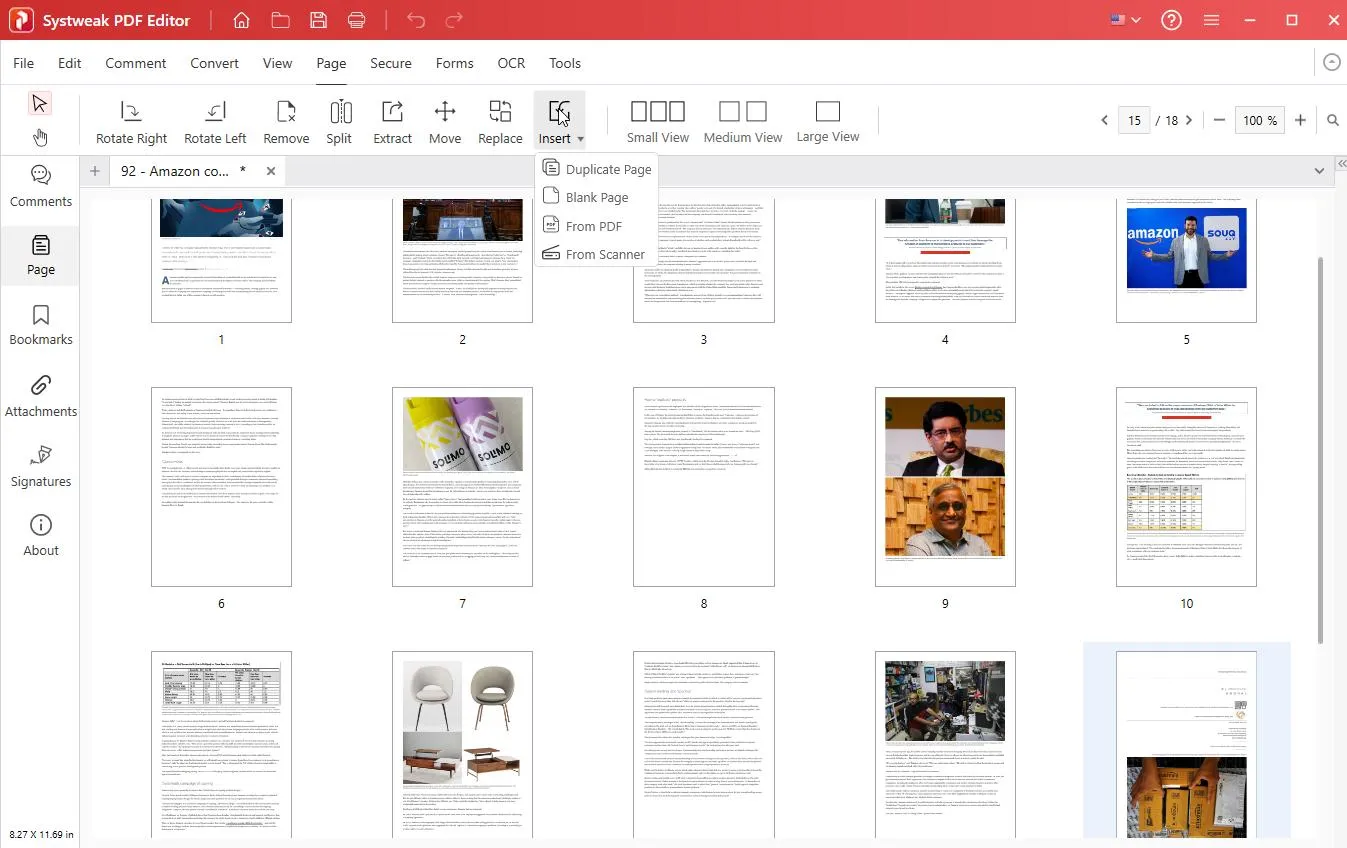
- To insert a blank, duplicate, from a scanner, or from a PDF page, click the Insert option and select from the given options.
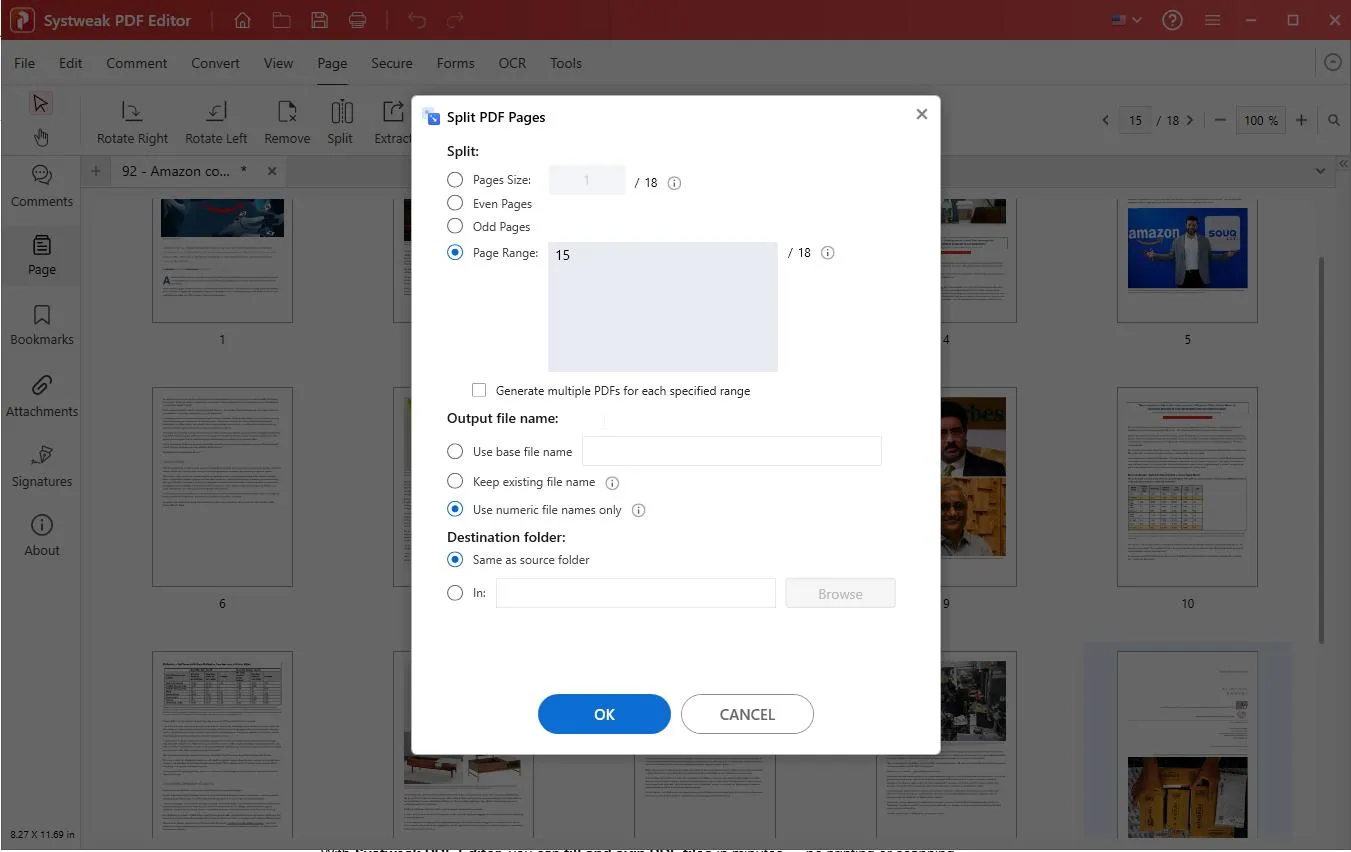
- To Split or Extract PDF pages into one clean document, use the Split or Extract options.
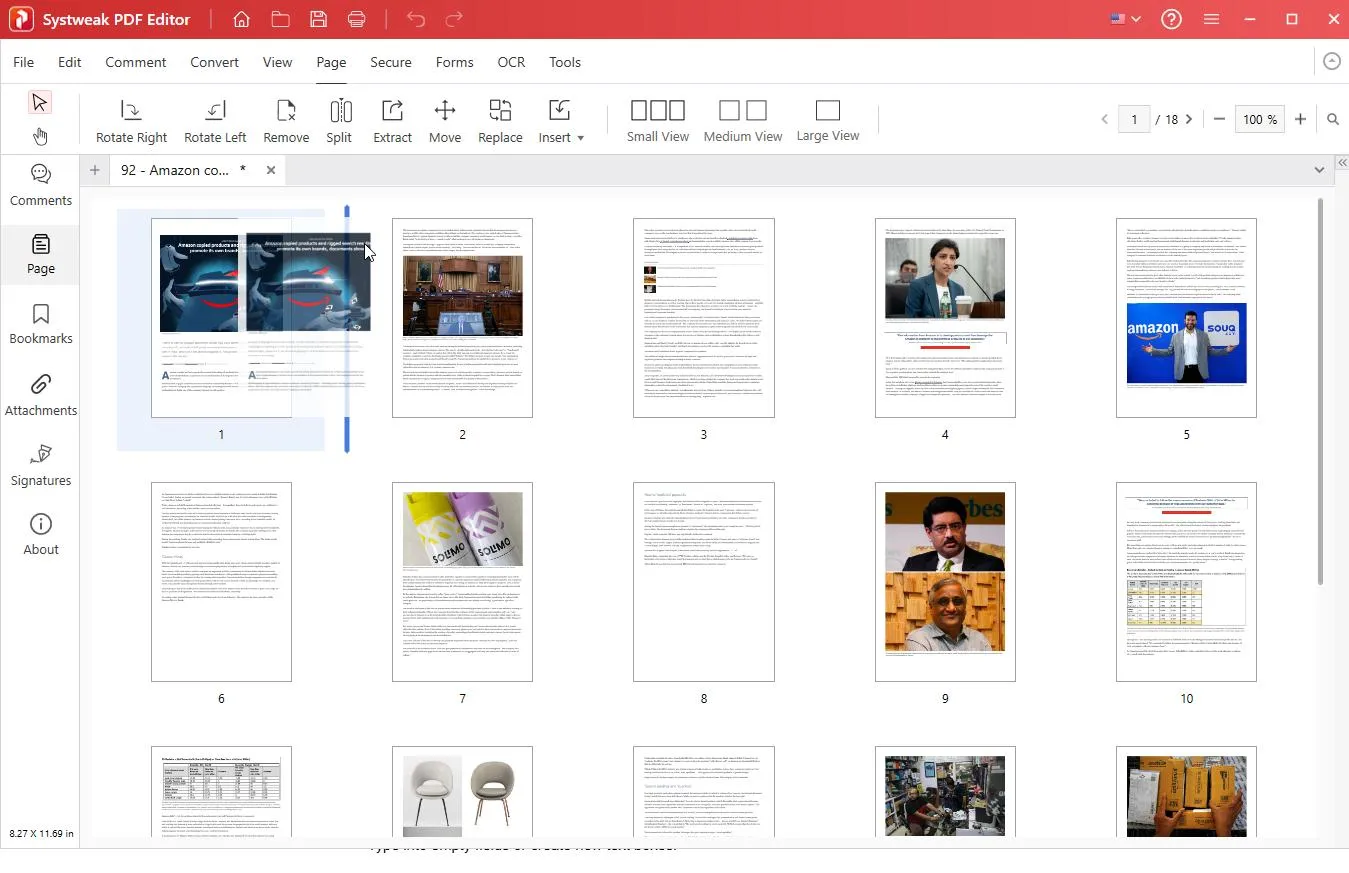
Click the Split option, select the page size or range, name the file, specify the save location, and click OK. You will get a new PDF.
- To Extract click the Extract option > set the page range, and click Ok.
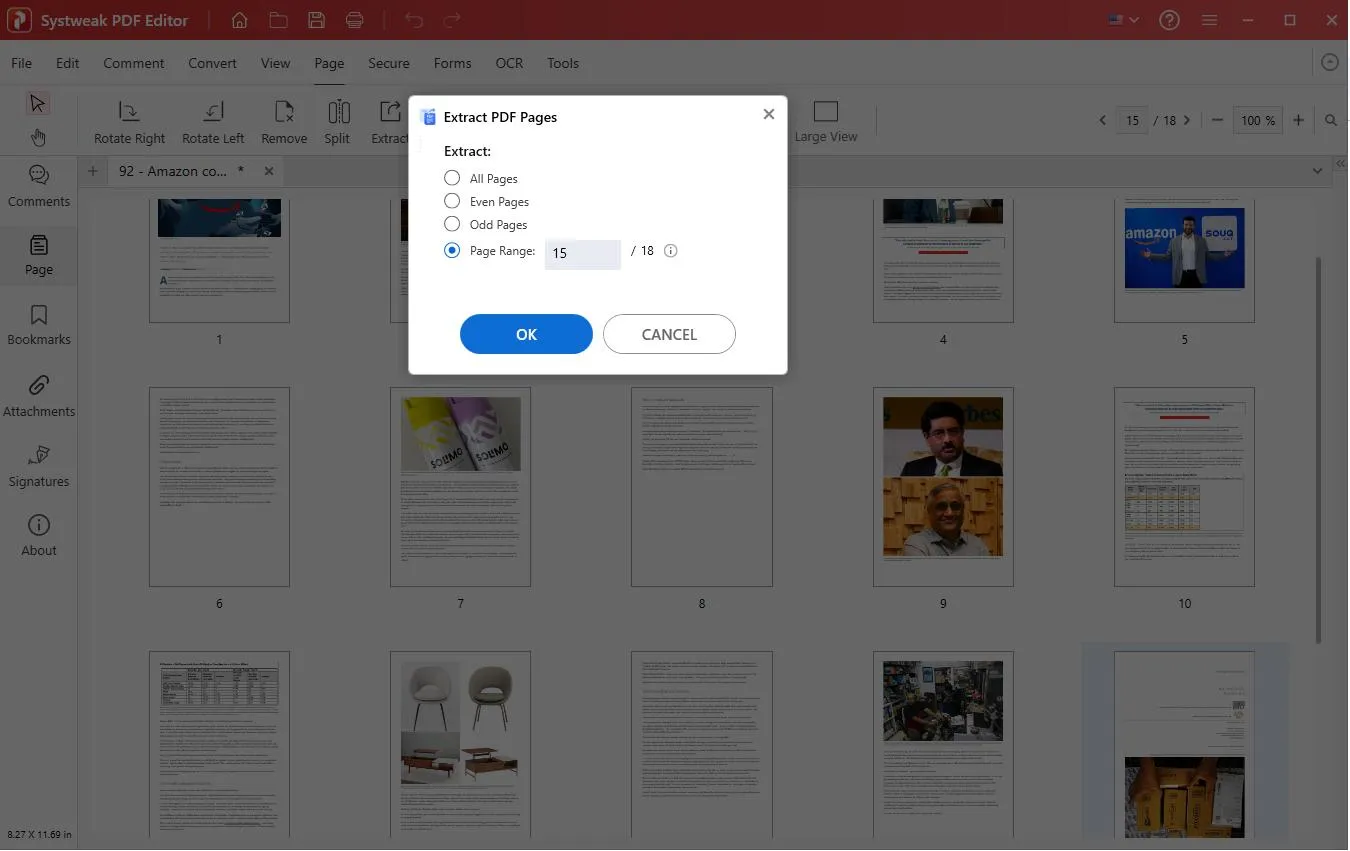
- You will get a new PDF with the extracted pages.
These options will not only save time but also help compile reports, presentations, or scanned files.
Step 7: Convert PDFs Effortlessly
Convert PDFs into editable Word, Excel, PowerPoint, or image formats.
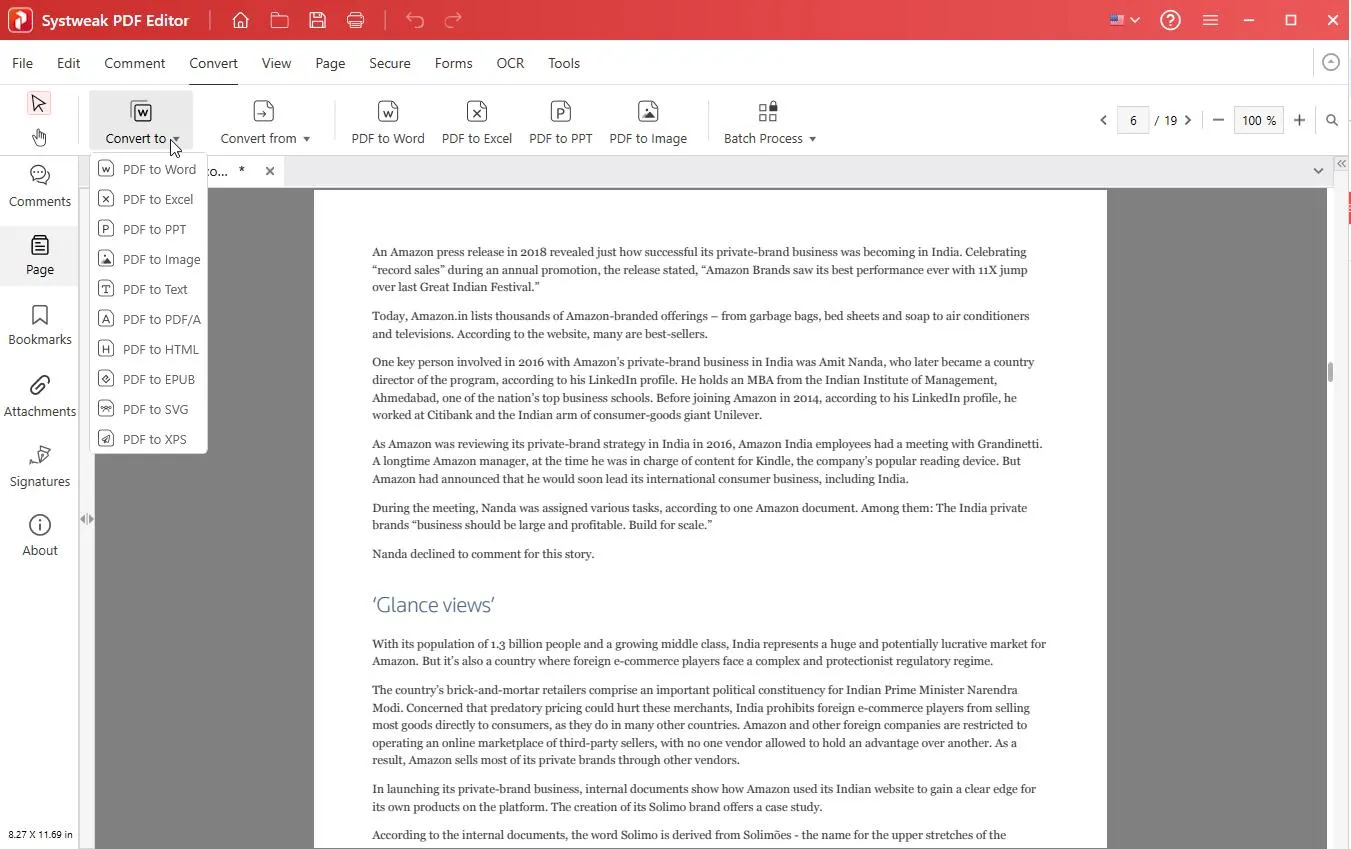
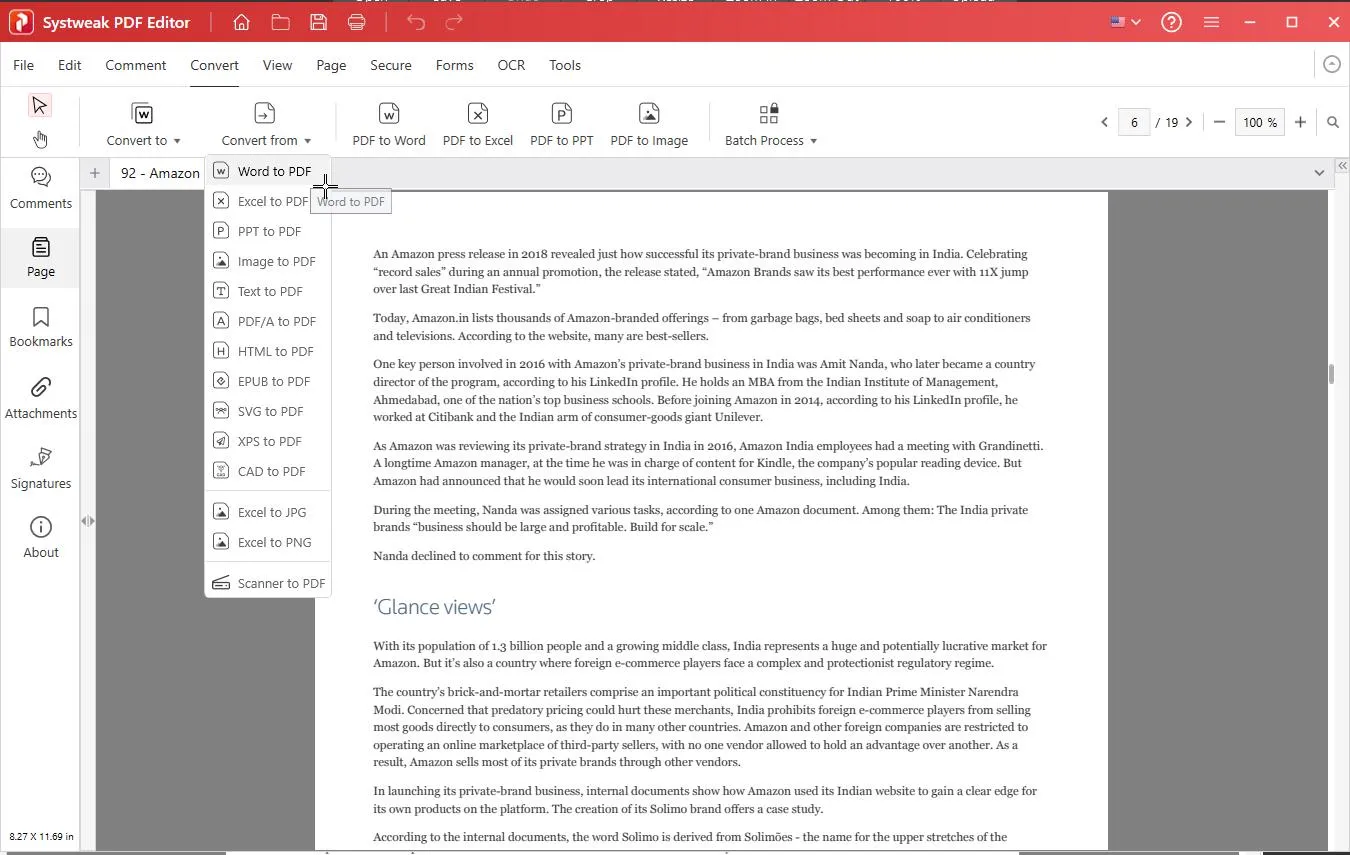
Click Convert tab and select from the two options, Convert to and Convert from, to convert PDF or vice versa.
- To convert PDF to MS Office, image, PDF/A, and other formats, click Convert to > select the format > customize the settings > convert and open the file in the changed format.
- To convert a MS Office file, an image, etc to PDF, click the Convert from > select the format.
- Browse and select the file > click Open.
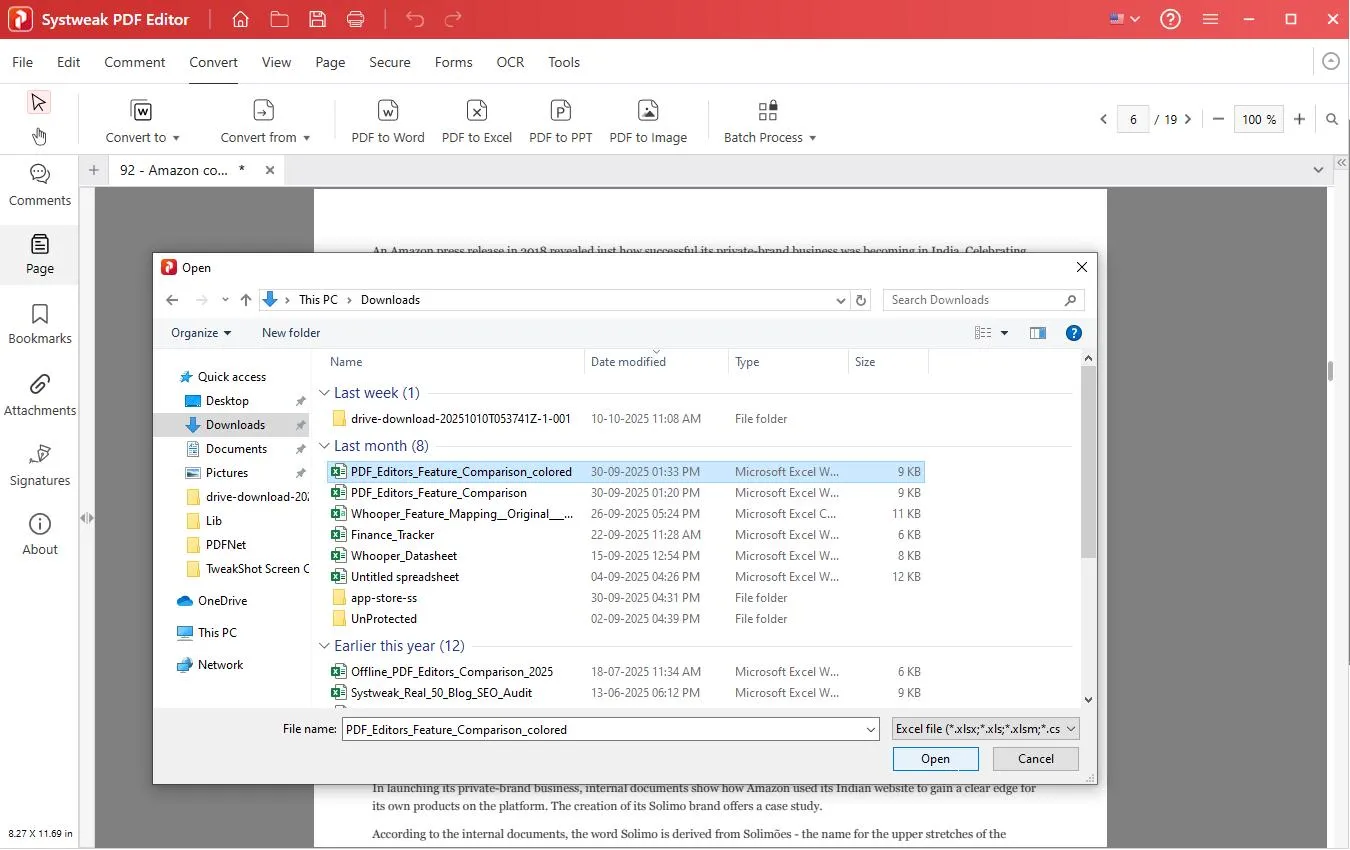
- Systweak PDF Editor will convert it into a PDF and will open it within the app.
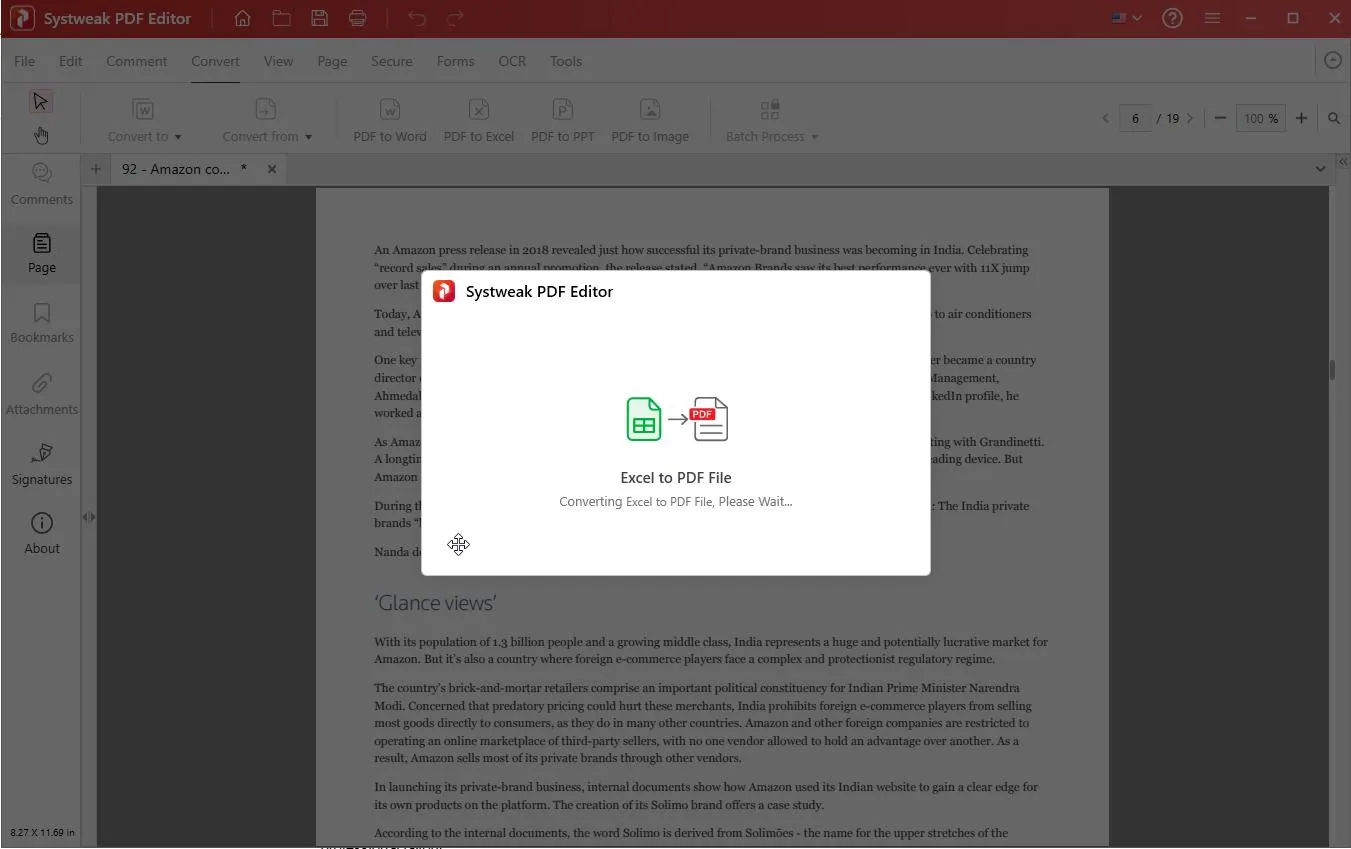
- You can also batch-convert multiple files at once. This will save hours of manual work.

Step 8: Protect and Secure Your PDFs
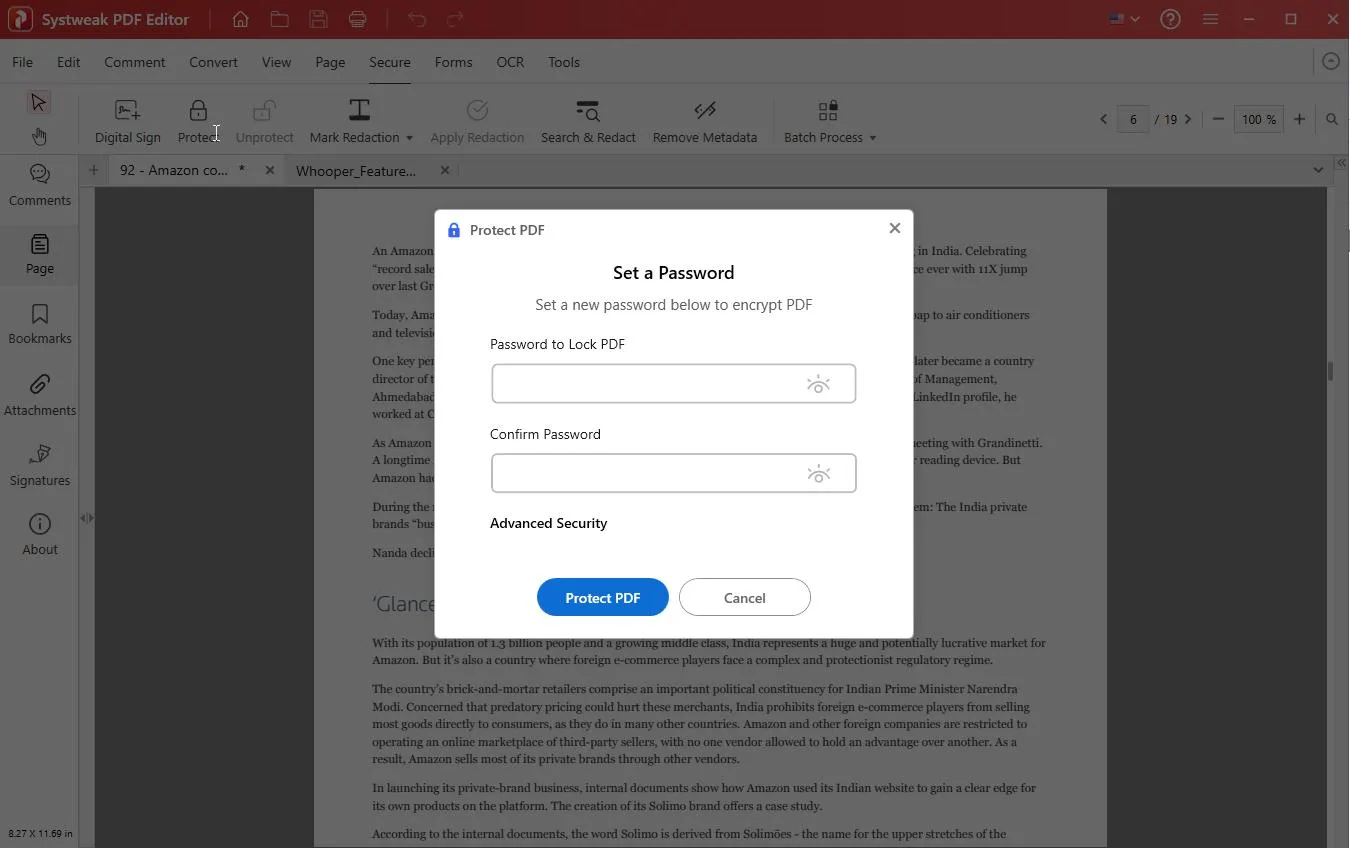
Before sharing your documents, secure them to ensure only the intended user can access or modify them. To do so, move to the Secure tab.
- Click Protect to add a password and lock the PDF. Add and confirm the password, and click Protect PDF.
- Once the password to lock the PDF is set, you can set editing/printing restrictions. Click Secure tab > Protect > Advanced Security. From here, you can set printing, copying, editing, signing, form-filling, and format-changing permissions.
- Click Save to apply changes.
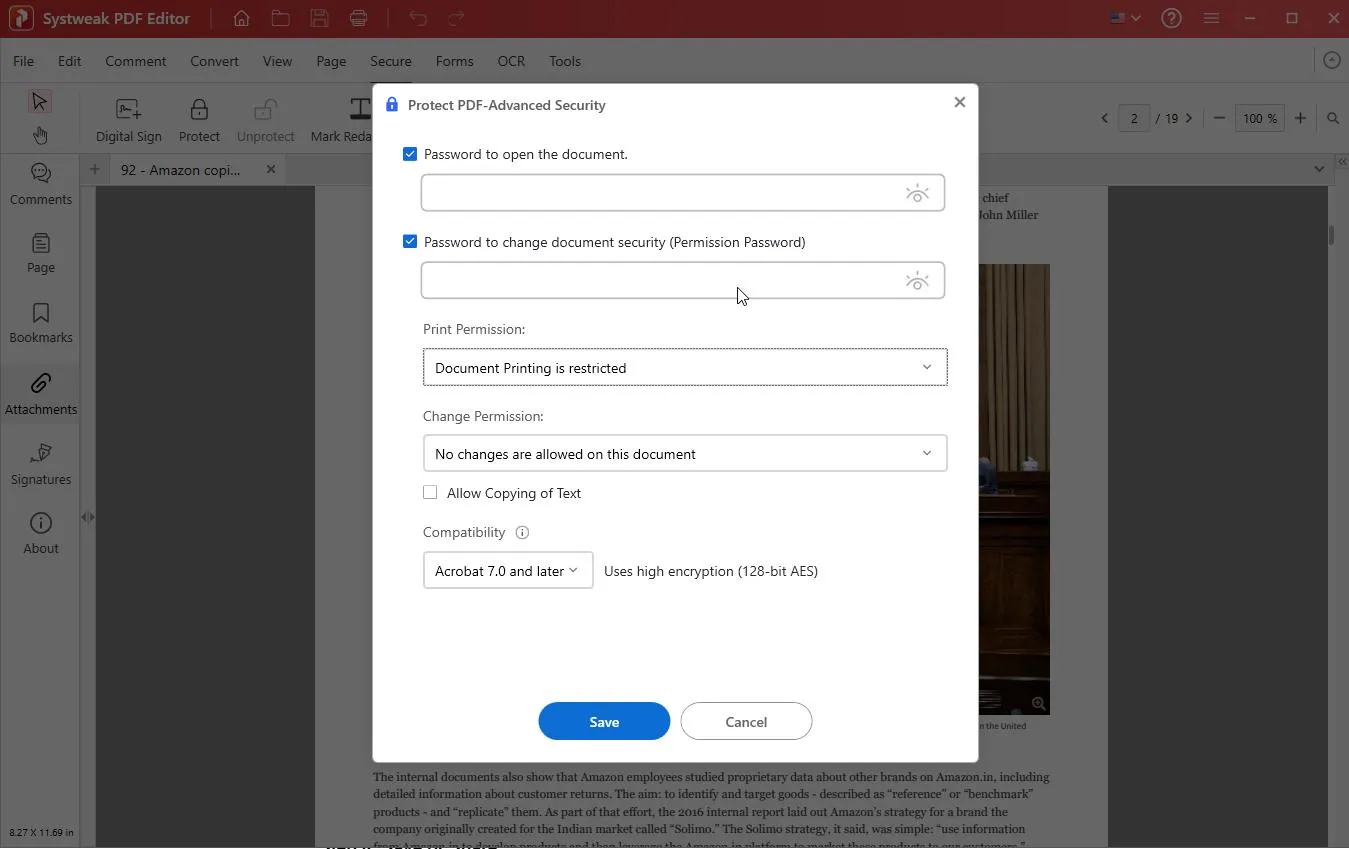
This ensures your protected PDF files remain private.
You can even add Digital Signatures to your PDF. Click Digital Sign > place your mouse cursor where you want to add the signature and drag to make a box.
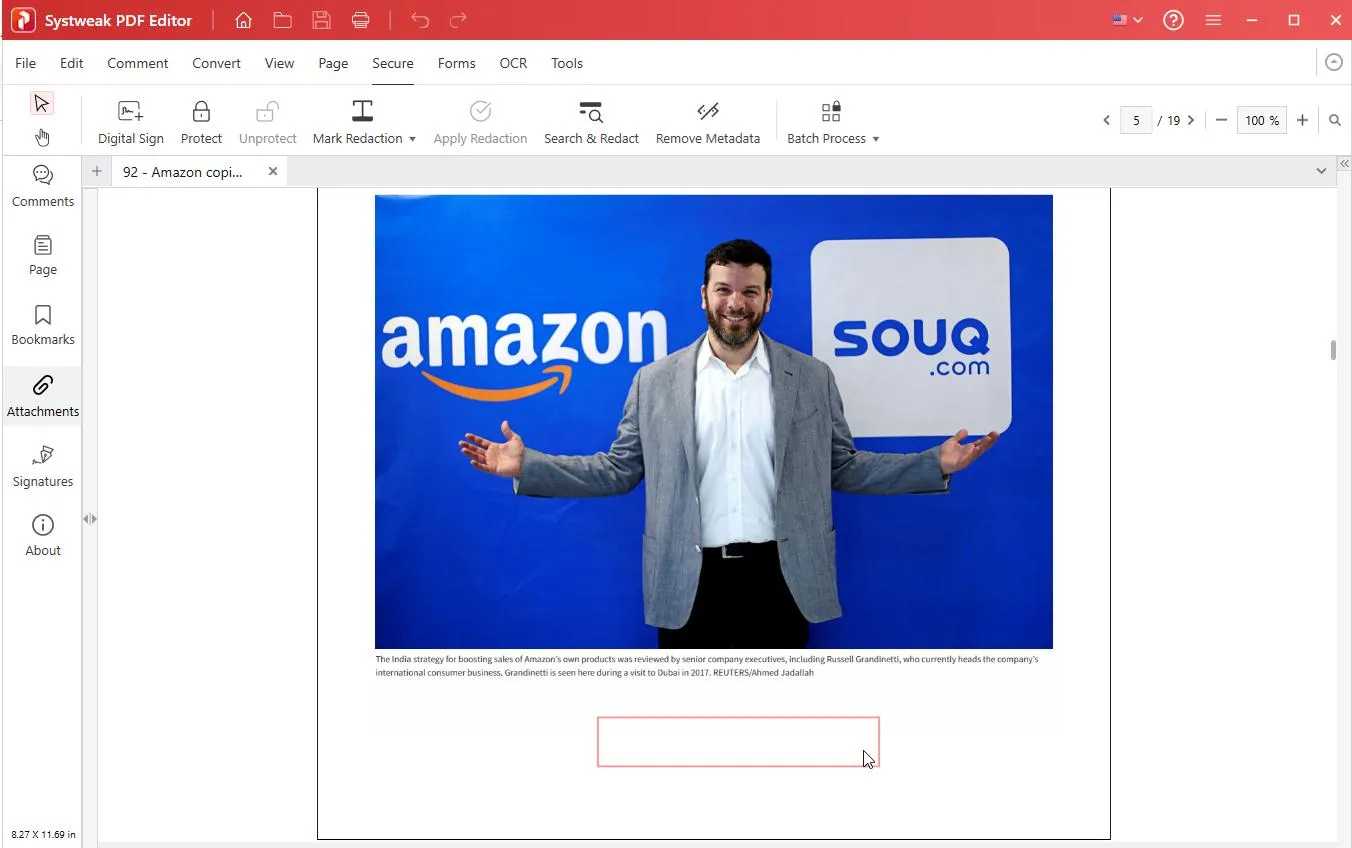
- Double-click in the box and add the signature > click Sign
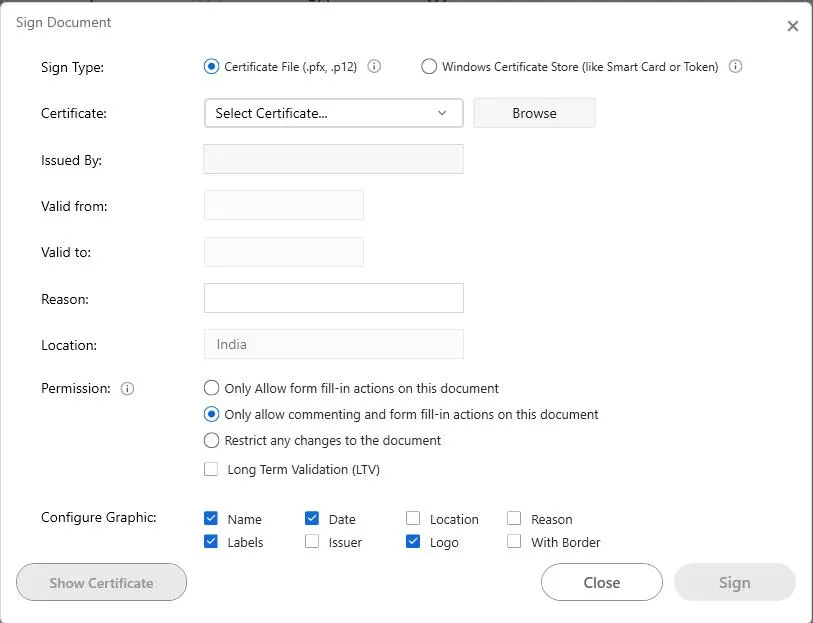
- A digital signature will be added at the selected location.
Step 9: Save
Once you are done editing the PDF, click File > Save or Save As to apply changes to the PDF.
This will help preserve the changes you made to the PDF, whether it is editing text, adding a signature, filling a form, merging, duplicating, changing layout, or others.
Frequently Asked Questions
Q. How can I edit a PDF file on Windows without Adobe Acrobat?
You can use other PDF editing tools like Systweak PDF Editor, uPDF, PDFelement, NitroPDF, PDFgear, etc., that allow editing and performing other operations on PDF like compression, signing, watermarking, creating, converting, etc.
Q. Is Systweak PDF Editor free to use?
Yes, there is a 7 day trial free trial version available.
Q. Does Systweak PDF Editor work fully offline?
Yes, it works completely offline, and you can edit, convert, compress, merge, sign, watermark, protect, redact, and repair all without uploading any of your files.
Q. How is Offline PDF Editor different from online editors?
Unlike online, browser-based editors, to use it, you don’t need an internet connection. There is no need to upload your files. Every task, from editing to compression, conversion, signing, redaction, and more, is done on your desktop PC.
Ready to Edit PDFs Effortlessly?
Editing PDFs without an advanced tool can be frustrating, time-consuming, and irritating. With the right PDF Editor, you can solve your editing problems.
Systweak PDF Editor, without making you upload documents, allows you to edit text and images, sign documents, annotate text, watermark, redact, protect, remove metadata, convert files to Word, Excel, PPT, or image formats, and more.


Leave a Reply