


Summary
A frozen MacBook does not necessarily mean a hardware issue. It can happen due to overloaded memory, incompatible apps, or software bugs and glitches. In this guide, we have compiled the best proven troubleshooting methods to fix this issue once and for all.
A Mac freezing is very annoying, and it occurs at the most inconvenient time when you are trying to work on something crucial, attending a meeting, or editing images. And suddenly, your cursor won’t move, the apps do not respond to anything, and the famous beach ball shows up.
But before you think that your Mac has some major hardware problems, just remember that almost all freezes happen because of software issues, high memory usage, an old version of macOS, or faulty applications.
And here comes the positive part – most of the time you will be able to unfreeze your Mac without losing any data. We have explained all the methods with detailed steps in this article.
Why does a Mac freeze?

There are multiple causes of your Mac freezing up. We need to know the cause to make troubleshooting easier. Here are some of the common causes of a Mac freezing up:
- Insufficient RAM
- Multiple apps running at once
- Faulty or incompatible app
- Storage is too low
- System files corrupted
- Older version of macOS
- Problem with startup disk
- Peripheral devices interfering
- Malware infection (rare but can happen)
- Hardware issues like problems with the SSD or RAM
Signs your Mac has frozen.
- Cursor doesn’t work
- Keyboard isn’t working
- Your apps don’t react
- Rainbow spinning beach ball keeps appearing
- Screen freezes
- Finder is unresponsive
- Cannot switch between apps
- Fans are whirring while nothing is happening
Expert-Recommended Methods To Fix Frozen MacBook.
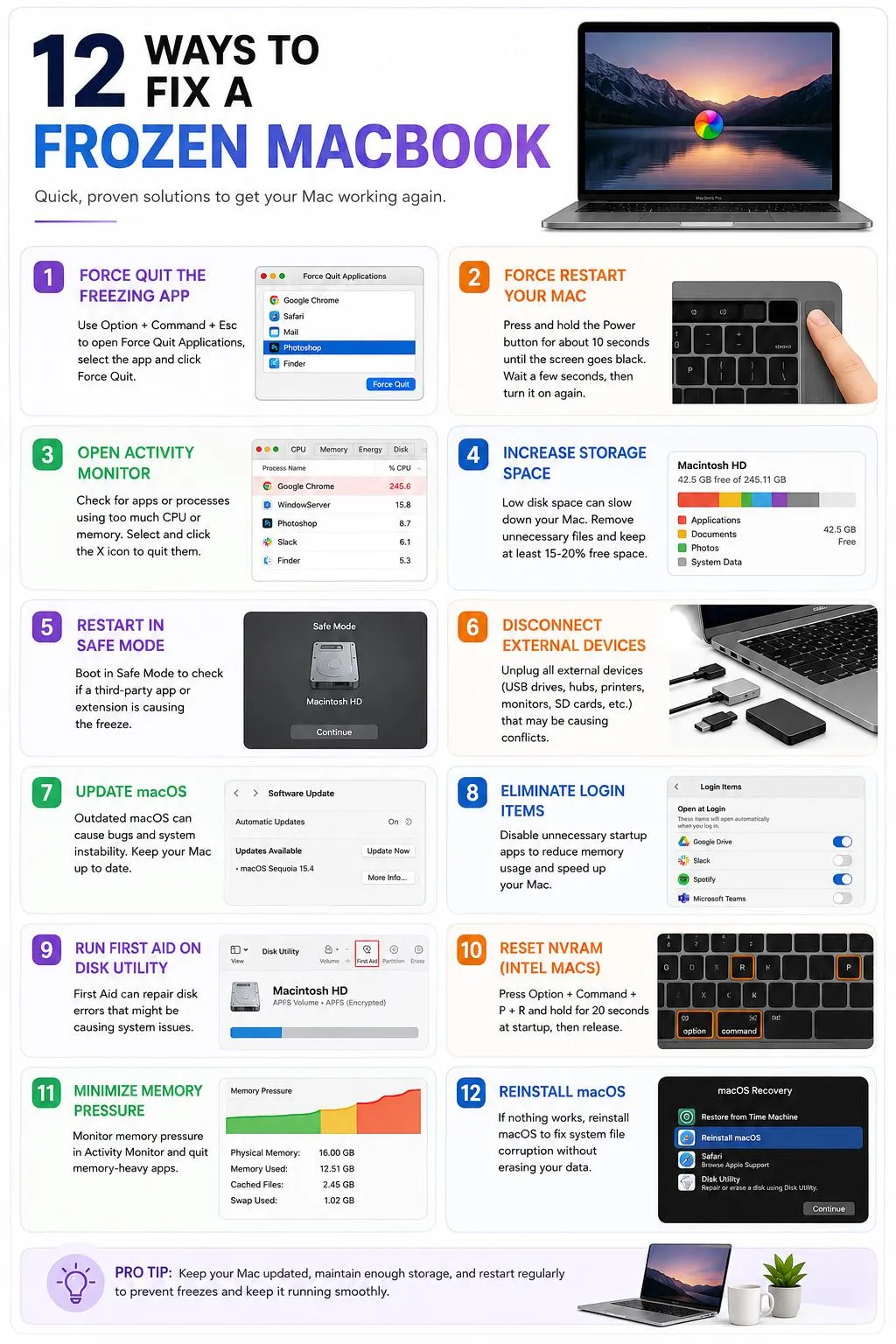
Method 1 – Force Quit the Freezing App
If only one app froze but macOS runs fine, you don’t have to reset the whole computer.
To open the Force Quit window using the keyboard shortcuts, press: Option + Command + Esc, select the freezing app, and click Force Quit.
Then relaunch the app.
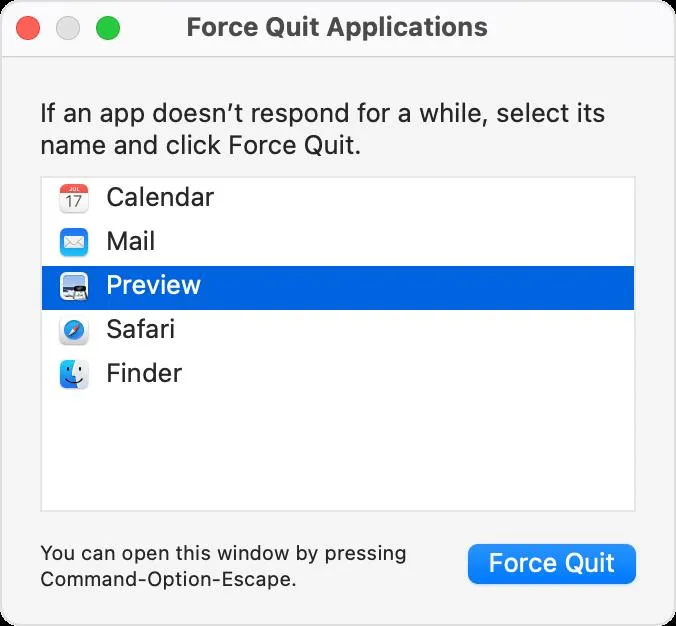
Alternatively, if you see that app icon in the taskbar, right-click on it and select Force Quit.
Or, if you cannot access the Force Quit window, you may proceed from the Apple Menu by following these steps:
- Click Apple Menu.
- Select Force Quit.
- Click the problematic app and Force Quit.
Method 2 – Force Restart Your Mac
If your Mac stops responding at all, make a forced restart.
For Intel Macs
- Press and hold the Power button for about 10 seconds.
- Wait for 30 seconds.
- Click Power.
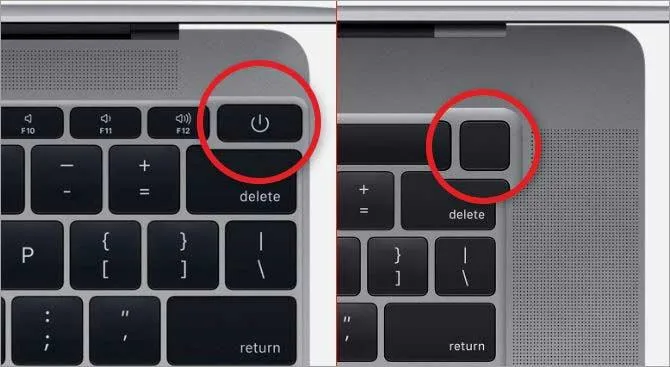
For Apple Silicon Macs (M1, M2, M3, M4)
- Hold the Power button until the display goes black.
- Wait for several seconds.
- Restart your Mac.
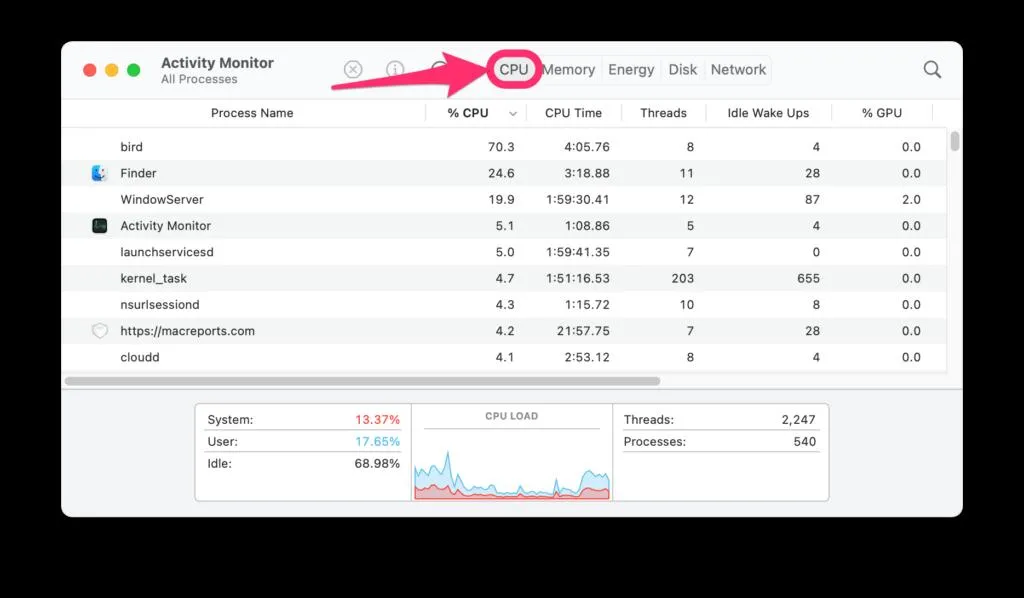
Method 3 – Open Activity Monitor
A single process might consume almost all your CPU/Memory resources. This is how you can launch Activity Monitor.
- Go to: Applications -> Utilities -> Activity Monitor
- Sort by: CPU, Memory, Energy.
- Check for:
- Applications consuming more than 100% CPU
- Memory being used extremely high
- Process Not Responding
4.Select that process and then press the X icon and click Force Quit.
| Case Study
A freelance graphic designer experienced his MacBook Pro freezing daily while working on large Photoshop files. Upon using Activity Monitor, he found out that Photoshop had used up more than 28 GB of memory due to the use of a problematic third-party plug-in. Once the plug-in was disabled, the problem was fixed. This shows the importance of using Activity Monitor in the first place when troubleshooting. |
Method 4 – Increase Storage Space
Do you know that the performance of your computer is terrible when the startup disk almost runs out of space? This is because it is advised by Apple advises keeping enough space for virtual memory and temporary files.
- Go to Apple menu > System Settings > General > Storage.
- When there is less than 10-15% space left, get rid of unneeded files.
- Remove unwanted files from Downloads, Old videos, Duplicate files, Trash, Applications, and Old DMG installers.
Method 5 – Restart in Safe Mode
In Safe Mode, only important files of macOS will be loaded on startup. It will help to detect startup problems, login items issues, third-party programs issues, and kernel extension issues.
If you have an Apple Silicon system, then perform the steps below.
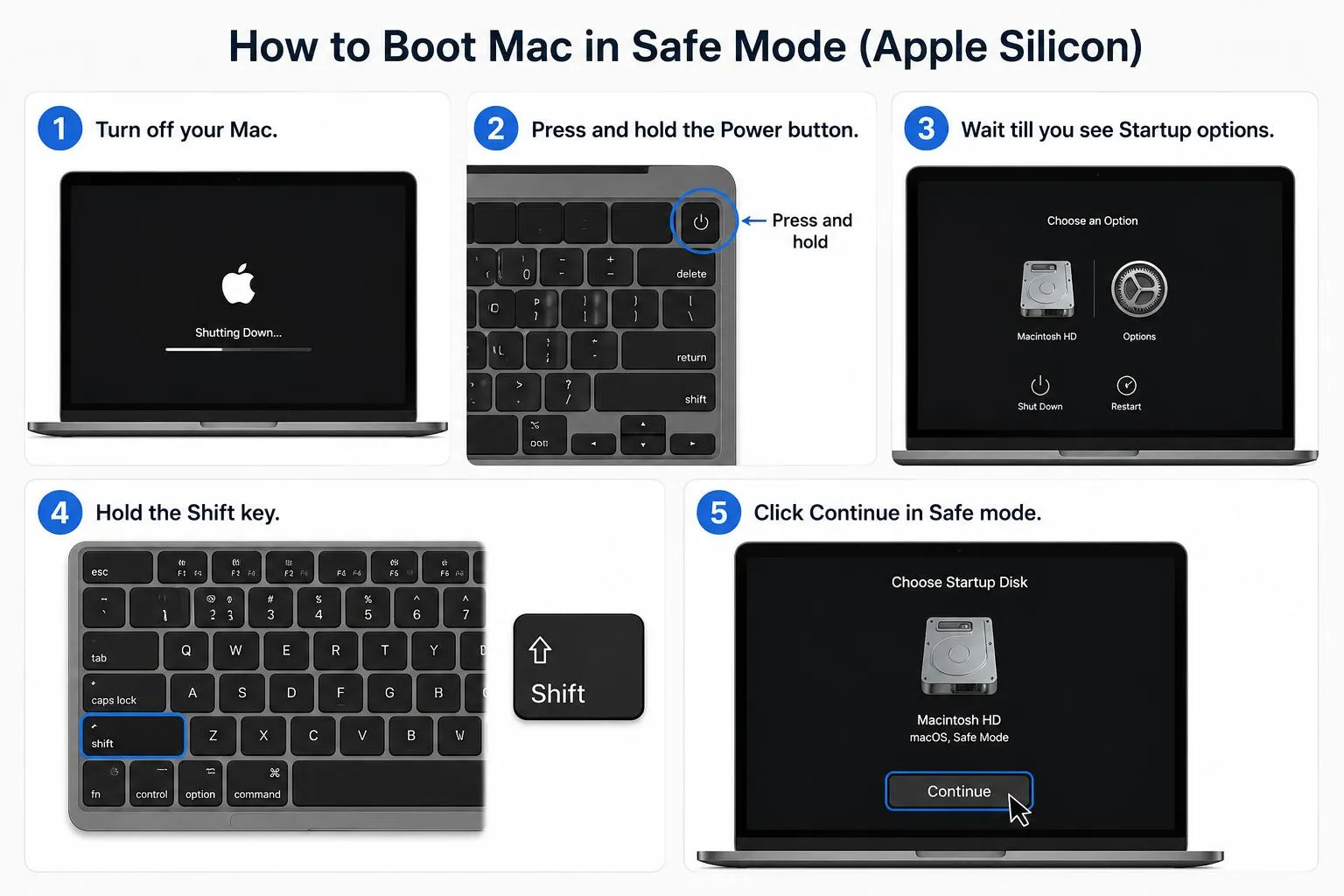
- Turn off your Mac.
- Press and hold the Power button.
- Wait till you see Startup options.
- Hold the Shift key.
- Click Continue in Safe mode.
If you are using an Intel Mac, then perform the steps below.
- Restart your Mac.
- Immediately hold the Shift key.
- Release after seeing the Login screen.
If your Mac is working normally in Safe mode, then you might have a third-party extension or login item causing the problem.
Method 6 – Disconnect External Devices
Do you know that defective USB devices can cause freezes on macOS? Now disconnect all your USB Hubs, External Drives, Printers, Monitors, Audio interfaces, Docking Stations, and SD Cards.
Method 7 – Updating macOS
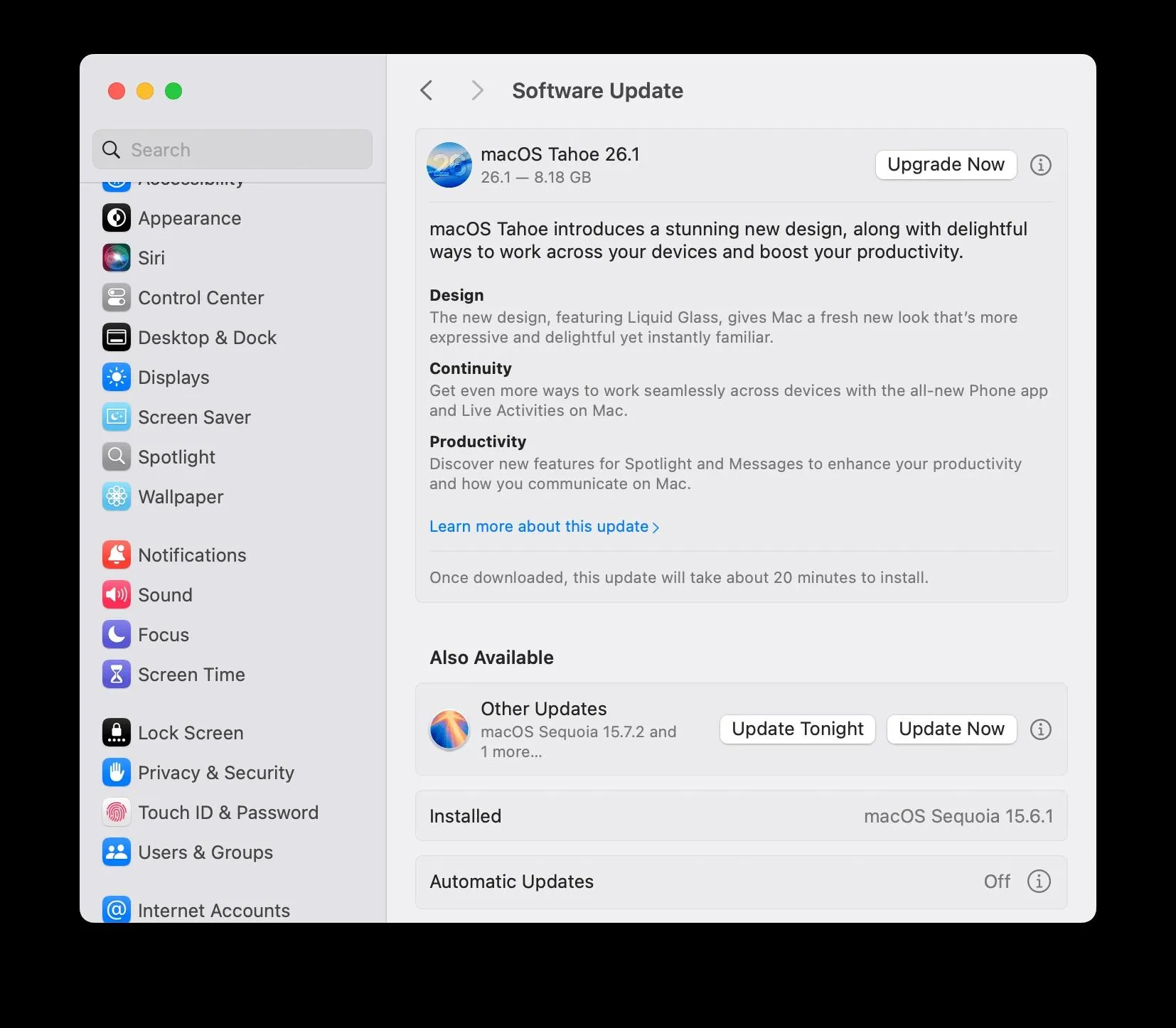
Bugs in software often result in the computer freezing. Experts advise users to look out for any updates since updates on macOS ensure that Bug fixes, Driver fixes, Security patches, and Performance tweaks are installed. Here is how you can update macOS.
- Go to System Settings -> General -> Software Update.
- Update your macOS.
- Restart your Mac after that.
Method 8 – Eliminate Inconvenient Login Items
Too many startup applications slow down the start-up process and use up more memory than needed.
- Go to System Settings -> General -> Login Items.
- Turn off unnecessary startup applications.
Note: Experts advise eliminating applications like Messaging applications, Cloud syncing services, and Third-party menu bar items.
Method 9 – Run First Aid on the Disk Utility
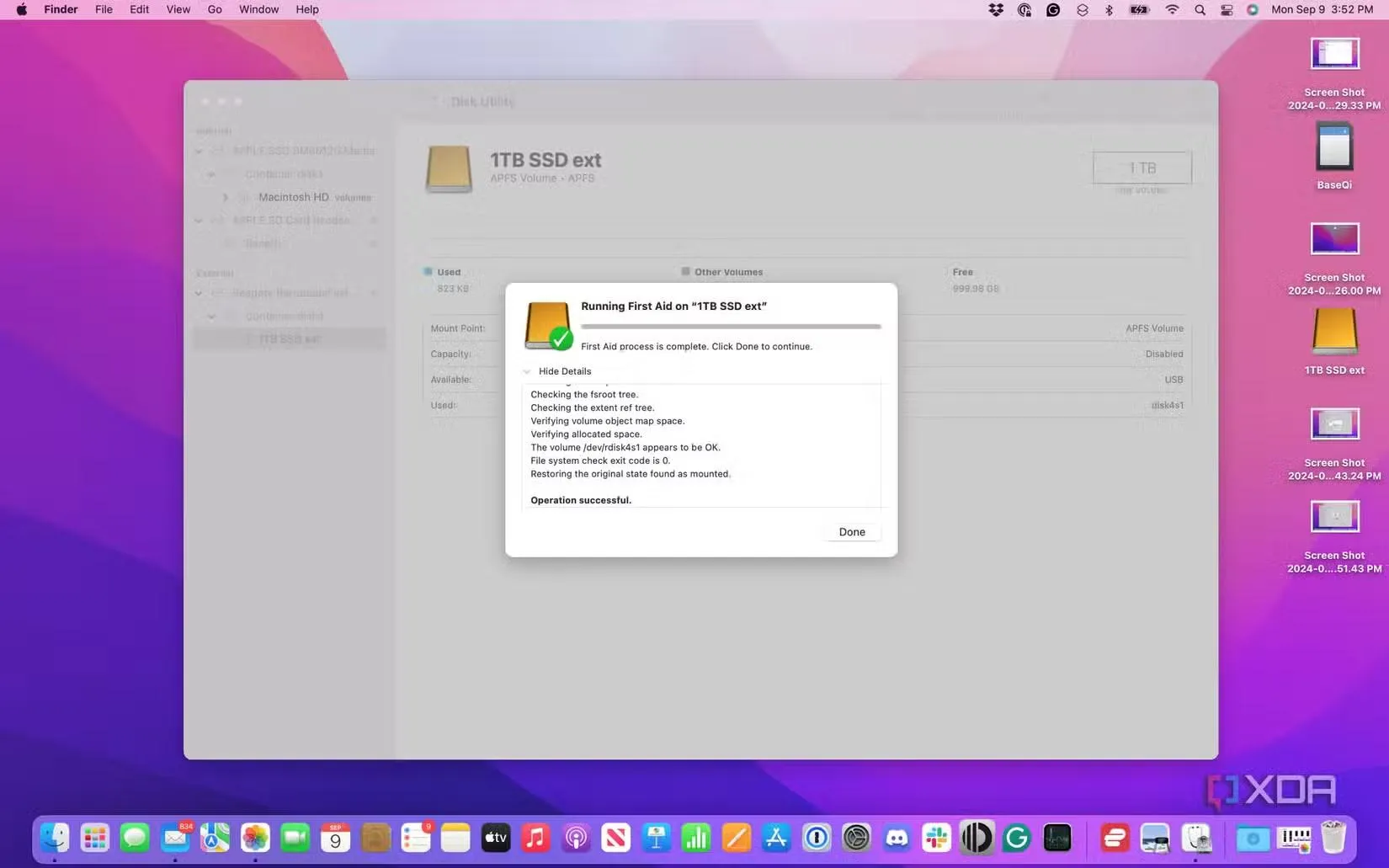
Since there can be corrupt file systems that cause a freeze, it is recommended to run First Aid on Disk Utility by performing the following steps:
- Launch the Disk Utility app.
- Choose the Macintosh HD.
- Click on First Aid.
- Check and initiate
- Then restart.
Note: Should all issues have been solved, the computer won’t freeze anymore.
Method 10 – Resetting NVRAM (works only on Intel-based Macs)
NVRAM contains information like the Startup disk, Display resolution, and volume settings. Corrupted settings can prevent your computer from booting. You can reset it through these steps:
- Turn on the Mac.
- Immediately press Option + Command + P + R.
- Keep pressing the keys for 20 seconds.
- Let go.
Note: Apple Silicon Macs automatically reset the NVRAM.
Method 11: Minimize Memory Pressure
This is what you will need to do in order to minimize the pressure on Memory on your Mac.
- Go to Activity Monitor.
- Go to the Memory tab.
- If Memory Pressure stays yellow or red:
- Quit apps you don’t need
- Close tabs in the browser
- Restart memory-intensive applications
- Avoid multitasking
- Disable any browser extensions that you do not need.
Tip: Very memory-intensive browsers that have many tabs may use several gigabytes of RAM.
Method 12: Reinstall macOS
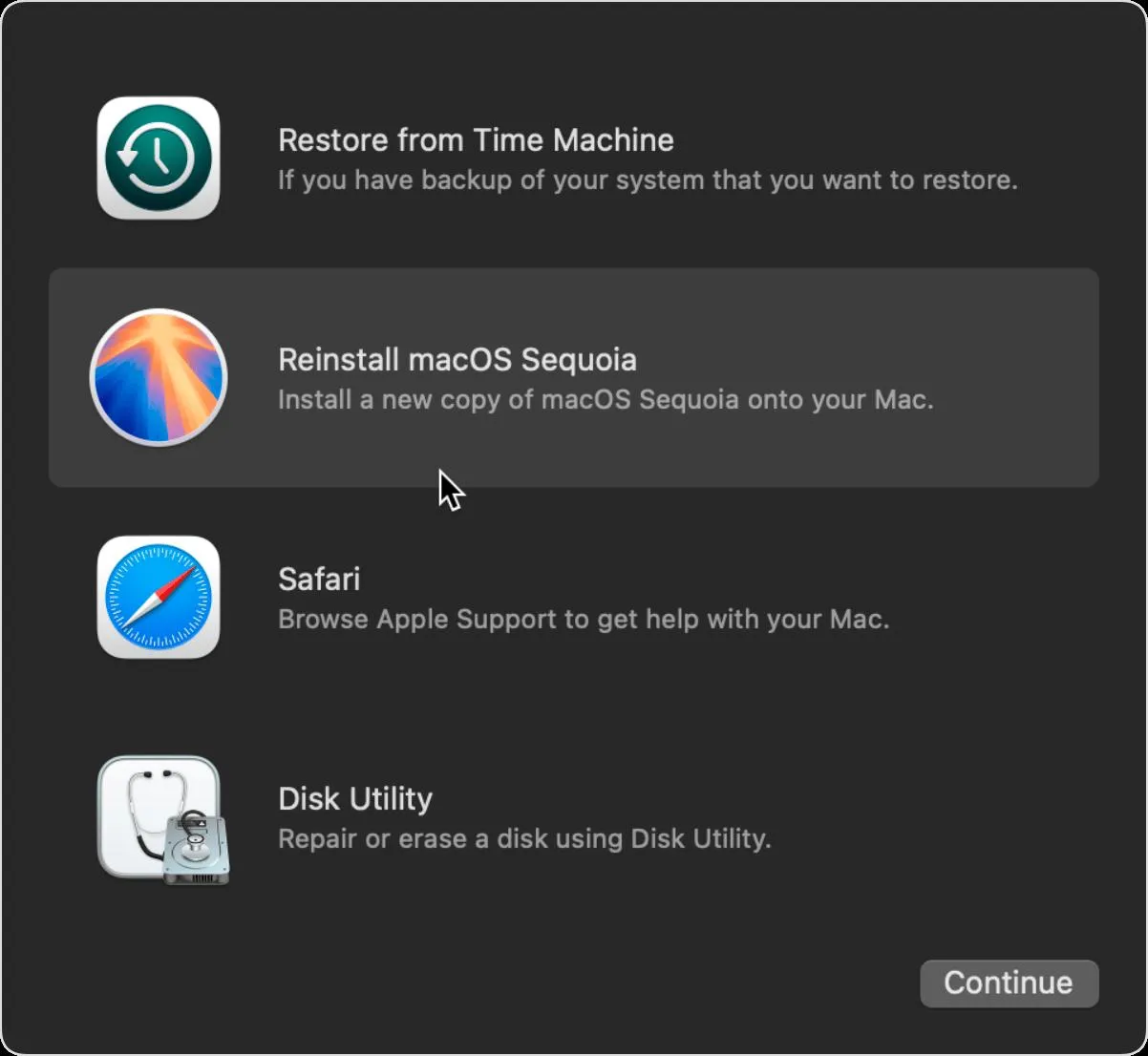
If the freeze persists despite application of all solutions, reinstall macOS. This means that corrupted files will be replaced without erasing your data using the regular reinstall procedure. The following actions should be performed.
- Start in macOS Recovery.
- Select Reinstall macOS.
- Follow the instructions of the installation wizard.
- Wait until the process completes.
Tip: Before reinstalling your Mac, make sure to back up its content via Time Machine.
How to Retrieve Unsaved Work During a Freeze
Fortunately, you may still have a chance to retrieve files even after the crash.
Look at the AutoSave version, Microsoft Office Recovery, Adobe Recovery Files, Temporary application folder, and Time Machine backup. Most applications nowadays have the option of saving recovery copies.
Expert Insight
As per the recommendation of Apple customer support, you should never forcefully reboot your Mac computer unless it really becomes necessary. Once the machine freezes, trying to figure out which program is responsible for the issue will always prove more beneficial than force-restarting the machine. Frequent updates to the operating system can help you avoid such issues.
How to Prevent Your Mac From Freezing Again
Prevention is much easier than solving existing problems. Some recommendations are listed below:
- Ensure that the macOS operating system is updated.
- Keep at least 15-20% of free disk space available.
- Turn off your Mac after several days of work.
- Uninstall those programs that you don’t need anymore.
- Decrease the number of starting programs.
- Never install unfamiliar programs.
- Check your Activity Monitor from time to time.
- Manage the tabs in your browser correctly.
- Update third-party applications.
- Make backups with the help of Time Machine.
Is There Anything Wrong With My Mac’s Hardware?
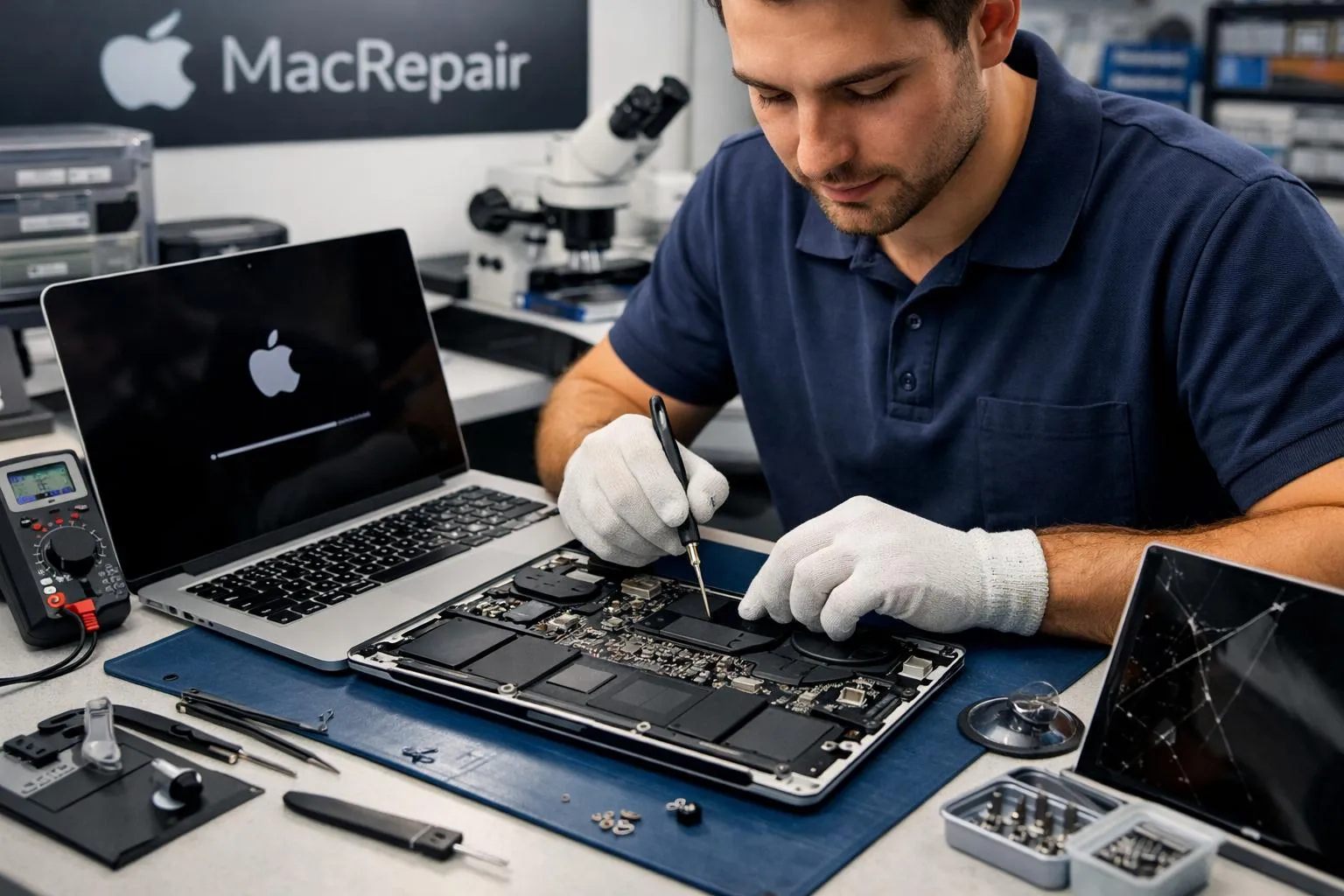
Sometimes, the freezing is not related to your software at all. You can encounter problems with your hardware such as a faulty SSD, bad RAM, overheating, battery, logic board, or GPU malfunction (Intel-based Macs). Some of the symptoms of the hardware problem are –
- Kernel panics occur often.
- Unexpected shutdowns
- Graphics glitches
- Strange clicks (only for older hard drive models)
- Freezing during boot process
- Cannot fix the issue by reinstalling macOS
These symptoms indicate a hardware issue.
When Should You Contact Apple Support?
In case any of these situations arise, contact the professionals.
- Mac freezes each day.
- It cannot be booted even after a restart.
- Even Safe Mode freezes.
- Unrecoverable errors are reported in Disk Utility.
- Hardware problems are identified in Apple Diagnostics.
- Mac overheats too much.
- Strange sounds come from your hardware.
- There are artifacts or distortions on your screen.
In case your Mac is under warranty or under the coverage of AppleCare+, you should contact Apple Support.
Frequently Asked Questions
Conclusion
Freezing of your MacBook or Mac doesn’t mean there is a major issue. The cause of the problem in most cases could be either insufficient memory, inactive software, software issues, or insufficient storage space, and it can be sorted out with a few troubleshooting approaches.
Start with basic steps like ending apps, checking Activity Monitor, freeing up some space, and updating your operating system before moving to advanced techniques like booting your Mac in safe mode or even reinstalling your operating system. Should the issue still persist after all this, you can decide to take your Mac to Apple support.





Leave a Reply