



PDFs are probably the most stable and popular document storage and sharing mediums. PDFs enable business reports, academic papers, legal papers, or any paper to be edited, and once created, they dictate layouts on any OS or device. Headers and footers can help to organize PDF documents, and they can also be used for branding and citation.
Headers let you insert a number of items, for example: page numbers, document titles, dates, author’s name, or watermarks, and you can add brands for companies. They enhance the attractiveness or formality of documents, and they also support overall reader understanding and navigation of the document. In this how-to guide, we will look at different ways to add a header and footer in a PDF, whether through a manual method, an online method, or a software method.
Why Add a Header and Footer in PDF Documents?
Before we even get into the process of adding headers and footers, let us explain the importance of adding headers and footers.
- Professionalism – Provides a sense of professionalism to business and academic PDFs.
- Brand Identity – Allows businesses to add logos, company names, or slogans.
- Ease of Navigation – Page numbers in the header or footer facilitate easier navigation when there are numerous pages in a document.
- Referencing – Dates and authors’ names included enable citation and version history tracking.
- Consistency – Headers and footers allow the same content to be shown on different pages of a really large PDF document.
In the end, adding headers and footers to your PDF document is something you will want to do to improve the organization and usability.
Different Ways to Add a Header and Footer to a PDF File
Adding headers and footers could be done from several options, depending on how you choose to add the headers and footers (offline applications, online websites, or word processor applications).
1. Using Systweak PDF Editor (Recommended Method)
For the majority of users, particularly professionals who deal with confidential files, Systweak PDF Editor is the most suitable option to add a header and footer to a PDF file. It’s offline, makes your documents secure, and provides you with complete formatting control. In contrast to web-based tools, there is no risk of privacy violation.
The steps for adding a Header and Footer by using Systweak PDF Editor are as follows:
Step 1: Download and Install Systweak PDF Editor
- Go to the Systweak PDF Editor Website and download the Windows application.
- Install the software as discussed below, following the on-screen instructions. Once installed, start the software.

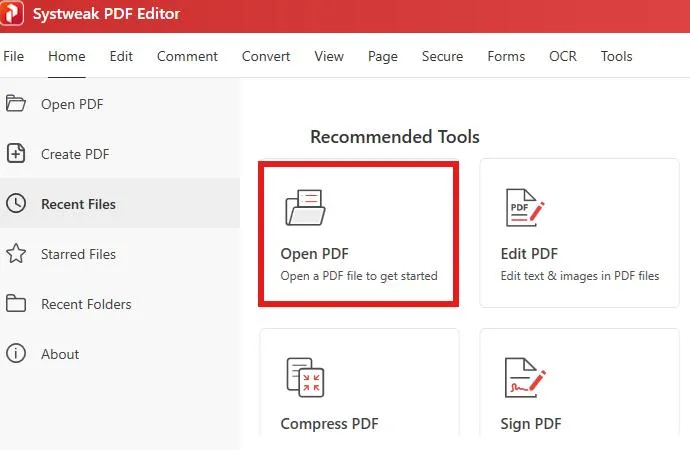
Step 2: Open the PDF
- Choose “Open PDF” and open the PDF file into which you want to insert headers and footers.
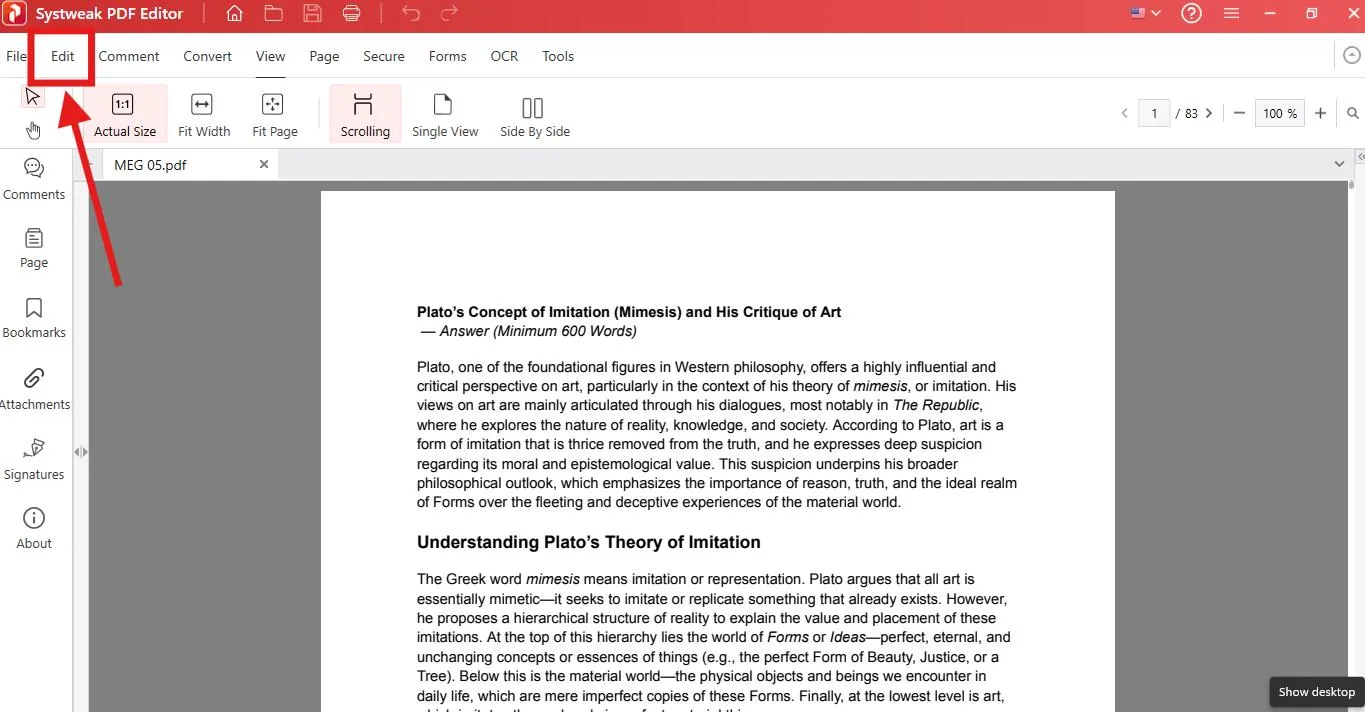
Step 3: Choose the Text Tool
- At the top bar on the page, click on the Edit tab.
- Now select the More Options
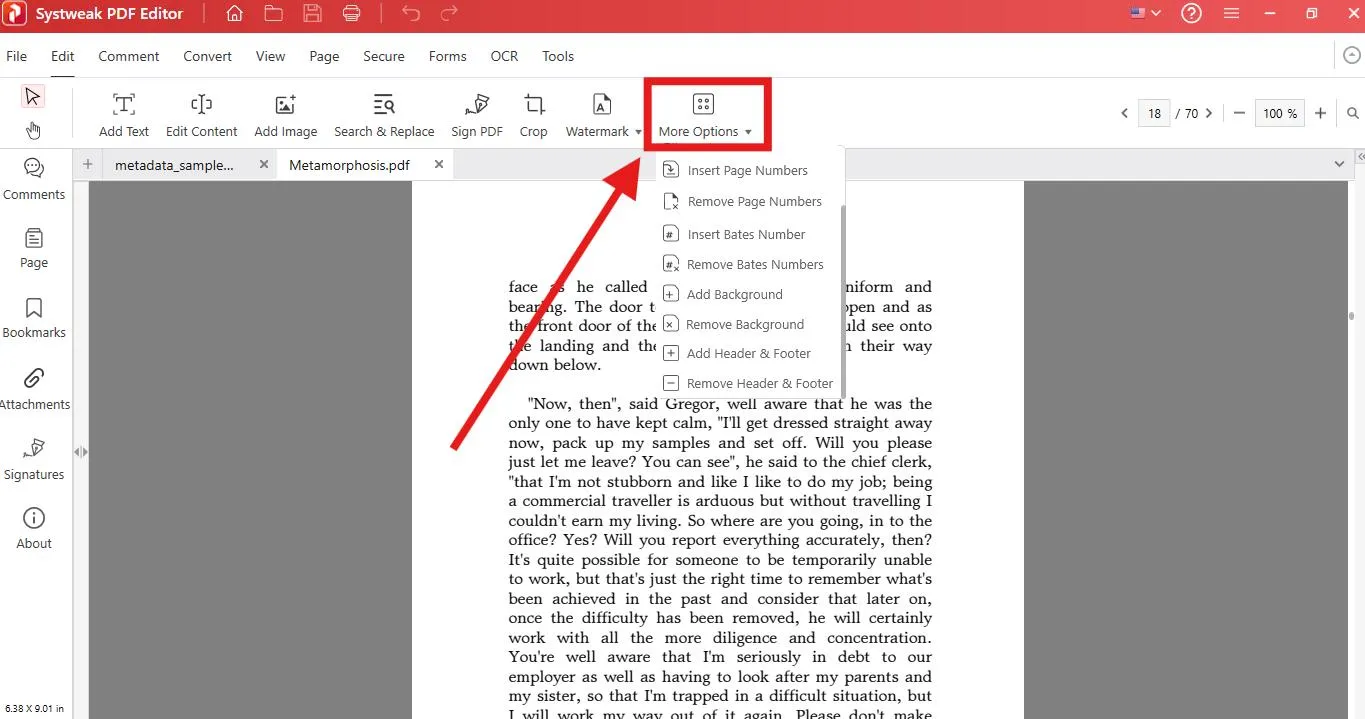
Step 4: Add Header or Footer Text
- Scroll down and select Add Header & Footer
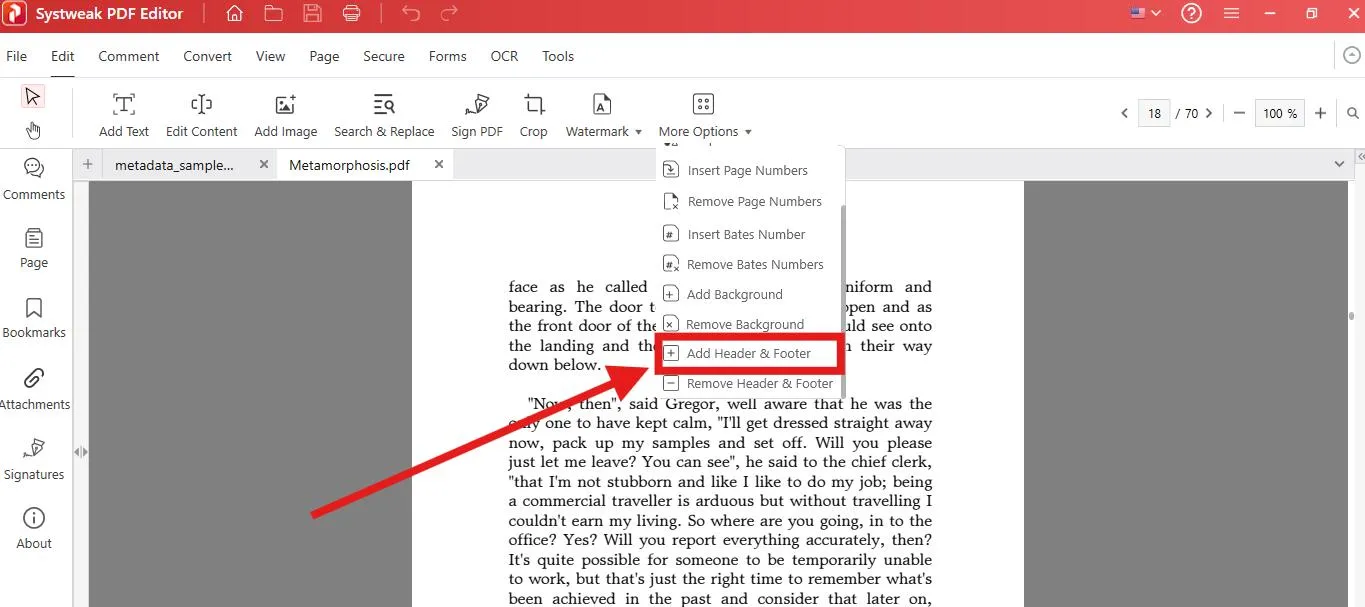
- Insert Header & Footer, Date, Page number, margin, font, size, and alignment that is appropriate for your document’s theme.
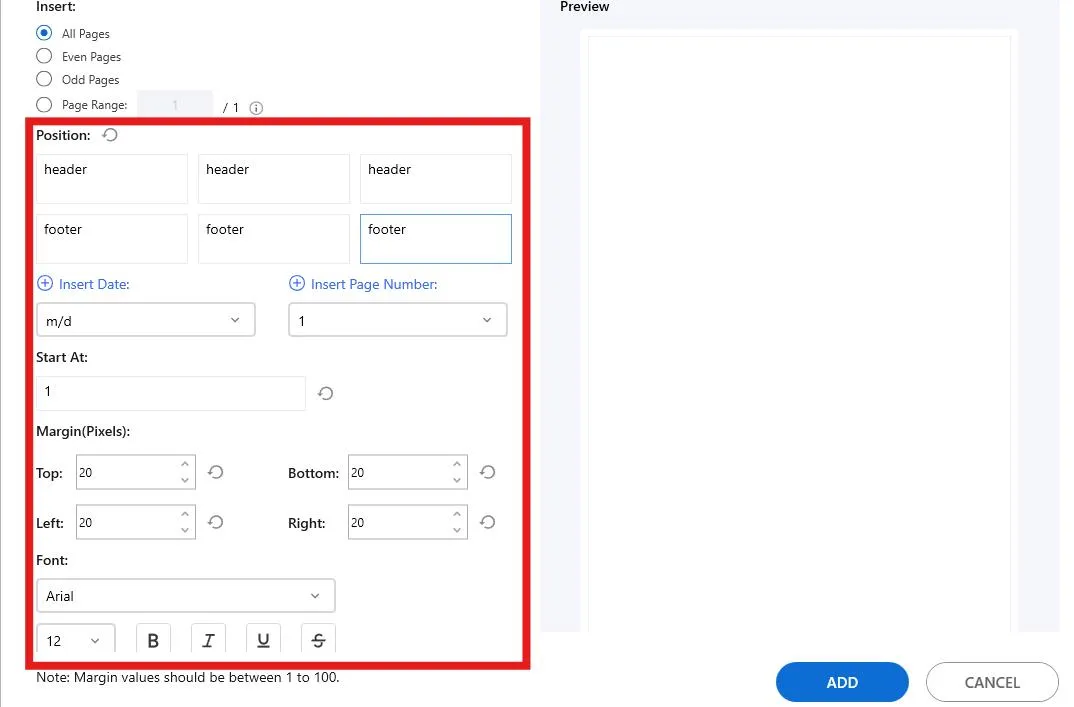
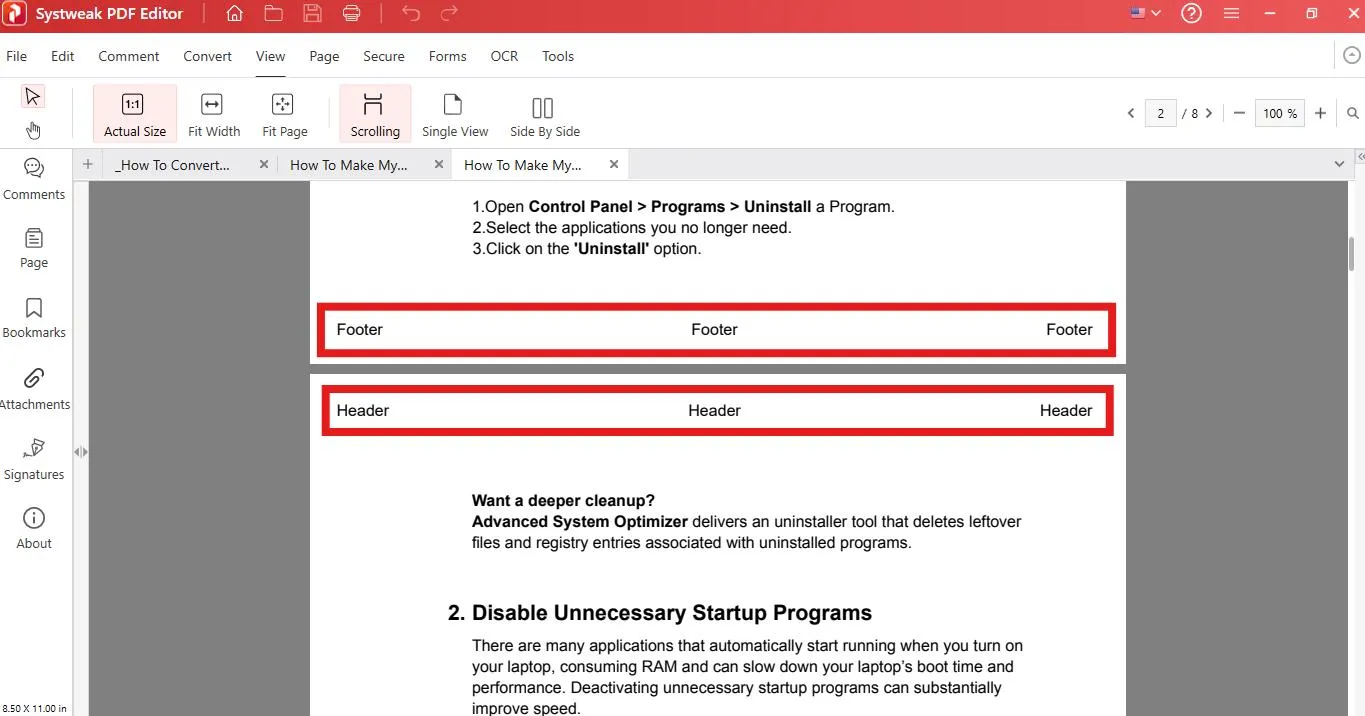
- After previewing the document, click on Add to add the header and footer.
- You’ve successfully added Header and Footer.
Step 5: Save Your Edited Document
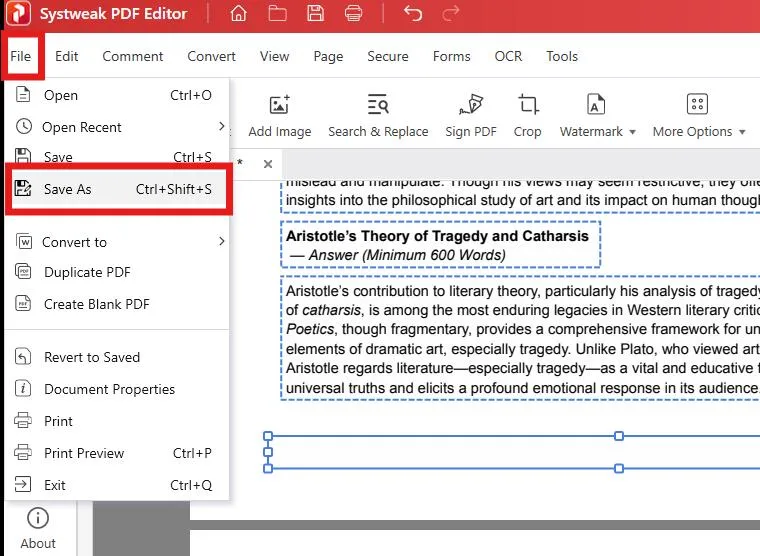
- After adding and setting the header/footer on all pages, go to File > Save As and export the revised PDF.
Why Choose Systweak PDF Editor?
- Offline usage – no data privacy risk.
- Uncluttered interface for novice users.
- Powerful editing capabilities, such as watermarks, comments, and bookmarks.
- Removing/altering headers/footers can be done later.
Tip: If your PDF is a lengthy one (e.g., a thesis, a brief of law, or an agreement), employ nested bookmarks together with headers and footers. Bookmarks enable faster searching, while headers/footers enable rapid referencing.
2. Using Microsoft Word
It often surprises many people how easy it is to add a header and footer to a document with Microsoft Word, even if the document began as a PDF. In fact, Word will convert a PDF automatically to an editable document, and it is easy to add headers and footers.
Here is how easy it is to add a Header & Footer using Microsoft Word:
Step 1: Open the PDF in Word
- Open Microsoft Word.
- Go to File > Open, and choose your PDF file.
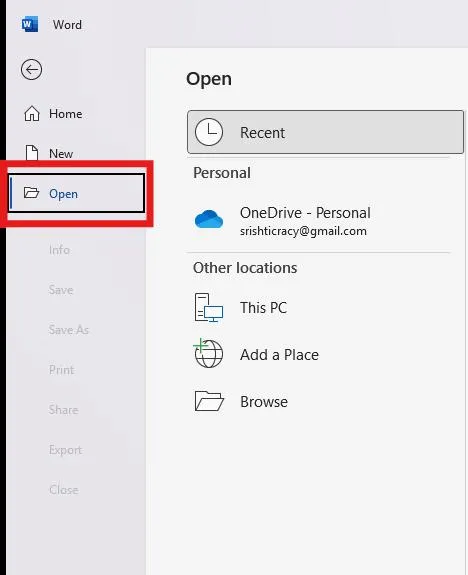
- Word will convert the PDF into an editable Word document.
Step 2: Add Header & Footer
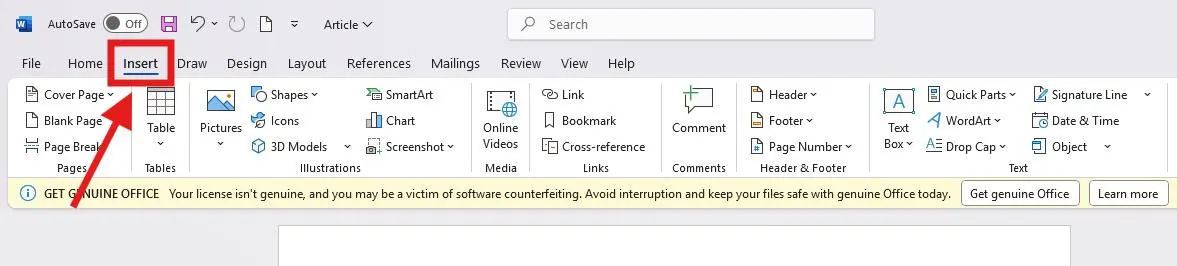
- Go to the Insert Tab.
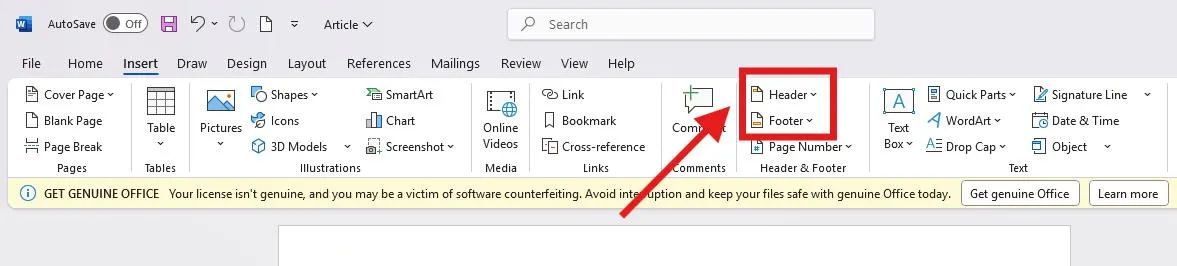
- Choose Header or Footer from the ribbon.
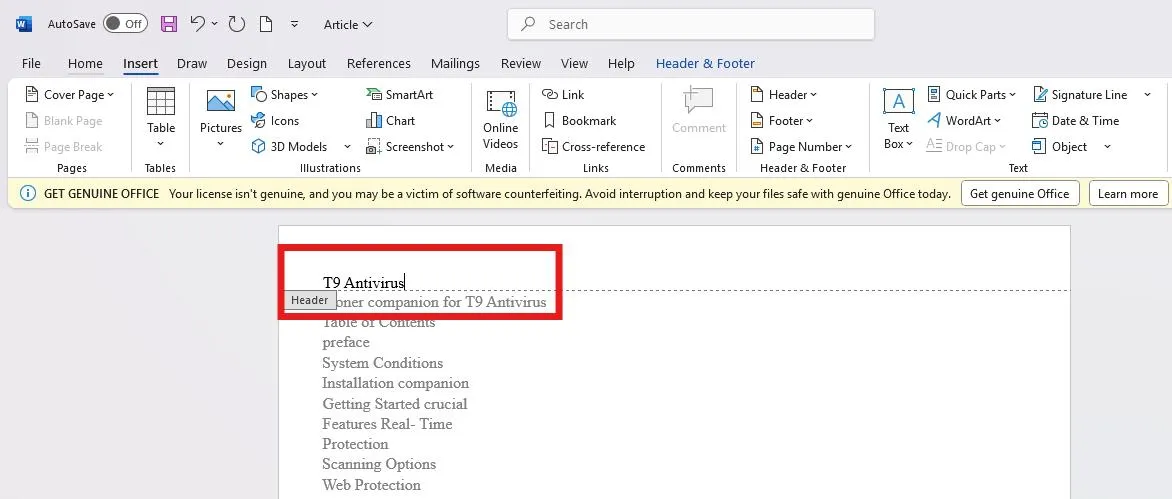
- Add document title, date, or page numbers text.
Step 3: Alter the Header & Footer
- Alter font style, size, or alignment.
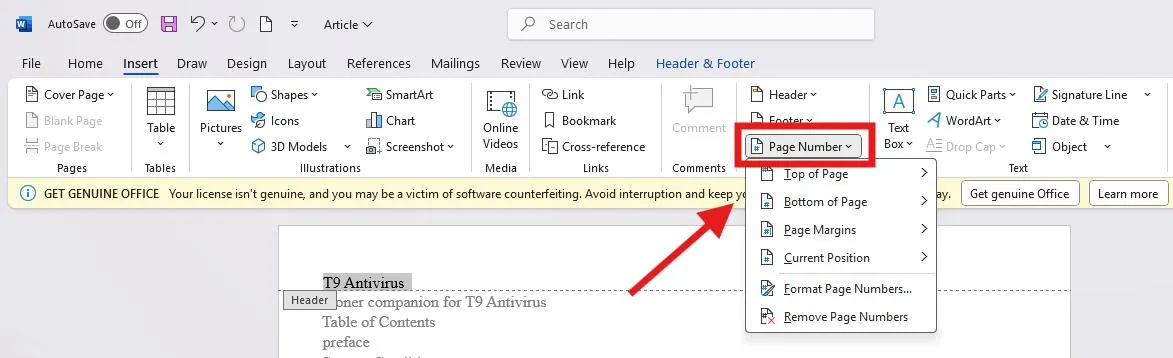
- Apply the “Page Number” option to insert automatic numbers.
Step 4: Save Back to PDF
- If okay, go to File > Save As.
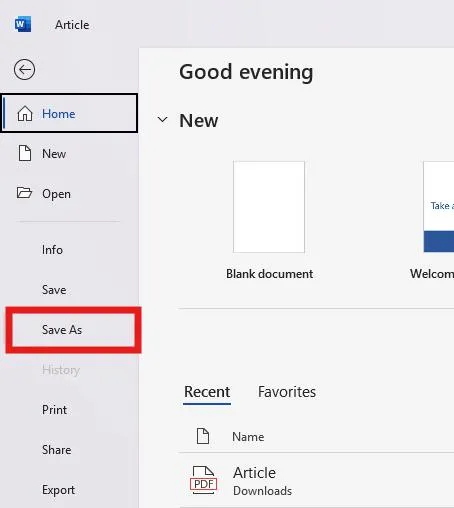
- Choose file type as PDF and save.
3. Using Google Docs
Google Docs is a free online way to add a header and a footer to a PDF file. It’s handy if you lack access to desktop software and require a temporary solution.
How to Add Headers/Footers with Google Docs:
Step 1: Upload PDF to Google Drive
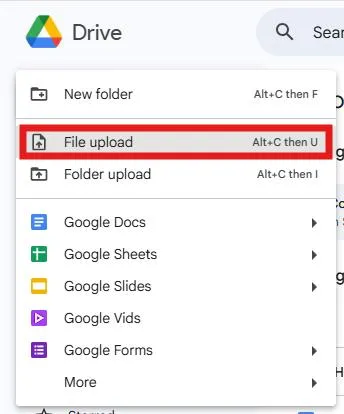
- Visit Google Drive.
- Click on New > File Upload and upload your PDF document.
Step 2: Open in Google Docs
- Right-click the uploaded PDF document.
- Choose Open with > Google Docs.
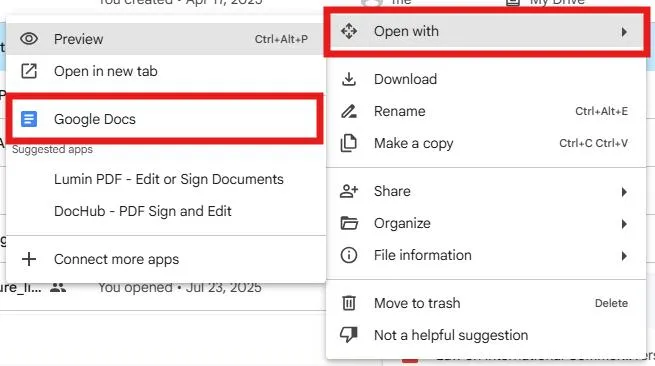
- The PDF will automatically open in an editable Google Doc.
Step 3: Insert Header or Footer
- Navigate to Insert > Page Elements > Header/ Footer.
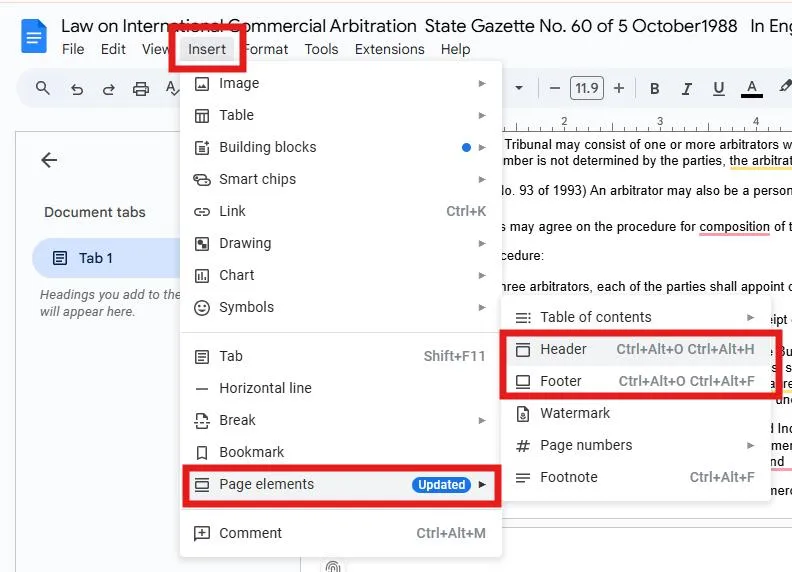
- Insert the intended content (text, page numbers, date, etc.).
Step 4: Save as PDF
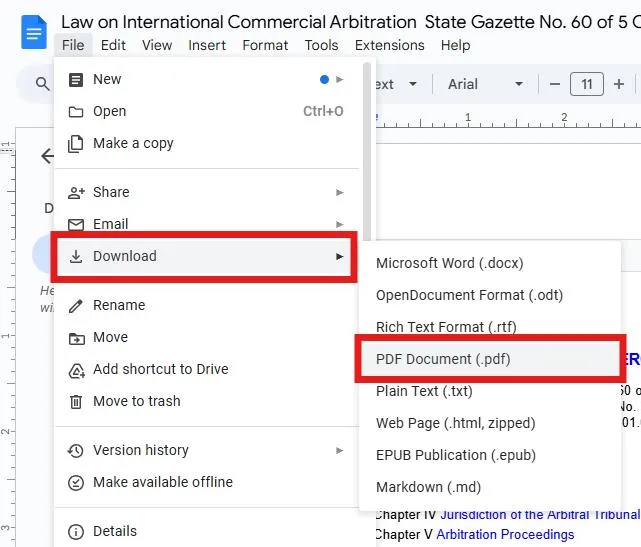
- When done, navigate to File > Download > PDF Document (.pdf).
4. Using Online Tools
If you just want to place a header and footer in a PDF document on short notice without having to install any software, there are websites like iLovePDF, SmallPDF, or PDF24 Tools.
General Steps:
Step 1: Visit an Online PDF Editor
Step 2: Upload Your File
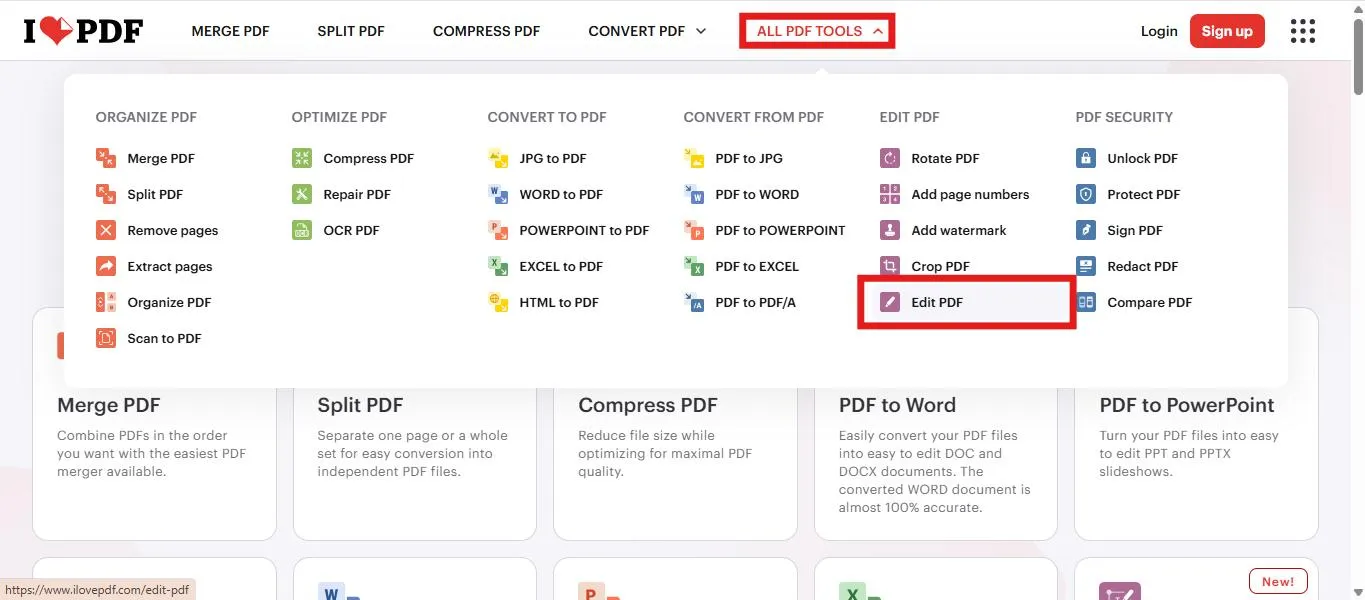
- In iLovePDF, click on All PDF Tools > Edit PDF.
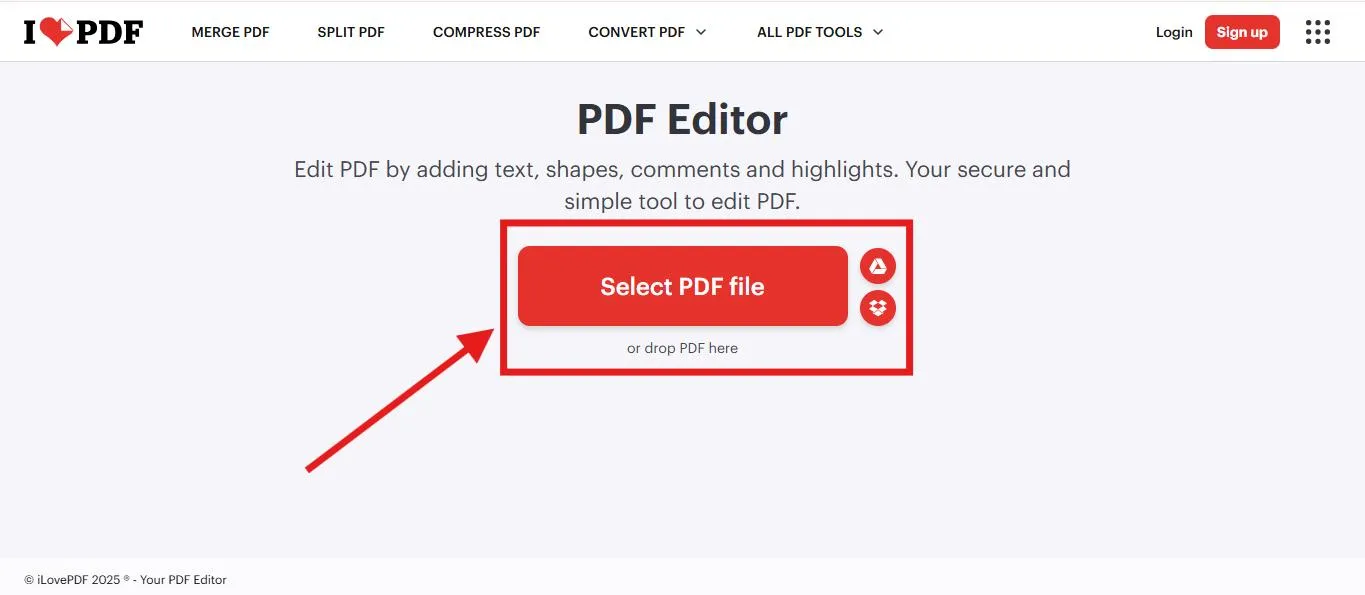
- Click on Select PDF File and upload the desired PDF Document.
Step 3: Insert Text as Header & Footer
- Click the Add text (T icon) from the toolbar. A text box appears.
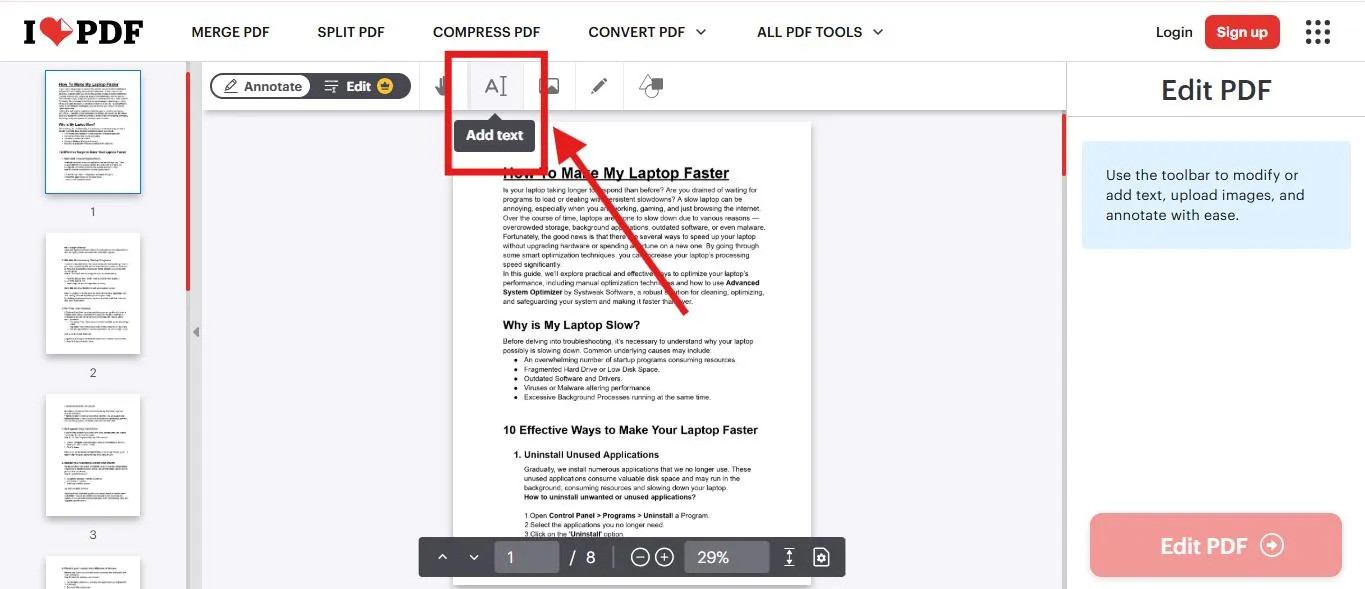
- Drag and drop it into the top margin to create the illusion of a header, or the bottom margin for a footer.
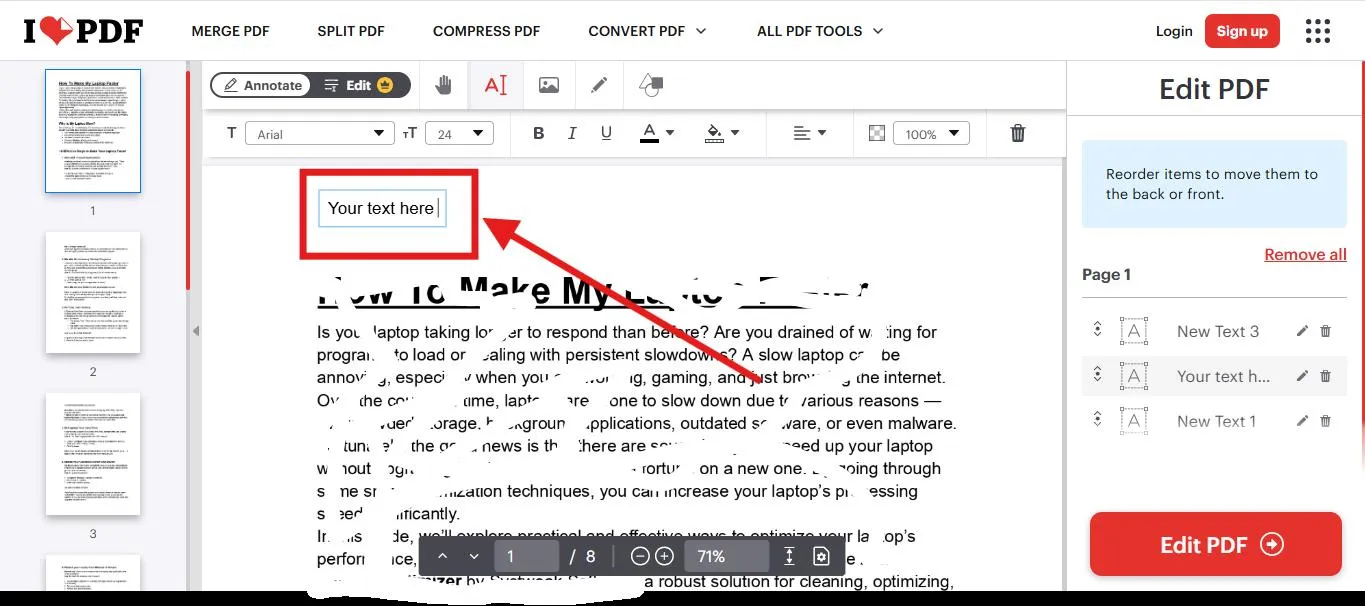
- For instance: Place “Annual Report 2025” at the top, or “Page 1” at the bottom.
Step 4: Modify Header & Footer
- Add text like page numbers, dates, or document title.
- Change position (top/bottom, left/center/right).
Step 5: Download the Modified File
- Save the modified PDF to your system after editing.
⚠️ Warning: Do not upload confidential or sensitive PDFs (e.g., contracts, ID documents, or legal documents) onto web-based tools. Use offline tools like Systweak PDF Editor for sensitive documents.
5. Using Adobe Acrobat (Paid Option)
Adobe is a very popular professional software tool that should make it very easy to obtain headers & footers in PDFs; however, it is not a free tool (the only free version is if you have a subscription, namely Express or Pro).
Here is how easy it is to Add a Header/Footer using Adobe:
Step 1: Open PDF in Acrobat
- Open Adobe Acrobat and open the PDF you wish to.
Step 2: Go to Edit PDF Tool
- Click on Tools > Edit PDF from the right-hand side panel.
Step 3: Add Header & Footer
- Select Header & Footer > Add.
- Enter the text you wish (page number, title, or date).
Step 4: Customizing Appearance
- Pick your font, size, color, and alignment. You can redo headers/footers for a specific range of pages.
Step 5: Apply and Save
- Preview the changes and click Apply.
- Save the updated PDF file.
Final Words
If you want high-quality, professional-looking, and highly organized documents, you will need to add headers and footers to PDFs. If you need to insert page numbers, company logos, or even titles to a document PDF, you have options to add a header and footer in a PDF document.
Although online tools or Word/Google Docs will work quickly, the downside is that you lose your format and secure document. The safest choice is to use a complete solution like Systweak PDF Editor, which enables you to add headers and footers in a PDF quickly, reliably, and completely customizable. Next time you’re concerned about how to add a header and a footer in a PDF, use Systweak PDF Editor. And experience fast, accurate, and safe performance.
Frequently Asked Questions (FAQs)
Q: Adding a header and a footer in a PDF without Adobe Acrobat.
You can add it using Systweak PDF Editor, Microsoft Word, Google Docs, or online tools like iLovePDF.
Q: Can we insert images (like logos) in the header and/or footer?
Yes, you can insert text as well as images using tools like Systweak PDF Editor or Adobe Acrobat.
Q: Will there be any effect on the original content if we add headers and footers?
No, headers and footers are added in the margin space, not on the body text area.
Q: Can I delete or edit an existing header/footer in a PDF?
Open the document in a PDF editor (like Systweak PDF Editor) and use the Edit or Remove Header/Footer feature.
Q: Is it safe to use web-based PDF header/footer tools?
They are okay for everyday, non-sensitive documents. For sensitive documents, use an offline editor to maintain confidentiality.
Read Also:
How to Insert a Blank Page into a PDF


Leave a Reply